How to Check Real-Time Server Latency in the PUBG HUD

Enable PUBG’s network statistics HUD to monitor ping and packet loss in a match. See where to find it, what the numbers mean, and what they cannot diagnose.
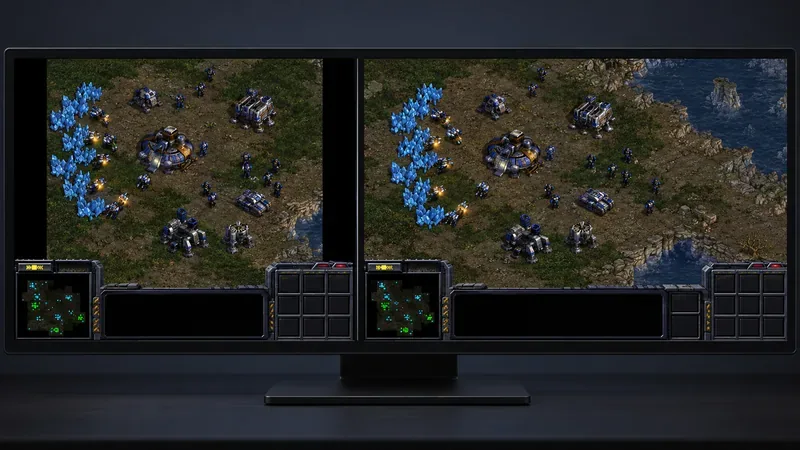
On a 16:9 monitor, the best starting point for StarCraft: Remastered is its remastered HD presentation at the monitor’s native 16:9 resolution. For a Full HD screen, that is typically 1920 × 1080; for a QHD screen, 2560 × 1440; and for a 4K UHD screen, 3840 × 2160. Choose 4:3 only when you prefer the original, narrower composition or want to preserve the classic presentation. Avoid stretching a 4:3 image to fill the screen: it changes the shape of the picture without adding a wider playfield.
One important distinction: aspect ratio describes the shape of the image, while resolution describes its pixel dimensions. Blizzard confirms that StarCraft: Remastered supports 16:9 play and expanded resolutions, including 4K UHD graphics. The game’s original graphics retain a different, classic look, so seeing side bars in that mode does not automatically mean the monitor or game is broken.
| What you want | Best starting choice | What to expect |
|---|---|---|
| Fill a modern 16:9 monitor | Remastered HD graphics and the display’s native 16:9 resolution | A widescreen game view with no need to stretch the image |
| Keep the familiar classic framing | Original graphics or a 4:3 game image with aspect ratio preserved | Vertical black bars may appear at the sides |
| Keep units and terrain proportionate | Preserve aspect ratio; do not force a 4:3 image to fill 16:9 | The game image may not cover the full width |
| Fix an image that looks squeezed or stretched | Match the game output to a supported 16:9 mode, or choose a preserve-aspect scaling option | Menu labels vary between graphics drivers and monitors |
There is no single competitive choice for every player. Blizzard’s behind-the-scenes account says the team showed the game to professional players who initially chose 4:3; after trying 16:9, they eventually played in widescreen. That is a useful example of personal preference, not proof that one ratio is universally better. Pick the view that lets you read the battlefield comfortably, then keep it consistent while you play.
Use the resolution marked as recommended in your operating system’s display settings. Common 16:9 examples include 1920 × 1080, 2560 × 1440, and 3840 × 2160. The first number divided by the second is approximately 1.78, the 16:9 shape. A higher pixel count can make the image sharper on a compatible display, but it does not by itself change the aspect ratio or guarantee that more of the map is visible.
Blizzard separately advertises 4K UHD remastered graphics. The right choice depends on your monitor and what the game offers in its display settings. If your desired resolution is missing, first check the operating system and graphics driver; do not assume that forcing an unsupported custom mode is necessary.
In StarCraft: Remastered, open Options > Video and look for HD Graphics. Blizzard Support also documents F5 as a shortcut for switching the HD graphics presentation during play. The toggle changes the graphics mode; it should not be confused with changing your monitor’s resolution or selecting a separate aspect-ratio setting.
If the game looks like the older version after launch, check whether HD Graphics is enabled before changing scaling in Windows, your GPU control panel, or the monitor menu. If the option is unavailable, confirm that the Remastered upgrade is active on the Battle.net account you are using. Do not interpret a greyed-out HD option as evidence that a 16:9 monitor is unsupported.
When the remastered version is active, use the available widescreen resolution that matches your display. If your 16:9 monitor runs at 1920 × 1080, choose that mode when it is offered; apply the same logic to a 2560 × 1440 or 3840 × 2160 panel. If the picture still has unexpected bars, check the game’s display mode, the desktop resolution, and the monitor’s scaling mode one at a time.
Some monitors and graphics drivers offer scaling choices with names such as Aspect, Maintain aspect ratio, Full screen, or Stretch. The exact wording varies by manufacturer and driver version. For a 4:3 image that you want to keep undistorted, use the preserve-aspect choice. For a genuine 16:9 game output, use the native full-screen mode rather than adding extra GPU scaling.
This is not true for the remastered widescreen experience. Blizzard’s official development article explicitly describes the option to play in 16:9, and the current StarCraft: Remastered product page says supported resolutions were broadened. The original visual mode may still look narrower, which is why the two presentations can appear different on the same monitor. What to do: turn on HD Graphics in Options > Video, then check the available display mode.
Not necessarily. Black bars can preserve the proportions of a 4:3 image on a 16:9 screen. They are preferable to a distorted picture when you want to retain the older framing. Bars that appear unexpectedly while the remastered 16:9 mode is active could instead point to a resolution or scaling mismatch. What to do: confirm which graphics mode is active, then compare the game resolution with the monitor’s native resolution.
Stretching only enlarges the image horizontally. It does not reveal extra map space, and it makes round or square elements appear wider. A proper 16:9 game render can use a wider composition; stretching a 4:3 render cannot. What to do: if the battlefield looks broadened or units appear unusually wide, restore preserve-aspect scaling instead of using Stretch.
Resolution and aspect ratio are separate settings. Both 1920 × 1080 and 3840 × 2160 have the same 16:9 shape, while a 4:3 resolution can have fewer or more pixels and still remain 4:3. What to do: check both width and height; do not use “4K” or “1080p” as a substitute for checking the ratio.
After applying the settings, look for three practical signs: the game fills the 16:9 display in remastered mode, unit silhouettes and interface elements are not unnaturally stretched, and the text and map details remain clear at the chosen resolution. If you prefer classic graphics, side bars can be correct when they preserve a 4:3 image.
If the picture is stretched, switch the GPU or monitor scaling to preserve aspect ratio and retest. If it is cropped, return the scaling mode to its default or native setting instead of zooming the image. If it is blurry, confirm that the game is using the monitor’s native resolution and that HD Graphics is on. Settings menus and scaling labels can differ by operating system, display driver, and monitor firmware, so use the names shown on your own hardware.
For reference, Blizzard’s behind-the-scenes article confirms that StarCraft: Remastered can be played in either 4:3 or 16:9. Its official product page notes broadened supported resolutions, and Blizzard’s release announcement identifies 4K UHD remastered graphics. For the HD Graphics toggle, see the Blizzard Support article. The exact best choice remains preference-dependent: use native 16:9 for a full-screen modern presentation, or preserve 4:3 when the classic framing is more comfortable.
Enable PUBG’s network statistics HUD to monitor ping and packet loss in a match. See where to find it, what the numbers mean, and what they cannot diagnose.
Learn how to import VALORANT crosshair codes, compare presets with manual settings and spectator copy, and fix common import issues.
Choose Dota 2 minimap size, hero icons, team colors, and background settings by readability, fewer misclicks, and clear results on your own display.
Fix Fortnite texture pop-in on PC with official steps for GPU drivers, file verification, DirectX 12, high-resolution textures, VRAM, SSDs, and stutter.
Learn what Heroes of the Storm minimap size and position options are verified, improve readability, and choose camera-click controls that suit you.
Set Super Smash Bros. Ultimate Quickplay to prefer hazards-off stages. Follow the Preferred Rules menu steps and learn why matchmaking may not always honor them.
Enable Server Latency and Packet Loss in Warzone to monitor connection quality, read the overlay, and use recurring spikes to guide troubleshooting.
Learn how to carry from mid lane in League of Legends by setting up waves, choosing safe roam windows, reading side lanes, and converting pressure into objectives.
Fix Minecraft Evoker spell problems with a safe vanilla test, version checks, log review, and a step-by-step way to isolate mod or datapack conflicts.
Fix PUBG stuck on Initializing on Steam with a focused checklist for PC service notices, launch options, game files, downloads, and connection issues.








