A Breakdown of R6 Credit Prices (2026)
R6 Credits cost from $4.99 to $99.99 on Ubisoft’s U.S. PC Store, with five current pack sizes ranging from 600 to 15,000 credits. The largest pack delivers the most credits per dollar, but it is only a good fit if you will use the balance. Below is the current USD price list, a like-for-like value comparison, and what to know before buying on another platform or in another region.
This price snapshot was checked on October 16, 2026. Ubisoft’s storefront and platform prices can change, so confirm the final amount in the store connected to your game before paying.
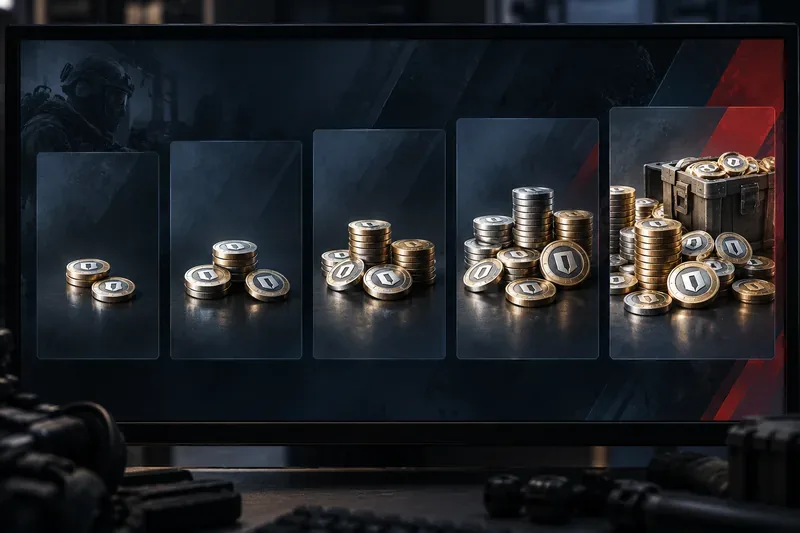
Current R6 Credit prices in the United States
Ubisoft’s U.S. Store lists these five R6 Credit packs for PC. The “credits per dollar” column is calculated by dividing the listed credits by the listed price; it is a comparison, not an extra bonus amount added at checkout.
| R6 Credits | U.S. Ubisoft Store price | Approx. credits per dollar |
|---|---|---|
| 600 | $4.99 | 120.2 |
| 1,200 | $9.99 | 120.1 |
| 3,300 | $24.99 | 132.1 |
| 7,200 | $49.99 | 144.0 |
| 15,000 | $99.99 | 150.0 |
These are U.S. dollar prices shown on Ubisoft’s PC storefront, not a universal price for every player. Console marketplaces, regional stores, currency conversion, taxes, and temporary offers can change the checkout total. For the exact price on your account, check the in-game store or the platform store where you play. Ubisoft’s U.S. R6 Credit catalog and Siege in-game items page are the official references.
If an older guide lists 2,670, 4,920, or 16,000 credits as the current standard packs, its pack table does not match Ubisoft’s current U.S. listing. The five amounts above are the ones shown there at the time checked.
How much value do larger R6 Credit packs add?
The 600- and 1,200-credit packs both work out to about 120 credits per dollar. The larger bundles improve the rate: the 3,300 pack is about 132 credits per dollar, the 7,200 pack about 144, and the 15,000 pack about 150. On this price snapshot, the largest pack gives roughly 25% more credits per dollar than the 600 pack.
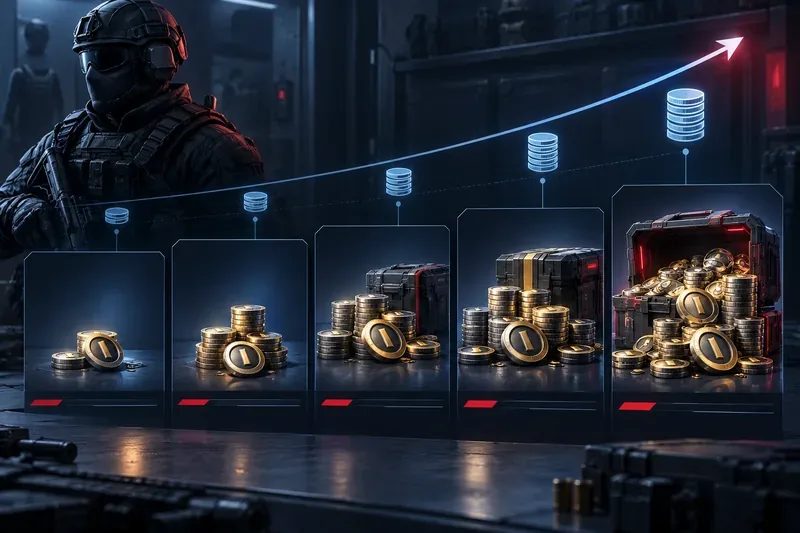
That comparison explains why players often describe bigger R6 Credit packs as having “bonus value.” The current Ubisoft listing shows the total credits in each pack; it does not itemize a separate bonus-credit line. Treat the amount printed on the pack as the amount you are buying, and use the per-dollar rate only to compare offers. A high rate does not make a $99.99 purchase cheaper if most of the credits remain unused.
For example, if your only planned purchase costs 1,200 credits, the 1,200-credit pack is $9.99 on this U.S. listing. Choosing the 15,000-credit pack instead ties up $99.99 and leaves 13,800 credits beyond that immediate purchase. Those credits may be useful later, but they are not savings unless you actually spend them.
What can you buy with R6 Credits?
R6 Credits are Rainbow Six Siege’s paid in-game currency. Ubisoft says they can be used in the in-game shop for Operators, gear, weapons, and customizations. The exact items and costs vary, and limited-time offers can leave the shop, so read the item details before choosing a pack.
- Operators: Credits can unlock Operators in the shop. Renown is another way to unlock eligible Operators if you prefer to earn currency through play.
- Cosmetics: Depending on the current shop, credits can go toward weapon and gear customizations, bundles, and other cosmetic items.
- Battle Pass: Ubisoft’s Operation Split Fire Battle Pass page, for the season running September 1 through December 1, 2026, lists the Premium Pass at 1,200 R6 Credits and includes 600 R6 Credits among its rewards. That 600-credit reward is part of the pass progression; it is not an immediate discount at checkout.
Because Battle Pass rewards and shop offers can change by season, do not assume every pass returns the same number of credits or that every cosmetic is available year-round. Check the current Battle Pass and item pages for that season’s terms.
R6 Credits vs. Renown
| Currency | How you get it | Typical use |
|---|---|---|
| Renown | Earned by playing matches and game modes | Operators, gear, weapons, and customizations listed for Renown |
| R6 Credits | Purchased through the in-game shop or Ubisoft Store; some Battle Pass rewards may return credits as you progress | Shop items, including Operators and cosmetics, plus paid seasonal content such as the Premium Pass |
Renown is the free gameplay currency; R6 Credits are the premium currency. Some store items can be bought with either, but the currencies are not interchangeable at checkout. If you are mainly saving for an Operator that is available for Renown, playing for it can leave your paid credits for items you specifically want from the premium shop. Ubisoft explains the distinction in its Renown and R6 Credits support article.
How to choose the right R6 Credit pack
- Check the item’s price first. Write down the credit amount you need, including any Battle Pass or bundle you already plan to buy.
- Pick the smallest pack that covers your plan. A larger pack may have a better unit rate, but the unused balance still represents money spent.
- Use Renown where it works. If the item you want is available for Renown and you are comfortable earning it, save R6 Credits for purchases that require them.
- Compare the final checkout price on your platform. The U.S. Ubisoft Store figures above are a reference, not a promise of the price in your local currency or on a console storefront.
- Allow time for a purchase to appear. Ubisoft says purchased R6 Credits can take up to 24 hours to show in-game. Keep the receipt and check your transaction history if the balance does not update.
Ubisoft’s current Battle Pass page is useful when comparing seasonal rewards with their credit cost. If a purchase is missing after 24 hours, follow the steps in the official R6 Credits support guidance.
Frequently asked questions
How much do R6 Credits cost?
On Ubisoft’s U.S. PC Store, the listed packs range from $4.99 for 600 credits to $99.99 for 15,000 credits. Other currencies, platforms, and regions may show different prices.
Which R6 Credit pack is the best value?
The 15,000-credit pack has the highest calculated credits-per-dollar rate in the U.S. price list checked here. The best practical choice is the smallest pack that covers what you intend to buy, unless you already expect to spend the remaining balance.
Can you earn R6 Credits for free?
Renown earned through matches is a separate currency and does not convert into R6 Credits. A Battle Pass may include credit rewards, but the amount and unlock conditions depend on the season; check the current pass details.
Are R6 Credit prices the same on PC, PlayStation, and Xbox?
Not necessarily. This table uses Ubisoft’s U.S. PC Store listing. Check the in-game shop or the storefront for your platform and region to see the price you will actually pay.









