How to Check Real-Time Server Latency in the PUBG HUD

Enable PUBG’s network statistics HUD to monitor ping and packet loss in a match. See where to find it, what the numbers mean, and what they cannot diagnose.
PS5 not detecting an external drive? Start with the USB cable, a direct connection to a SuperSpeed port, and the drive’s power. Then confirm that the drive meets PlayStation’s compatibility requirements. These checks are non-destructive; leave formatting and Safe Mode until later, especially if the drive contains games you want to keep.
First, make sure you mean a drive set up as USB extended storage for games. A USB drive used for media files or backups is a different use case. For PS5 game storage, PlayStation requires SuperSpeed USB at 5 Gbps or faster and a capacity from 250 GB to 8 TB. A drive connected through a USB hub is not supported, and only one USB extended-storage drive can be active at a time. Not every device is guaranteed to work.
Also, an external drive can store PS5 games, but you cannot play PS5 games directly from it. Copy a PS5 game back to console storage or an M.2 SSD before launching it; compatible PS4 games can be played from USB extended storage. See PlayStation’s USB extended-storage requirements and instructions.
| What you see | Start with |
|---|---|
| The drive does not appear anywhere in Settings > Storage | Connection, USB port, power, and compatibility |
| The console detects it but asks to format | Stop if you need anything on the drive; formatting erases its contents |
| The drive appears, but a PS5 game will not launch | Copy the game back to console or M.2 SSD storage |
Use the Control Center’s Power menu and choose Turn Off PS5. Wait until the console’s power indicator is completely off; Rest Mode is not the same as being powered off. Disconnect the drive, wait briefly, reconnect it, and start the console again. If the console is frozen, follow PlayStation’s shutdown guidance rather than repeatedly pulling power or the USB cable.
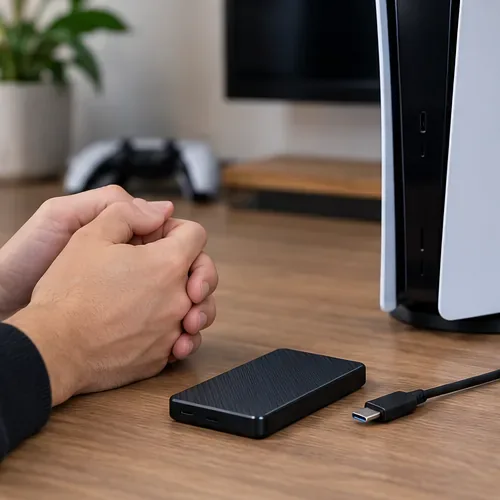
Unplug and firmly reconnect both ends of the USB cable. Look for a loose connector, bent plug, fraying, or a cable that only supports charging. If possible, use the drive’s supplied data cable or another known-good SuperSpeed data cable. Connect the drive directly to the console—PlayStation specifically advises removing a USB hub when the storage device is not recognized.
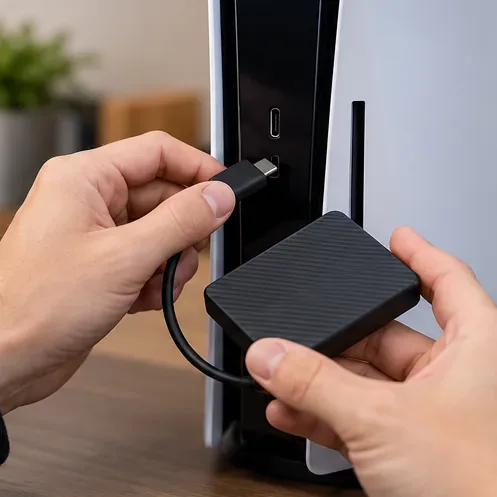
Not every port on every PS5 model has the same speed. USB extended storage must use a SuperSpeed USB port; a Hi-Speed port intended for other accessories may power a device without making it suitable for extended storage. Check the port guide for your console model, then test another compatible port. PlayStation’s current guide lists the USB port types for different model groups.
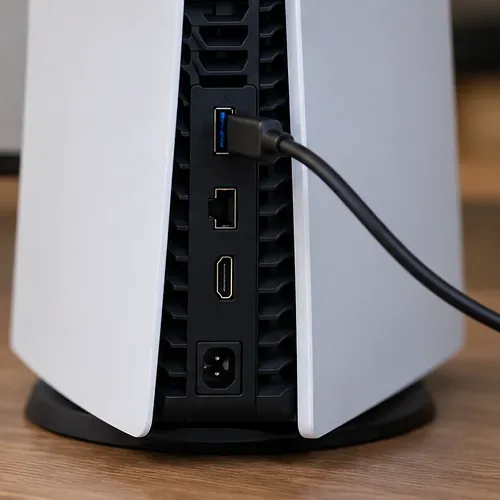
Check the official PS5 USB ports guide before assuming that every front port supports extended storage.
Confirm that the drive is rated for SuperSpeed USB at 5 Gbps or faster and has between 250 GB and 8 TB of capacity. Remove other USB extended-storage drives while troubleshooting; the console can have multiple USB devices connected, but only one extended-storage drive can be used at a time. A USB flash drive, enclosure, or older drive may not meet the requirements even if it lights up or appears on a computer.
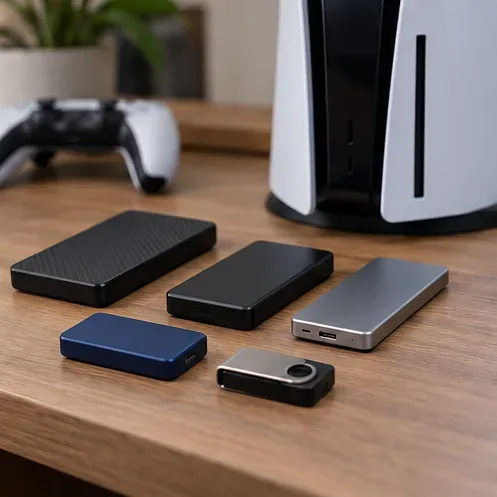
If the external HDD has its own power adapter, make sure the adapter is connected to the drive and a working outlet, and that the enclosure’s power switch is on. A drive that repeatedly spins up and shuts down, clicks unusually, or disconnects on other devices may be failing. Avoid repeated formatting attempts if the data matters; test carefully and contact the drive maker if the symptoms continue.
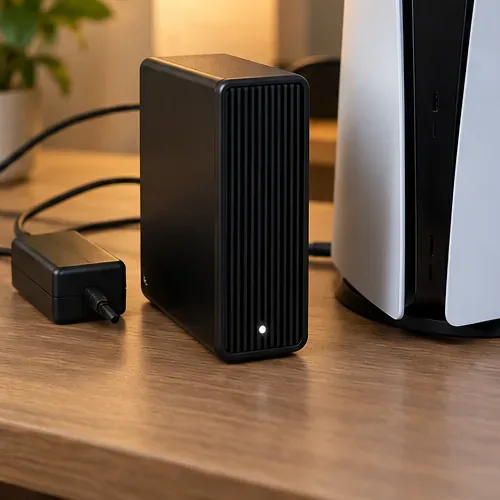
A new drive intended for games must be formatted by the console as USB extended storage. Connect it to a compatible SuperSpeed port, then go to Settings > Storage > USB Extended Storage > Format as USB Extended Storage. Formatting erases everything on that drive. Back up or copy off anything you need first, and do not disconnect the drive or turn off the console while formatting.
Do not reformat on a PC as a first fix. PlayStation says a drive previously used as USB extended storage on a PS4 or another PS5 can be connected without reformatting. If the console asks to format a drive that already contains games, stop and verify what is on it before proceeding.
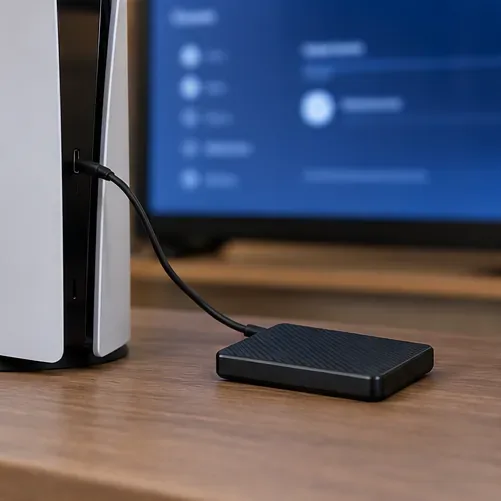
Go to Settings > System > System Software > System Software Update and Settings, then check for an update. Restart after installation and check Settings > Storage again. Do not assume that every detection issue needs a drive-firmware update; use a manufacturer’s firmware tool only if the drive maker recommends it for your exact model.
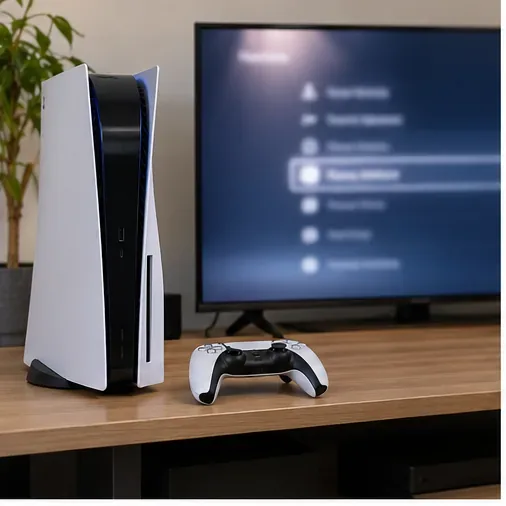
Follow PlayStation’s current PS5 system-software update steps.
Try this only after checking the connection and drive requirements. Turn the PS5 off by holding its power button for three seconds. Once it is off, press and hold the power button again and release it after the second beep, about seven seconds after the first. Connect the controller with a USB cable and press the PS button. Choose Clear Cache and Rebuild Database > Clear System Software Cache, then restart and test the drive.
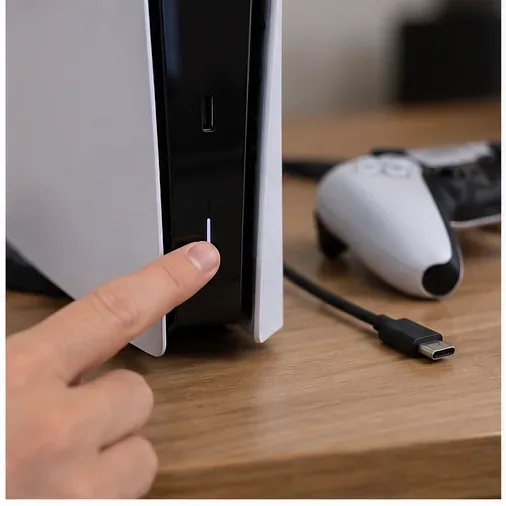
Return to Safe Mode and choose Clear Cache and Rebuild Database > Rebuild Database. PlayStation describes this option as scanning the drive and creating a new database of content on the system. It may help with system-feature or content-listing problems, but it cannot repair a damaged cable, USB port, or failing external drive. Do not choose Reset PS5 or Reset PS5 (Reinstall System Software) as a routine storage fix; those options delete user data.
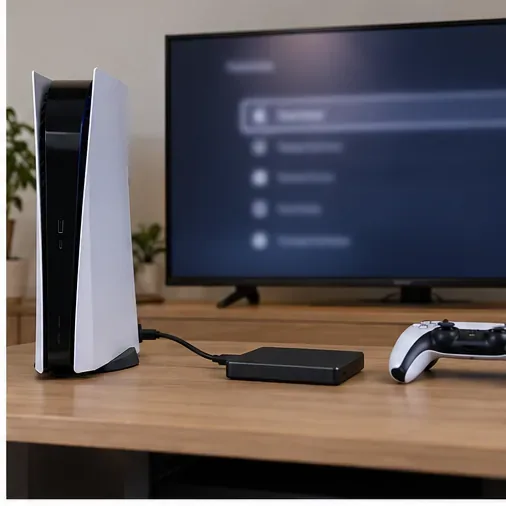
Review the official Safe Mode options and their effects before selecting one.
Try the drive and cable on another compatible console or computer. If a computer says the drive must be initialized or formatted, cancel that prompt if you need to preserve its contents. Also try a different known-good USB storage device on the PS5. If another drive works on the same port, the original drive or cable is the likely fault; if multiple known-good drives fail on the console, contact PlayStation Support about the console.
If you see error CE-109737-7, PlayStation’s guidance is to reconnect the cable, remove any hub, try another port, and check whether another USB storage device is recognized. If the device fails across several systems, contact the drive manufacturer. Include the error code, console model, drive model, and the checks you have already completed.
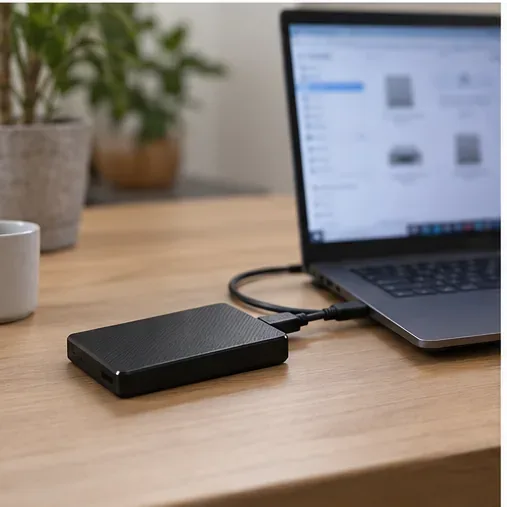
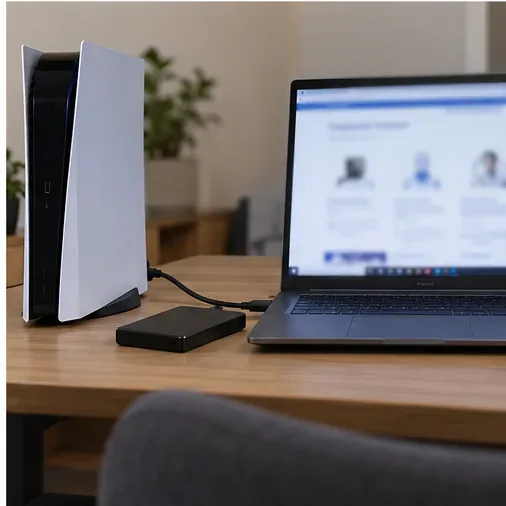
See PlayStation’s CE-109737-7 troubleshooting instructions.
If the drive appears in storage but a PS5 game still will not launch, that may be expected: copy the PS5 game back to console storage or an M.2 SSD. Compatible PS4 games can run from USB extended storage. If the game install is missing, check the storage device and Game Library before formatting or deleting anything. Saved data is managed separately from external game installs; check your console backup or cloud-storage settings if you are concerned about saves.
To disconnect USB extended storage while the PS5 is on, go to Settings > Storage > USB Extended Storage > Safely Remove from PS5, then disconnect it. If the console is off, wait until its power indicator is completely off first. Improper removal can cause data loss or corruption.
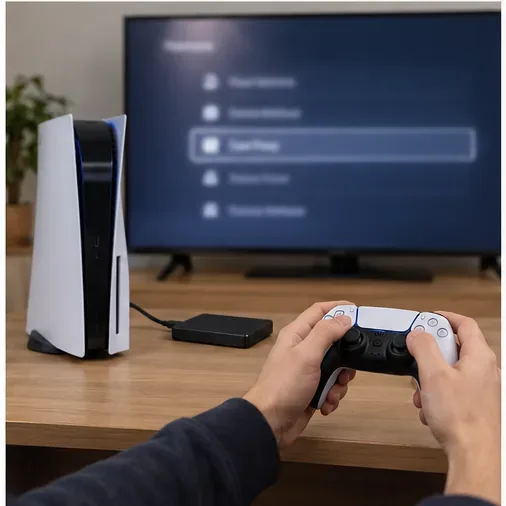
PlayStation also explains how to manage PS5 console storage and move game data and how to back up and restore PS5 console data.
Enable PUBG’s network statistics HUD to monitor ping and packet loss in a match. See where to find it, what the numbers mean, and what they cannot diagnose.
Learn how to import VALORANT crosshair codes, compare presets with manual settings and spectator copy, and fix common import issues.
Choose Dota 2 minimap size, hero icons, team colors, and background settings by readability, fewer misclicks, and clear results on your own display.
Fix Fortnite texture pop-in on PC with official steps for GPU drivers, file verification, DirectX 12, high-resolution textures, VRAM, SSDs, and stutter.
Learn what Heroes of the Storm minimap size and position options are verified, improve readability, and choose camera-click controls that suit you.
Set Super Smash Bros. Ultimate Quickplay to prefer hazards-off stages. Follow the Preferred Rules menu steps and learn why matchmaking may not always honor them.
Enable Server Latency and Packet Loss in Warzone to monitor connection quality, read the overlay, and use recurring spikes to guide troubleshooting.
Learn how to carry from mid lane in League of Legends by setting up waves, choosing safe roam windows, reading side lanes, and converting pressure into objectives.
Fix Minecraft Evoker spell problems with a safe vanilla test, version checks, log review, and a step-by-step way to isolate mod or datapack conflicts.
Fix PUBG stuck on Initializing on Steam with a focused checklist for PC service notices, launch options, game files, downloads, and connection issues.








