How to Check Real-Time Server Latency in the PUBG HUD

Enable PUBG’s network statistics HUD to monitor ping and packet loss in a match. See where to find it, what the numbers mean, and what they cannot diagnose.
For the best PlayStation Portal Wi-Fi settings at home, connect the Portal to your router’s 5 GHz Wi-Fi network, connect your PS5 to the router with Ethernet when possible, and place the router where the signal can reach your play area. PlayStation recommends a high-speed connection of at least 15 Mbps for a better experience. A faster internet plan alone will not fix weak Wi-Fi, interference, or a wireless PS5 connection.
One important limit: the Portal’s published wireless specification lists 802.11 a/b/g/n/ac. That supports common 2.4 GHz and 5 GHz networks, but does not list 6 GHz. A Wi-Fi 6E or Wi-Fi 7 router can still serve the Portal on a compatible 5 GHz network; choosing a 6 GHz-only network will not help. The settings below follow PlayStation’s current recommended network setup for PS Portal.
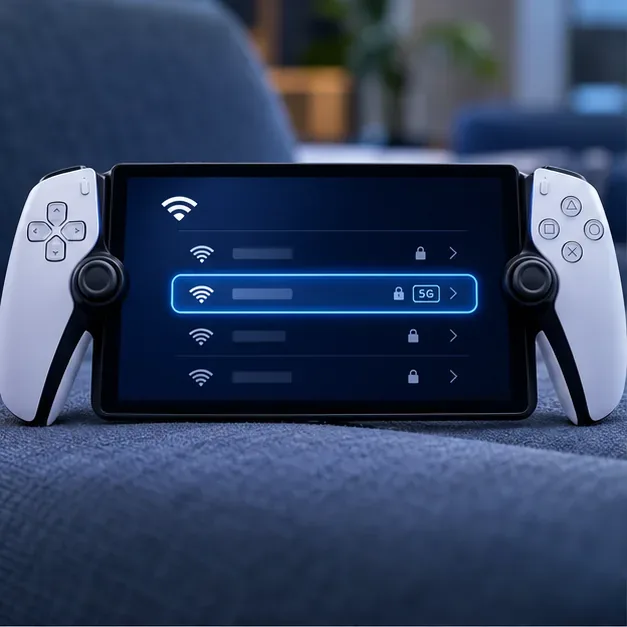
| Setting | Recommended choice | Why it helps |
|---|---|---|
| Portal Wi-Fi band | 5 GHz, when available | PlayStation specifically recommends 5 GHz for Portal. |
| PS5 connection | Ethernet to the router | Reduces wireless congestion on the console side. |
| Band steering | Disable for the Portal if the router supports it and band switching causes trouble | Keeps the Portal from being moved between 2.4 GHz and 5 GHz. |
| Internet speed | At least 15 Mbps recommended | PlayStation’s recommendation; stability and latency still matter. |
| 6 GHz Wi-Fi | Do not target it for Portal | The Portal specification lists 802.11ac, not 6 GHz Wi-Fi. |
Open the Portal’s Settings > Network, select your home Wi-Fi, and connect to the 5 GHz network if your router offers separate network names (SSIDs). Router brands use different names for this option; you may see separate labels such as “Home” and “Home-5G.” The SSID name is chosen by the router owner, so a label alone does not prove which band it uses.
If your router combines the bands under one network name, look for a setting called band steering, Smart Connect, or a similar term. PlayStation says to disable automatic switching between 2.4 GHz and 5 GHz for the Portal if possible. Try this only if the Portal is being steered to 2.4 GHz or the connection keeps changing; save the router change, reconnect the Portal, and test a game before adjusting anything else.
For home Remote Play, connect the PS5 to the router with an Ethernet cable. Keep the Portal on Wi-Fi. If Ethernet is not practical, PlayStation recommends putting the PS5 and Portal on the same Wi-Fi network at home. Avoid guest networks or separate VLANs for this basic setup because they can prevent devices from reaching one another.
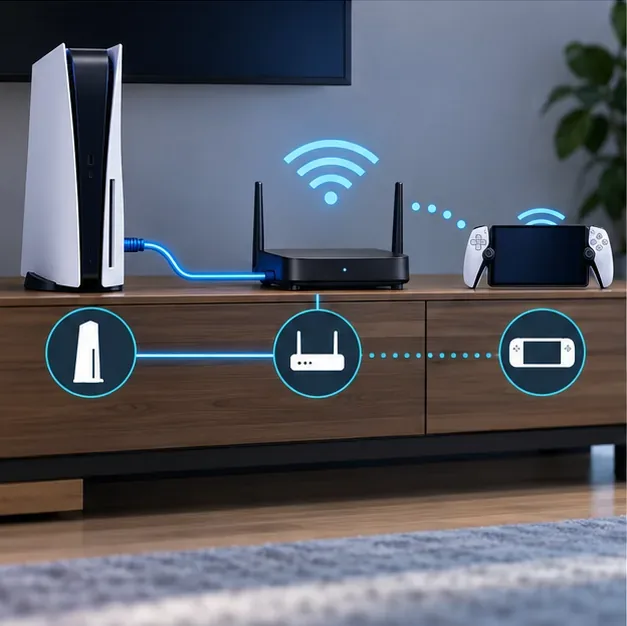
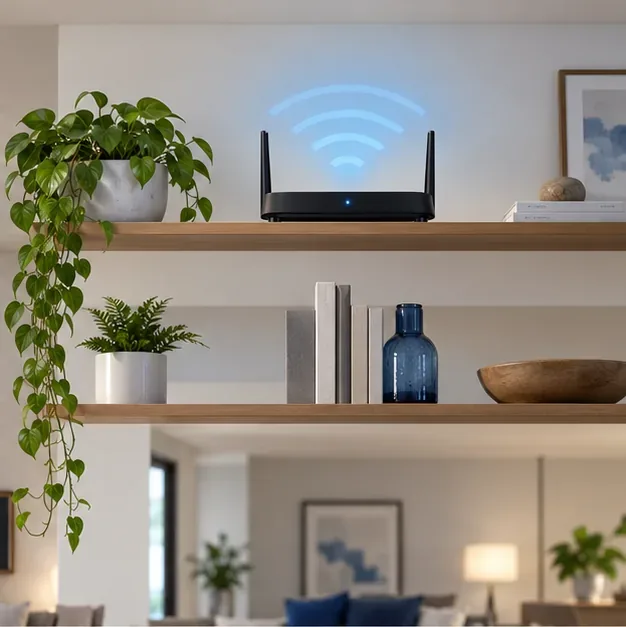
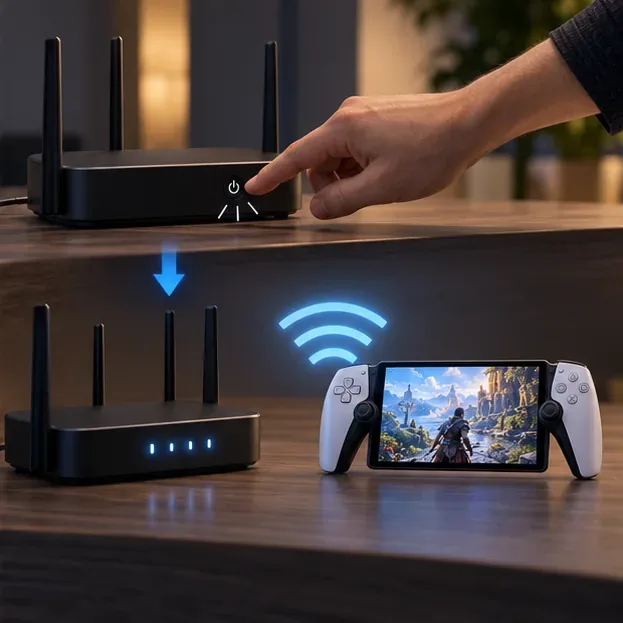
Place the router in an open, central, elevated location instead of inside a cabinet, behind a television, or on the floor. Reduce the number of walls between the router and Portal, and move the router away from large metal objects and electronics that may cause interference. A 5 GHz signal can carry more data but generally reaches less reliably through walls than 2.4 GHz, so test from the chair or room where you actually play.
In a large home, a mesh access point near the play area can help. If the mesh system supports Ethernet backhaul, wiring its nodes can reduce wireless traffic between nodes. Avoid placing a mesh node in the dead zone itself; it needs a usable connection back to the main router.
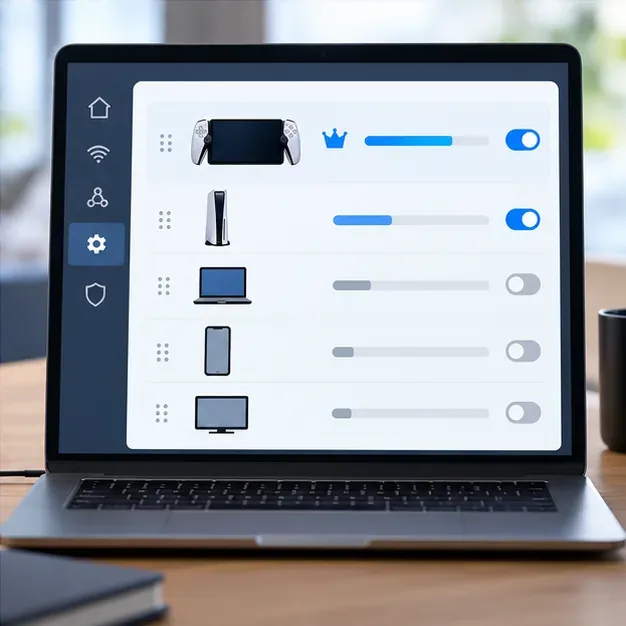
Some routers offer Quality of Service (QoS), device priority, or gaming priority. If other people’s downloads or video calls interrupt Remote Play, try assigning higher priority to the PS5 and Portal in the router’s device list. The exact labels and controls differ by manufacturer, and some routers do not expose a useful setting. Compare gameplay before and after the change; if it makes other traffic or the stream less stable, restore the previous setting.
You do not need to enable UPnP, set a static IP address, or change port forwarding simply to improve a stable home Wi-Fi signal. Those options address different connection problems and can add unnecessary complexity.
Start with the router’s automatic channel selection. If you still have dropouts in a crowded apartment building, use the router’s own Wi-Fi scan or channel analysis feature, if available, and test a less congested option. Channel availability and names vary by country, so avoid copying a fixed channel number from a generic guide. Change one setting at a time and keep notes so you can undo a change that makes the connection worse.
Install current router firmware and keep the Portal and PS5 system software updated. After changing a band, channel, or access point, reconnect both devices and retest. A restart is a reasonable quick fix for a router that has become unstable, but it will not correct weak coverage or a persistent ISP outage.
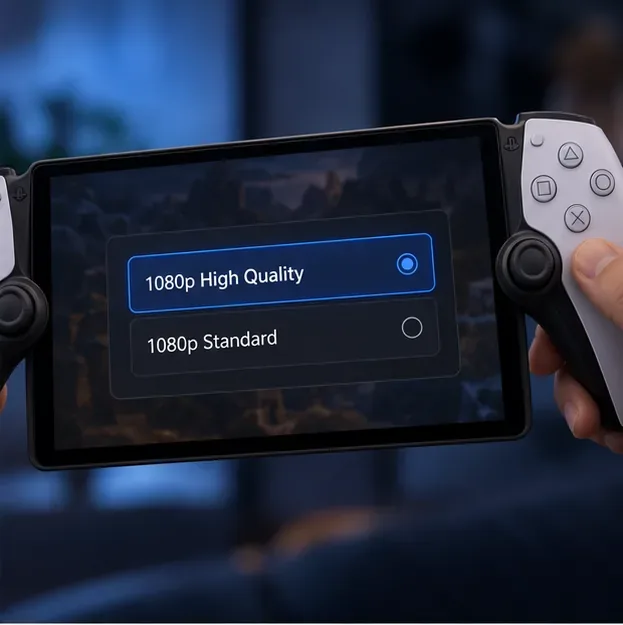
During Remote Play, open the Portal quick menu and use Max Resolution to choose 1080p High Quality or 1080p Standard. Video quality adjusts automatically to the connection, and this setting controls the maximum quality the adjustment can use. Start with High Quality on a stable network. If you see frequent drops or image breakup, try Standard and compare. There is no separate Portal setting that guarantees a fixed frame rate or eliminates network delay.
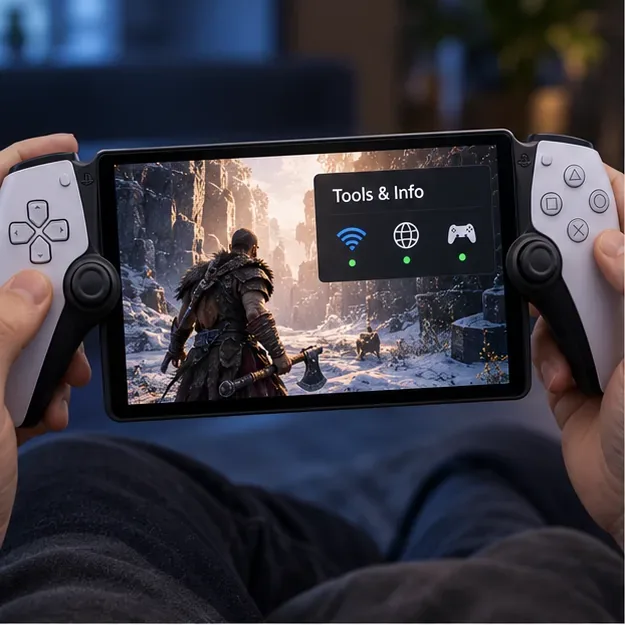
While playing, open Tools & Info from the quick menu to check network status and see troubleshooting guidance. PlayStation’s guide describes an adaptive connection rather than a universal latency target, so judge the setup during an actual session instead of relying only on a speed-test number.
| What you notice | What to try first |
|---|---|
| Controls feel delayed | Move closer to the router, select 5 GHz, pause large downloads, and wire the PS5 if possible. |
| Video turns blurry or breaks up | Check the Portal’s network status, reduce the maximum resolution to Standard, and check whether another device is saturating the connection. |
| Portal disconnects | Reconnect to the correct SSID, test band steering off if available, update router firmware, and restart the router and Portal. |
| Remote Play will not start away from home | First verify that the Portal connects while you are near the PS5. Confirm Remote Play is enabled and that the PS5 can connect to the internet. |
For a clean diagnosis, test once near the router with other heavy downloads paused. If the session improves, the local Wi-Fi environment is likely part of the problem. If it remains poor, compare the PS5’s internet connection, restart the devices, and check for an ISP or router issue. A broadband speed test can help identify a slow internet link, but it does not measure every factor affecting the Portal’s local wireless connection.
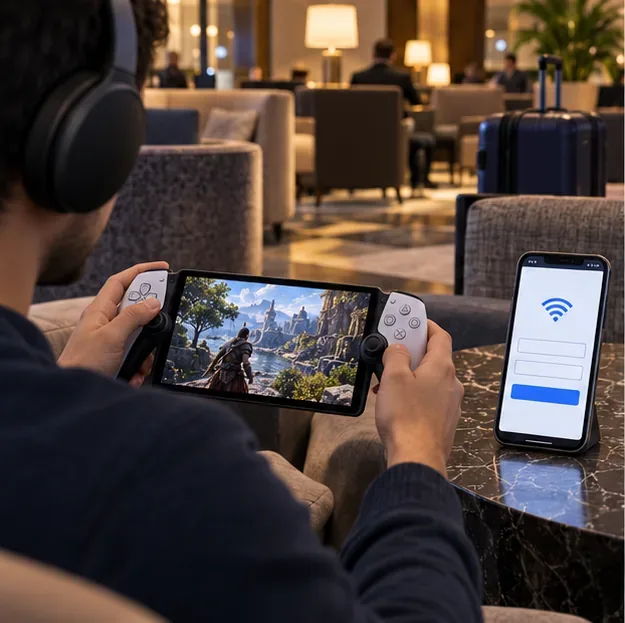
At a hotel, café, or airport, the network may require a sign-in step using a phone or computer, and some public networks may not support Portal connections, including certain 5 GHz networks. Complete the Portal’s initial setup before traveling and confirm Remote Play works at home first. PlayStation notes that public Wi-Fi quality is outside your control, so even a strong signal icon does not guarantee a smooth session.
A phone hotspot can be a fallback, but test it before relying on it. Cellular coverage, congestion, data limits, and carrier settings can all affect play. Away from home, you cannot tune the public router, so choosing a stable network and keeping the PS5 ready for Remote Play matter more than changing your home router’s channel.
For most homes, the biggest gains come from a steady 5 GHz connection, a wired PS5, better router placement, and fewer competing downloads. Test those changes one at a time; no router setting can promise zero lag on every network.
Enable PUBG’s network statistics HUD to monitor ping and packet loss in a match. See where to find it, what the numbers mean, and what they cannot diagnose.
Learn how to import VALORANT crosshair codes, compare presets with manual settings and spectator copy, and fix common import issues.
Choose Dota 2 minimap size, hero icons, team colors, and background settings by readability, fewer misclicks, and clear results on your own display.
Fix Fortnite texture pop-in on PC with official steps for GPU drivers, file verification, DirectX 12, high-resolution textures, VRAM, SSDs, and stutter.
Learn what Heroes of the Storm minimap size and position options are verified, improve readability, and choose camera-click controls that suit you.
Set Super Smash Bros. Ultimate Quickplay to prefer hazards-off stages. Follow the Preferred Rules menu steps and learn why matchmaking may not always honor them.
Enable Server Latency and Packet Loss in Warzone to monitor connection quality, read the overlay, and use recurring spikes to guide troubleshooting.
Learn how to carry from mid lane in League of Legends by setting up waves, choosing safe roam windows, reading side lanes, and converting pressure into objectives.
Fix Minecraft Evoker spell problems with a safe vanilla test, version checks, log review, and a step-by-step way to isolate mod or datapack conflicts.
Fix PUBG stuck on Initializing on Steam with a focused checklist for PC service notices, launch options, game files, downloads, and connection issues.








