How to Check Real-Time Server Latency in the PUBG HUD

Enable PUBG’s network statistics HUD to monitor ping and packet loss in a match. See where to find it, what the numbers mean, and what they cannot diagnose.
Yes—you can use an Xbox controller as a mouse on Windows, but a standard Xbox pad does not move the Windows pointer by itself. A remapping app must translate stick movement into cursor movement and assign buttons to mouse clicks. For most people who already use Steam, Steam Input is the easiest place to start. AntiMicroX is a free alternative, while reWASD offers a more configurable commercial option.
This guide covers pairing, desktop layouts, cursor tuning, and common fixes on Windows 10 and Windows 11. The interface images are conceptual guides; exact labels can differ across Windows and app versions.
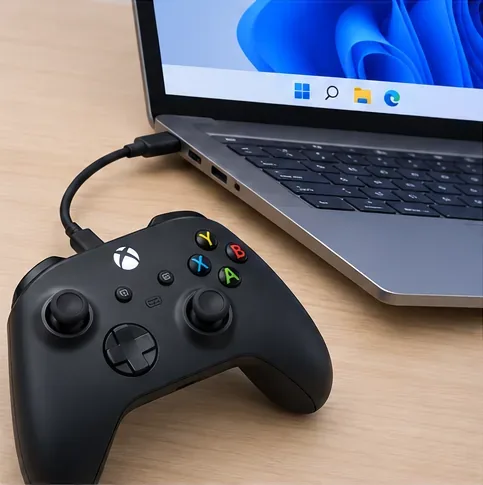
Many current Xbox controllers use USB-C, while older models may use Micro-USB. Use a cable that supports data, not charging only. Bluetooth is available on supported controller models; some older Xbox One controllers require an Xbox Wireless Adapter instead. Microsoft’s Xbox Wireless Controller information lists supported connection options. Xbox Accessories is optional for this task: it can handle supported controller configuration and firmware tasks, but it does not turn a thumbstick into a Windows mouse pointer.
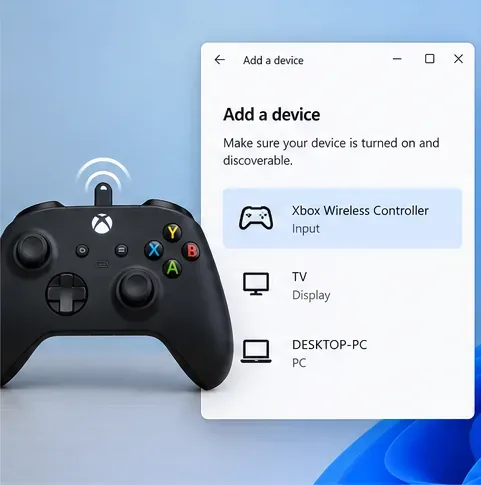
To pair over Bluetooth, turn on the controller, hold its Pair button until the Xbox light flashes, then open Settings > Bluetooth & devices > Add device > Bluetooth in Windows 11 and select the controller when it appears. Follow Microsoft’s Windows Bluetooth pairing instructions if your Settings labels differ. For a 2026 setup, also note that Microsoft ended standard Windows 10 support on October 14, 2025; see the Windows 10 lifecycle notice.
| Tool | Best fit | Keep in mind |
|---|---|---|
| Steam Input | Quick desktop navigation if Steam is already installed | Steam must be running for its desktop layout to control the pointer. |
| AntiMicroX | Free mouse and keyboard mapping outside Steam | The project currently reports limited support while it seeks a new maintainer. |
| reWASD | More detailed profiles and mouse behavior controls | It is commercial software; check its current licensing and feature details before buying. |
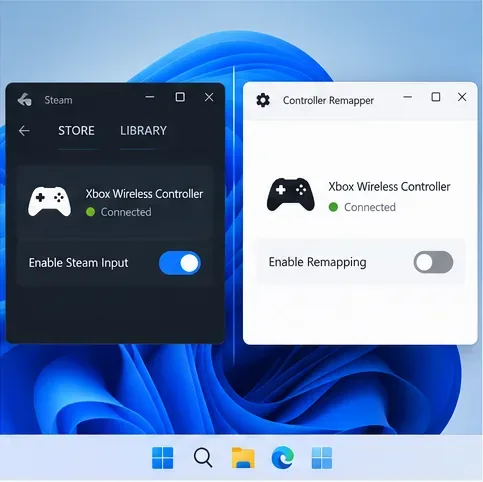
Steam Input is the most convenient first try for an Xbox controller mouse setup if you already use Steam. Valve documents controller settings in the desktop client and a separate desktop configuration. Keep in mind that this changes how the controller acts while you navigate Windows; a game can use its own controller layout instead.
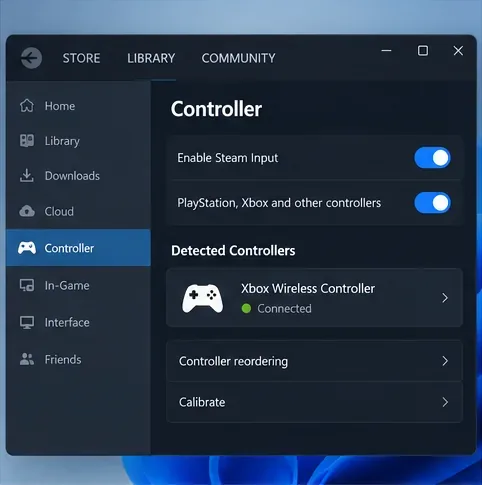
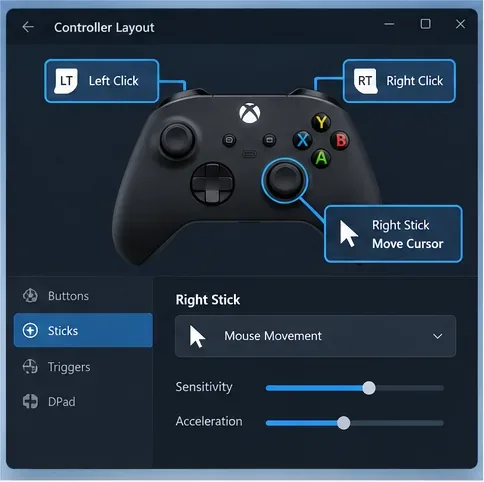
Valve’s Steam Input guide explains the desktop client’s controller settings and desktop configuration. If your layout stops controlling the pointer when a game opens, that may be the game’s own layout taking over. When you exit Steam, its desktop mapping is no longer available.
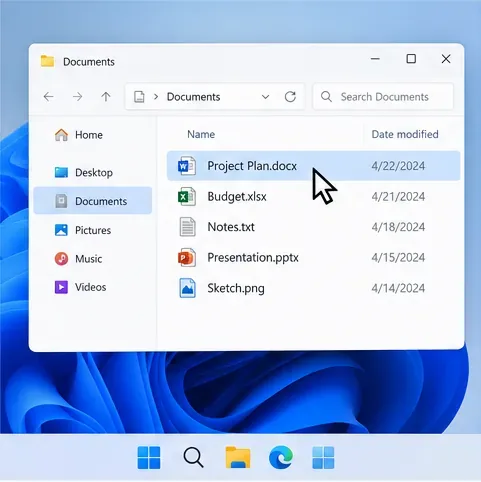
AntiMicroX maps gamepad buttons and sticks to mouse movement, mouse buttons, keyboard keys, scripts, or macros. It is useful when you want a standalone desktop profile without configuring Steam. Download it from the project’s official GitHub repository, not from an unrelated download mirror.
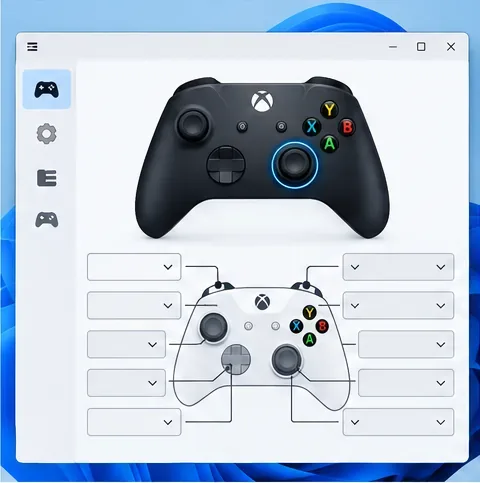
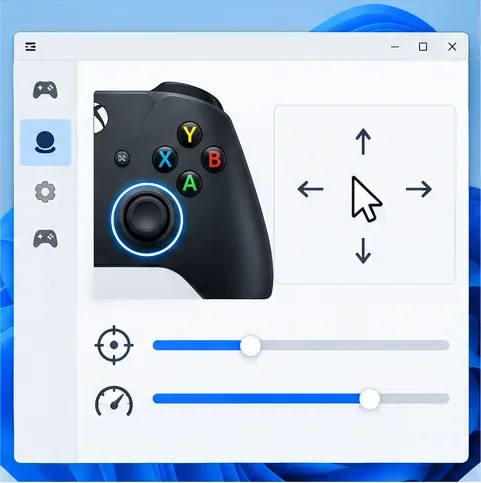
Deadzone settings ignore tiny stick movements around center. A larger deadzone can stop minor drift, but setting it too high makes the cursor feel unresponsive. AntiMicroX’s repository says it supports Windows mapping but is currently seeking a new maintainer and expects limited support and no new features unless contributors step in. That makes it a practical free option, with some uncertainty about future maintenance.
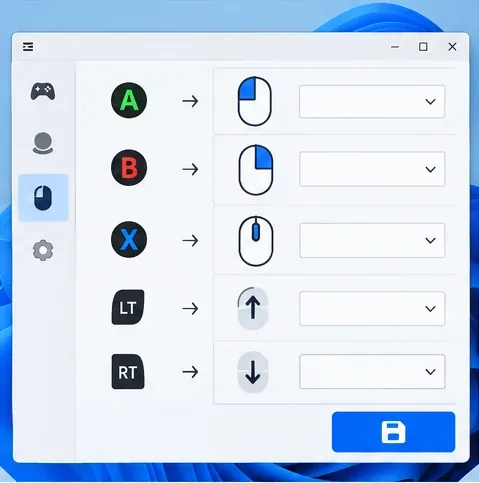
Choose reWASD if you want more profile and mouse-response controls. Its official guide describes selecting a controller input, choosing a mouse mapping, then saving or applying the configuration. Menu names can shift as the app changes, so use the current reWASD mouse-mapping guide while configuring it.
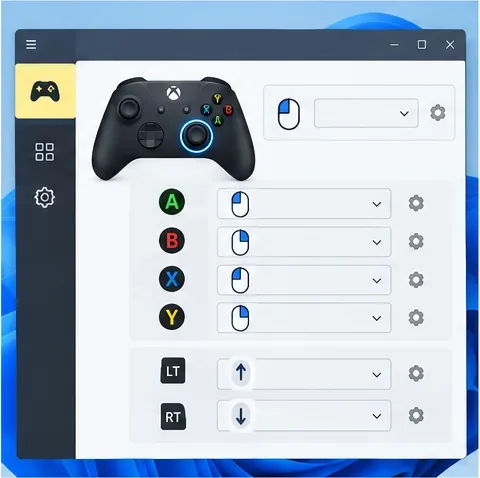
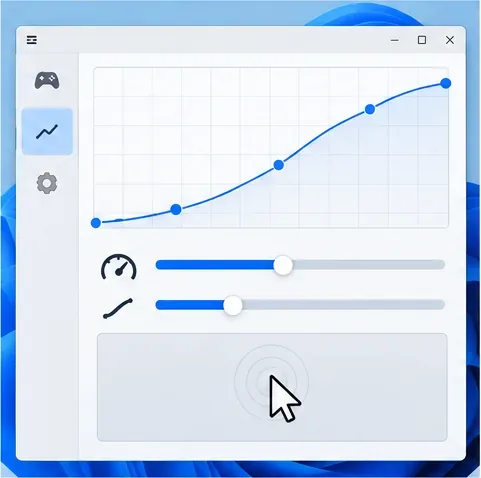
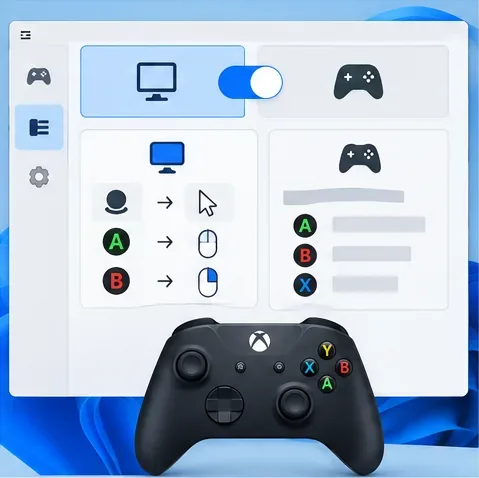
Before purchasing reWASD, check the vendor’s current license and feature list. Avoid running two remapping tools at the same time: Steam Input, AntiMicroX, and reWASD can compete to interpret the same stick or button.
| Problem | What to check |
|---|---|
| Controller does not appear | Try a known data-capable USB cable, reconnect Bluetooth, and confirm that the controller model supports the connection method. Microsoft’s Bluetooth troubleshooting guide covers Windows pairing and driver checks. |
| Stick moves the cursor too fast or not at all | Confirm that the active desktop profile maps the right stick to mouse movement. Lower sensitivity if the pointer jumps; slightly raise deadzone if it drifts at rest. |
| Clicks do nothing | Check that a mouse button is assigned, the profile is active, and another app is not capturing the same controller input. |
| Cursor drifts or stutters | Test the stick in the remapper’s input view. Adjust deadzone in small increments, then check the controller and connection if drift remains. |
| Games receive mixed inputs | Use one remapping app at a time. If a game has its own Steam Input layout, review that per-game setting before changing the global desktop layout. |
A thumbstick can move a pointer and buttons can click, but it is not a one-to-one substitute for a mouse. Stick movement is analog, so it takes practice to stop on small targets. This setup works well for couch browsing, launching apps, or basic desktop navigation; it is less suited to precise editing or competitive mouse aim. Standard Xbox controllers also do not have built-in gyro motion controls, so gyro advice for other gamepads does not apply here.
If you want a quick setup, start with Steam Input’s desktop layout. Use AntiMicroX if you want a free standalone mapper and are comfortable with its maintenance status. Pick reWASD when its extra controls justify a commercial license. In every case, save your profile, test it in a low-stakes app, and keep a regular mouse or keyboard nearby for settings the controller cannot reach comfortably.
Enable PUBG’s network statistics HUD to monitor ping and packet loss in a match. See where to find it, what the numbers mean, and what they cannot diagnose.
Learn how to import VALORANT crosshair codes, compare presets with manual settings and spectator copy, and fix common import issues.
Choose Dota 2 minimap size, hero icons, team colors, and background settings by readability, fewer misclicks, and clear results on your own display.
Fix Fortnite texture pop-in on PC with official steps for GPU drivers, file verification, DirectX 12, high-resolution textures, VRAM, SSDs, and stutter.
Learn what Heroes of the Storm minimap size and position options are verified, improve readability, and choose camera-click controls that suit you.
Set Super Smash Bros. Ultimate Quickplay to prefer hazards-off stages. Follow the Preferred Rules menu steps and learn why matchmaking may not always honor them.
Enable Server Latency and Packet Loss in Warzone to monitor connection quality, read the overlay, and use recurring spikes to guide troubleshooting.
Learn how to carry from mid lane in League of Legends by setting up waves, choosing safe roam windows, reading side lanes, and converting pressure into objectives.
Fix Minecraft Evoker spell problems with a safe vanilla test, version checks, log review, and a step-by-step way to isolate mod or datapack conflicts.
Fix PUBG stuck on Initializing on Steam with a focused checklist for PC service notices, launch options, game files, downloads, and connection issues.








