Roblox isn't just a game—it's a vibrant universe where kids unleash creativity, build worlds, and make friends. With over 70 million daily users, it's a hit among children. But as a parent, you want it safe. This guide walks you through how to create a Roblox account for your child, with built-in protections to keep the fun worry-free. Let's dive in! ✨
Why Choose Roblox for Your Child?
Before creating an account, know the perks: Kids aged 5+ can explore user-generated games, from adventures to simulations. Roblox promotes creativity, problem-solving, and social skills. Plus, robust parental tools ensure age-appropriate experiences. Ready to start? Follow these simple steps.
Step-by-Step: How to Create a Roblox Account for Your Child
Creating an account takes under 5 minutes. Use a computer or mobile for the best setup. No downloads needed initially.
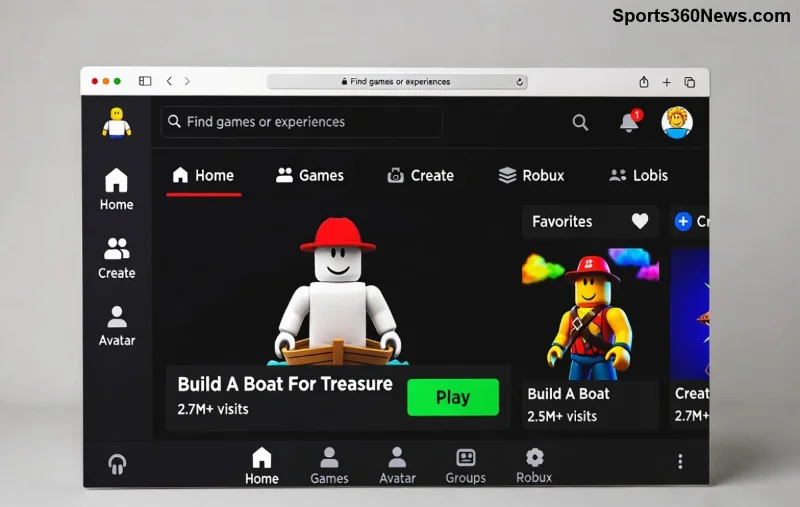
- 👆 Visit the Official Site: Head to roblox.com. Click the green "Sign Up" button in the top-right corner.
- Enter Basic Details: Fill in your child's username (unique and fun, like "SuperBuilderKid"), password (strong, at least 8 characters with numbers/letters), and date of birth. Pro Tip: For kids under 13, Roblox flags the account for extra safety—parental email verification is required.
- Verify Email: Use your email as the parent (not your child's). Roblox sends a confirmation link. Click it to activate. This links the account to you for controls.
- Set a Profile Picture & Bio: Choose a kid-friendly avatar image. Keep the bio simple and positive—no personal info.
- Download the App: Install the Roblox Player from the official site or app stores for PC, mobile, Xbox. Log in with the new credentials.
| Account Type |
Age Requirement |
Key Features |
| Under 13 |
5-12 years |
Restricted chat, no private messaging, parental oversight |
| 13+ |
13 years and up |
Full features with customizable privacy |
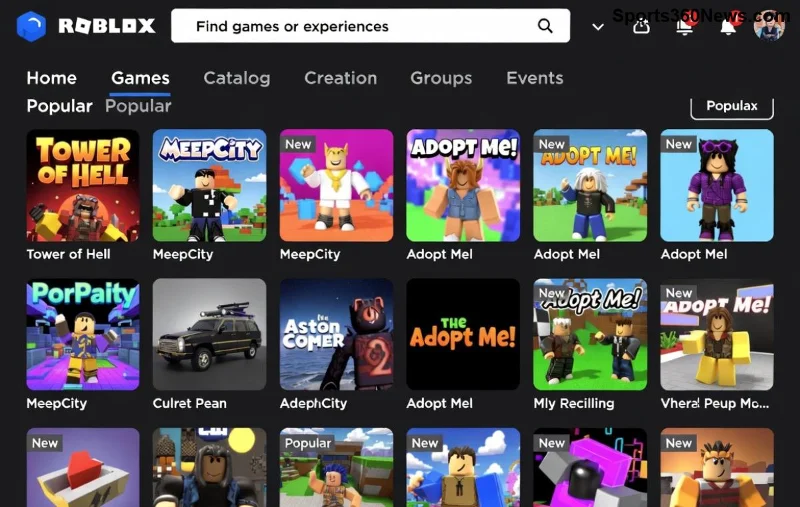
Done! Your child can now jump into experiences like Adopt Me or Brookhaven. But safety first—next up, controls. 😊
![Parent and child setting up Roblox parental controls together]()
Essential: Enable Roblox Parental Controls
Roblox shines with family-friendly tools. Access them via your parent email dashboard at Roblox Parental Controls.
- ⭐ Spending Limits: Block Robux purchases or set budgets to avoid surprise charges.
- Privacy Settings: Make accounts private—only friends can message or join games.
- Content Filters: Block user-generated content if needed. Enable "Account Restrictions" for under-13s automatically.
- Time Limits: Use third-party apps like Qustodio or Roblox's weekly playtime reports.
- Monitoring: Review play history and friends list anytime.
Turn on two-step verification (2SV) for extra security. Search "Roblox 2SV" in settings.
Top Safety Tips for Roblox for Kids
Keep the joy going strong:
✅ Do's: Teach sharing only in-game screenshots, never real names/locations. Co-play first sessions. Praise creative builds! 👏
❌ Don'ts: Ignore friend requests from strangers. Avoid trading real money for items—it's against rules.
- 1️⃣ Regular Check-Ins: Weekly reviews of activity logs build trust.
- 2️⃣ Educate on Reporting: Show the Report Abuse button (flag icon) for bullies or bad content.
- 3️⃣ Balance Screen Time: Pair Roblox with outdoor play for healthy habits.
![Family enjoying safe Roblox gaming session]()
Common Issues & Quick Fixes
Login Trouble? Clear browser cache or reset password via email.
Email Not Verified? Check spam folder.
Age Errors? Ensure birthdate is accurate—Roblox enforces COPPA rules strictly.
For more, visit Roblox's Family Safety Hub.
Wrap-Up: Safe Adventures Await!
Congrats—you've mastered how to create a Roblox account for your child! Watch their eyes light up as they create obbies or role-play. Stay involved, tweak settings as they grow, and enjoy family gaming nights. What's your child's first game? Share in comments below. Happy building! 🚀
Stay safe, play smart.