Valve’s September 22, 2026 Counter-Strike 2 update said it increased global visual clarity and improved the fidelity of bullet-impact decals. The change makes impact marks more distinct; it did not announce a new command for clearing blood or bullet decals. That matters if you are copying an old CS:GO bind: r_cleardecals is not a dependable CS2 solution.
Quick reference
| Command or situation | What to expect |
|---|
r_cleardecals | Legacy CS:GO command. Do not assume it works in current CS2 or bind it to movement keys. |
cl_removedecals | In current CS2 command listings, this is a cheat-protected command that targets decals on the entity under your crosshair. It is for a cheat-enabled local/private practice context, not a reliable global clear for official matchmaking. |
| Premier, Competitive, or other official matchmaking | There is no Valve-documented player command that reliably wipes blood decals on demand in these matches. |
Try decal removal in offline practice
Console commands vary in what they can change, and cheat-protected commands are restricted by the server. If your goal is to experiment in an offline practice session, use this sequence on the PC version:
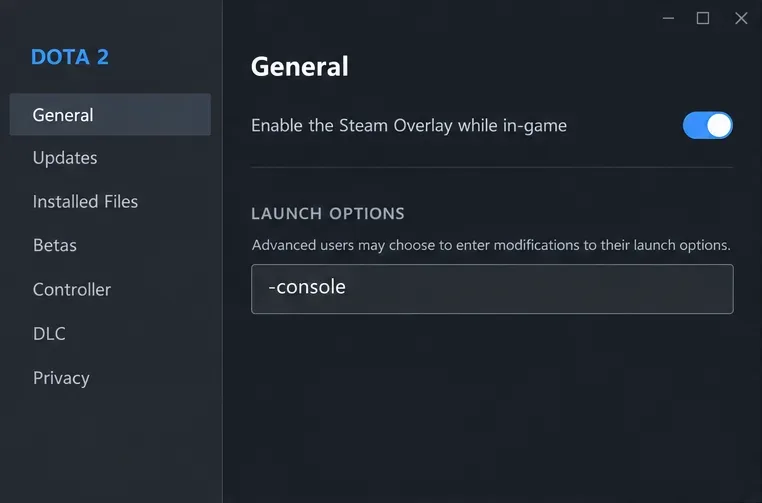
- Open Settings and enable the developer console under the game settings if it is not already enabled. The default console key is commonly the tilde/backtick key; keyboard layouts can place it elsewhere.
- Start an offline practice session or a private server where you control the settings. Do not expect a client command to change an official server’s rules.
- Open the console and enter
sv_cheats 1. This enables cheat-protected commands only in a context where the server permits them.
- Point your crosshair at a surface or entity with decals and enter
cl_removedecals.
This command is described as removing decals from the entity under the crosshair. It is not a guaranteed “clear every blood mark on the whole map” button. If it produces an unknown-command message, reports that cheats are disabled, or does not affect the surface you aimed at, your current build or session does not allow the operation. Do not keep adding speculative variables to an autoexec file; return to the original configuration and check the game’s current command autocomplete.
Why the old CS:GO bind causes confusion
In CS:GO, many players used a bind such as bind "SHIFT" "+speed; r_cleardecals" to clear decals while walking. Advice for that Source 1 command is still easy to find, but a bind only repeats a command the game recognizes. It does not restore a removed or restricted command in CS2. If the console says Unknown command: r_cleardecals, changing the key or punctuation will not make that legacy command valid.
CS2 uses Source 2 and has its own command set and restrictions. The command name cl_removedecals may appear in current command references, but its cheat flag and crosshair-target behavior matter: it is not equivalent to an unrestricted, global clear. Avoid guides that promise the old CS:GO bind works in Premier without identifying the build and server conditions they tested.
Can you clear blood during an official match?
For practical purposes, plan as though you cannot. A command requiring sv_cheats 1 is controlled by the server and is unavailable in normal Valve matchmaking. A local bind cannot override the server’s cheat setting. The official Counter-Strike release notes do not document an approved live-match decal-clear command, so there is no supported keybind to recommend for Premier or Competitive.
Blood and bullet marks can also be useful visual information: they may show that a fight or shot happened nearby. Clearing them changes your local view, not the state of the match or what other players see. If your screen looks cluttered, use the current in-game graphics options that Valve exposes rather than third-party tools, injected files, or scripts that try to alter official-match visuals.
When the command seems broken
- The console rejects
r_cleardecals: treat it as an obsolete CS:GO instruction for your CS2 build. Do not keep rebinding it.
cl_removedecals reports cheats disabled: you are not in a server where that cheat-protected command is permitted. It will not become available by changing your local keybind.- The command runs but marks remain elsewhere: its crosshair-target behavior is narrower than a global map wipe. Aim at the relevant decal-bearing entity, or accept that a full clear is not available in that session.
- A guide recommends
r_csgo_render_decals or several obscure variables: check whether it identifies the game build and whether it is limited to local practice. Do not apply unknown commands blindly to a competitive config.
- Blood and impacts look more prominent after an update: compare against Valve’s current release notes before assuming a setting changed. The September 22 update specifically mentions improved global visual clarity and bullet-impact decal fidelity.
Practical checklist
- Use the developer console only on PC; console editions do not offer the PC developer console workflow.
- In an offline/private session, try
sv_cheats 1, then aim at a decal and test cl_removedecals.
- Do not rely on
r_cleardecals or old movement-key binds in CS2.
- Expect cheat-protected commands to be unavailable in official matchmaking.
- Keep your competitive config simple and avoid third-party tools that modify the game or its visuals.
Valve’s recent update provides the relevant current context: impact decals were made clearer, while no public patch note adds a supported command for wiping them in official matches. For update details, see Valve’s official Counter-Strike 2 update notes. The exact response to a console command can change with game updates and server rules, so use the in-game console’s own response as the final check for an offline practice session.