Home
» 🎮 Esports
»
Best Dota 2 Console Commands for FPS: What Actually Helps
Best Dota 2 Console Commands for FPS: What Actually Helps
The best Dota 2 console command for increasing displayed FPS is fps_max 0—but only when the game's frame limiter is holding back a PC that can render more frames. It removes that limit; it does not make a struggling CPU or GPU faster. For everyday play, fps_max 144 or another sustainable target can be more useful than leaving FPS unlimited. Pair those commands with cl_showfps 1 or cl_showfps 2 to check the result.
If your frame rate collapses during team fights, a higher cap will not solve the underlying workload. Start by distinguishing a frame-rate ceiling from a rendering bottleneck. That decision prevents you from copying a long configuration file that changes settings without addressing your problem.
This guide was researched on October 8, 2026. Public documentation supports the command workflow, but this article does not claim testing on the current Dota 2 client or promise a specific FPS gain. Confirm that each command is recognized in your installed build. The interface examples below show where to enter commands; they are not benchmark captures.
Which Dota 2 FPS commands are actually useful?
Command
Purpose
When it helps
fps_max
Inspect the game's frame-rate limit.
Before changing a cap or recording its original value.
fps_max 0
Remove the game's FPS cap.
A short comparison when you suspect an artificial ceiling.
fps_max 144
Request a 144 FPS ceiling.
A system that can sustain roughly that target; substitute your own number.
cl_showfps 1
Display a basic FPS readout.
Checking performance while moving around the map.
cl_showfps 2
Request an alternative, more detailed FPS display.
Comparisons where the basic counter is insufficient; inspect the display your build provides.
cl_showfps 0
Hide the FPS display.
Cleaning up the screen after testing.
These are measurement and frame-limit controls, rather than a collection of hidden graphics upgrades. A February 2016 benchmarking example in Valve's Dota 2 issue tracker uses +fps_max 0 and +cl_showfps 2. That is historical evidence of their use, not proof that every related benchmarking command or default remains unchanged today.
1. Open the console without installing a configuration pack
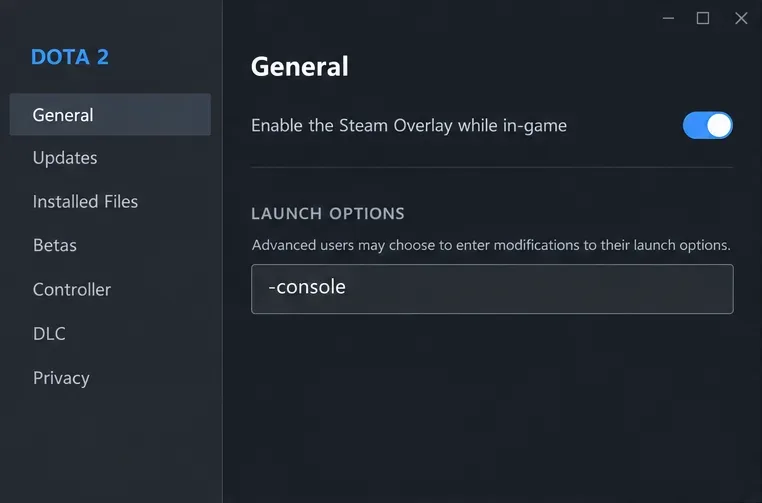
In your Steam Library, right-click Dota 2 and select Properties. Under General, find Launch Options. Copy any existing text somewhere safe, then add -console, separated from existing options by a space. Launch Dota 2 and use the console window to enter commands. If you close it, check the game's hotkey settings for the console binding rather than assuming a particular keyboard key works on every layout.
Steam's launch-options instructions explain the Library, Properties, General route and list -console as a console-enabling option. The console is an interface for commands, not an optimization in itself.
Add -console in Steam’s General tab to open the developer console.
Enter fps_max without a number and record the value returned. Also record your video settings and any driver-level frame limiter. If the command is unrecognized, stop and use the game's visible settings instead. Do not assume a command copied from another Valve game must work in Dota 2.
2. Measure the same scene before changing anything
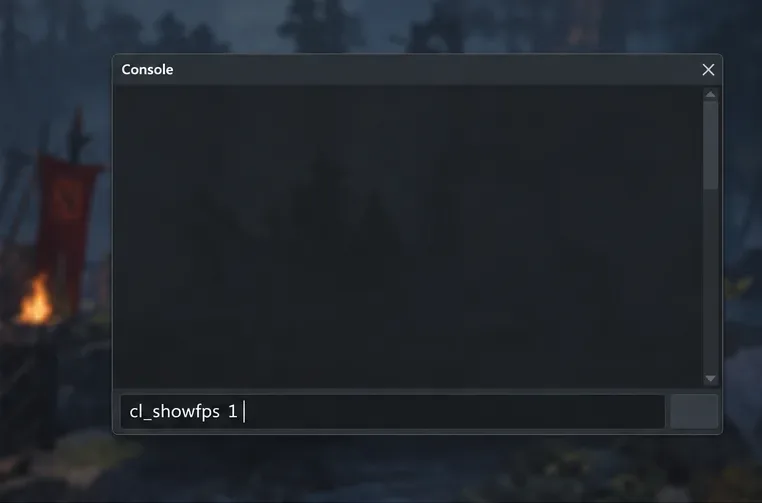
Enter cl_showfps 1. If your build supports it and you want a different readout, try cl_showfps 2. Close the console before watching performance. An open console or a main-menu scene is not a useful substitute for measuring actual gameplay.
Enter cl_showfps 1 to request an FPS readout before comparing settings.
Use a repeatable replay segment with the same camera position, playback speed, resolution, and graphics settings. Include a busy fight as well as a quiet section. Let initial loading settle, then repeat the comparison. Record whether the frame rate stays near one exact ceiling or varies substantially as more units and effects appear.
A quiet lane showing high FPS does not establish that a setting fixes team-fight drops. Likewise, one unusually good run does not demonstrate an improvement. Look for a repeatable difference in the same scene, and keep background recording or other applications consistent.
FPS also differs from network latency. If the camera moves smoothly but heroes jump or actions arrive late, investigate connection quality separately. Changing a frame cap does not repair packet loss or reduce the server's response time.
3. Remove an unnecessary cap, then choose a sustainable one
For a brief comparison, enter fps_max 0. If FPS rises above the previous ceiling in the same scene, the cap was limiting the displayed rate. If FPS remains essentially unchanged, another limit or a processing bottleneck is likely involved.
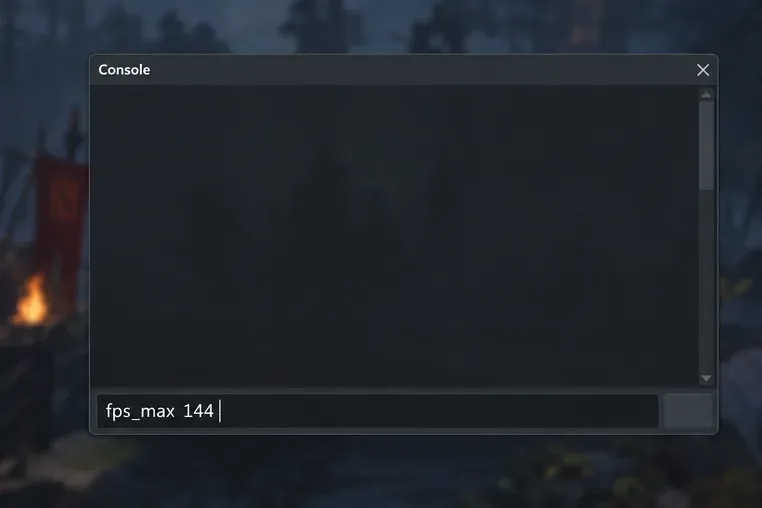
For example, imagine a PC holding almost exactly 120 FPS in a quiet scene. If it rises above that after removing the cap, raising the limit may benefit its owner. These numbers illustrate the decision; they are not results from a tested machine. By contrast, a PC fluctuating between 45 and 70 FPS during fights will not reach 144 FPS simply because you enter fps_max 144.
Use fps_max with a chosen number to request a practical frame-rate ceiling.
Unlimited FPS can increase resource use, fan noise, and heat when the machine has rendering headroom. After the comparison, select a practical target. A cap near a rate your PC sustains in demanding scenes may produce a more consistent experience than chasing the highest quiet-scene number. It does not guarantee smooth frame delivery or eliminate every hitch.
If the game still stops at an exact number after removing its cap, inspect VSync and any GPU-driver or external frame limit. VSync can constrain presentation relative to the display's refresh rate. Temporarily disabling it can help identify the constraint, but may introduce visible tearing. Variable-refresh displays need settings appropriate to the monitor and driver; there is no single cap value that is best for every setup.
4. Keep only the setting that survived your comparison
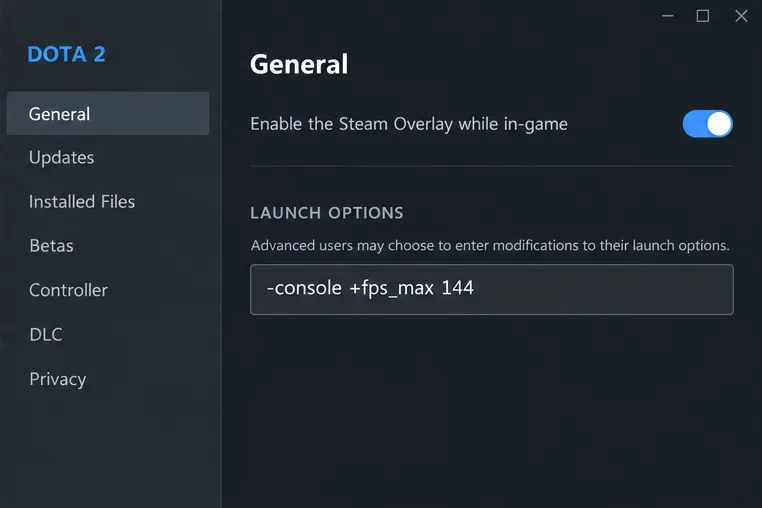
Once a target works well, you can request it at startup with a launch option such as +fps_max 144. The complete example -console +fps_max 144 enables the console and requests that cap. Inside the console, enter fps_max 144 without the plus sign.
The plus-sign form requests the selected FPS cap when Dota 2 launches.
Steam documents the plus-sign form for running many console commands at launch, while noting that not all commands can be used this way. Restart Dota 2 and query fps_max again to confirm your chosen value actually applied. Do not assume that a launch option worked just because Steam accepted the text.
To undo the experiment, remove the added startup command and restore the original cap you recorded. Removing a launch option alone may not reverse a value saved by the game. Use cl_showfps 0 when you no longer need the counter. Keep your launch-options field short enough that you understand every entry.
What if the cap is not your FPS problem?
Reduce rendering work through Dota 2's video settings rather than guessing at undocumented variables. Lowering resolution or render quality is a useful comparison: a substantial FPS improvement suggests that graphics workload matters. If the same busy scene hardly improves, CPU work or another limit may be more important. That comparison is a clue, not a complete hardware diagnosis.
Shadows, water effects, and other optional visual features are reasonable candidates for testing through their visible controls. Use those controls to see the tradeoff and restore it easily. This guide does not prescribe numeric values for internal shadow or water variables because their current mappings and restrictions were not verified from accessible primary documentation.
Do not confuse a lower dashboard frame rate with better match performance. Menu rendering and a crowded battle are different workloads. A quieter menu can be useful, but it is not evidence that your team-fight FPS improved.
Why skip giant “FPS boost” command lists?
Lists that mix mat_queue_mode, -threads, -high, and old DirectX launch options often fail to establish which entries still apply or how each was measured. No current primary evidence reviewed for this guide establishes that combination as a universal Dota 2 improvement. Avoid applying it as a bundle; otherwise, you cannot tell which change helped or caused a new problem.
Restrictions can also change. An October 2024 report in Valve's gameplay issue tracker says map_enable_background_maps 0 had become cheat-restricted. This is a user's historical report, not confirmation of its status in your current build or a validated FPS gain. If a command is rejected or requires cheats, skip it rather than trying to bypass the restriction for ordinary matchmaking.
The useful result is a small configuration you can explain: a working FPS display for comparisons, a cap that fits your machine, and video settings whose tradeoffs you have checked. If removing the cap does nothing, spend your effort on the workload causing the drops instead of adding more console text.