Home
» 🎮 Esports
»
Best Rocket League Camera Settings for Ball Control and Dribbling
Best Rocket League Camera Settings for Ball Control and Dribbling
For a practical Rocket League dribbling setup, start with Camera Shake off, Field of View 110, Distance 270, Height 110, Angle -4, and Stiffness 0.50. Use this as a comparison baseline, not a guaranteed best preset. The useful outcome is a view that lets you judge the ball's position relative to your car while still noticing the play ahead.
No official source reviewed for this guide establishes a universally optimal camera for ball control. The values below are editorial starting suggestions, not a professional-player consensus or results from testing the current build. Official documentation was checked on October 8, 2026. The menu illustrations show the relevant controls and example values; they are not live captures or evidence of a performance improvement.
A starting preset—and what each number is for
Dribbling means controlling the ball through repeated touches or carrying it on your car. Ground dribbling and air dribbling, where you maintain control while airborne, place different demands on your view. A camera that makes a hood carry easy to read may need adjustment for aerial approaches or awareness of defenders.
Camera option
Starting suggestion
What to evaluate
Camera Shake
Off
Whether fewer visual disturbances make touches easier to follow.
Field of View
110
Whether you can see enough of the field without making close contact hard to judge.
Distance
270
Whether the car and ball remain readable at a useful apparent size.
Height
110
Whether you can interpret the ball's position over the hood.
Angle
-4
Whether the viewing tilt suits both carries and ordinary approaches.
Stiffness
0.50
Whether camera movement feels predictable during speed changes.
Swivel and transition preferences
Keep your familiar values initially
Whether looking around or switching views disrupts your control.
Open Settings and its Camera tab to inspect your current values. Record them before experimenting. If you already control the ball comfortably, compare one suggested value at a time rather than replacing a successful setup wholesale.
“Turning off shake improves control” needs a precise meaning
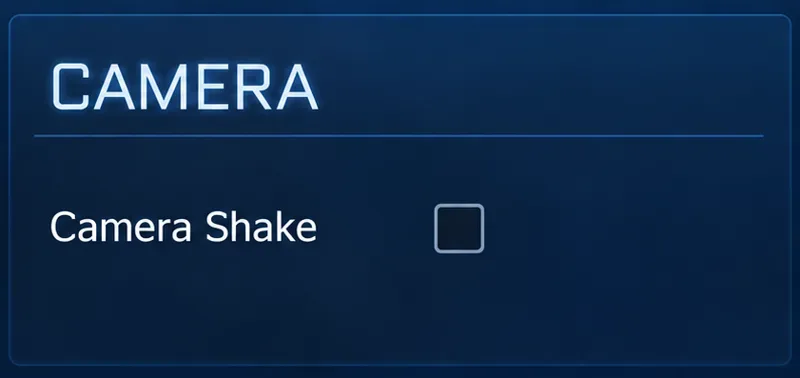
Verified: Epic describes Camera Shake as a visual effect associated with speed and collisions in its official explanation of Rocket League camera settings. Turning it off is a reasonable first comparison when visual movement distracts you.
An unchecked Camera Shake option illustrates the suggested baseline with shake disabled.
Depends on the player: A steadier image can be easier to interpret, but disabling an effect does not teach the throttle, steering, and timing needed for a carry. It should not be described as a change to the ball's behavior.
Action: Repeat a simple slow carry with shake off. Judge whether you can track the contact more comfortably, then continue practicing the actual touches. If the ball repeatedly rolls off in the same direction, inspect your driving inputs as well as the view.
“The widest or closest camera is always best” ignores a tradeoff
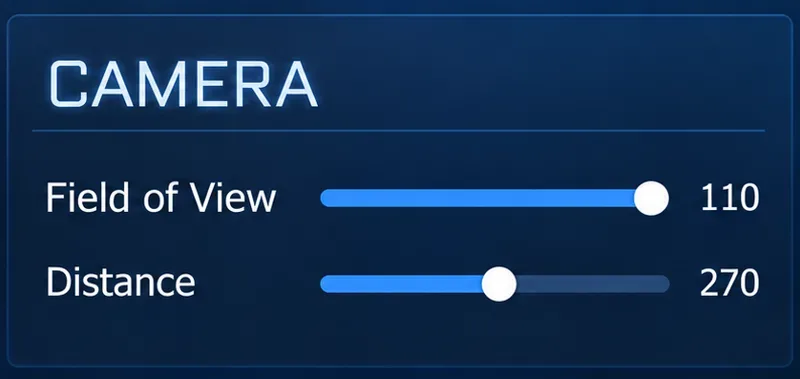
Verified: Field of View, abbreviated FOV, controls how much of the field is visible. Distance changes how far the camera sits behind the car. They are separate controls, even though both affect your overall view.
FOV 110 and Distance 270 form the example baseline for comparing field awareness with close ball readability.
Depends on the situation: Showing more surrounding space is useful for awareness, but a wider view can make small details less prominent. Moving closer may help you read the car-ball relationship while reducing the space you can inspect. Those are visual tradeoffs, not proof that one extreme improves every dribble.
Action: If the ball feels too small to read, compare Distance 260 with 270 while leaving FOV unchanged. If the view feels crowded, compare 280 instead. These are nearby trial values, not a validated optimum range. Keep the version that helps you recognize both contact and the next part of your route.
If you want to compare FOV afterward, try 105 against 110 with distance fixed. Do not change both together and attribute the result to only one. Assess the same kinds of touches on the same display, with the same car and viewing distance.
“A higher camera automatically makes carrying easier” is incomplete
Verified: Height controls the camera's vertical position; Angle controls its viewing tilt toward the car. Raising the camera and changing its tilt are different adjustments.
Angle -4 is the example viewing tilt; evaluate it separately from camera height.
Depends on your task: Seeing more of the hood from above may help you interpret a ground carry. However, a view that feels clear during a straight carry may feel unfamiliar when approaching a bouncing ball, turning, or leaving a wall. The best ground-dribble view should still support the rest of your game.
Action: If the ball obscures too much of the hood, compare Height 120 with 110 and keep the angle fixed. If your concern is the viewing tilt, restore height and compare Angle -3 or -5 with -4. After any improvement, check an ordinary shot approach and an aerial takeoff before keeping the change.
Do not use the appearance of a successful carry in a video as evidence that its camera numbers will work on your screen. Display size, how far you sit from it, and your familiarity with the view all affect what feels readable.
“Maximum stiffness is the precision setting” is not established
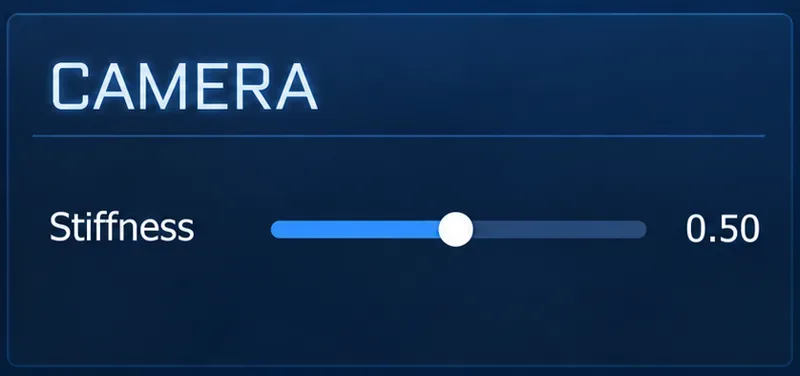
Verified: Rocket League exposes a camera stiffness setting. The support explanation reviewed here does not quantify its behavior or establish a dribbling optimum. Historically, the developer's March 10, 2020 v1.74 patch notes changed default stiffness from 0.3 to 0.5 and default distance from 260 to 270. That historical default change does not validate an ideal current preset.
Stiffness 0.50 is the baseline to compare before making larger changes.
Unknown: There is no controlled comparison in the cited documentation showing that maximum stiffness produces better dribbling results. A number can feel more consistent to one player and uncomfortable to another.
Action: Compare 0.40, 0.50, and 0.60 during the same slow carry and acceleration exercise. Watch whether the view stays understandable when your speed changes. Choose the value that reduces your reading mistakes rather than the one that sounds most precise.
Ball Cam is a tool, not a rule for every touch
Ball Cam tracks the ball; the car-focused view gives you a different reference for driving. For a hood-carry comparison, try the car-focused view and see whether it makes your corrections easier to judge. For a loose ball or an airborne approach, compare Ball Cam again. These are practice suggestions, not a requirement to use one view throughout a possession.
The Ball Cam Indicator is also a separate setting. Epic describes it as the on-screen indicator that tells you Ball Cam is active. Hiding that indicator does not itself switch off Ball Cam. Action: Check the actual camera-toggle binding and active view before deciding that your distance or height is wrong.
Keep your familiar swivel and transition preferences during the first camera comparison. A large change to how you look around or switch views can introduce another variable. Evaluate those preferences separately if the transition itself causes you to lose track of the ball.
Use a repeatable test instead of judging one good attempt
Free Play provides a convenient place to compare settings without match pressure. The developer's official Free Play controls guide documents Take Possession, which places the ball in front of the car, and Start Dribble, which places it on the hood. Check their assignments in your controls menu because those bindings can conflict with other actions.
Start Dribble sets up a carry; it does not demonstrate that you can catch and stabilize the ball yourself. Use it to compare the view, then include approaches from the ground so you evaluate the complete skill.
Repeat a slow straight carry and note where control is lost.
Include gentle turns to see whether the ball's position remains readable.
Include acceleration and deceleration to judge the changing view.
Check a normal shot approach and an airborne touch so the setup supports more than one drill.
Keep the car, arena, controls, and display setup consistent. Change one camera value, repeat the same task, and compare with your recorded baseline. Your notes can identify a useful preference; a few attempts cannot prove that a preset causes better competitive results.
When a sudden camera problem is not a tuning problem
An abrupt zoom or unexpected camera behavior deserves a different check from an uncomfortable but consistent view. The developer's Known Issues page, updated October 6, 2026, lists an unexpected camera zoom issue under problems fixed in v2.71. It also lists several camera-related fixes under v2.76. These are historical fixed issues on that page, not a claim that every current camera problem has the same cause.
Action: Check your installed version and current issue notes when the camera changes unexpectedly. Do not permanently alter distance to compensate for an intermittent behavior before checking whether it persists in a fresh Free Play session.
Keep your chosen preset when you can read touches reliably, recover the ball after small mistakes, and maintain useful field awareness. Revisit it when one specific visual problem remains. The best camera settings for ball control are a stable, understandable view paired with practice—not a number combination that guarantees dribbling success.