You open Marvel Rivals’ options expecting to widen the view, but cannot find the FOV slider shown in a video or settings guide. That does not necessarily mean you missed a menu: the available camera controls can depend on platform, and current official notes do not give a universal path or numeric range for a field-of-view slider. Start by checking the platform and the live in-game options before changing unrelated graphics or aim settings.
First, check whether your platform exposes an FOV control
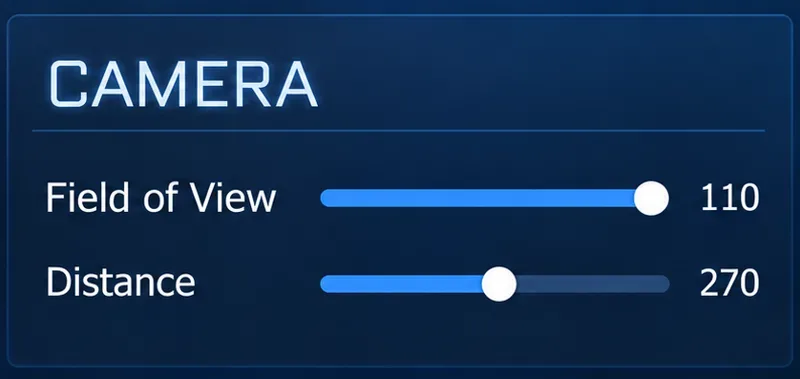
FOV means field of view: how much of the game world the camera shows at once. In a third-person shooter like Marvel Rivals, changing it can affect how much of the arena you see around your hero and how large nearby objects appear. It is different from screen resolution, render scale, camera shake, and crosshair position.
As of October 8, 2026, I could not verify an official, current step-by-step path to a Marvel Rivals FOV slider or a confirmed range of values. NetEase’s developer discussion of the game’s third-person camera says the developers adjust camera rules and FOV as part of the hero-view design. It does not document a player-facing slider. The latest announced notes, Version 20261009, are scheduled to go live on October 9 and do not announce an FOV option.
There is one platform-specific clue: the official Version 20250110 patch notes list a console fix for heroes whose auxiliary sight intensity and crosshair sensitivity did not adjust correctly “when the Field of View changed.” That confirms the game can account for FOV changes on console, but the note does not identify a settings path, prove every console version exposes a slider, or give its limits. Use the steps below to check your own build rather than assuming the PC and console menus match.
How to look for the slider without changing the wrong setting
- Confirm your platform. Note whether you are playing on PC, PlayStation, or Xbox. Do not follow a PC menu walkthrough while using a console, or vice versa.
- Open Marvel Rivals’ in-game Settings. From the lobby, use the Settings button. During a match, open the pause menu and select Settings if the mode allows it.
- Inspect the available camera or display controls. Look through the visible categories for a setting explicitly named “Field of View” or “FOV.” Category names and layout can change between platforms and updates, so follow the labels in your client rather than relying on a guessed tab name.
- Only adjust an actual FOV slider. If your client shows one, move it a small amount, apply or save if prompted, and note the original value so you can restore it.
- If there is no FOV entry, stop searching adjacent menus. Sensitivity, reticle, resolution, and graphics-quality options do not substitute for an FOV setting. The absence of a slider may mean that your platform or build does not expose it.
On PC, if the current Settings screen contains no Field of View option, there is no verified hidden FOV slider to unlock through another tab. The official patch notes and FAQ reviewed for this guide do not document a PC FOV control. Avoid copying console settings advice or downloading a configuration file that claims to add one.
On console, check the current client for an explicitly labeled FOV option. The older console patch note shows that FOV-related behavior existed, but it does not establish that every current console version offers a user-adjustable slider. If you cannot find the control, do not infer a location from the patch note alone.
If the slider is available, how should you adjust it?
There is no verified universal “best” number to recommend from the official sources checked. If a slider appears in your version, change it gradually and compare the same kind of scene before and after. A wider view may reveal more of the surroundings, while making distant targets or your hero appear smaller. A narrower view can make the center of the screen feel larger but show less around the edges.
- Change only FOV first, not sensitivity, resolution, and reticle settings at the same time.
- Use a low-pressure practice area or training mode to compare movement, aiming, and camera comfort.
- Watch the edge of the screen while turning and check whether nearby opponents remain easy to track.
- If you use an auxiliary sight or scoped view, check its feel after a change. The official console patch notes document a past issue linking FOV changes with auxiliary sight intensity and crosshair sensitivity for some heroes.
- Keep the value that feels comfortable and restore the previous one if targets become harder to read or the view feels distorted.
For example, if a wider setting makes flanking enemies easier to notice but causes a small target to feel less clear, compare the same training situation at the previous value. This is a way to judge comfort, not evidence that one FOV gives a competitive advantage.
What to do when you cannot find or move it
The option is missing
Check the platform and the live game version first. Restarting the client will not add an option that the build does not expose. The official Marvel Rivals release FAQ confirms the game has platform-specific support and settings information, but it does not publish an FOV-slider route. If you are on console, the old FOV-related patch reference is not enough to establish that a current slider must be present.
The control appears but does not respond
Move it once, apply or confirm the change, and reopen the same page to see whether the value remained. If the control resets or will not move, restart the game and check for a pending update. If the problem continues, use the official support channel linked from the game’s support or Feedback area and include your platform, version, and the settings category you checked. Avoid editing local game files or using third-party tools to force a camera value; those methods are not documented as supported FOV controls.
The view still feels too close
Do not assume every camera-feel issue is an FOV problem. Check whether the issue occurs with one hero or across the roster, whether it happens only while aiming, and whether a reticle or camera-shake change would address the actual discomfort. Marvel Rivals’ developers describe camera rules as part of how each hero is presented, so the view may not behave like a first-person shooter with a freely adjustable camera.
How to confirm the change worked
After changing an available slider, compare the same scene at the same resolution and aspect ratio. Check three things: how much of the arena is visible at the screen edges, whether your hero and nearby targets remain readable, and whether aiming still feels consistent. If you cannot identify a visible change, verify that you applied the setting and that you adjusted FOV rather than resolution or UI scale.
If no FOV slider appears in your platform’s current options, the practical answer is that you cannot change it through a documented in-game control on that build. Do not keep hunting through unrelated settings. Check official patch notes after updates, since NetEase can add or change options; until then, adjust the controls that are actually available and use the same scene to judge whether they solve the problem.