How to Change Your Rainbow Six Siege Data Center Region on PC
Change your Rainbow Six Siege data center in GameSettings.ini, verify the region, troubleshoot saving errors, and restore automatic selection on PC.
To change the data center region in Rainbow Six Siege on PC, close the game, open your account’s GameSettings.ini, and replace the active DataCenterHint=default line with a supported region value, such as DataCenterHint=playfab/westeurope. Save the file, restart Siege, and check the Data Center readout through the main menu’s gear icon.
Illustrative scenario: Alex is a hypothetical PC player in Europe who wants to compare automatic selection with West Europe. Alex’s situation is an example, not a player testimonial or a measured performance test. The goal is to make one reversible change and verify its effect before deciding whether to keep it.
This guide was checked against Ubisoft’s support documentation on October 8, 2026. Ubisoft documents this configuration method for PC. It does not establish that a particular region will improve your connection, guarantee shorter queues, or control every matchmaking circumstance.
Alex should first distinguish two questions: “Did my region preference apply?” and “Does the connection feel better during play?” A successful file edit answers the first question only after the game displays the expected region. Connection quality requires a separate comparison.
Write down your current displayed data center and the problem you are trying to address. For example, you might be investigating an unexpected region label, inconsistent latency, or a connection that feels delayed. Avoid changing several network settings at once, because that makes the result harder to interpret.
Ubisoft’s data center information page explains automatic regional selection and where to find the Data Center readout. Use that display as your starting reference. Do not treat a region’s name as proof that it is the best choice for your particular connection.
Exit the game completely before editing. Ubisoft gives this default location:
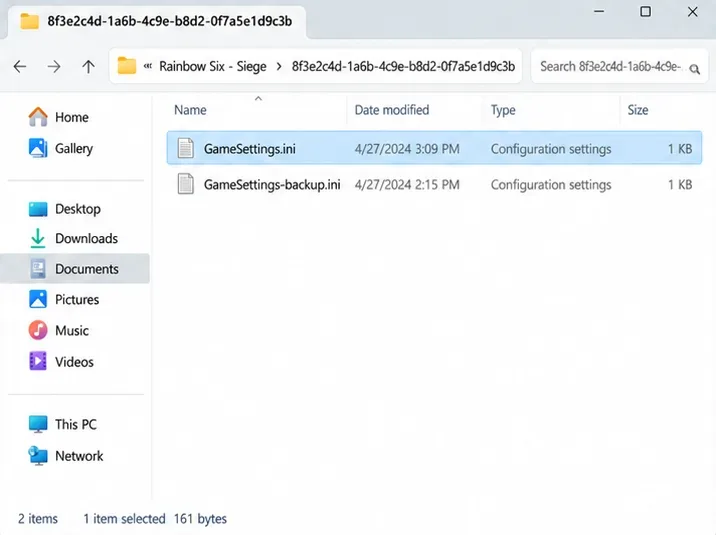
C:\Users\<User>\Documents\My Games\Rainbow Six - Siege\<UbisoftConnectID>Replace the placeholders with your Windows user folder and Ubisoft account folder. These angle-bracket labels are explanatory placeholders, not text to paste literally into an address bar. Inside the account folder, look for GameSettings.ini.
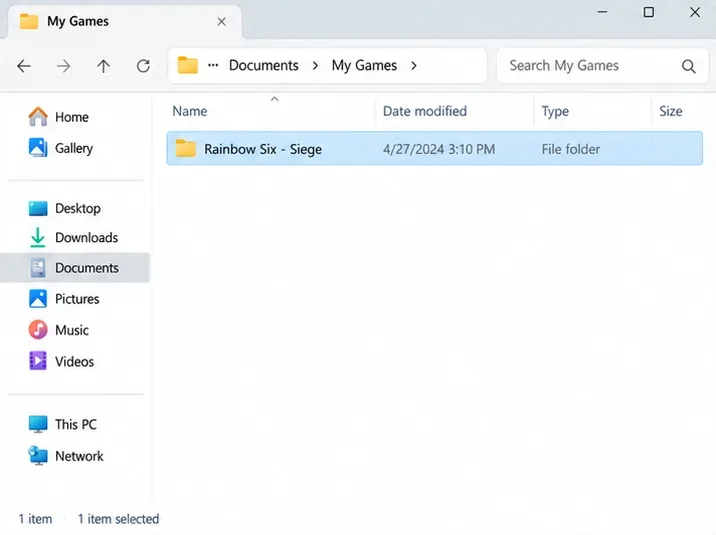
In Alex’s example, the practical route is to open Documents, then My Games, then Rainbow Six - Siege. If the default path is empty, check the Documents location that Windows actually uses before assuming the configuration is missing. Documents may be included in OneDrive folder backup; Microsoft explains this arrangement in its OneDrive folder backup documentation.
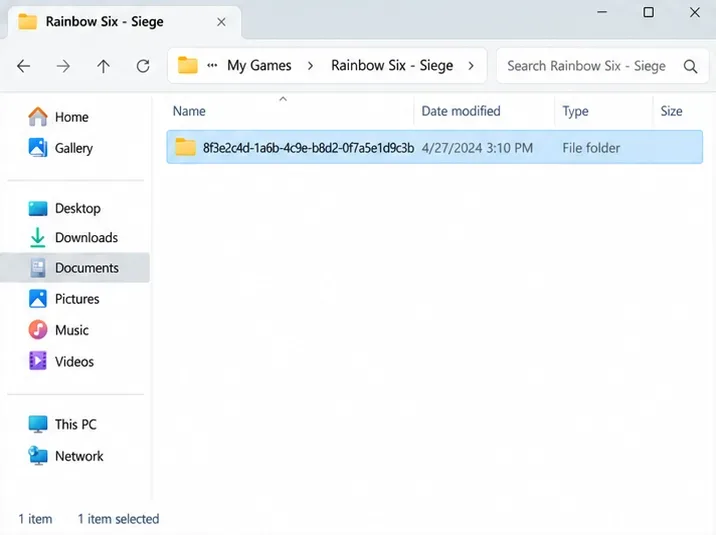
If you find several account folders, do not edit every copy. As a troubleshooting approach, compare modification times after opening and closing Siege with the intended account. A recently modified file is a useful clue, not conclusive proof. Keep track of the exact path you choose so you can revisit the same file later.
Make a copy before changing anything. A name such as GameSettings-backup.ini helps distinguish the backup from the file you intend to edit. Open the original in a plain-text editor such as Notepad, rather than a word processor.
Ubisoft’s documented section is near the bottom of the file. A shortened example looks like this:
[ONLINE]
; default (ping based)
; playfab/westeurope
; playfab/northeurope
DataCenterHint=default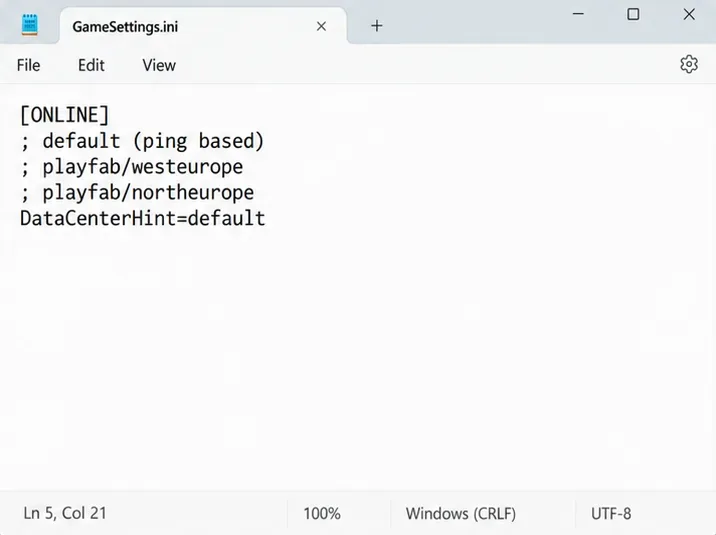
The semicolon-prefixed entries are comments listing choices. The un-commented assignment is the setting to change. Alex should leave the reference entries alone and edit only the value after the equals sign on the active line.
That distinction also prevents a common editing mistake: adding a desired region to a commented line while leaving the active assignment unchanged. Before saving, inspect the actual assignment rather than relying on the presence of a region name somewhere in the document.
For the hypothetical West Europe comparison, use:
DataCenterHint=playfab/westeurope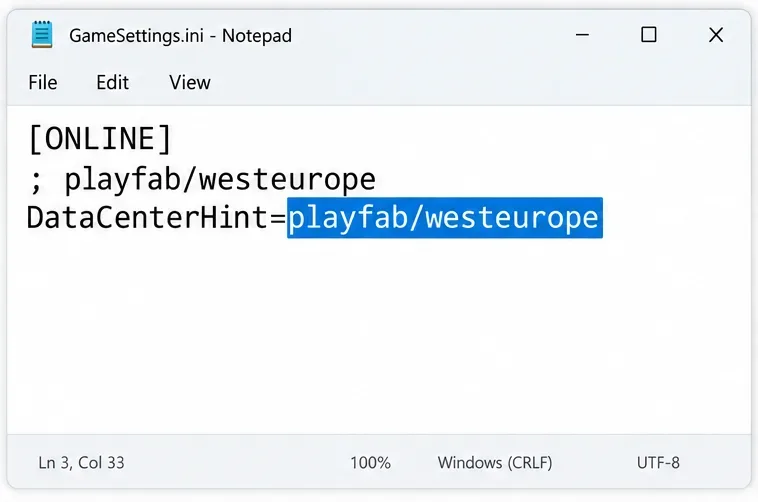
Do not append parentheses, a region’s display name, quotation marks, or an explanatory note to that assignment. Keep the rest of the file intact. The playfab/ prefix is part of the documented manual values.
A few examples from Ubisoft’s published configuration list are shown below. This is a reference selection, not a ranking or a claim that these are the only operating locations.
| Region | Manual value |
|---|---|
| West Europe | playfab/westeurope |
| North Europe | playfab/northeurope |
| Central US | playfab/centralus |
| East US | playfab/eastus |
| Southeast Asia | playfab/southeastasia |
| Japan East | playfab/japaneast |
Follow the syntax in Ubisoft’s manual data center selection instructions. If a region appears in the general location list but has no corresponding value in the configuration instructions, do not invent a token from its display name.
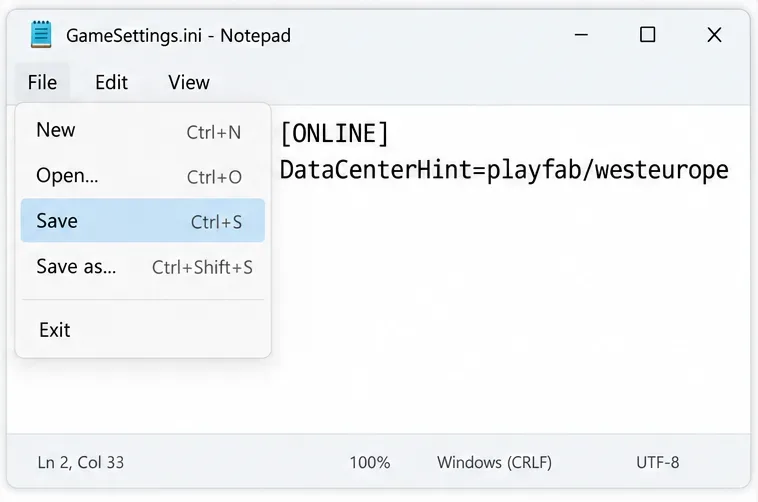
Save the existing file. Then reopen it and confirm that your assignment is still present. This small check separates an editing problem from a game behavior problem: if the text never saved, relaunching cannot verify the change you intended.
Launch Siege and select the gear icon in the main menu to inspect Data Center. Alex should compare the displayed region with the requested West Europe preference before drawing conclusions about performance.
Then evaluate a few completed matches under similar conditions. Keep the comparison practical: note latency during play, recurring spikes, connection warnings, and whether matchmaking becomes inconvenient. These are suggested observations, not published benchmark results. Avoid deliberately leaving an ongoing match just to change the file.
In the illustrative scenario, there are three possible outcomes. If West Europe appears and play is acceptable, Alex can keep the setting. If the label changes but play gets worse, Alex should revert. If the label does not change, Alex should check the file and syntax before trying unrelated network changes. No result is assumed here.
DataCenterHint= assignment. Keep one clear assignment rather than adding competing copies.GameSettings.ini.txt. On Windows 11, enable View, Show, File name extensions in File Explorer; see Microsoft’s file extension guidance.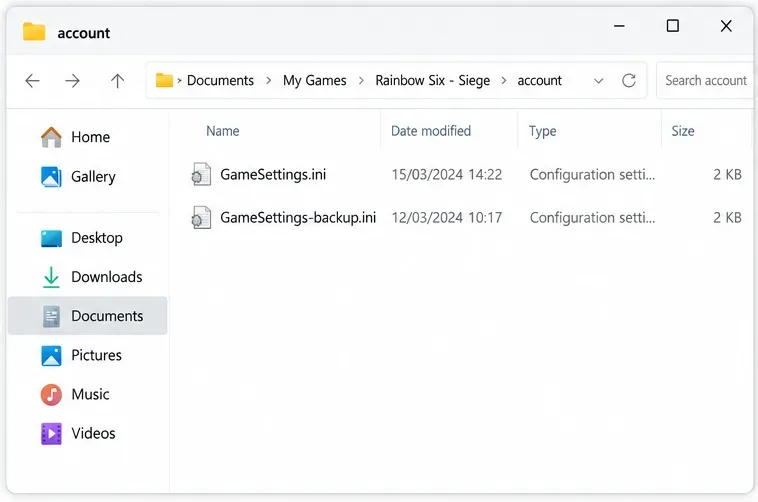
If the assignment survives a restart but the observed behavior still differs, record the exact value, displayed region, account folder, and steps taken. The support pages reviewed do not explain every party, matchmaking, or fallback case. Treat the discrepancy as an unresolved issue rather than proof that a different undocumented code will fix it.
For connection problems that persist with automatic selection too, use Ubisoft’s Siege connectivity troubleshooting guidance. Region selection is one configuration change; it is not a diagnosis of every source of lag.
Close Siege, return to the same file, and set the active assignment back to:
DataCenterHint=default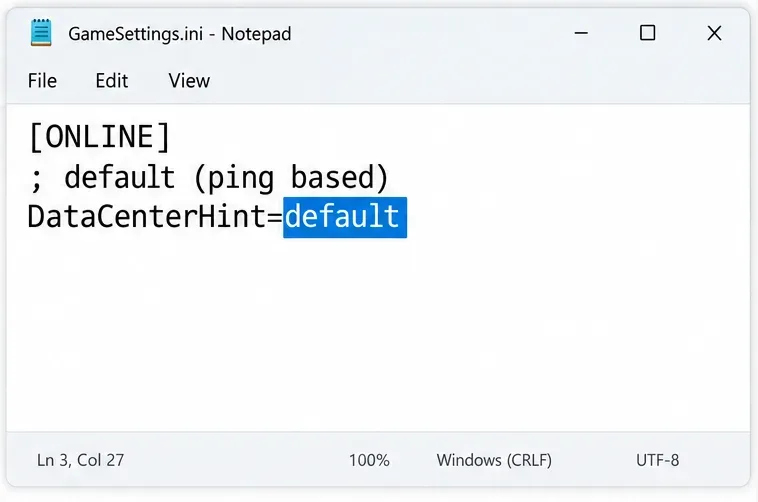
Save, restart, and inspect the Data Center readout again. Automatic selection does not mean the game must return to the exact region label you noted earlier. Verify what it actually displays.
Alex’s useful outcome is a verified, reversible preference with notes about real play conditions. Apply the same standard to your own setup: confirm the file saved, confirm the game’s displayed region, and keep a manual choice only when the observed experience supports it.
Change your Rainbow Six Siege data center in GameSettings.ini, verify the region, troubleshoot saving errors, and restore automatic selection on PC.
Learn why the old r_cleardecals bind is unreliable in CS2, what cl_removedecals can do in cheat-enabled practice, and what to expect in official matches.
Learn how to check for a Field of View slider in Marvel Rivals, why it may be missing, and how to test any camera setting your platform provides.
Learn the Unreal Engine setting commonly used to disable motion blur in Dead by Daylight, where the Windows config file is, and why current builds may ignore or remove the change.
Try a practical Rocket League camera baseline for dribbling, understand FOV and distance tradeoffs, and test each change without confusing settings with skill.
Use Dota 2 FPS commands to check performance, remove an unnecessary cap, and choose a stable limit. Learn which popular tweaks lack verified benefits.
Use a clear, restrained Dead by Daylight audio profile to hear survivor breathing and footsteps. Compare headphone, stereo, EQ, and volume settings safely.
Mute TFT opponent emotes globally or for one player, learn what the setting affects, and check why some Little Legend animations may remain visible.
Customize SCV, Probe, and Drone production hotkeys in StarCraft: Remastered, avoid selection mistakes, and verify your bindings in a practice game.
Compare Halo Infinite enemy outline colors by background, friendly-team contrast, and visual preference, with practical opacity and thickness checks.