Home
» 🎮 Esports
»
Best Mobile Legends Camera Height and Sensitivity: A Practical Starting Setup
Best Mobile Legends Camera Height and Sensitivity: A Practical Starting Setup
Start with Camera Height set to High, if your Mobile Legends client offers it, and camera sensitivity near the middle of its slider. Keep High only if nearby heroes, health bars, and skill effects remain easy to read. Raise sensitivity a little when checking another area takes too much finger movement; lower it when your view repeatedly overshoots the location you meant to inspect.
That is a practical starting recommendation, not a verified professional preset or a MOONTON benchmark. The best camera settings are the ones that let you gather information quickly while keeping control of your own hero. Maximum sensitivity is not automatically better, and a wider-looking view is useful only when you can still interpret the action.
Verification note, October 8, 2026: The official public sources reviewed did not provide a universal camera sensitivity recommendation, an exact slider-to-movement formula, or a current camera-menu reference covering every regional client and device. This article therefore avoids claiming that a particular percentage is officially optimal. Confirm the available controls in your installed client; exact labels and menu placement are not verified here for every release.
The recommended starting setup
Setting or decision
Starting recommendation
When to reconsider
Camera Height
Try High if available.
Choose the lower view if important details become too difficult to distinguish.
Camera Sensitivity
Start near the slider’s midpoint.
Increase for repeated undershooting; decrease for repeated overshooting.
How much to change
Use a small adjustment and repeat the same observation.
Stop adjusting when you can place the view consistently.
What to judge
Readability, controlled map checks, and returning attention to your hero.
Do not judge the setting from one win, loss, or successful skill.
If your client displays a percentage scale, its midpoint can be expressed as 50%. That number is simply the middle of the available range, not a claim about equal behavior across phones. If there is no number, use the visual middle of the slider. There is no need to invent a numerical setting your interface does not display.
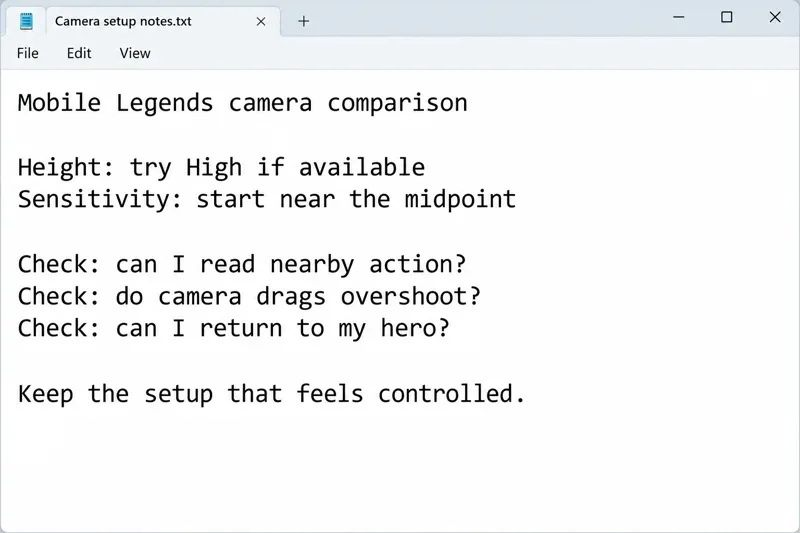
A comparison note lists the starting settings and three checks for choosing a controlled camera setup.
Why High camera height is a useful first choice
For an overhead battlefield view, the reason to try a higher camera position is context: you want to recognize approaches, nearby movement, and space around a fight without constantly repositioning the view. In your own client, compare the available height options while looking at the same location. Check whether High actually gives you more useful visible context and whether you can still read the details that influence your next decision.
For example, a hypothetical ranged player watching a lane entrance may prefer the view that makes an approaching opponent easier to notice. But if that view makes a crowded fight harder to read on a small screen, its extra context may not be worth the tradeoff. This example illustrates a decision; it is not a report of a measured result.
A higher perspective should not be treated as a promise to reveal concealed opponents or bypass the game’s visibility rules. Judge what the normal client actually shows. Likewise, seeing more space around an ability does not establish that the ability’s range has increased. Camera framing and combat mechanics are different questions.
Choose the lower height when it produces a clearer, more comfortable view for you. The useful comparison is not “Which option sounds more competitive?” It is “Which view lets me recognize the information I need without hesitation?”
Why moderate sensitivity is easier to calibrate than maximum
Camera sensitivity should be evaluated through camera movement. When testing the control, make sure your gesture moves the battlefield view rather than the movement joystick or an ability indicator. If changing the slider does not produce an observable difference in that gesture, check the control’s in-game description before making further assumptions.
Starting near the middle gives you room to adjust in either direction. The recommendation is a calibration method: it does not depend on a supposed secret number. A fast setting is useful when you can still stop the view where you intend; a slower setting is useful when it removes corrections without making map checks cumbersome.
Imagine checking a nearby river entrance. If one comfortable drag keeps stopping short and you need several additional movements, try a modest increase. If the same drag sends the view beyond the entrance and you have to pull it back, try a modest decrease. Repeat the comparison from the same starting position so you are judging the adjustment rather than a different gesture.
Do not use camera sensitivity as a substitute for diagnosing missed skills. Camera movement, skill aiming, and target selection have different purposes. The official sources reviewed do not establish that adjusting camera sensitivity also adjusts ability aiming, so this guide makes no such promise.
Choose by the task you perform, not just your role
MOONTON’s official Mobile Legends app listing describes a team-based MOBA with roles including tanks, mages, marksmen, assassins, and supports. Those roles suggest different information needs, but they do not establish a required sensitivity value.
Ranged damage and skill-shot play
Prioritize a view that lets you read the space around your target and then return attention to your own position. If map checks feel jumpy, reduce sensitivity before assuming you need faster fingers. If the problem is placing an ability rather than moving the camera, investigate the relevant aiming controls separately.
Roaming and objective preparation
Frequent checks of entrances and nearby teammates can make a somewhat faster camera comfortable. Increase only when the current setting consistently requires too much movement. A setting that helps you look around but causes you to lose track of your own position has not solved the whole problem.
Close-range fighting
Keep nearby action readable. A player who spends much of a fight in a crowded area may value a steadier view more than rapid long-distance panning. Evaluate the height and sensitivity during ordinary movement as well as a busy fight; the setting should remain manageable in both.
What a useful comparison looks like
Use a practice environment available in your client before making unfamiliar adjustments during a live match. Compare one setting at a time: first decide which height you can read comfortably, then tune camera sensitivity while keeping that height fixed.
Choose one nearby landmark and use your normal grip. Look toward it, stop the camera deliberately, and return the view to your hero using the behavior available in your client. Repeat the same task several times. Notice whether the problem is repeated undershooting, overshooting, or simply uncertainty about the gesture.
Afterward, evaluate the setup in normal play without changing it after every mistake. Your notes can be simple: “easy to stop,” “needs too many corrections,” or “hard to read nearby effects.” These observations are more directly connected to camera control than a single match result.
Reassess when you switch devices, substantially change your grip, or encounter an update that changes how the controls feel. Copying a slider position from another player does not confirm that it suits your screen and movement habits.
When the problem is not a camera setting
If you can move the view accurately but keep missing rotations, practice checking the map at useful moments rather than raising sensitivity again. If movement feels inconsistent only during busy scenes, investigate whether the game is running smoothly before trying to compensate with a more aggressive slider position. Sensitivity changes are not evidence that a performance or connection issue has been fixed.
If an option is missing, use the controls actually provided by your installed release. Do not infer a hidden menu from an older screenshot. Check the official Mobile Legends patch notes hub for release information, and use in-game customer service for unresolved control questions. The official app listing identifies in-game customer service as a support route.
For most readers, the useful decision is straightforward: try High when available, begin sensitivity near the midpoint, and adjust according to repeated camera-control problems. Keep the combination that makes information readable and camera placement predictable; there is no verified universal percentage that replaces that assessment.