Why Is Fortnite So Laggy? 5 Causes and Fixes (2026)
Fortnite lag can come from your connection, the game servers, or the device rendering the match. Start by checking whether the game looks visually choppy or whether your actions arrive late. Low or unstable frames usually point to PC performance; high ping or packet loss points to the network path. The five fixes below help you isolate the cause instead of changing settings at random. Most PC steps are for Windows; console checks are covered below.
First, identify the kind of Fortnite lag
| What you notice | What to check first |
|---|---|
| Players jump or teleport, or your actions register late | Ping, packet loss, matchmaking region, and Epic service status |
| The picture stutters, freezes briefly, or feels uneven while turning | FPS, CPU/GPU/memory load, heat, drivers, and video settings |
| Both symptoms happen at once | Check network stats and frame rate separately; one can be fine while the other is not |
To show connection details, open Fortnite’s menu from the lobby, choose Settings → Game UI, turn Net Debug Stats on, and select Apply. Start a match before judging the readings; Epic says real ping and packet-loss results appear in a match. There is no universal ping number that makes the game lag for everyone. Look for sustained packet loss or large swings, not just one brief spike. You can also check the Epic Games status page for a reported service incident.
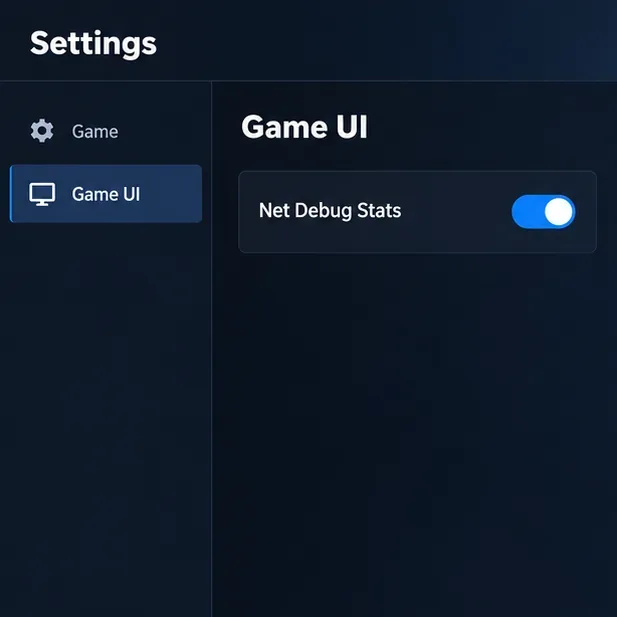
Five common causes of Fortnite lag—and how to fix each one
-
High ping, packet loss, or a congested network
A busy or unstable connection can cause delayed actions, rubber-banding, and short disconnects even when your PC is powerful. Wi-Fi interference, a distant server region, household uploads, and an ISP issue can all contribute. Try these steps in order:
- Check Epic’s live service status and your ISP’s outage notices first.
- Restart your modem and router, then test again.
- If possible, connect the PC or console to the router with Ethernet. If you must use Wi-Fi, move closer to the router and compare performance from the same room.
- Pause large downloads, cloud backups, video streams, and uploads on your network while you play. Upload traffic can be especially disruptive on connections with limited upload capacity.
- In Fortnite, open Settings → Game → Language and Region → Matchmaking Region. Epic recommends Auto for the best connection. If Auto still routes poorly, compare the displayed ping for another region and switch back if the result is worse; manual region or subregion choices can affect queue time and match quality.
Epic’s latency and ping troubleshooting guide also explains how to test a regional endpoint and what to share with your ISP if problems continue.
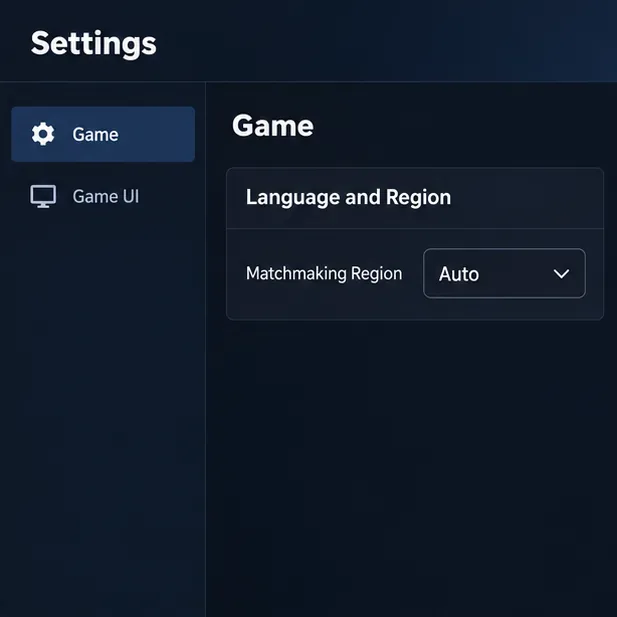
Fortnite Settings showing Game, Language and Region, and Matchmaking Region set to Auto. 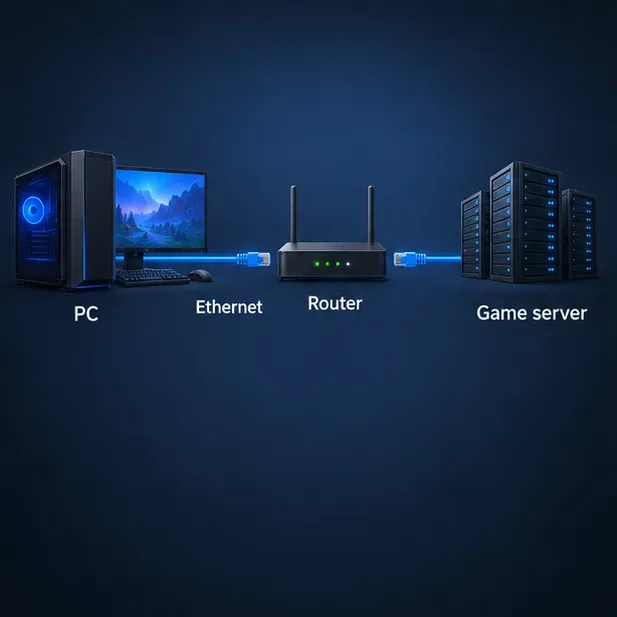
A PC connected by Ethernet to a router, with the router linked to a game server. 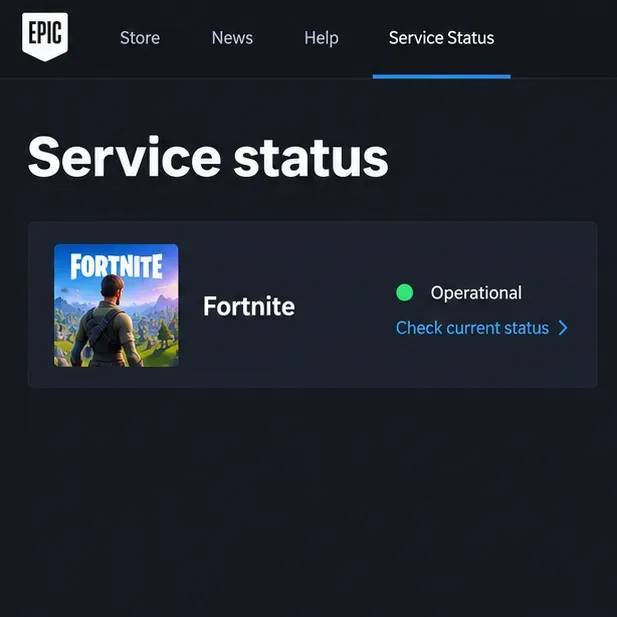
An example Fortnite service-status screen; check Epic’s live page for the current service state. -
PC hardware is overloaded or overheating
When the CPU, GPU, or memory cannot keep up, Fortnite may have low FPS or uneven frame times. On Windows, press Ctrl + Shift + Esc to open Task Manager, select Performance, and watch CPU, GPU, and memory while a match is running. A component staying near its limit is a clue, not proof by itself; compare what changes during the stutter.
Check that your PC meets Epic’s current requirements before changing hardware: its published PC list names 8 GB RAM as the minimum and 16 GB as recommended. Keep laptop and desktop vents clear, use the computer in a well-ventilated space, and avoid playing in a battery-saving power mode on a laptop. If your laptop has both integrated and dedicated graphics, make sure Fortnite uses the high-performance GPU. Epic’s PC system requirements and low-FPS troubleshooting steps give more detail.
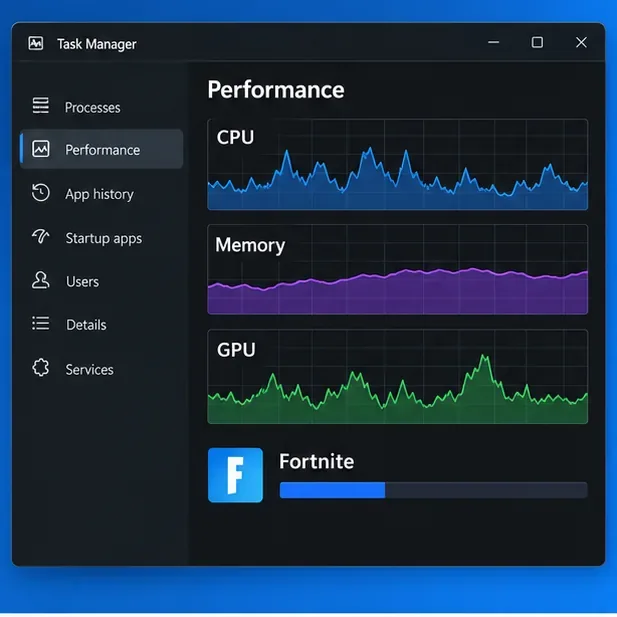
Task Manager-style CPU, memory, and GPU graphs shown beside Fortnite. -
Graphics drivers or Fortnite files need attention
An outdated or damaged graphics driver can cause visual glitches, freezes, or performance problems. Check for a driver through your GPU maker—NVIDIA, AMD, or Intel—or your laptop manufacturer, then restart if the installer asks. Avoid third-party “driver updater” downloads.
If the issue began after an update or Fortnite is also crashing, verify the game files in the Epic Games Launcher: open Library, use the three-dot menu on Fortnite, choose Manage, and select Verify. The scan can take a few minutes. Epic’s FPS guide links to its graphics-driver instructions and file-verification steps.
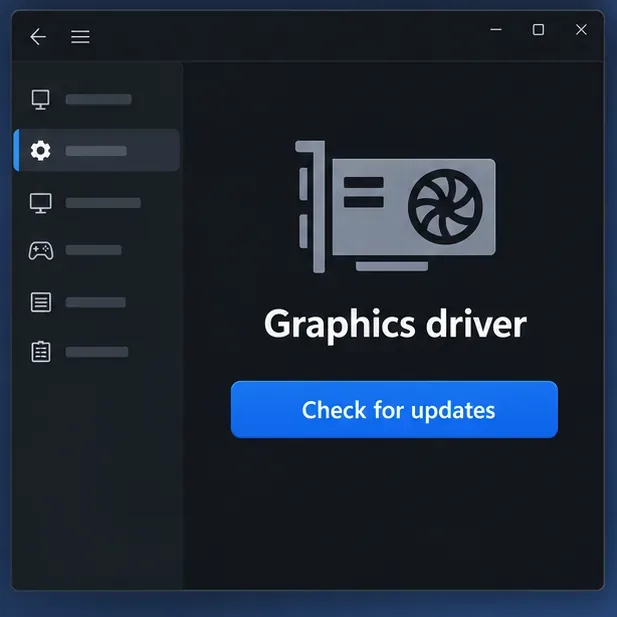
A graphics driver settings window with a Check for updates control. -
Background apps are using CPU, memory, or bandwidth
Browsers with many tabs, screen recorders, streaming software, cloud-sync tools, and active downloads can compete with Fortnite for system resources or network capacity. Close apps you recognize and do not need, then compare a new match. If an overlay or capture tool seems connected to the problem, turn off one feature at a time and test again. Don’t end unfamiliar Windows processes just to free memory.
Epic also recommends disabling unnecessary background programs when troubleshooting low frame rate. If closing apps helps, re-enable them one at a time to find which one is affecting your session.
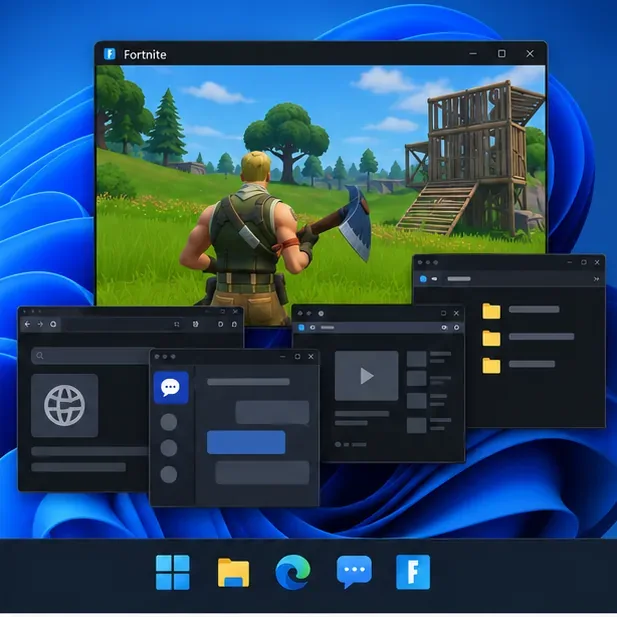
Fortnite running while several generic desktop apps are open in the background. -
Video settings are too demanding for your PC
On PC, open Settings → Video and begin with Quality Presets: Low. Epic recommends leaving 3D Resolution at 100% as a starting point, then changing one option at a time to find a stable balance. If the game still stutters on older or lower-powered hardware, try Rendering Mode: Performance – Lower Graphical Fidelity and restart Fortnite if prompted. This mode trades visual detail for a lighter rendering workload; it does not reduce network ping.
Performance Mode is a PC setting and is not available for Fortnite on consoles. Do not expect a specific FPS increase: the result depends on your hardware, resolution, and game conditions. See Epic’s low-frame-rate guide for the current menu path and options.
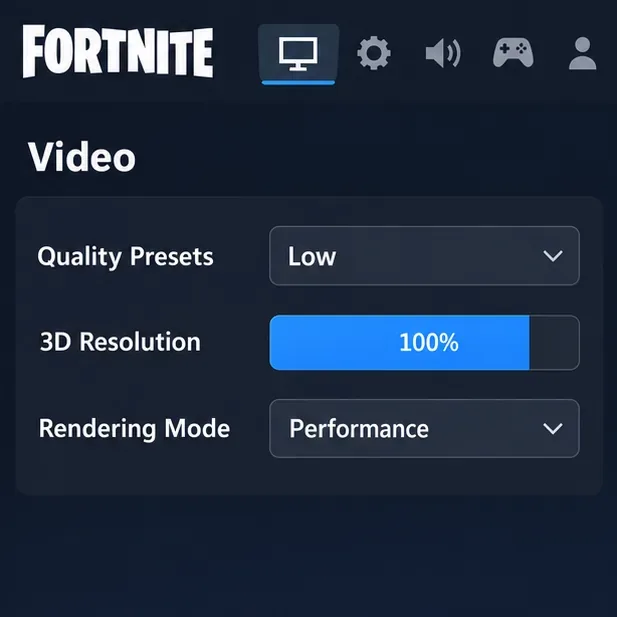
Fortnite Video settings showing Quality Presets Low, 3D Resolution 100%, and Rendering Mode Performance.
What to do if Fortnite is laggy on console
PC graphics-driver and Task Manager steps do not apply to PlayStation, Xbox, or Nintendo Switch. Check Epic’s status page, check your internet provider for a local outage, run the console’s built-in network test, and try a wired connection if practical. Restart the console and router before repeating the test. Epic’s console connection guide links to the official network-test instructions for Xbox, PlayStation, and Switch. For PS5 and Xbox Series X|S, display and console settings can also affect available frame-rate options; Performance Mode for Fortnite itself is not a console setting, according to Epic’s console guidance.
Frequently asked questions
Why is Fortnite laggy on a good PC?
A fast PC cannot fix packet loss, a poor route to a game server, or a service incident. If ping and packet loss look steady but the image is choppy, check GPU/CPU load, temperatures, background apps, and video settings. If the problem started after a patch, verify the game files.
Does lowering graphics settings reduce ping?
No. Lower video settings can help FPS and frame-time stutter, but ping measures the network path to the game service. Use Net Debug Stats and the network steps above for connection problems.
When should I contact my internet provider?
Contact your ISP if high ping or packet loss continues after testing Ethernet, restarting the router, and stopping large transfers. Share when it happens, your region, and any test results. If Epic reports an incident, wait for its status updates before changing your local setup.
In short: diagnose the symptom first. Use Net Debug Stats for connection trouble; use Task Manager and video settings for low FPS. Then apply the fix that matches the evidence—network changes will not repair a GPU bottleneck, and lowering graphics will not repair packet loss.









