How to Fix Valorant Ping Spikes (2026): 7 Practical Fixes
To fix Valorant ping spikes, first confirm the jump in Network Round Trip Time, pause downloads and cloud sync, switch to Ethernet if possible, and choose the lowest-ping available game server. If latency still jumps unexpectedly, restart your network equipment, check the adapter driver, and troubleshoot Windows networking. Test after each change so you know what actually helped.
A ping spike means latency suddenly rises and falls, even if your usual ping is low. This is different from consistently high ping, packet loss, or a drop in frames per second (FPS). The steps below focus on intermittent network delay on Windows PCs; connection checks also apply to console players where relevant.
Before changing anything: measure the spike
Step 1: Turn on Valorant’s network stats
- Open Settings → Video → Stats in Valorant.
- Set Network Round Trip Time to a visible text or graph option, and enable Packet Loss as well. Labels and display choices may vary between updates.
- Play a custom game or a normal session and note whether the ping reading jumps at the same time the action freezes or rubber-bands.
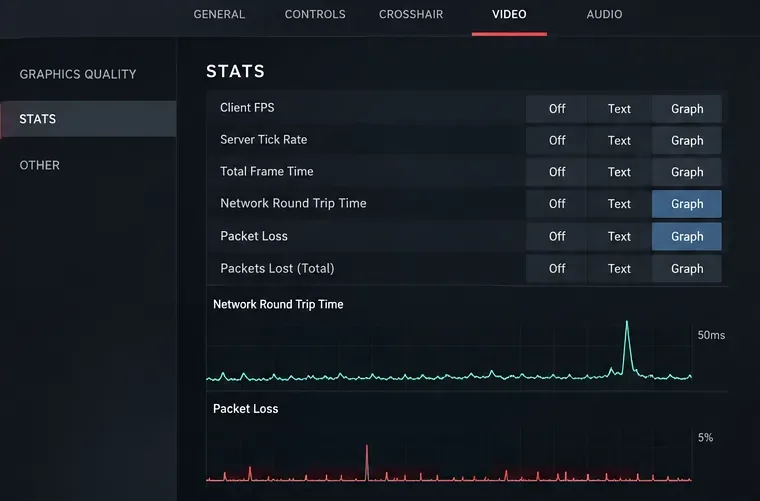
If FPS falls while RTT stays steady, focus on PC performance instead of network fixes. If RTT surges or the packet-loss reading increases, work through the following checks.
Seven steps to stop Valorant ping spikes
Step 2: Pause background downloads and uploads
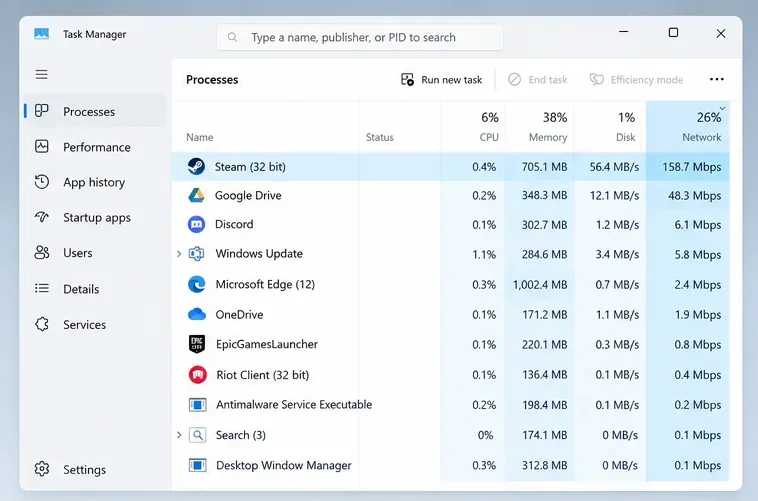
Video streaming, game updates, file backups, and other traffic can fill your connection’s upload or download queue. On Windows, press Ctrl + Shift + Esc to open Task Manager, choose Processes, and sort by Network. Pause Steam or Riot Client downloads, cloud syncing, browser streams, and large uploads. Also check whether another device in your home is backing up files or streaming heavily.
Do not indiscriminately end unfamiliar Windows processes. Pause known apps first, then retest Valorant for several minutes.
Step 3: Test Ethernet instead of Wi-Fi
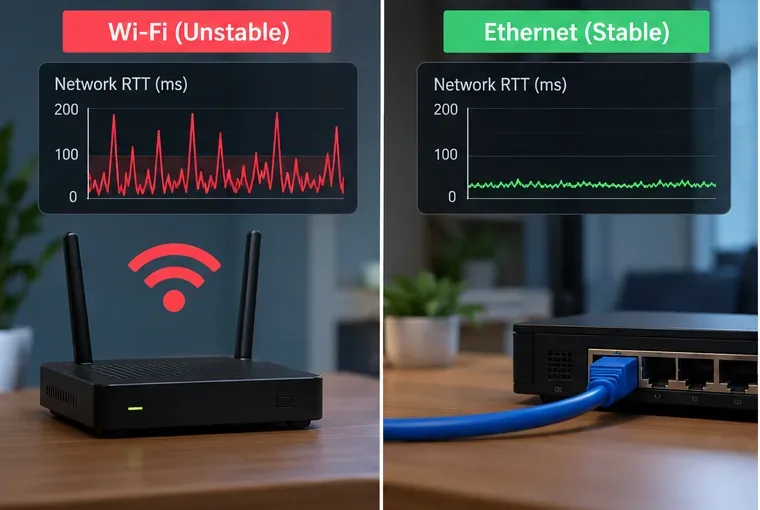
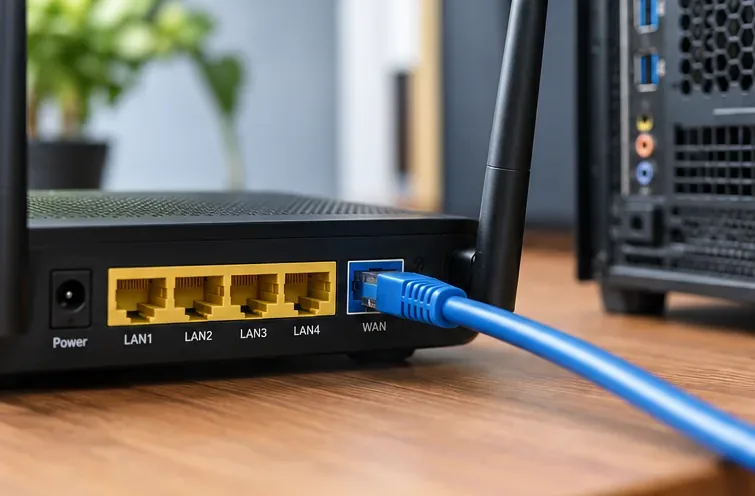
Wi-Fi interference, weak signals, and competing devices can produce jitter—variation in packet delay. For a useful comparison, connect your PC directly to a LAN port on the router with an Ethernet cable, disconnect Wi-Fi, and play on the same Valorant server as before. Keep the cable away from damaged connectors and check that Windows reports the wired connection as active.
If Ethernet removes the spikes, investigate Wi-Fi placement, signal strength, or a less congested Wi-Fi band. Powerline adapters are not automatically better than Wi-Fi; performance depends on the building’s electrical wiring. Microsoft provides additional checks in its Microsoft’s Ethernet troubleshooting steps.
Step 4: Choose a lower-ping server before queuing
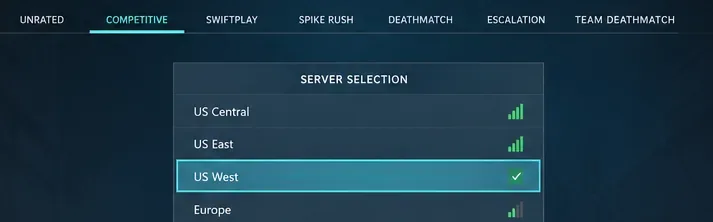
From Valorant’s Play screen, open the server preference selector before entering matchmaking. Review the available data centers and favor one with a low, steady ping reading. A geographically nearer server is not always the best-routed option, so compare the displayed estimates and your actual in-match experience.
Riot’s server selector lets solo players and party leaders choose from the servers available in their existing shard; it does not freely switch an account between North America, Europe, and Asia. The picker is part of the pre-match queue flow, not a region-control menu under Settings → General. See Riot’s Server Select explanation for the supported server pool.
Step 5: Restart your modem or router and check local congestion
Close the game, power down your modem and router for at least 30 seconds, then restore power and wait for the internet connection to return. If they are separate devices, follow the manufacturer’s usual startup sequence. Try Valorant again after the equipment reconnects.
If spikes coincide with someone uploading a large file, your connection may be experiencing queueing delay (often called bufferbloat). If your router supports Smart Queue Management or properly configured QoS, consult its manual before changing settings. Disabling every QoS feature is not a universal fix; some traffic-management features reduce latency when the line is busy. Riot includes both router power cycling and bandwidth reduction in its Riot’s PC connection troubleshooting guide.
Step 6: Update the network adapter driver when appropriate
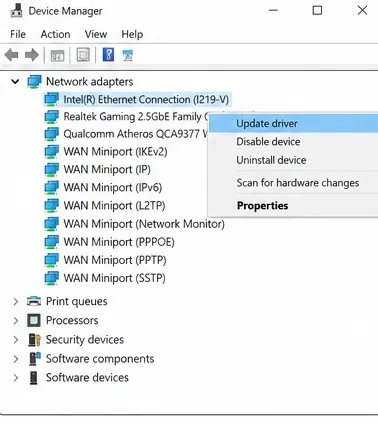
If the problem began after a Windows update or affects only this PC, check the adapter driver. Open Start → Device Manager → Network adapters, right-click your active Ethernet or Wi-Fi adapter, then choose Update driver → Search automatically for drivers. Also check Windows Update and the PC or motherboard manufacturer’s driver page. Restart when requested.
A driver update is not a guaranteed ping fix. Avoid third-party driver-updater utilities, and do not uninstall a working adapter unless you have a replacement driver or a recovery path ready. Follow Microsoft’s driver update instructions for Windows 10 and 11.
Step 7: Reset Windows networking and test DNS only if earlier steps fail
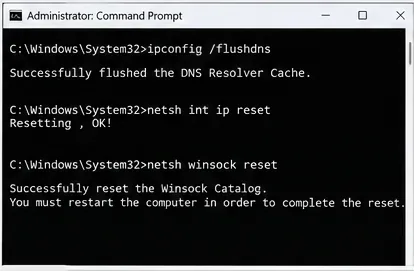
Open Command Prompt as administrator. Riot’s current TCP/IP procedure uses the following commands, entered one at a time:
netsh int ip reset
netsh winsock reset
Restart the PC afterward. If you suspect name-resolution problems—such as intermittent issues connecting to Riot services—you can separately clear cached DNS entries with ipconfig /flushdns. These commands refresh Windows networking; they do not directly shorten the physical route taken by packets during an established match. Use the official Riot’s TCP/IP reset instructions instructions if you need to undo unusual network configuration issues.
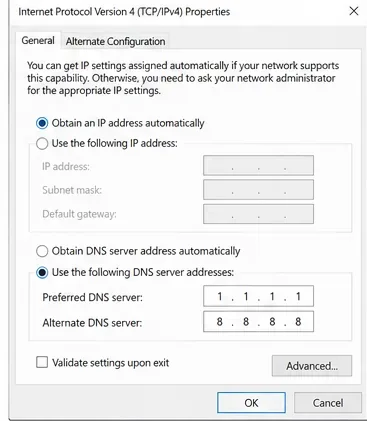
You can also temporarily compare your ISP’s DNS resolver with a reputable public resolver. On Windows 11, open Settings → Network & internet, select your active connection and the DNS server assignment edit control; set the addresses only if you understand how to restore automatic DNS afterward. For example, Cloudflare lists 1.1.1.1 and 1.0.0.1 as its standard IPv4 resolvers. Changing DNS mainly affects name resolution, so do not expect a predictable reduction in in-game RTT. Record the original setting and revert if connectivity worsens. Confirm the addresses at Cloudflare’s official resolver addresses.
How to tell whether the problem is your PC, ISP, or Riot
Run a short comparison while the ping spikes occur. In Command Prompt, enter ipconfig and find the Default Gateway for your active adapter. Then try ping -t YOUR_GATEWAY_IP, replacing the placeholder with that address. In a second Command Prompt, try ping -t 1.1.1.1. Press Ctrl + C to stop either test. The external address is a diagnostic endpoint, not a Valorant server; ICMP handling can differ from actual game traffic.
| What you observe | What to check next |
|---|---|
| Gateway ping spikes or times out | Local Wi-Fi, cables, network adapter, and router |
| Gateway stays steady; external ping spikes | Modem, ISP connection, shared traffic, or upstream congestion |
| Both tests look stable; only Valorant spikes | Game-server choice, route to Riot, game-specific software, or a regional incident |
| Only FPS drops, with network readings stable | Graphics settings, background CPU/GPU load, and hardware performance |
These results help narrow the search, but no single ping test proves a fault is on Riot’s servers. Try another available Valorant data center and check Riot Games Service Status for your own region. If symptoms reliably appear only at peak hours, record dates, connection type, and test results before contacting your ISP.
Fixes to avoid applying blindly
- VPNs and proxies: Disable them during initial troubleshooting. A VPN can change your route, but it can also add delay; Riot generally recommends testing without one.
- High process priority: Raising Valorant to High in Task Manager does not grant its packets priority across your ISP and is not a dependable network-latency solution.
- DNS “boosts”: A faster resolver is not the same as a faster round trip to an already connected game server.
- Network reset: Windows’ full network reset can remove adapter configurations, VPN settings, and virtual switches. Reserve it for persistent Windows connectivity problems, not as the first step.
Still getting ping spikes?
Keep a record of the in-game RTT graph, the server you selected, the time and frequency of spikes, whether Ethernet improves them, and what your gateway and external ping tests show. Riot’s Riot’s network and game log instructions explains which Windows logs and diagnostic files support may request. Submit a ticket through the official Player Support channel if you have ruled out local causes.
Frequently asked questions
Why does Valorant spike from low ping to 200 ms?
A connection can have a low baseline ping but still suffer short delays when packets queue behind uploads, Wi-Fi retransmits occur, or an upstream route becomes congested. Diagnose the change over time, rather than only checking your average ping.
Can Discord cause ping spikes?
It can contribute when streaming video, sharing a screen, or uploading media on a crowded connection. Ordinary voice chat does not always create a meaningful load. Compare a match with screen sharing paused before blaming Discord.
Does switching to Ethernet always lower ping?
No. Ethernet usually removes Wi-Fi interference and can improve stability, but it cannot fix congestion or routing problems farther from your home.
Is packet loss the same as a ping spike?
No. A ping spike is a sudden increase in round-trip delay. Packet loss means some packets fail to arrive. They can happen together, but diagnosing them separately helps you choose the right fix.









