Why VALORANT Won’t Open and How to Fix It (2026)
If VALORANT won’t open on your Windows PC, first check Riot’s service status, close any stuck Riot Client process, and restart your computer. If that does not help, check the Vanguard vgc service, repair the game files, and use a clean boot to find background software that may be interfering. A VAN error needs its own fix, so use the exact code rather than changing security settings at random.
This guide covers the Windows PC version. Riot’s current requirements list 64-bit Windows 10 (build 19041 or later) or Windows 11, DirectX 11 support, and additional TPM 2.0 and UEFI Secure Boot requirements on Windows 11. VALORANT is not supported on cloud gaming or virtual machines. Check Riot’s current PC specifications if you are unsure whether your system qualifies.
| What happens | Start with |
|---|---|
| Nothing happens after clicking Play | Check for an outage, close stuck Riot processes, and check Vanguard. |
| A VAN error appears | Use Riot’s guide for that exact Vanguard error code. |
| The game opens and immediately closes | Repair the game, update Windows and graphics drivers, then test a clean boot. |
| The problem began after installing software | Use a clean boot to see whether a background service is involved. |
1. Check Riot’s service status and restart the client
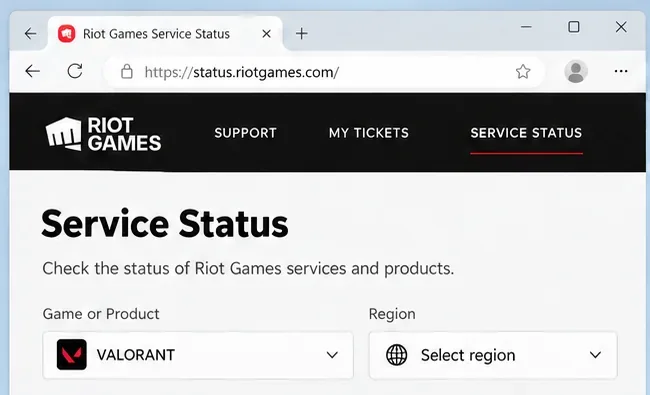
Before changing files or Windows settings, open Riot Games Service Status, select VALORANT, and choose the region associated with your account. If Riot reports an incident or maintenance, wait for service to recover; local repairs will not fix a server-side outage.
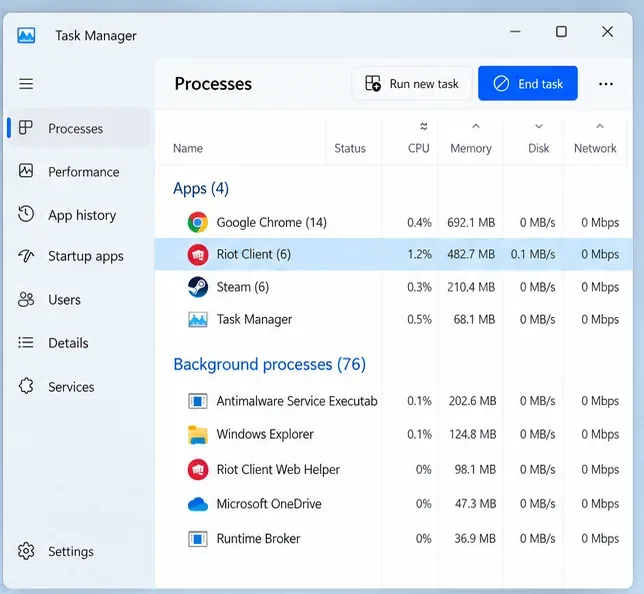
If no incident is listed, fully close the Riot Client from its system-tray icon. Then press Ctrl + Shift + Esc to open Task Manager. Under Processes, select a stuck Riot Client process and choose End task. If VALORANT is listed as a separate process, close that too. Restart Windows, open Riot Client, sign in if prompted, and launch the game again.
2. Test Riot Client with administrator permissions
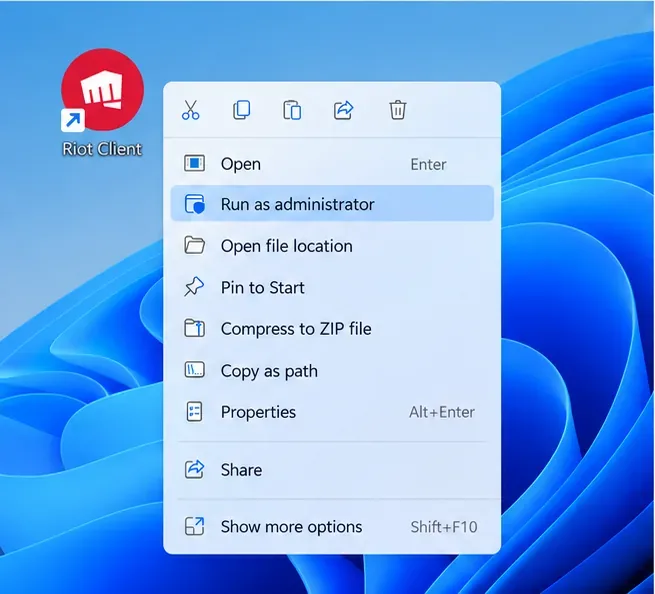
Windows permissions can sometimes stop the Riot Client from launching a game or communicating with Vanguard. Right-click the Riot Client shortcut in the Start menu or on your desktop, choose Run as administrator, approve the Windows prompt, and start VALORANT from the client. Treat this as a troubleshooting test. Avoid changing permissions on individual game executables or turning off User Account Control.
3. Check Riot Vanguard’s VGC service
VALORANT needs Riot Vanguard to run. On a standard Vanguard setup, Riot’s current instructions use the vgc service. Press Win + R, enter services.msc, and press Enter. Find vgc, double-click it, set Startup type to Automatic, and select Start if the service status is Stopped. Choose Apply and OK, restart the PC, and try the game again.
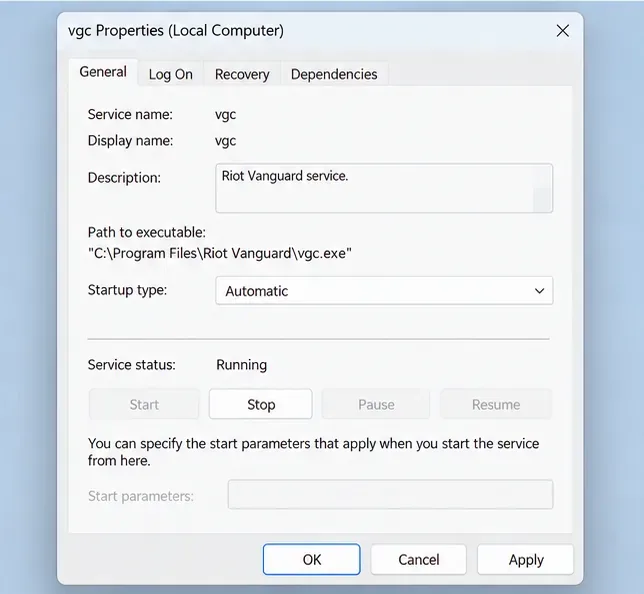
There is an exception: if you enabled Vanguard Pre-Check, Vanguard is designed to start on demand when you open a Riot game. In that case, it is expected not to start with Windows. Follow the Pre-Check status shown by Vanguard instead of forcing the service to run at startup. If vgc is missing or will not start, move to the Vanguard reinstall step below. Do not manually stop or edit vgk unless a Riot support article for your exact error instructs you to do so. See Riot’s VGC startup instructions.
4. Repair VALORANT from Riot Client
Missing or damaged game files can make VALORANT close during startup. Log in to Riot Client, select your profile icon in the upper-right corner, choose Settings, select VALORANT, and click Repair. Follow the on-screen prompts and let the scan finish before trying to launch again. Riot describes this as an automatic repair for missing or corrupted files.
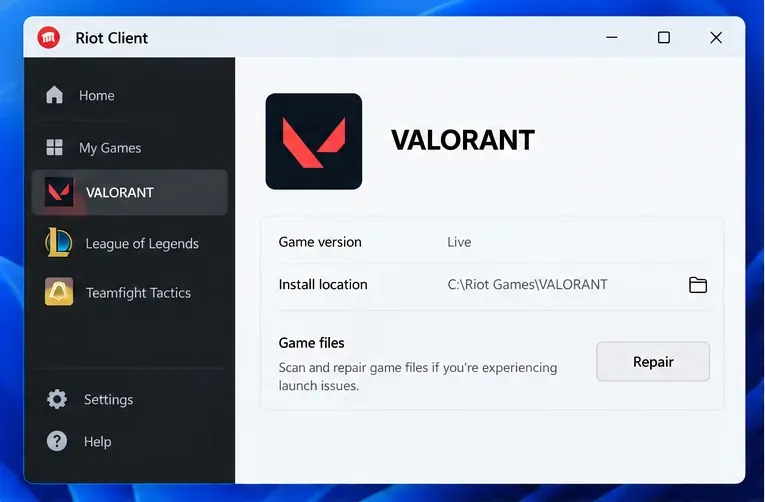
If the repair fails, save the exact message or error code. Riot’s Riot Client Full Repair Tool guide explains the current repair flow and next steps.
5. Use a clean boot to identify conflicting software
Background services can conflict with a game or Vanguard. Rather than guessing that one specific overlay, antivirus, VPN, or hardware utility is responsible, temporarily disable non-Microsoft services with Riot’s clean-boot procedure:
- Press Win + R, type
msconfig, and press Enter. - Open the Services tab and check Hide all Microsoft services.
- Select Disable all to temporarily turn off the remaining services.
- Find
vgcin the list and check it again so Vanguard remains enabled. Select Apply, then OK. - Restart the computer and try launching VALORANT. If the game starts, re-enable services in small groups to identify what caused the conflict.
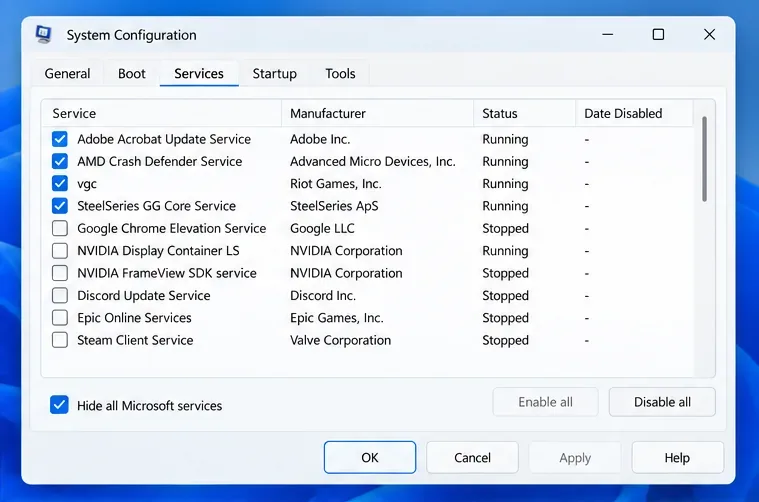
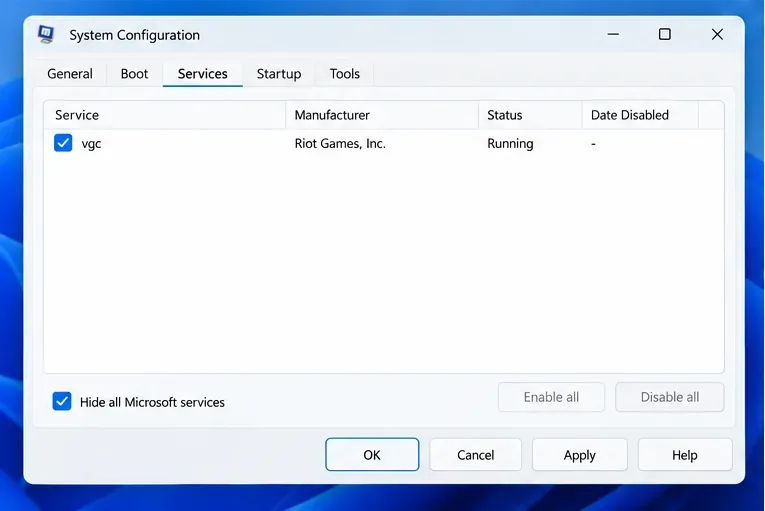
vgc is checked before applying the clean-boot settings.When the test is complete, restore your normal startup configuration in System Configuration and restart Windows. Riot notes that some security and networking software may remain active during a clean boot; if the test points to one of those programs, follow Riot’s guidance for that software instead of leaving protection disabled.
For Riot’s exact steps, see Perform a Clean Boot.
6. Update Windows and graphics drivers, then reinstall only if needed
Install pending Windows updates and restart. Check that the graphics driver is current using the support or update tool from your GPU maker—NVIDIA, AMD, or Intel. Riot explains how to identify the graphics card and links to manufacturer driver pages in its VALORANT crash troubleshooting guide. If the PC is below the published requirements, a reinstall will not make it compatible.
If the game still will not start, reinstall Vanguard and VALORANT as separate components. Close Riot Client first. To refresh Vanguard, uninstall Riot Vanguard from Windows Settings > Apps > Installed apps, restart the PC, and open Riot Client or a Vanguard-dependent game to trigger Vanguard’s reinstall. Restart again if Riot asks you to. Riot provides the current Vanguard uninstall and reinstall steps.
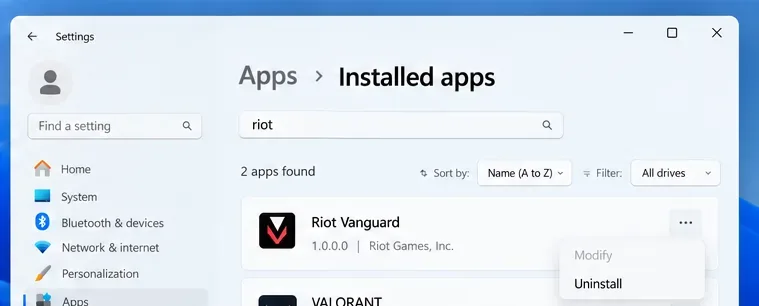
For a clean VALORANT reinstall, use Riot’s uninstall and reinstall guide. It includes steps to remove the game folders and local cache before reinstalling through the official client. Install locations can vary, so follow the guide and use the location on your PC rather than deleting unrelated Riot folders. A clean reinstall removes local files; keep a copy of any local configuration you need before removing cache folders.
Match the fix to the error message
- The code starts with VAN: open Riot’s Vanguard Error Codes page and follow the instructions for that exact code. A VAN code can point to a specific Vanguard or Windows security requirement.
- The message says “Failed to launch: Something unusual happened”: use Riot’s dedicated launch error guide. Do not apply registry changes from an unrelated tutorial.
- The client reports a connection error: check service status and your connection first, then use Riot’s general game-launch troubleshooting page.
Can VALORANT open without Vanguard?
No. Vanguard is required to play VALORANT on PC. If you uninstall it as a troubleshooting step, Riot Client or the game must reinstall it before you can play. If Vanguard Pre-Check is enabled, on-demand startup is expected; it does not mean Vanguard is missing.
Start with the service-status check, restart, and VGC or Pre-Check status. Then repair the game, isolate background services, and reinstall only if those steps fail. If the same error remains, submit a ticket to Riot Player Support with the exact message and any requested logs.









