How to Fix Common League of Legends Problems
If League of Legends will not launch, freezes, disconnects, runs at low FPS, or gets stuck while patching, troubleshoot the cause in order: check Riot’s service status, restart the Riot Client, use Riot’s Repair Tool, then follow the steps for your specific symptom. That sequence helps separate an outage from a local common League of Legends problems without starting with risky changes such as deleting game folders or disabling security software.
This guide focuses on Windows PC, with Riot’s Mac-specific support pages linked where the steps differ. Menu names can change as Riot updates its client, so use the current official instructions if your screen does not match a description below.
Quick fixes by symptom
| What you see | Start here |
|---|---|
| Login, matchmaking, or disconnect errors across a region | Check Riot’s regional service status before changing your PC. |
| High ping, packet loss, or “Attempting to Reconnect” | Test Ethernet, pause other downloads, and avoid VPNs or proxies. |
| Black screen, freeze, or game crashes to desktop | Update your operating system and graphics driver; then test with overlays closed. |
| Patch stalls or the client will not open | Restart the Riot Client and run the Riot Repair Tool. |
| Low FPS or stuttering without a network warning | Lower graphics settings and close recording or overlay apps. |
How to fix common League of Legends problems
1. Check Riot’s server status
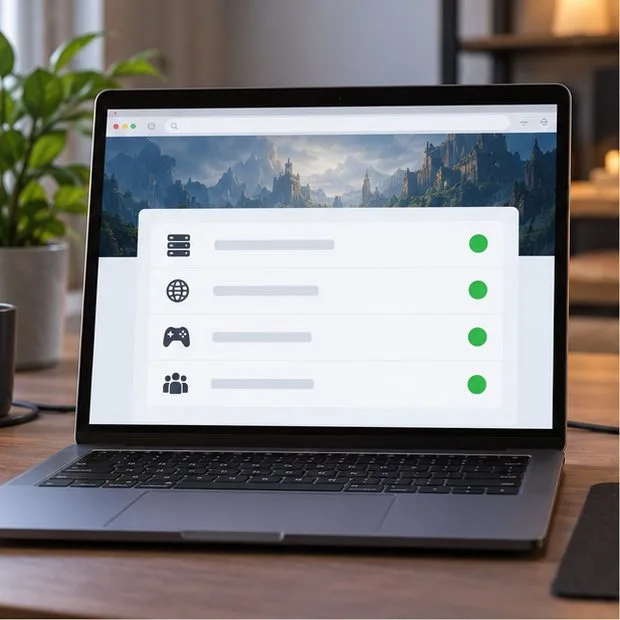
Open Riot Games Service Status, choose the League of Legends product and your region, and look for an active incident or planned maintenance. If Riot reports a service problem, wait for it to clear and check the status page again. Repairing files, changing DNS, or reinstalling cannot fix an outage on Riot’s side.
2. Restart the Riot Client and your computer
Exit League and the Riot Client completely, reopen the client, and try again. If it remains stuck, restart Windows and launch Riot Client once after the reboot. A fresh session can clear a temporary client or connection fault. Avoid ending unfamiliar Windows services or changing startup settings just to close the game.
3. Use Riot’s Repair Tool before reinstalling
Riot’s current support guidance points players to the Riot Repair Tool (RRT) for connection troubleshooting and log collection. Riot’s troubleshooting guide also says the tool can re-patch or reinstall League automatically. Get it and follow the current instructions from Riot’s Riot Repair Tool and log guide. If you need Player Support, the tool can help collect diagnostic files to attach to a ticket.
Do not begin by deleting the Config, Cache, Game, or RADS folders by hand. Folder layouts and repair steps can vary, and a broad deletion may remove settings or other Riot game data. Use Riot’s repair flow or a support article written for the exact error.
4. Troubleshoot connection errors and high ping
First distinguish ping from FPS. Ping is the round-trip time for data to reach the game server and return; FPS is how smoothly your computer renders the game. A fast download-speed test does not guarantee low ping. Physical distance to the game server, routing, Wi-Fi interference, congestion, packet loss, and jitter can all affect the match.
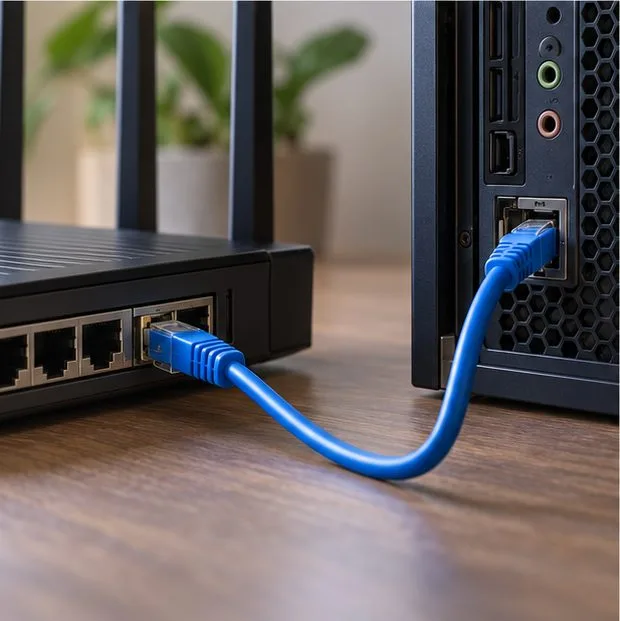
- If possible, connect the PC to the router with Ethernet and compare a game connection.
- If you must use Wi-Fi, test near the router and pause large downloads or HD streams on your network.
- Turn off VPNs and proxies while playing unless Riot Support specifically asks you to use one for diagnosis.
- Update the network adapter driver through Windows or the adapter manufacturer’s official support page.
Riot’s basic connection guide recommends checking status, testing a wired connection, avoiding VPNs and proxies, and using its connection-log tools. DNS changes are an advanced troubleshooting step for particular connection or patching problems; they are not a reliable way to lower in-game ping. If you change DNS, follow Riot’s advanced connection guide and record your original settings first.
5. Fix crashes, freezes, and a black screen
For a crash to desktop, black screen, or freeze, check that your PC meets Riot’s current League of Legends system requirements. Install available operating-system updates, then update your graphics driver from NVIDIA, AMD, Intel, or your computer manufacturer’s official support site. Restart after installing updates.
If the crash began after changing a graphics profile or installing an overlay, restore the graphics utility’s defaults and test again with overlays closed. Riot’s game-crash guide covers driver updates, system updates, graphics settings, and testing other software. For a loading or lobby screen that stays black, Riot also recommends checking operating-system updates and isolating background applications. Mac users should use the Mac-specific steps in Riot’s support article rather than Windows Device Manager instructions.
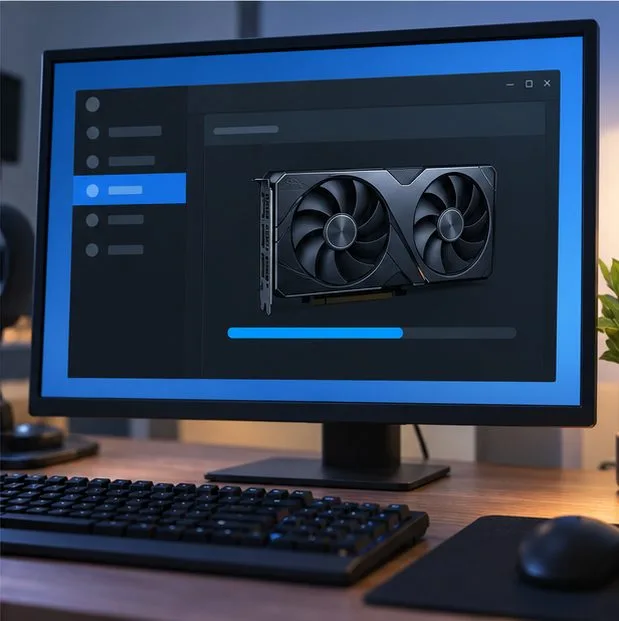
6. Improve low FPS and stuttering
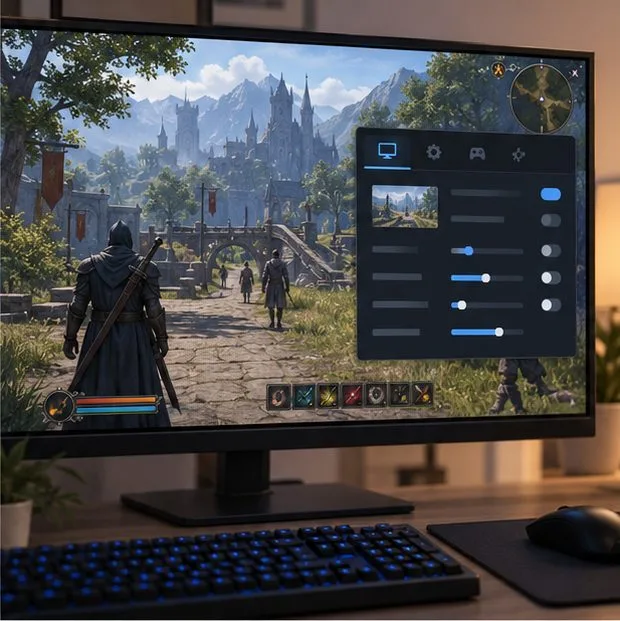
If the picture stutters while your connection remains stable, lower the in-game graphics settings and test in a Practice Tool or custom game. Riot’s current “Fix My League” guide also describes Low Spec Mode: open the League Client settings, go to General, and enable the Low Spec Mode checkbox while outside a match. This reduces variable settings automatically and can help on lower-powered systems.
Change one setting at a time so you can tell what helped. If the issue is still present, check for a competing graphics profile, an old driver, or a computer that is below the current requirements. For a detailed starting point, see Riot’s first-steps technical guide.
7. Isolate overlays and background apps
Screen recorders, chat overlays, streaming tools, and active downloads can compete for system resources or interfere with the game. Close nonessential apps such as OBS, Discord overlays, or other recording software, then test a custom game. If the issue disappears, update the app or turn off only its overlay feature. Riot recommends a clean boot as a diagnostic for persistent Windows conflicts; follow Microsoft’s current clean-boot instructions and re-enable services afterward.
8. Match the exact error code and send useful logs
For an error that starts with VAN, use Riot’s Vanguard error-code directory and follow the page for your exact code. Vanguard errors can have different causes, so a generic reinstall or security-setting change may not address your message.
If the earlier steps do not solve the issue, submit a ticket through League of Legends Player Support. Include the exact error text or code, your operating system and region, when the issue occurs, what you have already tried, and logs collected with Riot’s Repair Tool. This gives support a clearer starting point than a report that the game simply “doesn’t work.”

Common questions
Why is my League of Legends ping high when my internet is fast?
Bandwidth and latency measure different things. High bandwidth can download large files quickly, while ping depends on the route and distance between your PC and the game server, plus congestion and packet loss. Test Ethernet, stop background downloads, and check Riot’s connection tools before changing DNS or buying a faster plan.
Should I reinstall League of Legends first?
No. Check service status, restart the client, and use Riot’s Repair Tool first. Reinstall only when Riot’s tool or an error-specific Riot guide recommends it, or when the simpler steps fail.
Should I delete the Config or Cache folder?
Not as a general first fix. Use Riot’s Repair Tool and follow instructions written for your specific error. Manually deleting unrelated Riot folders can remove settings or data needed by other Riot games.









