League of Legends is a 5v5 team strategy game: your team wins by breaking through the enemy base and destroying its Nexus. This League of Legends beginner's tutorial takes you from installing the PC game to understanding roles, controls, minions, objectives, and your first push. You do not need to memorize every champion or item before playing; start with one role and learn the same basic decisions one match at a time.
League of Legends is free to play on Windows and macOS. Riot's system-requirements page was updated on September 22, 2026, so check the current requirements before downloading, especially if your computer is older. Riot lists Windows and macOS as the supported operating systems.
Your League of Legends beginner's tutorial: 8 steps to your first match
-
Step 1: Download the game from Riot
Open the official League of Legends website, choose the PC download option, and create or sign in to a Riot Account. Run the installer, let the Riot Client finish downloading the game, then launch League of Legends from the client. The download size and hardware requirements can change, so use Riot's current system requirements instead of relying on an old storage estimate.

A conceptual view of a game download in progress; use Riot's official site and client for the actual installation. -
Step 2: Complete the tutorial and learn your controls
Start with the in-client tutorial. It gives you a safe place to learn movement, basic attacks, abilities, and how to interact with minions and structures. Then practice in Co-op vs. AI or a custom match if those modes are available on your account. Riot unlocks game modes as new accounts progress, so a mode that is not shown yet may become available later.
The default control scheme is Point & Click: right-click to move your champion, and use the mouse to select destinations or targets. Riot also supports an optional Keyboard (WASD) scheme across game modes, including the Practice Tool; you can try it in the tutorial. Choose one scheme, practice it before a real match, and check the in-game Hotkeys settings because keybinds differ between schemes and can be customized.
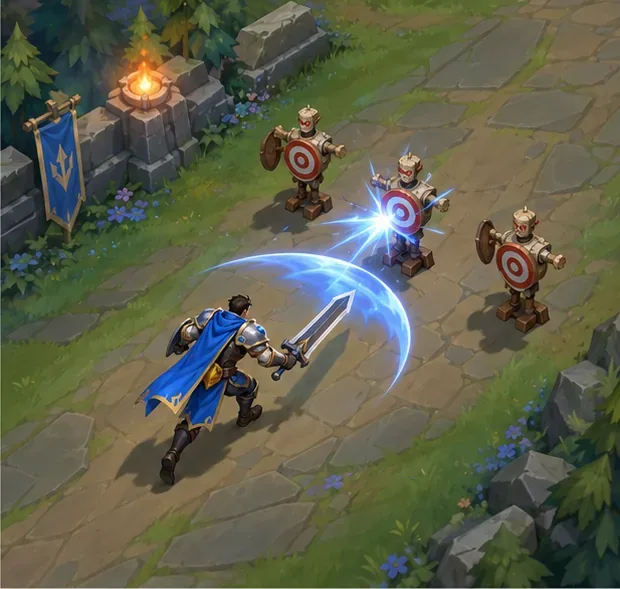
Use the tutorial or a practice match to learn movement and attacks before adding the pressure of a live opponent. -
Step 3: Pick one champion and one role
League has many champions, but a new player can learn the game with one or two. Choose a champion whose abilities are easy to understand and whose playstyle interests you; Riot's champion guide recommends starting with relatively straightforward kits. A simple fighter such as Garen can help you focus on the top lane, while a ranged champion such as Ashe can introduce the marksman role. Check the current free and new-player champion pools in the client, since they can change by region and progression.
In a standard Summoner's Rift team, the five League of Legends roles are top, jungle, mid, bot (usually a marksman), and support. Top and mid are solo lanes; the bot lane is shared by a marksman and support; the jungler moves between lanes and neutral monster camps. Support helps the team with protection, setup, and vision. For your first few matches, stay with one role and a small champion pool rather than switching every game.

These three archetypes suggest different playstyles: durable fighting, ranged damage, and team support. -
Step 4: Read Summoner's Rift
Summoner's Rift is the main 5v5 map. It has three lanes connecting the two bases, with a jungle and river between them. Each team protects its own Nexus, and the enemy Nexus is the final target. Turrets defend the lanes; inhibitors and the turrets around the Nexus guard the route into the base.
The map is easier to learn if you connect each role to a place: top lane is on one side of the map, mid lane crosses the center, bot lane is on the opposite side, and the jungler travels between lanes through the jungle. The minimap helps you see allies, visible opponents, lane waves, and danger. An opponent who disappears from view may be moving toward another lane, so avoid assuming that an empty lane is safe.
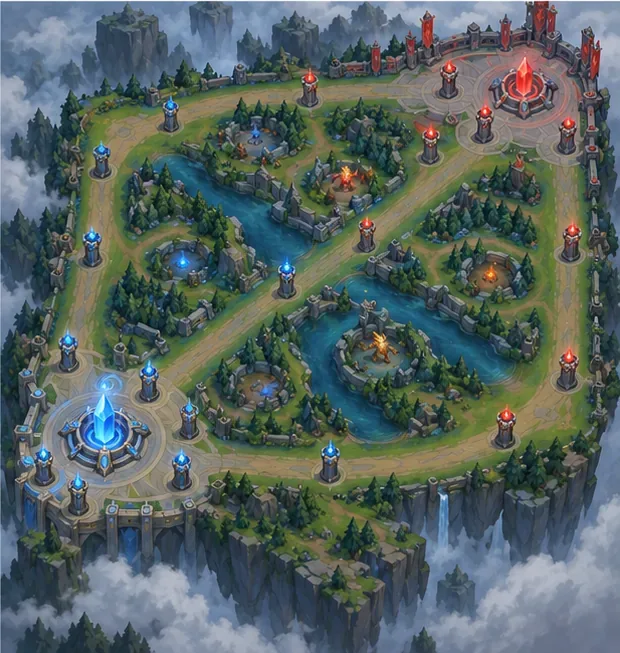
A simplified view of the three-lane layout, central jungle and river, and opposing bases on Summoner's Rift. -
Step 5: Read your HUD and use the minimap
The heads-up display shows the information you need while moving around the map. Watch your champion's health and resource bars, current level, ability icons, and gold. In the default Point & Click scheme, the basic abilities are normally assigned to Q, W, E, and R, with summoner spells on D and F. The WASD scheme has different default ability bindings, so confirm them in Settings rather than assuming the same keys apply.
Keep the minimap in view and glance at it whenever you have a safe moment. Use the scoreboard and in-game pings to check team status and communicate danger or intent without stopping to type. The map only shows opponents your team can currently see; missing enemy icons are a reason to play cautiously, not proof that they are gone.
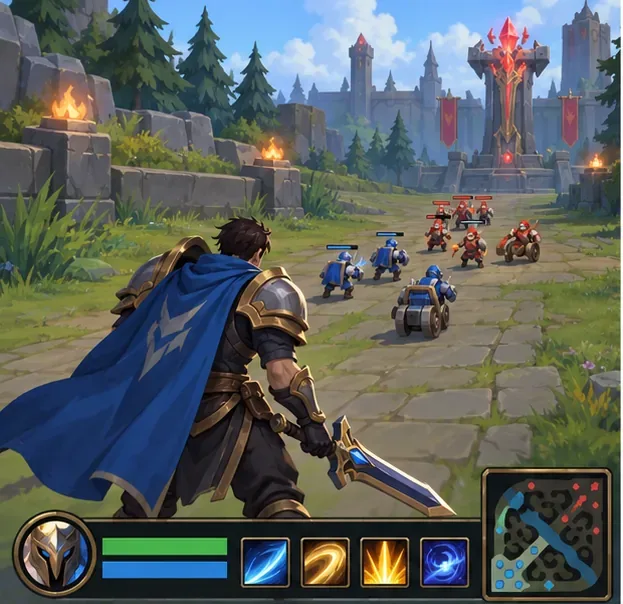
A conceptual HUD view of the information to track; the live interface and bindings can vary with your settings. -
Step 6: Last-hit minions and spend your gold
Minions walk down the lanes and fight the opposing wave. For most lane champions, carefully timing an attack or ability to land the killing blow on an enemy minion is the main way to earn lane gold. This is called last-hitting; your creep score, or CS, tracks farm such as minions and monsters you have killed. Work on securing the minions you can reach safely. There is no single CS target that fits every role, match, and level of experience.
Gold lets you buy items that strengthen your champion. Return to base when it is safe and use the shop's recommended items as a starting point; builds and item strength change with patches, so avoid copying a dated build without checking the current game. Do not take a risky fight just to protect a few minions, and do not stay in lane for too long while carrying gold you could spend.
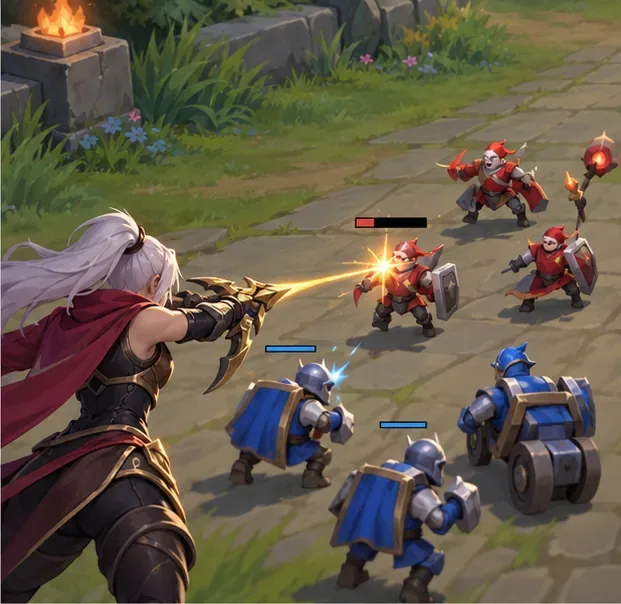
Time your attack for the minion's final hit to collect lane gold while keeping a safe position. -
Step 7: Watch the map and help with team objectives
League is not only about defeating the opponent in your lane. Keep track of teammates, use pings when an enemy is missing, and place your available ward to help reveal paths through the river and jungle. Drakes and Baron Nashor are major neutral objectives on Summoner's Rift; defeating them can give a team useful rewards. Before moving toward one, check whether your teammates can join and whether the enemy team is nearby.
When a fight starts, focus on a safe target and use your abilities to help the team. If you are low on health, far from allies, or unsure what is happening, backing away is often better than walking into a fight alone. Good positioning and arriving together are useful skills even before you learn advanced combos.

Team objectives are safer when allies check the surrounding paths and arrive together. -
Step 8: Push a lane and destroy the Nexus
After winning a fight or creating space, turn that advantage into progress on the map. Move with allied minions toward an enemy turret; turrets are dangerous to champions, so let your minion wave approach first. Once your team clears the lane's defenses and reaches the base, work through its remaining structures. The enemy Nexus is protected by two turrets, and destroying the Nexus wins the match.
Do not split away from the team just to chase a distant opponent when a safe turret or objective is available. A kill can create an opening, but the goal is to use that opening to take structures and reach the Nexus.

Follow a minion wave through the defenses and convert team advantages into a Nexus push.
Beginner habits that make each match easier
- Focus on one lesson per game. Try improving safe last-hits, checking the minimap, or learning one ability at a time.
- Use the recommended item build as a guide. It helps you start shopping without memorizing patch-dependent item paths.
- Spend time with a small champion pool. Repeating the same champion makes it easier to notice map decisions and mistakes.
- Value survival and objectives. A safe retreat, a turret, or a team objective can matter more than chasing one more kill.
- Check controls before queueing. Point & Click remains the default, while WASD is an optional scheme; test your chosen bindings in the tutorial or Practice Tool.
Common questions from new League players
Is League of Legends free to play?
Yes. Riot presents League of Legends as a free-to-play game. Optional purchases are not required to learn the map, practice, or play a standard match.
Can beginners use WASD?
Yes. Riot's Keyboard (WASD) support FAQ, published May 4, 2026, says the optional control scheme is available across game modes, including the Practice Tool. Point & Click remains the default. Try both in a low-pressure mode and keep the one that feels comfortable.
How do you win a standard League match?
Destroy the enemy Nexus. Your team must push through lane defenses and the two turrets protecting the Nexus before it can be destroyed.
Official League of Legends resources
- Riot's How to Play guide for the map, lanes, abilities, and objectives.
- Choosing the Right Champion for Riot's advice on selecting a champion and the changing free rotations.
- Unlocking Game Modes for current account progression and mode access.
- Keyboard (WASD) Input FAQ for the optional control scheme and settings.
- Minimum and Recommended System Requirements for the latest PC requirements.









