Home
» 🎮 Esports
»
Minecraft Error 422: Is the Creepy Glitch Real? Safe Fixes for Crashes
Minecraft Error 422: Is the Creepy Glitch Real? Safe Fixes for Crashes
Minecraft Error 422: Is the Creepy Glitch Real?
If you searched for Minecraft Error 422 after seeing strange shadows, scrambled visuals, or a crash, first identify what you were playing. “Error 422” is used online for fan-made Minecraft horror projects, including mods; the frightening effects can be part of that experience. I could not verify a Mojang-documented Minecraft client error with that name in the official Help pages checked for this rewrite. There is no confirmed, universal “Error 422 fix.”
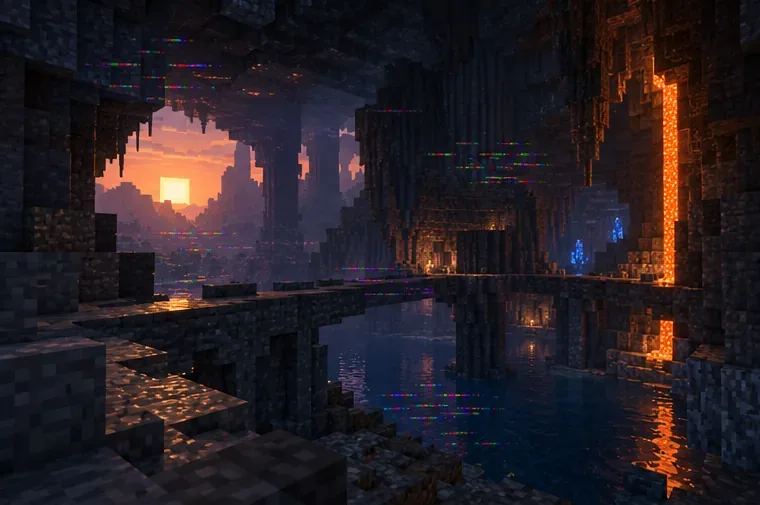
A stylized cave scene evokes the atmosphere of fan-made ERROR422 horror content; it does not depict a verified Minecraft bug.
If the game itself is crashing, freezing, or showing broken graphics, use the safe checks below. Back up the affected world before changing files, deleting chunks, or reinstalling anything.
What Minecraft Error 422 usually refers to
I checked Minecraft Help’s named Bedrock error-code guide and general error-code guide, but could not verify an official entry naming a “Creepy Glitch” or a Minecraft client code 422. By contrast, a community-hosted ERROR422 mod listing describes a horror mod that changes vanilla game behavior and explicitly says it is not an official Minecraft service. That distinction matters: sounds, unusual effects, altered menus, or a deliberate crash inside a horror project are not evidence that a normal Minecraft world has developed a supernatural bug.
There is also an unrelated technical meaning: when 422 appears in a browser, website, or API response, it can be the HTTP status “Unprocessable Content.” The HTTP standard defines it as a server being unable to process otherwise syntactically valid request content. That points to the site or service handling the request, not a Minecraft lighting or mob error.
What you see
Most useful next check
Horror effects only in a named ERROR422 project or mod
Check the project page, edition, loader, and version. Treat the effects as part of that fan-made content.
Crash, lag, or visual artifacts in ordinary play
Back up the world, then test without add-ons, mods, or shaders.
“422” on a website or account page
Record the full message and contact that service’s support; it is not enough to diagnose a game-world problem.
How to troubleshoot a real Minecraft crash safely
1. Record where the problem happens
Note whether you use Java Edition or Bedrock Edition, the game version, your device, and whether the world uses mods, shaders, or add-ons. Write down the exact message and the action that preceded it: opening a world, joining a server, changing a resource pack, or updating the game. A screenshot of the message and a crash log are more useful than describing every odd visual as “Error 422.” Don’t install a random executable advertised as an Error 422 repair tool.
2. Make a separate backup before testing
For Java Edition single-player worlds, Minecraft Help documents this route: launch the game, choose Singleplayer, select the world, choose Edit, then choose Make Backup. The game creates a dated ZIP backup; keep it somewhere separate before experimenting. For Bedrock on Windows, use the world’s edit controls and Export World to create a copy. Other Bedrock platforms have different save and cloud-backup steps, so follow the instructions for your device.
A conceptual illustration of a copied world save. The actual Java Edition backup steps are listed in Minecraft Help.
On Java Edition, create a separate installation in the Minecraft Launcher and select the same game version as the world that is crashing. Minecraft’s launcher troubleshooting guide recommends this as a way to check whether the existing installation or its settings are involved. Start the test without mods or shaders, and do not point it at your only copy of the world. If the clean setup works, re-enable one mod, shader, or resource pack at a time until the problem returns; that narrows down a likely conflict.
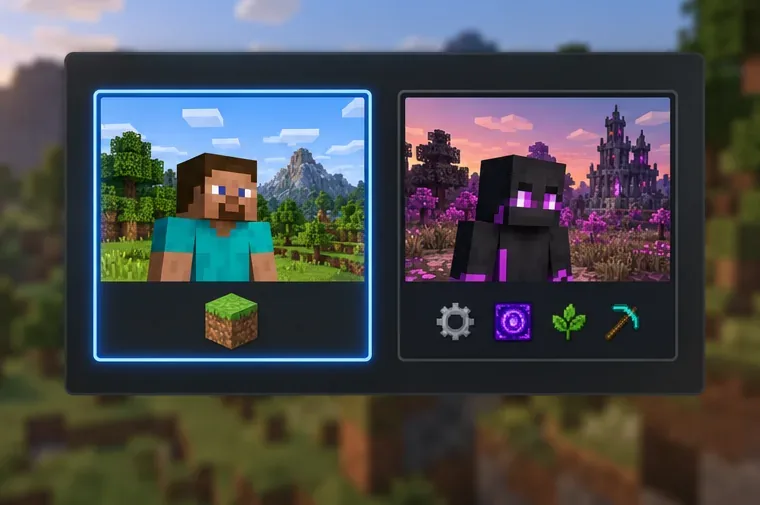
A conceptual comparison of clean and modded profiles, not a screenshot of the Minecraft Launcher.
For Bedrock, first test a copy of the world with add-ons disabled. Minecraft Help notes that add-ons can conflict and cause crashes or visual issues. Consult its Bedrock add-on troubleshooting steps. If the issue persists without add-ons, check the official crash and lag guide or the Java graphics guide.
4. Restore a known-good copy only if needed
If the backed-up copy opens but the working copy does not, restore or continue from the backup. For a Realm, Minecraft Help provides separate instructions to restore a saved Java or Bedrock Realm version. For a local world, use the backup made by Minecraft or your platform’s documented export/import process. Avoid deleting individual chunks with third-party editors until you have a second verified copy: chunk tools can remove builds or affect more data than intended.
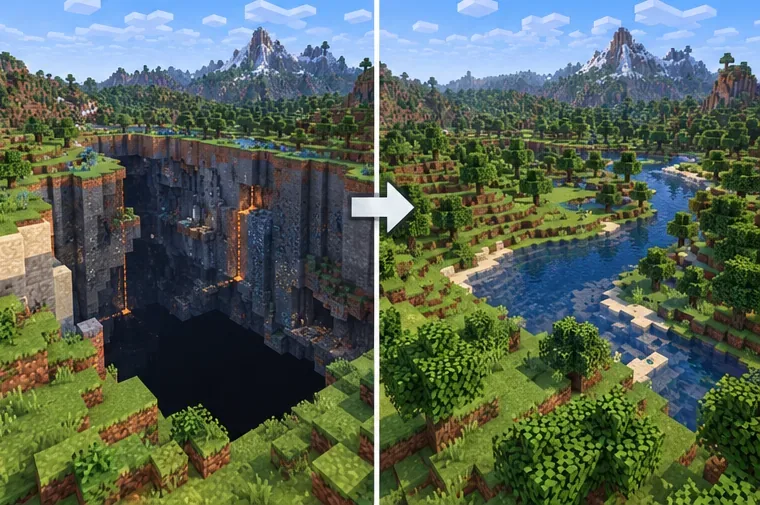
An explanatory before-and-after world-recovery scene; it is not a documented symptom of Minecraft Error 422.
Don’t assume a shadow, sound, or low frame rate proves chunks are corrupt; those symptoms have many possible causes.
Don’t delete a world, edit its files, or reinstall the game before making a backup.
Don’t run broad commands such as /kill @e as a generic fix. They can remove entities you meant to keep and do not repair graphics, launcher, or save-file problems.
Don’t copy unsupported settings such as random options.txt values from old forum posts. The official troubleshooting pages are a safer starting point.
Frequently asked questions
Is Minecraft Error 422 an official Mojang error?
I could not find a Mojang Help entry that defines a Minecraft client error called Error 422. The term is used for unofficial horror content online. If a specific launcher or server displays an error, use its exact text and log to identify that separate problem.
Will updating Minecraft remove the Creepy Glitch?
Not necessarily. If you launched a horror mod or standalone fan project, updating the official game does not remove that separate content and may make a mod incompatible. If standard Minecraft is crashing, first back up the world, then test a clean installation of the same version and consult official support for your edition.
For a real crash, start with a backup and a clean test installation. Fan-made ERROR422 content and an HTTP 422 response from a website are separate cases, so use the remedy that matches where the message appears.