How to Fix Free Fire High Ping on Mobile Data
Fix Free Fire high ping on mobile data with practical connection checks, LTE vs. 5G tests, background download fixes, and tips for reporting persistent lag.
To fix high ping in Free Fire while using mobile data, first stop active downloads, reconnect your cellular connection, and test from a location with better reception. If the problem persists, compare LTE with 5G and, if available, another connection. These checks help identify whether the delay comes from your phone’s connection, your carrier, or something specific to the game. There is no phone setting that guarantees low ping on every mobile network.
Do the connection changes between matches. Turning cellular data off, enabling Airplane mode, or changing network type can disconnect an active game.
This guide was researched on October 8, 2026. Android menu names vary by manufacturer, software version, and carrier. The settings illustrations show example layouts rather than measurements from a Free Fire test.
Ping measures network delay in milliseconds. Watch Free Fire’s in-game ping while the problem occurs. Delayed interactions, players suddenly jumping to another position, and disconnections can point toward a connection problem. Choppy camera movement with a steady ping reading can instead point toward a phone performance problem. Both can occur together.
Garena’s connection guidance describes 150 ms or below as an ideal ping. Treat that as a reference, not a guarantee: one low reading does not establish that a connection stays stable throughout a match.
For example, a connection that usually looks responsive but repeatedly pauses deserves investigation even if a screenshot captures a low number. This is an illustrative example, not a measured result. Record the normal reading, the spikes, and whether they coincide with visible delays.
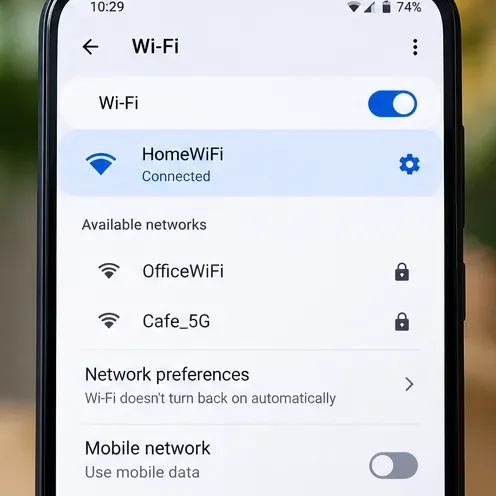
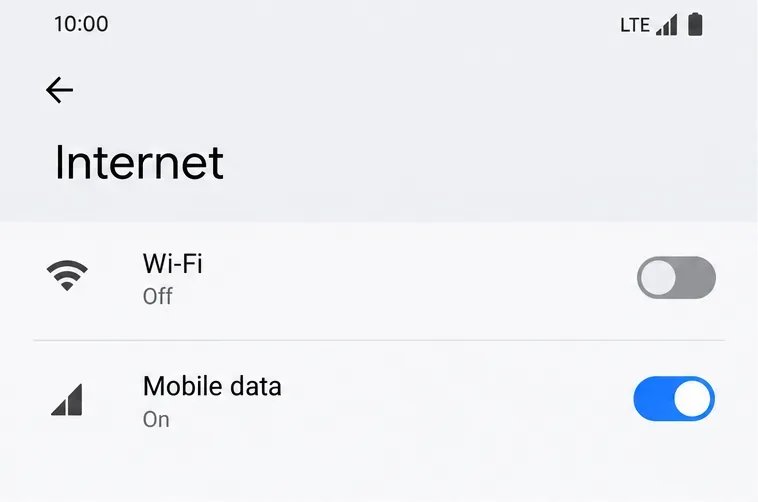
Turn Wi-Fi off temporarily so the test uses your cellular connection. Check that mobile data is enabled and that your phone shows a cellular data indicator. Opening a webpage confirms basic internet access, but it does not prove the route to the game is healthy.
Garena’s high-ping troubleshooting instructions recommend checking mobile data and comparing Wi-Fi with cellular service. If there is no data indicator, prioritize restoring cellular service before changing anything inside the game.
With Free Fire closed, turn Airplane mode on, then off. Wait for cellular service to return before reopening the game. Alternatively, toggle mobile data off and back on. If the problem remains, restart the phone once.
This is useful when a connection stops working normally or fails to recover after moving between coverage areas. It cannot guarantee relief from a busy cell site or an unfavorable route to the game. If the same problem returns immediately, continue with the comparisons below instead of repeatedly reconnecting.
Try a different safe, stationary location, such as another room or a spot near a window. Avoid testing while traveling: changing location continuously makes it harder to compare results. More signal bars can help identify improved reception, but bars alone do not establish low game latency.
If the phone repeatedly loses service, contact your carrier about local coverage. A strong signal with persistent delays calls for a different test, such as another time of day or another network. Do not assume that reception explains every case.
Pause app updates, video downloads, cloud uploads, and other active transfers. Stop streaming on the phone and disconnect devices using its hotspot. Closing a video app is helpful, but also check whether downloads or uploads continue independently.
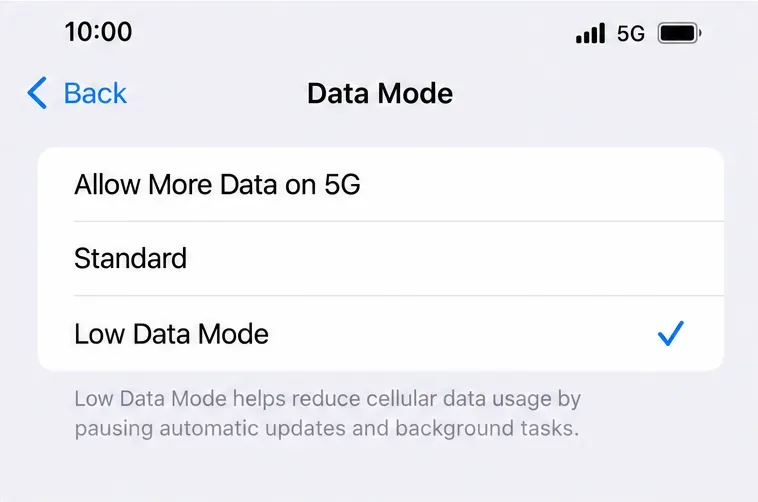
On iPhone, Low Data Mode can pause automatic updates and background tasks. Apple’s cellular settings documentation explains this behavior. It can help reduce competing traffic, but it is not a gaming priority switch and does not promise lower ping.
Retest after transfers stop. If your connection improves, resume the paused tasks after playing. If nothing changes, do not keep closing unrelated apps as though that alone proves the network is fixed.
A 5G icon is not a guarantee of better game latency. If your phone offers the choice, try LTE while keeping the same location and game mode. Then compare it with your original setting. This is a controlled troubleshooting experiment, not a universal recommendation to disable 5G.
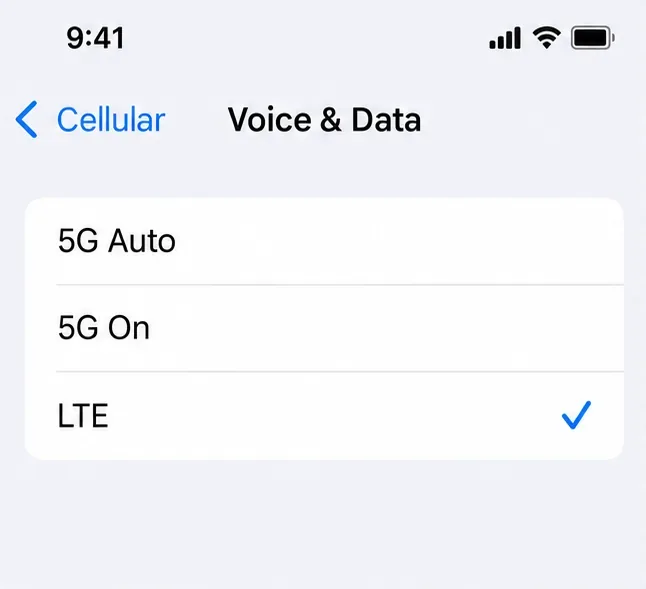
Open Settings, then Cellular, then Cellular Data Options, and look for Voice & Data. On a dual-SIM phone, select the relevant line first if needed. Choose LTE for the test. Apple documents that LTE uses the LTE network even when 5G is available; 5G Auto can switch between 5G and LTE based on its Smart Data behavior.
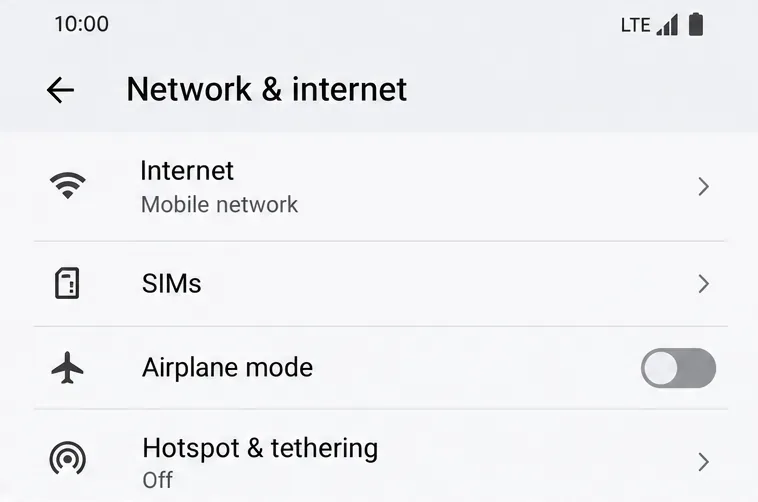
On Pixel phones, open Settings, Network & internet, SIMs, and select your carrier. Look for Preferred network type and choose LTE if available. Other Android phones use different labels, and some carriers do not expose this choice. Skip the test if your phone does not offer it; do not use hidden dialer codes to force an unsupported mode.
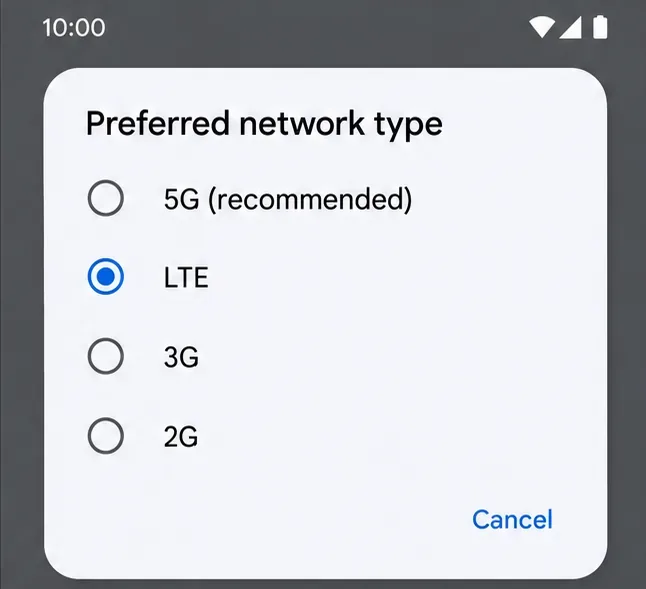
Google’s Pixel mobile-network documentation describes network-type and SIM options. Keep whichever supported setting produces more consistent in-game behavior. Restore the original setting if LTE makes the connection worse or offers no useful improvement.
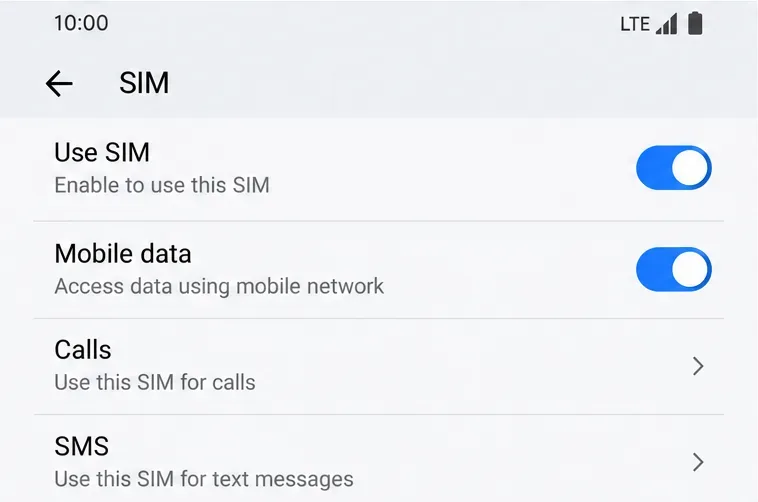
If you use two SIMs, confirm the intended line is selected for mobile data. A second SIM with a different carrier can provide a useful comparison, provided it has an active data plan. Change the data line between matches, then test from the same location.
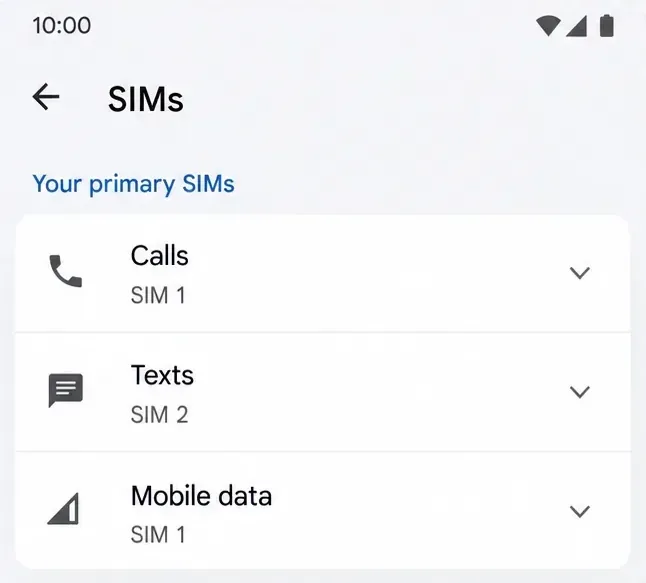
Improvement on another carrier suggests the original connection or its route needs investigation. It does not identify the exact faulty component. If you have only one SIM, skip this step; buying another plan is not required to complete basic troubleshooting.
Consider a network reset when cellular connectivity remains unreliable outside Free Fire as well. A reset is less persuasive when every other app works normally and only the game has problems.
Google’s mobile connectivity troubleshooting guide documents the Pixel path: Settings, System, Reset options, Reset mobile network settings. Read the confirmation screen first. Other phones may combine different network resets or have different consequences.
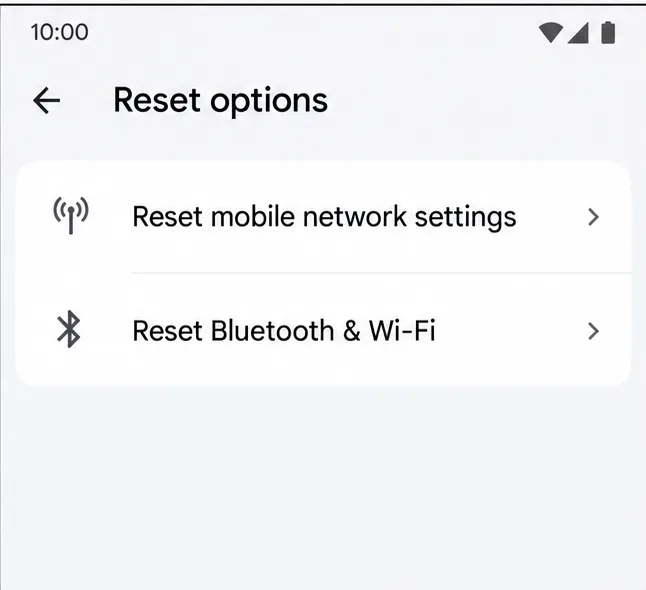
Note any carrier-specific configuration before resetting. Avoid manually entering an APN copied from an unrelated carrier or website. Ask your carrier for the correct configuration if mobile service fails. Do not erase an eSIM or factory-reset the phone as a routine ping fix.
Test in a non-ranked session after each meaningful change. Keep location and game mode as similar as practical. Look for fewer spikes, responsive interactions, and fewer disconnects across several minutes, rather than judging one brief reading.
| What you observe | What it suggests | Useful next action |
|---|---|---|
| Mobile data is poor, but Wi-Fi is consistently better | The mobile connection deserves attention | Ask the carrier about coverage, outages, and plan restrictions |
| Another carrier works better in the same place | A carrier-dependent connection or route may be involved | Share the comparison with the original carrier |
| Free Fire remains delayed on different networks | A game-specific issue is possible, but not proven | Report the evidence to Garena |
| Ping stays steady while camera movement stutters | Phone performance may contribute | Reduce graphics load and check device performance |
Garena’s connection-reporting guide asks for a speed-test screenshot and the internet provider’s name; for mobile data, supply the carrier. Also include your phone model, game version, approximate location, time and time zone, and a screenshot or recording of the in-game ping. These extra details can make your comparison easier to interpret.
Run the speed test separately from the game test. Its server may be different from Free Fire’s server, so a good result does not establish that the game route is good. Tell support when the two results disagree. Persistent evening-only trouble can justify asking about congestion, but the time pattern alone does not prove it.
Lower graphics settings can improve frame delivery, but they do not directly repair a cellular connection. Clearing game storage or reinstalling the game should not be the first response to high ping; neither establishes a better network route, and both can require additional setup or downloads.
Garena’s separate game-lag guide recommends measures such as lowering graphics quality and restarting for performance problems. Use that branch when the evidence points toward stuttering rather than network delay.
There is no verified universal “zero ping” APN, DNS address, or booster setting in the official guidance reviewed for this article. Avoid treating promotional claims as guaranteed fixes. If you already use a VPN, compare with it disconnected when permitted; a changed result can identify a factor worth investigating, but it does not show that every VPN helps or hurts.
The practical goal is a connection that stays responsive through a session. If reconnecting, removing competing traffic, and comparing supported networks do not achieve that, preserve the evidence and escalate. Further random settings changes make the cause harder to isolate.
Fix Free Fire high ping on mobile data with practical connection checks, LTE vs. 5G tests, background download fixes, and tips for reporting persistent lag.
Brawl Stars opens to a black screen on your iPad? Try these safe checks for the app, connection, iPadOS, and updates before reinstalling or contacting Supercell.
Learn how to clear Free Fire’s cache on Android, what iPhone users can do, and how to avoid deleting game data while troubleshooting lag.
Find confirmed LoL Worlds, VALORANT, CS2 and Dota 2 events for October 19–25, with local kickoff times, UTC conversions, matchups and bracket stakes where published.
Compare balanced, steady, and fast-drag Free Fire sensitivity profiles on the 0–200 scale, then tune General and scope values to your device.
Save Dota 2 camera spots to keys, jump back to lanes or objectives, and troubleshoot missing or conflicting camera position binds.
Fix a TFT Mobile black screen after loading with official server checks, updates, cache troubleshooting, compatibility guidance, and safe reinstall steps.
Reduce Marvel Rivals DirectX 12 shader stutter with preload, driver, cache, and file checks. Learn when a cache reset helps and which older advice to avoid.
Enable PUBG’s network statistics HUD to monitor ping and packet loss in a match. See where to find it, what the numbers mean, and what they cannot diagnose.
Learn how to import VALORANT crosshair codes, compare presets with manual settings and spectator copy, and fix common import issues.