If Brawl Stars opens but stays on a black screen on your iPad, first check whether the iPad itself is responsive and whether other apps can reach the internet. Then close and reopen the game, restart the iPad, and check for updates. These steps follow Apple’s general advice for an app that will not open and Supercell’s troubleshooting guidance for crashes. There is no single confirmed fix for every Brawl Stars black-screen startup issue, so test one change at a time.
Is the iPad frozen, or is only Brawl Stars black?
Tap the Home button or swipe up from the bottom edge to leave the game, depending on your iPad model. Open another app or Safari. If the rest of iPadOS responds normally, focus on Brawl Stars. If the whole display is black or the iPad will not respond, use Apple’s instructions for restarting the iPad model you own; app troubleshooting will not resolve a device-wide freeze.
Also check whether the black screen appears immediately, after the Supercell logo, or while the game is loading. That detail can help distinguish an app launch problem from a connection interruption. Supercell lists crashes and unstable connections among its troubleshooting topics, and notes that server downtime or maintenance can affect connections. That does not confirm a current outage, so check official Brawl Stars support or announcements if several players report the same issue around the same time.
What should you try before changing or deleting anything?
1. Force-close Brawl Stars and open it again
Bring up the iPad app switcher. On an iPad without a Home button, swipe up from the bottom edge and pause near the middle of the screen. On a model with a Home button, double-click that button. Find the Brawl Stars app preview and swipe it up to close it. Return to the Home Screen and launch the game again.
Apple recommends closing and reopening an app that stops responding or will not open. Force-closing is a quick first check; it does not delete the game or its saved account. If the screen goes black again at exactly the same point, move on rather than repeatedly tapping the app icon.
2. Check the connection without changing game data
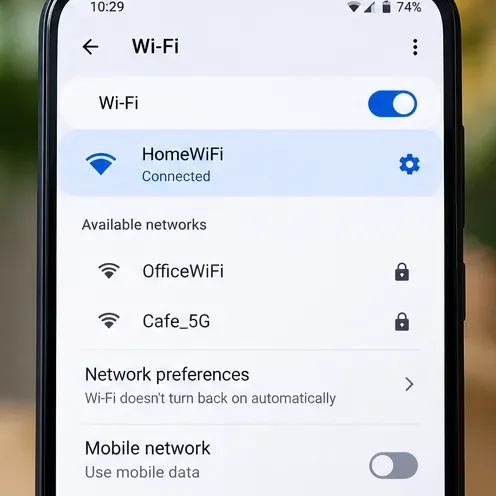
Brawl Stars needs a working connection to load online services. Open Safari and visit a familiar website. If it fails too, reconnect Wi-Fi or compare with another available network. You can also turn Wi-Fi off and on in Settings, then reopen the game. If you use a shared or public network, check that it is connected to the internet and does not require a sign-in page.
If websites load normally but Brawl Stars remains black, the connection may not be the cause. Supercell’s Unstable Connection guide explains that connection problems and server downtime or maintenance can interfere with play. Check the official support portal for notices, and avoid changing DNS or installing network “fixer” apps as a first response.
3. Restart the iPad
Restart the iPad normally, then open Brawl Stars once the Home Screen has loaded. Apple includes restarting the device in its recommended sequence for apps that do not respond, close unexpectedly, or will not open. Button combinations vary by iPad model, so use Apple’s model-specific instructions if the device is unresponsive or you are unsure how to restart it.
After restart, test the game before opening several other apps. If Brawl Stars now reaches its usual loading screen, the issue may have been temporary. If it remains black, continue to updates and compatibility checks.
Could an update or older iPadOS version be the cause?
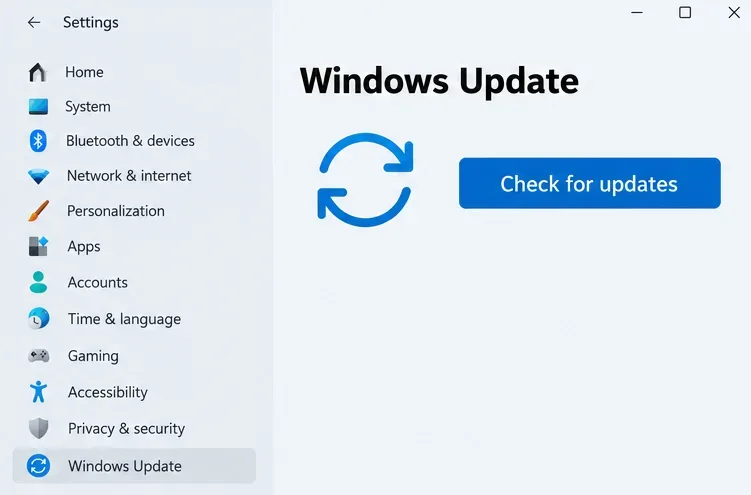
Check the App Store for a Brawl Stars update: open the App Store, tap your account picture, and look for available app updates. Then check Settings > General > Software Update for an iPadOS update that your iPad supports. Apple recommends updating the app and, when no app update is available, updating the device software.
As checked on October 8, 2026, Brawl Stars’ App Store listing for iPad says it requires iPadOS 14.0 or later. Confirm the current requirement in your own App Store region before troubleshooting further, because app requirements can change. If your iPad cannot install a supported iPadOS version, reinstalling the game will not make an unsupported system compatible.
Make sure the iPad has enough free storage to install an update or download the game again. You can review usage in Settings > General > iPad Storage. Avoid deleting personal files without checking what they contain; freeing a small amount of space or removing an app you no longer use may be enough to complete an update.
Should you reinstall Brawl Stars?
Reinstalling is a later step because deleting an app can remove data stored locally on the device. Before doing it, confirm that your game account is connected to Supercell ID and that you can access the email account used to sign in. Supercell’s own reinstallation guide tells players to connect the game to Supercell ID before reinstalling.
If you are unsure whether your progress is saved, do not delete the app yet. Contact Supercell Support first and explain that Brawl Stars is stuck on a black startup screen and you cannot confirm the account connection. If your account is secured, delete Brawl Stars, download it again from the App Store, and sign in using the same Supercell ID. Never share your password or email verification code with anyone claiming to recover the account.
When should you contact Supercell or Apple?
Contact Supercell if Safari and other apps work, the iPad meets the App Store’s compatibility requirement, and the black screen continues after restarting and updating. Include the iPad model, iPadOS version, Brawl Stars version if visible, when the black screen appears, and the steps you already tried. If the game still opens far enough to reach its settings, use Settings > Help and Support; otherwise, use the Brawl Stars Contact Form.
Contact Apple if the iPad itself freezes, other apps also fail, or you cannot install an iPadOS update. Apple’s app troubleshooting guide recommends closing and reopening the app, restarting the device, checking for updates, and contacting the app developer if the problem remains. Supercell’s My game crashes page also asks players with persistent problems to contact support with a detailed description.
How can you tell whether the fix worked?
Open Brawl Stars and wait for it to reach the normal game screen. If it loads once, close and relaunch it one more time to see whether the startup problem returns. If only the game remains black while other apps work, send the details to Supercell. If the whole iPad is affected, or other apps also fail, troubleshoot iPadOS or contact Apple. This sequence keeps the low-risk checks first and protects account progress before a reinstall.
Sources: Supercell: My game crashes!; Supercell: How Do I Reinstall the Game?; Brawl Stars on the App Store; Apple Support: If an app on your iPhone or iPad won’t open. Sources checked October 8, 2026.