How to Turn Off Auto Buy and Auto Level in SMITE
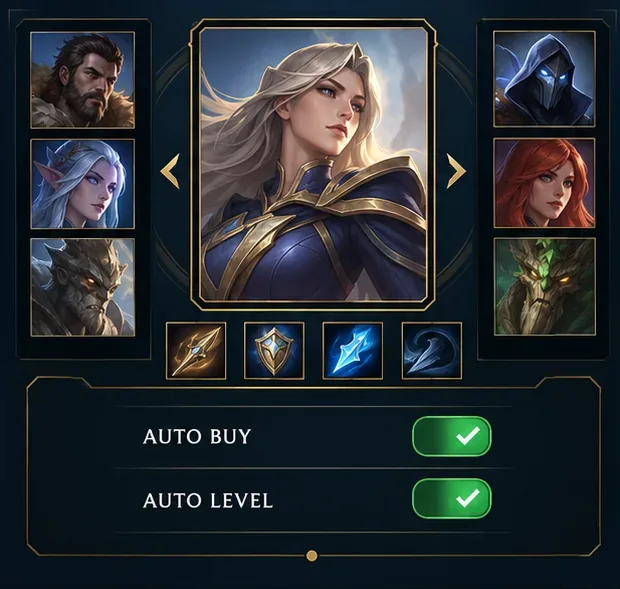
Disable SMITE auto-buy and auto-level before a match, confirm both controls are off, and learn how to manage item purchases and ability points manually.
To turn off the telemetry stats overlay in CS2, open Settings > Game > Telemetry and set the display controls to Never. Check frame time/FPS, ping, network problems, and the network graph. Selecting If conditions are poor leaves the display available to appear again during a warning.
This guide covers Counter-Strike 2's built-in diagnostic HUD. A separate Steam performance monitor can remain visible after the game’s telemetry is hidden. Identify which display you are seeing before changing unrelated settings.
Valve's Source2 Telemetry HUD documentation confirms the Settings > Game > Telemetry location and the never, always, and poor-conditions display modes. It also describes separate basic and detailed network views.
| What you see | Where to look first | What to do |
|---|---|---|
| Frame time, FPS, ping, or network warnings associated with CS2 | CS2's Game settings, under Telemetry | Set the relevant display controls to Never. |
| A corner panel showing CPU, GPU, or RAM alongside FPS | Steam's Settings > In Game | Review the performance monitor's visibility setting. |
| A counter that survives both changes | The application that enabled it | Check your graphics or monitoring software rather than repeatedly changing CS2. |
Appearance is a clue, not proof of an overlay's source. Multiple counters can overlap, and Steam's smallest display can be just an FPS number. The useful test is to change one source at a time and observe which readout disappears.
Make these changes from the main menu or between matches so you can inspect the controls without rushing. The illustrations focus on the relevant settings; surrounding menus and spacing may differ in your client. Read the labels in your installed version rather than matching a particular screen position.
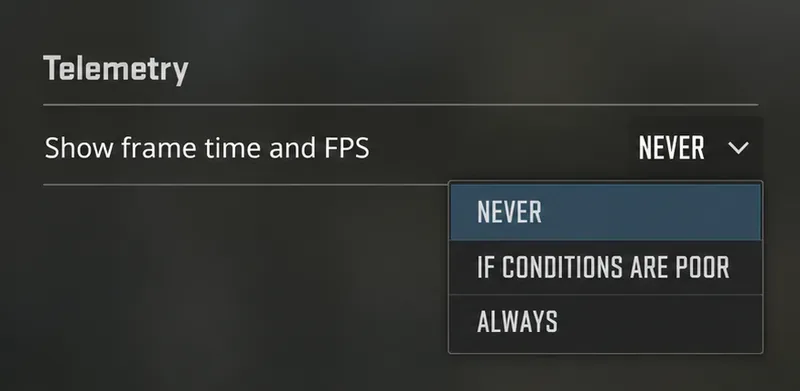
Open CS2's Settings, choose Game, and locate Telemetry. Find Show frame time and FPS, open its selector, and choose Never. Confirm the closed selector shows the new value.
Leave the frame-time warning threshold alone if your goal is simply to hide the readout. Adjusting a threshold is a different task from choosing whether the display is allowed to appear. Start with the display selector so you have a clear, reversible change.
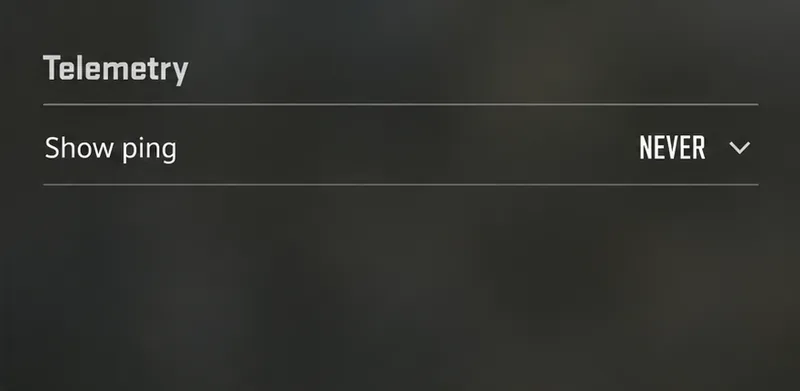
Find Show ping and select Never. Check this row even if the FPS number has already disappeared. Treat each telemetry component as a separate control rather than assuming the first change switches off the entire section.
If you want ping available later for troubleshooting, note this setting before hiding it. You can return to the same selector when you need information about a match's connection. There is no need to change matchmaking preferences just to remove an on-screen number.
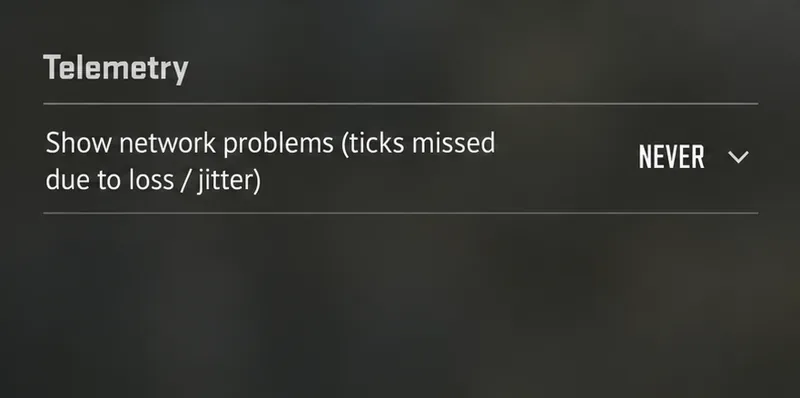
Locate Show network problems (ticks missed due to loss / jitter) and choose Never. Older instructions may use different terminology for network quality, so use the current description of the network-problems display to identify the appropriate row.
A warning that appears only occasionally is a reason to check its display mode. Do not assume the setting failed merely because you did not see a number during a quiet period. Inspect the selected value directly.
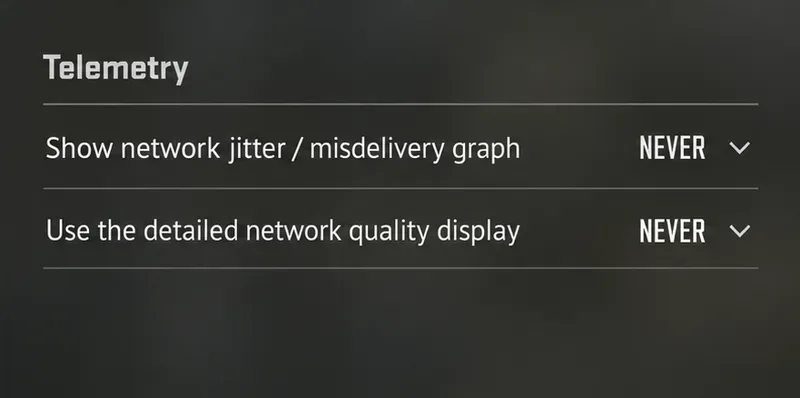
Set Show network jitter / misdelivery graph to Never. Also review Use the detailed network quality display; choose Never if that selector is present and your goal is to keep the expanded readout disabled. Turning off the detailed view alone is insufficient if the basic network display is still enabled.
Return to gameplay and check the area where the stats appeared. If a readout remains, compare its contents with the overlay-identification table before making another change. This check establishes whether you hid the intended display; it does not establish that the underlying performance problem is resolved.
Confirmed: Valve describes this as conditional visibility. It can become visible when a warning threshold is exceeded. Action: use Never for complete hiding. Keep conditional visibility only when you deliberately want warnings during problems.
Confirmed: Valve's November 12, 2024 CS2 update notes changed the network-quality readout to measure missed ticks caused by network loss or jitter. The update also introduced a detailed display for raw packet loss and jitter.
Action: hide the basic readout and check the additional network display controls. If you are investigating connection trouble instead, record which metric you are looking at before drawing conclusions from a percentage. A screenshot of one number without its label is poor evidence for diagnosing a connection.
Confirmed: Valve's February 15, 2024 release notes introduced the Telemetry settings and removed cq_netgraph and cq_netgraph_problem_show_auto. An instruction built around those deleted commands is outdated.
Action: use the menu method above. It avoids relying on an old command name or importing a configuration designed for a different release. You do not need to enable the developer console, replace your configuration, or reset all settings for this procedure.
Steam has its own performance monitor. Valve's performance monitor support guide places its controls in Steam Settings > In Game and documents FPS, CPU, GPU, and memory information. It is a separate place to look when CS2's selectors are already set to Never.
Action: open that section in the Steam client and turn off the performance monitor using its visibility control. Follow the wording shown in your installed client. Changing its detail level to a single FPS value makes the panel smaller; it does not meet the goal of removing every number.
Context-dependent: available Steam metrics vary by operating system and hardware. A minimal counter is harder to identify than a panel labeled with CPU and GPU data. If the source is unclear, temporarily change the monitor's visibility and check the game again. Leave other overlay settings alone until that comparison gives you useful evidence.
First inspect the same selectors again. If their values changed, review any custom configuration you intentionally load at startup. If they still say Never, investigate another overlay source. These are troubleshooting branches, not a claim that a particular startup file or software package is responsible.
Unknown without inspecting your setup: which application or configuration is drawing a persistent counter. Capture its exact labels and note whether it appears in another game. This gives you a useful next step without deleting settings files or reinstalling CS2.
Hiding diagnostics removes visual clutter. This guide does not establish an FPS improvement, a reduction in latency, or a privacy change from doing so. If gameplay still stutters, temporarily restore the relevant diagnostic display while investigating, then hide it again when you finish.
Documentation reviewed October 7, 2026. The procedure follows Valve's published controls; it is not a report of a live-client benchmark or a test on your system.
Disable SMITE auto-buy and auto-level before a match, confirm both controls are off, and learn how to manage item purchases and ability points manually.
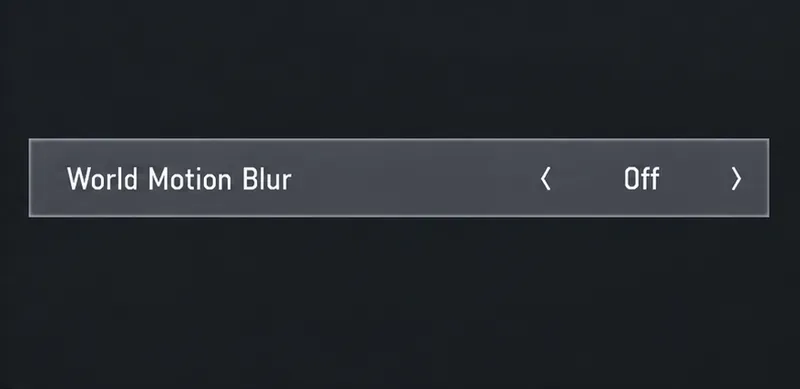
Turn off weapon and world motion blur in Warzone, confirm both settings stay disabled, and troubleshoot blur that remains with this practical guide.
Turn on Apex Legends’ Performance Display to see FPS, ping, and packet loss in the upper-right corner. Follow the steps and learn what each number means.
Check what Mobile Legends lets you hide about your rank badge and Star Protection, how to distinguish profile cosmetics from Ranked indicators, and what to do if no visibility toggle appears.
Hide CS2 telemetry stats through Game settings. Turn off FPS, ping, network warnings, and graphs, and identify a separate Steam performance overlay.
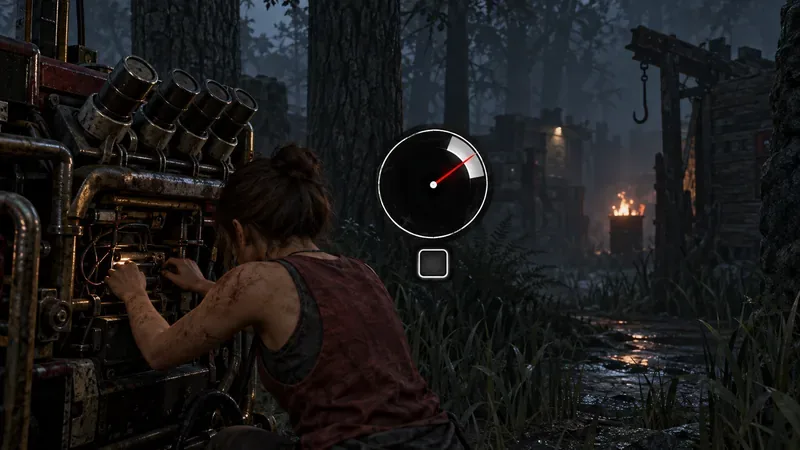
Find a comfortable Dead by Daylight skill check bind for keyboard or controller, with platform-specific guidance and a simple way to test changes.
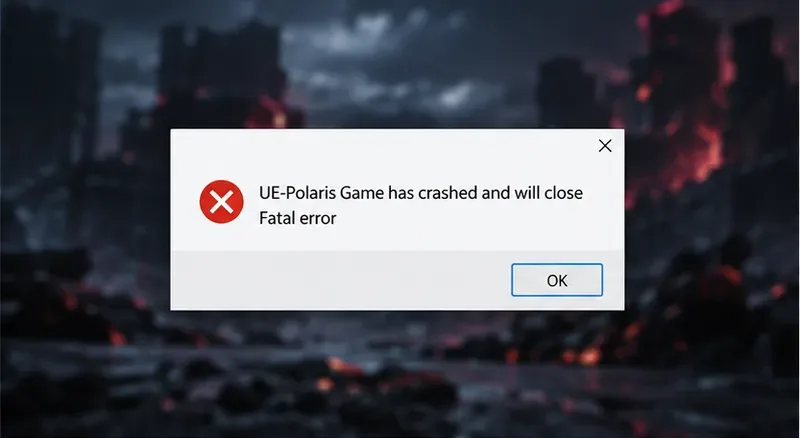
Fix TEKKEN 8 UE-Polaris crashes with a measured PC checklist: update the game, verify Steam files, isolate overlays, check drivers, and know when to escalate.
Find the best PUBG color filter for spotting enemies in grass. Compare color-blind presets in the same scene, check reticle contrast, and avoid misleading display tweaks.
Track the biggest esports matches from Oct. 12–18, 2026, including Worlds Play-Ins, VALORANT Champions, Thunderpick CS2 and confirmed LoL fixtures.
Turn off Hearthstone screen shake through Options, verify the setting after restart, and learn why unverified config edits cannot promise animation removal.