How to Turn Off Auto Buy and Auto Level in SMITE
Disable SMITE auto-buy and auto-level before a match, confirm both controls are off, and learn how to manage item purchases and ability points manually.
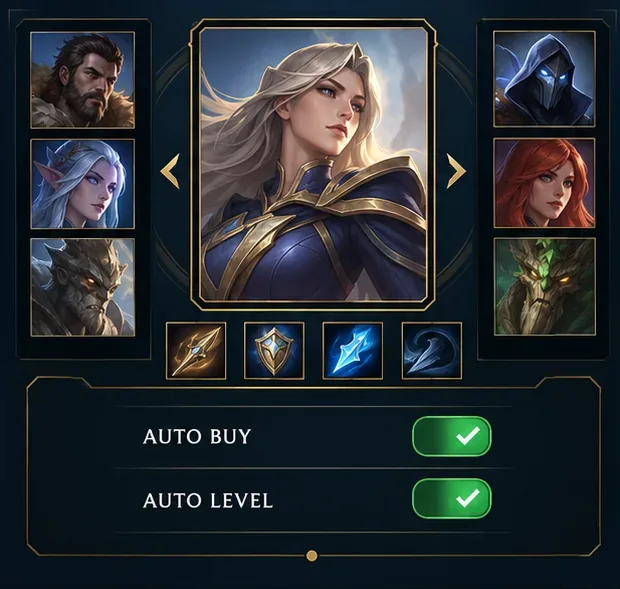
If SMITE is choosing your items or spending ability points for you, turn off its two automation controls in the pre-match god-selection lobby. Select your god, find the Auto Buy and Auto Level (sometimes labeled Auto Skill) controls, and switch both off before the match begins. The toggles are separate: disabling one does not disable the other.
This guide covers the original SMITE. Hi-Rez’s official store listing describes both auto-buy and auto-level as features of that game. SMITE 2 is a separate client and uses different terminology, including Auto Build. Menu names and controller navigation can vary by platform or client version, so treat the labels shown in your own lobby as authoritative. The illustrations below are simplified examples, not screenshots of a current live game client.
In the original game, these controls are commonly available in the god-selection or pre-match lobby after a god is selected. They may not be under the general Options menu. Look around the selected god’s loadout or match setup panel for two independent toggles. If you do not see them immediately, finish selecting a god and inspect the panel again; on a controller, follow the on-screen prompts to move focus to the controls.
Queue for a mode, enter the match lobby, and select your god. Before locking in or starting the match, look for controls named Auto Buy and Auto Level, Auto Skill, or similarly worded labels. First check their current state instead of assuming both are enabled. A check mark, highlighted switch, or other active indicator usually means that feature is on; the visual design can differ between clients.
Use the mouse or the lobby’s displayed controller input to toggle Auto Buy off. Confirm the control changes to its inactive state before the match starts. This setting controls automatic item purchases; it does not select an ability to level. Once it is off, you decide when to open the item shop and which available item to buy. In modes where purchases require returning to a shop area or base, you still need to meet that mode’s normal purchase rules.
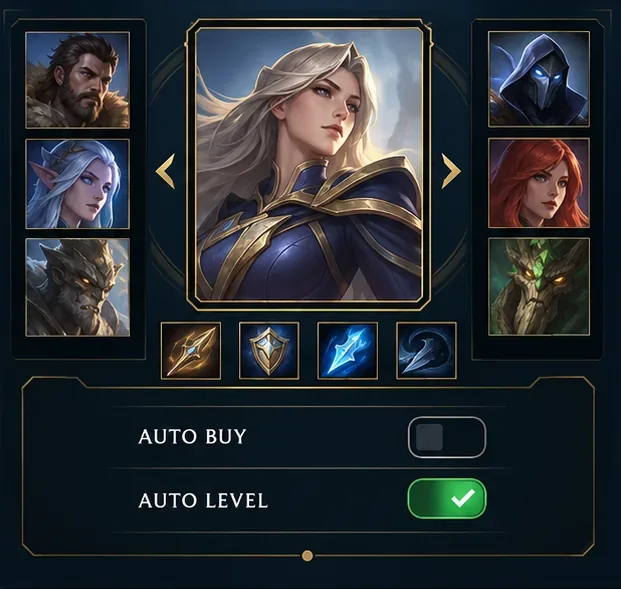
Now toggle Auto Level or Auto Skill off as well. Check for the inactive indicator on that row; do not rely on the Auto Buy change to affect it. With auto-level disabled, the game should leave ability-point choices to you when your god gains a level. You can then choose which available ability to upgrade, following the prompts shown on your screen. This gives you control over your skill order, but it also means you must remember to spend points yourself.
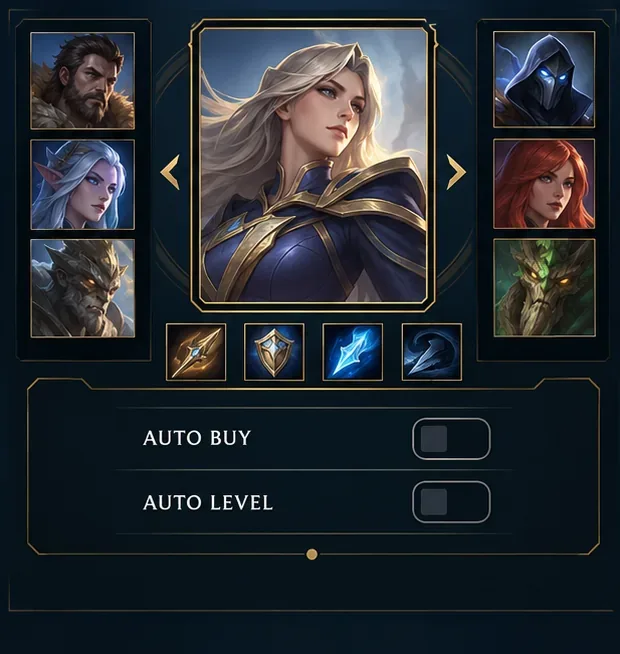
After loading in, check for the expected behavior rather than relying only on memory. When you return to a shop, confirm that items are not being purchased automatically and use the shop to select your own purchase. When you gain an ability point, look for the game’s upgrade prompts and choose an ability manually. If nothing is being selected or bought automatically, both changes are working. Recheck the lobby next match, because you should not assume a preference carries between matches unless your client clearly shows that it does.
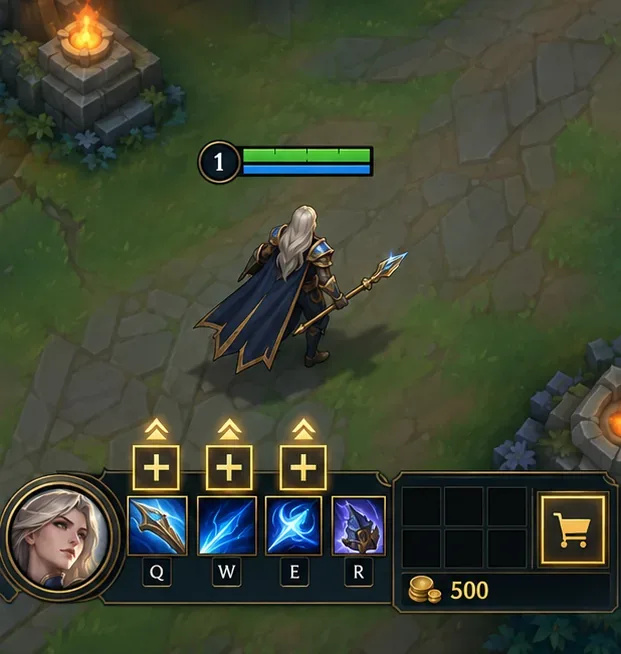
Manual control means you choose your own build and skill order, which can help when following a role-specific plan or adapting purchases to the match. It also adds two responsibilities: remember to shop when you can, and spend each ability point when you want an upgrade. If you are learning the game, you can turn off just one control first. For example, keep Auto Level on while practicing item choices, then disable it later when you are ready to choose skills yourself. The settings are independent, so you can use whichever combination suits your experience.
For reference, Hi-Rez’s SMITE Learn page links to the game’s skills and items tutorials, and its official item catalog explains the item choices you will make manually. The SMITE store listing confirms that the original game includes auto-buy and auto-level. These sources establish the features, but do not document a single current toggle path for every platform; if your lobby differs, use the visible client labels and prompts.
Disable SMITE auto-buy and auto-level before a match, confirm both controls are off, and learn how to manage item purchases and ability points manually.
Turn off weapon and world motion blur in Warzone, confirm both settings stay disabled, and troubleshoot blur that remains with this practical guide.
Turn on Apex Legends’ Performance Display to see FPS, ping, and packet loss in the upper-right corner. Follow the steps and learn what each number means.
Check what Mobile Legends lets you hide about your rank badge and Star Protection, how to distinguish profile cosmetics from Ranked indicators, and what to do if no visibility toggle appears.
Hide CS2 telemetry stats through Game settings. Turn off FPS, ping, network warnings, and graphs, and identify a separate Steam performance overlay.
Find a comfortable Dead by Daylight skill check bind for keyboard or controller, with platform-specific guidance and a simple way to test changes.
Fix TEKKEN 8 UE-Polaris crashes with a measured PC checklist: update the game, verify Steam files, isolate overlays, check drivers, and know when to escalate.
Find the best PUBG color filter for spotting enemies in grass. Compare color-blind presets in the same scene, check reticle contrast, and avoid misleading display tweaks.
Track the biggest esports matches from Oct. 12–18, 2026, including Worlds Play-Ins, VALORANT Champions, Thunderpick CS2 and confirmed LoL fixtures.
Turn off Hearthstone screen shake through Options, verify the setting after restart, and learn why unverified config edits cannot promise animation removal.