How to Turn Off Auto Buy and Auto Level in SMITE
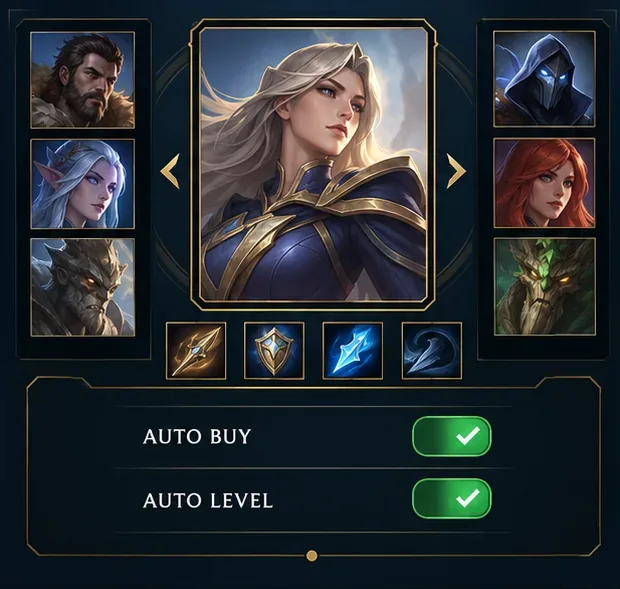
Disable SMITE auto-buy and auto-level before a match, confirm both controls are off, and learn how to manage item purchases and ability points manually.
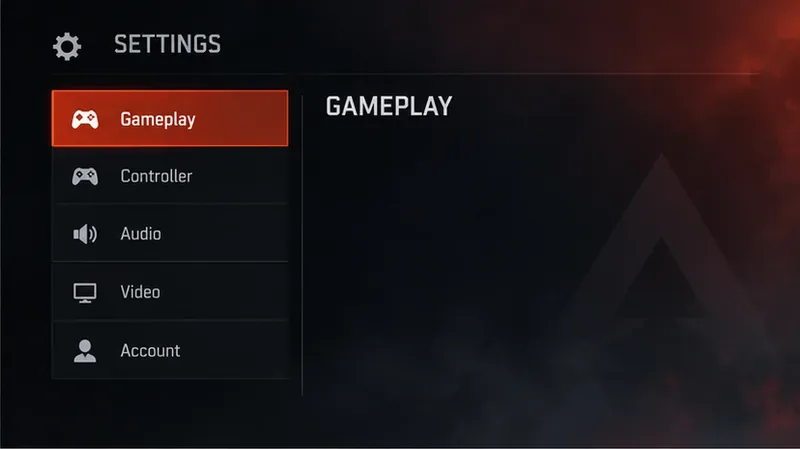
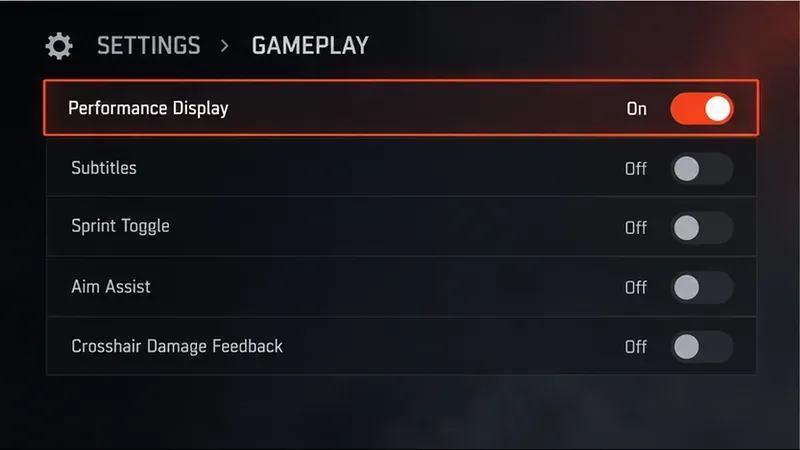
As of October 8, 2026, EA’s current instructions still point to Apex Legends’ built-in Performance Display for an in-game FPS and network readout. Open Settings → Gameplay, switch Performance Display to On, then return to a match. The readout appears in the upper-right corner and includes FPS, ping or latency, and packet loss. You do not need a separate overlay app to see both frame rate and connection data.
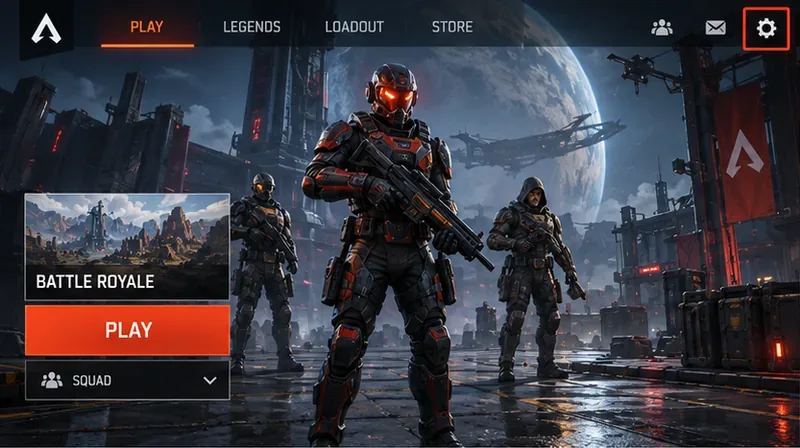
EA’s Apex FPS instructions describe the toggle, while its network troubleshooting guide confirms that Performance Display shows FPS, latency, and packet loss. The interface artwork below is an illustrative mockup to help locate the controls, not a captured game screen; menu appearance can vary by platform and game update.
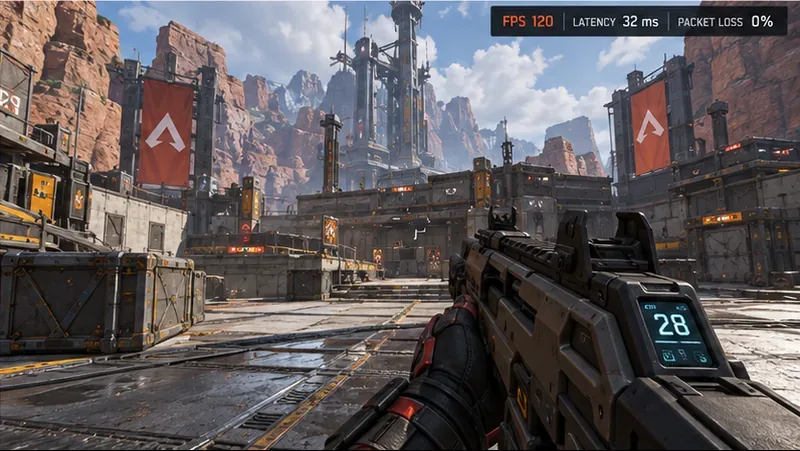
FPS (frames per second) is how many frames the game renders each second. It describes local rendering smoothness. If FPS is low or repeatedly drops during fights, the picture can feel uneven even when your internet connection is stable. Compare behavior in the same area or type of match before and after changing graphics settings, because busy scenes can place a different load on your system.
Ping or latency is the round-trip time for game data between your platform and the Apex data center, measured in milliseconds. EA uses “ping” and “latency” for this network measure. Lower values generally mean less delay between your actions and server updates. A low ping does not guarantee high FPS, and high FPS does not mean your route to the server is fast.
Packet loss is the share of packets that fail to complete the round trip. A nonzero or fluctuating loss reading can coincide with rubber-banding, delayed actions, or other connection problems, even when FPS looks steady. Treat the three indicators as separate clues: FPS reflects rendering, while latency and packet loss reflect network communication.
Check the readout when the game feels smooth, then check it again at the moment a problem appears. If FPS falls while ping stays steady, investigate local performance first: close demanding background programs, confirm the display and graphics settings you chose, and see whether the change happens in a crowded fight or throughout the match. If FPS stays stable but ping rises or packet loss appears, focus on the connection or server route instead.
EA says ping is generally between 50 and 150 ms; under 100 ms is usually workable, and under 50 ms is particularly good. These are practical reference points, not a promise that every player will have the same experience. A sudden rise from your usual reading can matter even if the value remains below 100 ms, and a stable reading alone cannot identify the cause of every hitch.
First, check the Data Center list on the Apex launch screen before selecting Continue. EA recommends choosing a data center close to your location because a farther route can increase ping and packet loss. Compare the listed values and choose the closest suitable center rather than repeatedly switching during a match.
If all data centers show unusually high ping or loss, check EA’s server status and official Apex channels for an outage or service issue. If the problem appears limited to your connection, EA lists common contributors such as crowded Wi-Fi, a wireless connection, background applications, or a router that is blocked or far away. Try a wired connection when available, move closer to the router, pause large downloads, and close apps that are using the network. Change one factor at a time and watch whether the readout becomes more stable.
This built-in overlay is the simplest way to see Apex Legends FPS and network latency together on supported platforms. Use FPS changes to investigate local rendering, and use ping and packet loss to investigate the connection or data-center route. When the values point in different directions, troubleshoot those systems separately instead of assuming one number explains every stutter.
Disable SMITE auto-buy and auto-level before a match, confirm both controls are off, and learn how to manage item purchases and ability points manually.
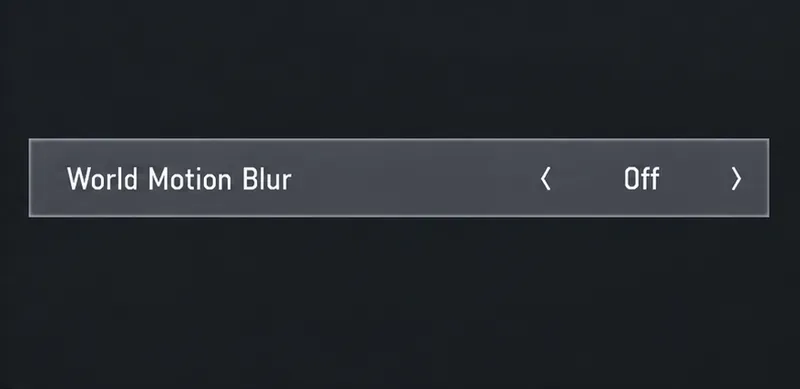
Turn off weapon and world motion blur in Warzone, confirm both settings stay disabled, and troubleshoot blur that remains with this practical guide.
Turn on Apex Legends’ Performance Display to see FPS, ping, and packet loss in the upper-right corner. Follow the steps and learn what each number means.
Check what Mobile Legends lets you hide about your rank badge and Star Protection, how to distinguish profile cosmetics from Ranked indicators, and what to do if no visibility toggle appears.
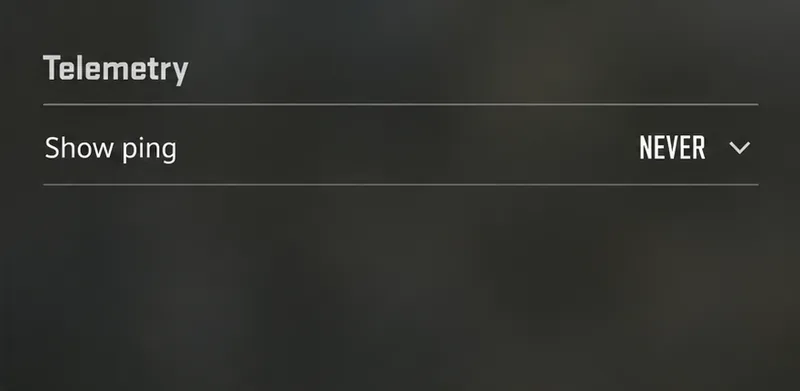
Hide CS2 telemetry stats through Game settings. Turn off FPS, ping, network warnings, and graphs, and identify a separate Steam performance overlay.
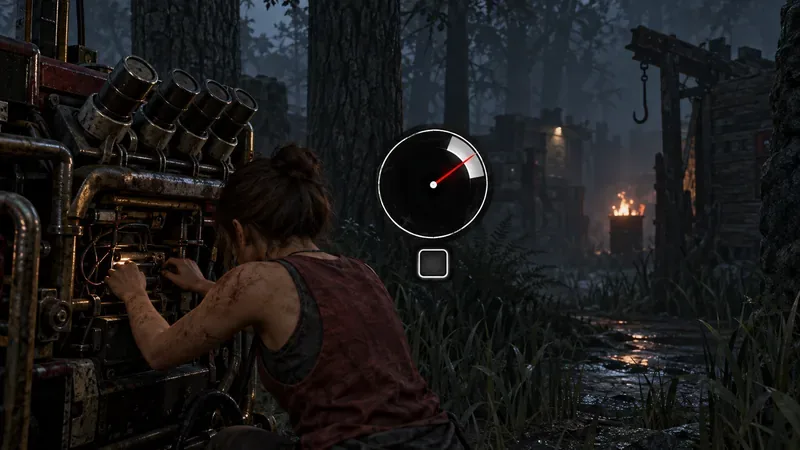
Find a comfortable Dead by Daylight skill check bind for keyboard or controller, with platform-specific guidance and a simple way to test changes.
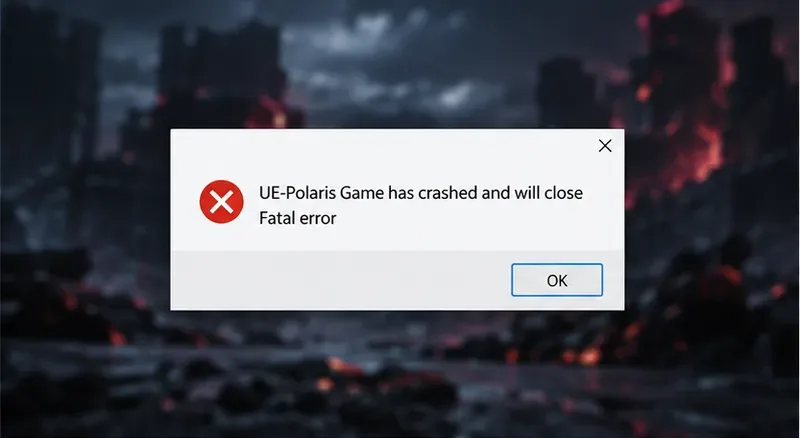
Fix TEKKEN 8 UE-Polaris crashes with a measured PC checklist: update the game, verify Steam files, isolate overlays, check drivers, and know when to escalate.
Find the best PUBG color filter for spotting enemies in grass. Compare color-blind presets in the same scene, check reticle contrast, and avoid misleading display tweaks.
Track the biggest esports matches from Oct. 12–18, 2026, including Worlds Play-Ins, VALORANT Champions, Thunderpick CS2 and confirmed LoL fixtures.
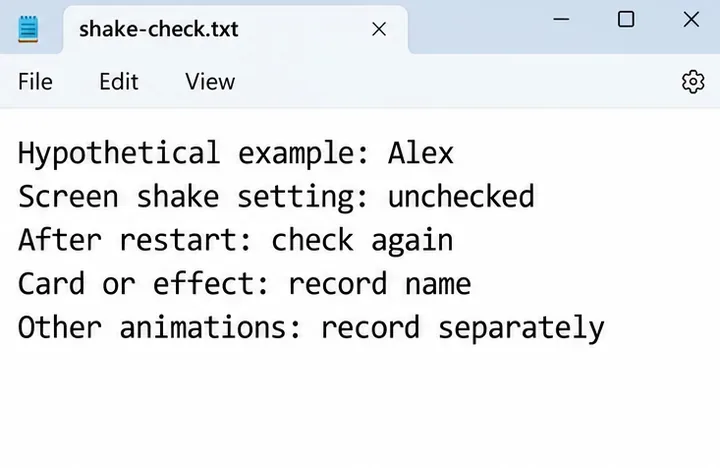
Turn off Hearthstone screen shake through Options, verify the setting after restart, and learn why unverified config edits cannot promise animation removal.