How to Turn Off Auto Buy and Auto Level in SMITE
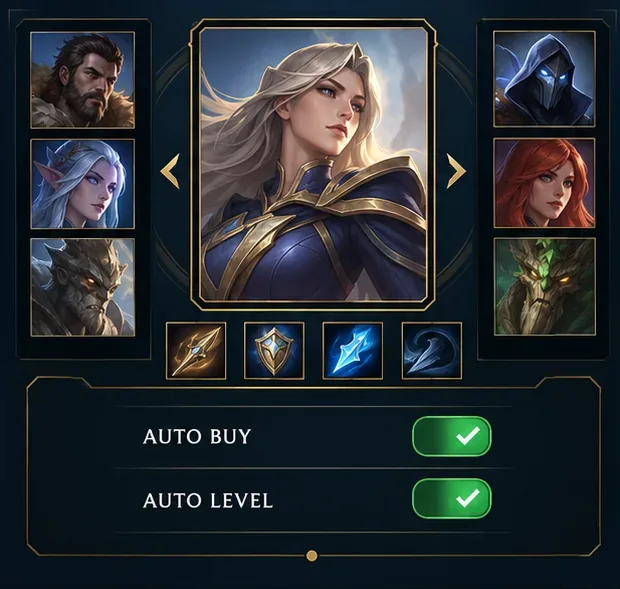
Disable SMITE auto-buy and auto-level before a match, confirm both controls are off, and learn how to manage item purchases and ability points manually.
For most keyboard-and-mouse players, start with the familiar Space bar if it is the key your game currently assigns to skill checks. It is large, easy to reach with a thumb, and lets your left hand stay near movement keys. Keep it if you can tap it without shifting your hand or losing control of your character. A different bind is useful only when it feels more natural and does not collide with another action.
On a controller, use the button shown in your current Controls or Key Bindings menu. Shoulder buttons can be comfortable because your thumbs can stay on the sticks, but Dead by Daylight has more than one kind of skill check and its defaults depend on the action. Do not change a control solely because someone recommends a specific button for a different platform.
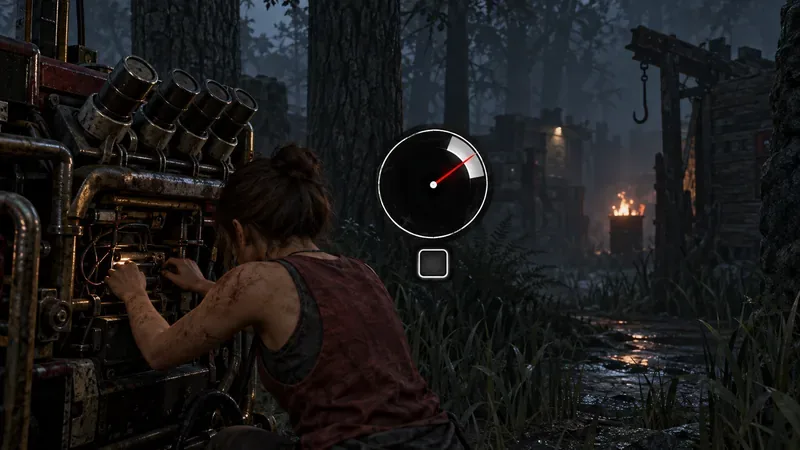
No. The game does not publish a universally fastest key. A comfortable bind can reduce the time your hand needs to find the button, but it cannot change the skill check’s timing window or remove display, controller, or network delay. Your best choice depends on the platform, your grip, the other actions sharing that input, and whether you can press it accurately while the skill check appears unexpectedly.
Start by asking three questions: Can you reach the button without looking? Can you press it without releasing movement or camera control you need? Does that key also perform another action that you might trigger by mistake? If the answer to the first two is yes and the third is no, the bind is a good candidate.
Keep Space if it already feels natural. It is a practical default for many PC players because it is broad and easy to tap with the thumb while the left hand stays near WASD. BHVR’s official 5.5.0 notes document Space as the keyboard default for the newer wiggle skill-check interaction. That detail is specifically about wiggle; check your own in-game binding for ordinary skill checks and other interactions. Read BHVR’s 5.5.0 control notes.
Consider a spare mouse side button only if it is consistent for you. A thumb button can work when your thumb rests on it naturally and you do not accidentally press it while turning the camera. Try it in a low-pressure match before using it as your only input. If you need to stretch your thumb or your mouse movement becomes less steady, return to Space.
A nearby keyboard key can also work. Choose a key you can reach without lifting your fingers far from movement. Avoid assigning the check to a key you frequently press for another action, or one that forces you to move the hand you use for movement. Key names and whether a control can be rebound independently may vary by platform and current settings, so use the labels shown in the game rather than assuming that “Skill Check” is always a separate row.
Use the button the game currently displays for the skill-check action, then judge it by reach and repeatability. For standard checks, a shoulder button may suit players who want to keep both thumbs on the sticks. A face button may be more comfortable for a different grip. Neither layout is automatically quicker for every player; the better bind is the one you can press without shifting your grip or unintentionally moving the camera.
BHVR’s patch notes for the newer wiggle interaction list LB/RB on Xbox-style controllers and L1/R1 on PlayStation-style controllers, and say either button can be used for either side of that wiggle check. This is not a universal rule for every generator, healing, or perk-related check. BHVR’s developer update also explains that the wiggle update uses repeated two-sided checks and can assign a different button to each side. See BHVR’s explanation of the wiggle skill-check design.
If your controller settings expose a distinct skill-check binding, try a shoulder button that does not conflict with a frequently needed action. If the game combines that input with another action, changing it may affect both; verify the rest of the layout before saving. Avoid using a stick click if pressing it makes you tilt the stick, and avoid a button that requires you to lift your thumb from the camera stick during a chase.
| Bind option | Why it may feel smooth | What to watch for |
|---|---|---|
| Space on keyboard | Large key; easy thumb reach while the left hand stays near movement | May share a binding with another action; check your in-game controls |
| Mouse side button | Can be pressed by the thumb without moving the keyboard hand | May cause accidental presses or disturb camera control |
| Controller shoulder button | Often reachable while both thumbs remain on the sticks | Exact mapping varies; a shoulder input may serve multiple actions |
| Controller face button | Can suit players who prefer using the right thumb for the check | Pressing it may take the thumb off camera control |
BHVR added the wiggle skill-check interaction as an alternative to repeated button mashing, and described it as requiring fewer repeated inputs. It is a separate consideration from the button chosen for an ordinary skill check. Review the developer update on wiggle and interaction settings.
Do not assume the keybind is the only cause. If you can reach the button easily but still miss checks, look for delayed input, an unreliable keyboard or controller button, unstable frame delivery, or a display mode that adds processing delay. These are possibilities, not a diagnosis. Try a different working input device and, if you play on a television, check whether its game-focused picture mode reduces the delay you perceive. Change one thing at a time and compare how the timing feels.
Also distinguish ordinary skill checks from the wiggle system. The ordinary check is a single timing press; the newer wiggle interaction uses repeated checks with alternating sides. A bind that is comfortable for one may not be ideal for the other. The current BHVR 10.2.0 release notes include skill-check-related gameplay and perk changes, but they do not establish one best input for every platform. Check BHVR’s current 10.2.0 release notes.
For keyboard and mouse, keep Space if you can press it cleanly; test a mouse side button or nearby key only if it is easier to reach and does not disrupt another action. On controller, start with the skill-check button displayed in your own settings and choose the most comfortable reachable control. Treat LB/RB or L1/R1 as documented defaults for the wiggle interaction, not a universal prescription. The smoothest setup is the one you can press accurately while keeping the rest of your controls steady.
Reviewed October 8, 2026. Controls can vary by platform, input device, and game version; confirm the active binding in the installed game.
Disable SMITE auto-buy and auto-level before a match, confirm both controls are off, and learn how to manage item purchases and ability points manually.
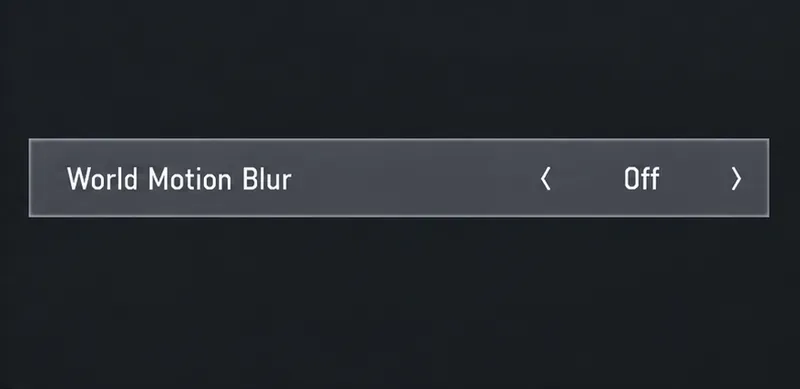
Turn off weapon and world motion blur in Warzone, confirm both settings stay disabled, and troubleshoot blur that remains with this practical guide.
Turn on Apex Legends’ Performance Display to see FPS, ping, and packet loss in the upper-right corner. Follow the steps and learn what each number means.
Check what Mobile Legends lets you hide about your rank badge and Star Protection, how to distinguish profile cosmetics from Ranked indicators, and what to do if no visibility toggle appears.
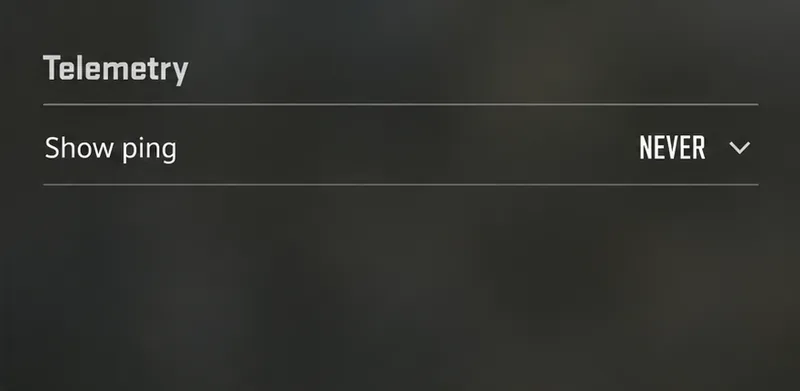
Hide CS2 telemetry stats through Game settings. Turn off FPS, ping, network warnings, and graphs, and identify a separate Steam performance overlay.
Find a comfortable Dead by Daylight skill check bind for keyboard or controller, with platform-specific guidance and a simple way to test changes.
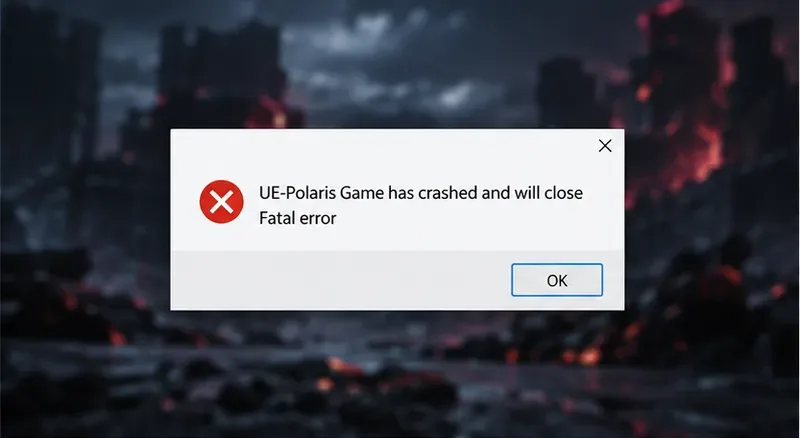
Fix TEKKEN 8 UE-Polaris crashes with a measured PC checklist: update the game, verify Steam files, isolate overlays, check drivers, and know when to escalate.
Find the best PUBG color filter for spotting enemies in grass. Compare color-blind presets in the same scene, check reticle contrast, and avoid misleading display tweaks.
Track the biggest esports matches from Oct. 12–18, 2026, including Worlds Play-Ins, VALORANT Champions, Thunderpick CS2 and confirmed LoL fixtures.
Turn off Hearthstone screen shake through Options, verify the setting after restart, and learn why unverified config edits cannot promise animation removal.