How to Turn Off Auto Buy and Auto Level in SMITE
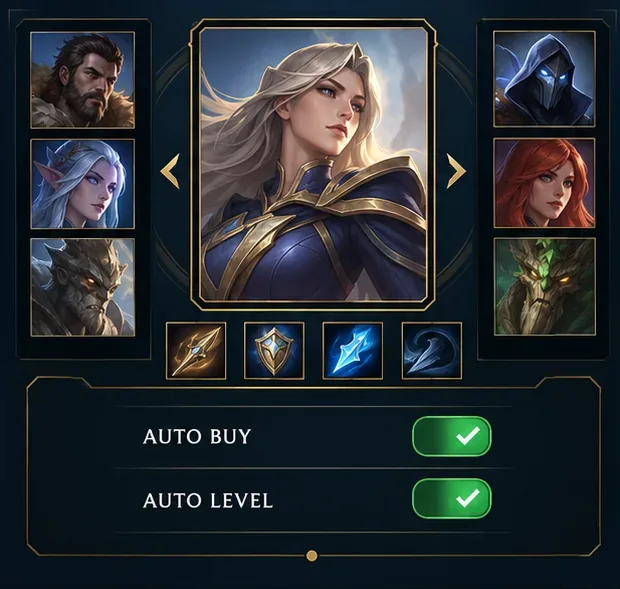
Disable SMITE auto-buy and auto-level before a match, confirm both controls are off, and learn how to manage item purchases and ability points manually.
Start with the low-risk checks: update TEKKEN 8, verify its Steam installation, then test with overlays and manual overclocks temporarily disabled. The message “UE-Polaris Game has crashed and will close” names a crash, but does not by itself prove that the game engine, graphics card, or one specific driver is at fault. Work through one change at a time so you can tell whether stability improves.
Update context: Bandai Namco’s latest official update notice I found is Ver. 3.02.02, dated September 10, 2026. Its listed fixes concern Bob’s move behavior and a matchmaking confirmation dialog; it does not list a UE-Polaris crash fix. Install the newest update offered by Steam anyway, because later client changes may not be reflected in an older notice. TEKKEN 8 is built with Unreal Engine 5, but an Unreal fatal-error dialog is not a complete diagnosis.
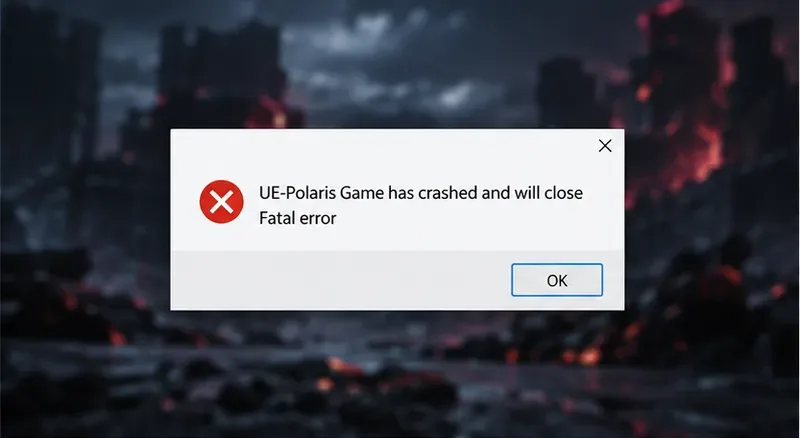
First note whether the crash happens before the title screen, during a match, after returning to the menu, or only when joining online play. Record the complete error text, any LowLevelFatalError or DXGI code, the time of the crash, and whether the PC also freezes, restarts, or shows a blue screen. A game-only crash and a full system reset point to different levels of troubleshooting.
Restart Steam and Windows, let Steam finish any pending TEKKEN 8 update, and try again. Compare your PC with the current TEKKEN 8 system requirements on Steam. Steam currently lists Windows 10 64-bit, 8 GB RAM, DirectX 12, and 100 GB of available storage as minimum requirements, while the recommended configuration is higher. Meeting minimum specifications does not guarantee that a particular system is stable, but being below them is a useful clue. Leave enough free storage for the game and Windows to operate normally.
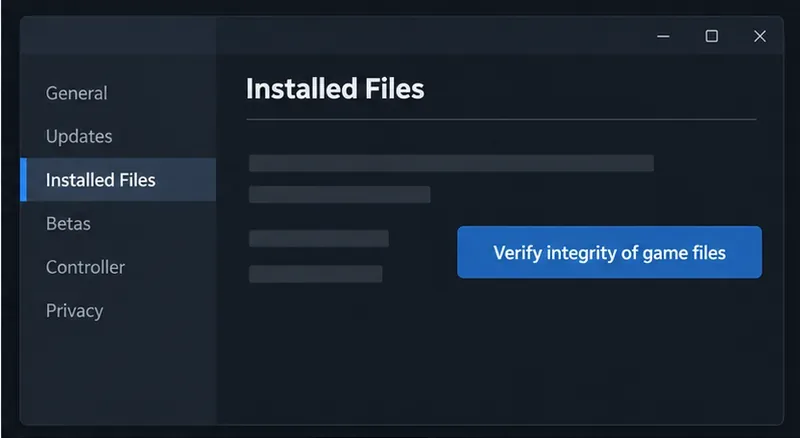
A damaged or incomplete file can prevent a game from starting or cause it to fail later. In Steam, open Library, right-click TEKKEN 8, choose Properties, select Installed Files, and choose Verify integrity of game files. Steam checks the installation and may download replacement files. Wait for the process to finish before launching the game, and do not interrupt it with another disk-intensive task.
After verification, restart Steam and launch the game normally. A useful success signal is that the game reaches the main menu and stays open through the point where it previously crashed. If Steam reports that files were reacquired but the same error returns, continue to the next test instead of repeating verification over and over.
Close the game, then temporarily turn off optional overlays and recording tools, such as the Steam overlay, chat overlays, performance monitors, and screen-capture utilities. Close other demanding applications as well. These programs are not automatically the cause; this clean launch is a way to find out whether one of them is interacting with the game.
If you manually overclocked or undervolted the CPU or GPU, return that component to its default setting for a test. Avoid changing unrelated BIOS settings or applying a blanket “optimization” profile. If the crash stops only after reverting a particular adjustment, keep the stable setting and investigate that tuning separately. Re-enable overlays and tools one at a time after the game is stable so you can identify a conflict without losing useful features unnecessarily.
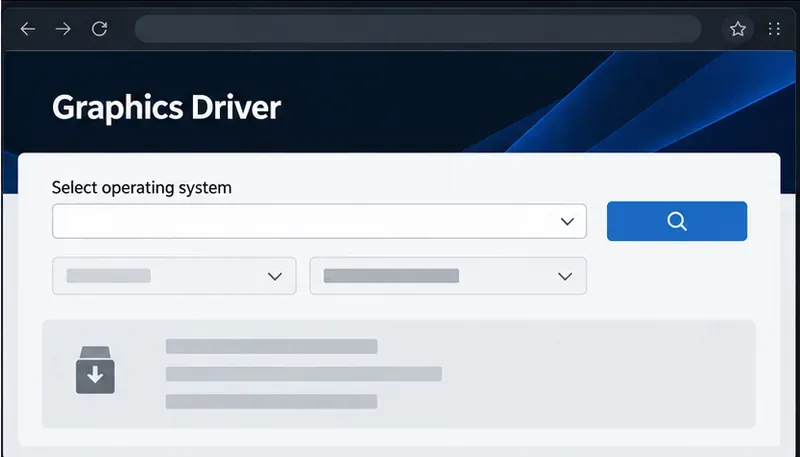
Install a current graphics driver from the support page for your GPU manufacturer, following that vendor’s instructions. If the crashes began immediately after a driver update, note the version and consider the manufacturer’s normal rollback option if one is available. Avoid unofficial driver bundles or registry edits. Epic’s Unreal Engine documentation explains that GPU crashes can have several causes, including memory pressure, driver or operating-system bugs, engine code, and hardware; the generic dialog cannot tell you which one applies.
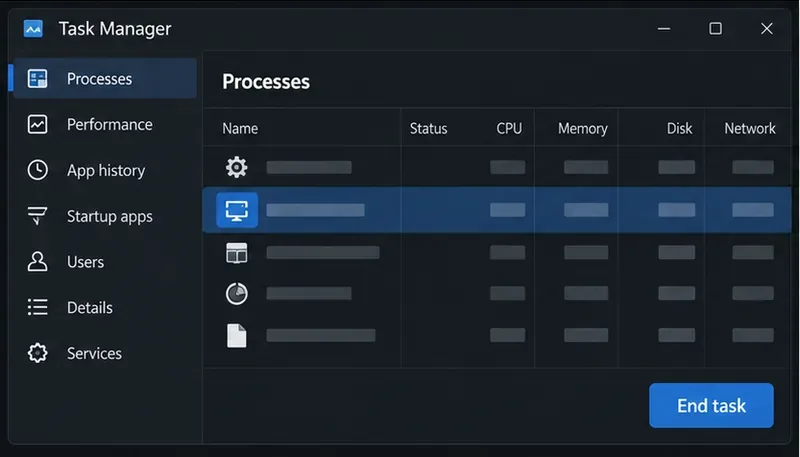
During a test, close applications that use substantial GPU memory, especially video editors, browsers with many active tabs, or other games. If you can reach Windows Task Manager, its Performance view can show whether GPU memory is close to full while the game is running. A high reading is a clue to investigate, not proof that memory caused the crash. Also check that the PC is not overheating or shutting down under load; if the entire machine powers off or restarts, prioritize system stability and hardware diagnostics rather than changing only TEKKEN 8 settings.
After each change, restart the game and repeat the same activity that previously triggered the crash. The fix is meaningful if the game now passes that point repeatedly without the Polaris dialog, freezes, or a system restart. A single successful launch is encouraging, but it does not confirm that an intermittent crash is gone. If a step makes no difference, undo it where practical and move on; changing drivers, graphics settings, overlays, and Windows options all at once makes the result difficult to interpret.
Do not copy Unreal Engine editor instructions that modify Windows timeout registry values or add engine-development command-line flags to a retail game. Those directions target debugging and development scenarios, can change system behavior, and are not an official TEKKEN 8 repair. Reinstalling the game is a later option if verification fails repeatedly or the installation cannot be repaired; make sure saves are synced or backed up before uninstalling.
If the crash persists, submit a report through Bandai Namco’s TEKKEN Dev Feedback Portal or the support route shown for your region. Include the exact error, when it occurs, your CPU and GPU models, Windows version, graphics-driver version, whether file verification changed anything, and the troubleshooting steps already tried. Attach a screenshot or crash record if available. If other Unreal Engine games also fail, or Windows itself crashes, check the GPU or system manufacturer’s support channel too.
File verification can repair installation problems; a clean launch can reveal a software conflict; and updating or reverting a driver can test a graphics-software issue. None of those steps proves that every UE-Polaris crash has the same cause. If the game still crashes on a clean, updated installation at default CPU and GPU settings, the remaining cause may require a game patch, a driver fix, or hardware-specific diagnosis. Keep the recorded error details and report the reproducible pattern instead of making risky system changes without evidence.
Disable SMITE auto-buy and auto-level before a match, confirm both controls are off, and learn how to manage item purchases and ability points manually.
Turn off weapon and world motion blur in Warzone, confirm both settings stay disabled, and troubleshoot blur that remains with this practical guide.
Turn on Apex Legends’ Performance Display to see FPS, ping, and packet loss in the upper-right corner. Follow the steps and learn what each number means.
Check what Mobile Legends lets you hide about your rank badge and Star Protection, how to distinguish profile cosmetics from Ranked indicators, and what to do if no visibility toggle appears.
Hide CS2 telemetry stats through Game settings. Turn off FPS, ping, network warnings, and graphs, and identify a separate Steam performance overlay.
Find a comfortable Dead by Daylight skill check bind for keyboard or controller, with platform-specific guidance and a simple way to test changes.
Fix TEKKEN 8 UE-Polaris crashes with a measured PC checklist: update the game, verify Steam files, isolate overlays, check drivers, and know when to escalate.
Find the best PUBG color filter for spotting enemies in grass. Compare color-blind presets in the same scene, check reticle contrast, and avoid misleading display tweaks.
Track the biggest esports matches from Oct. 12–18, 2026, including Worlds Play-Ins, VALORANT Champions, Thunderpick CS2 and confirmed LoL fixtures.
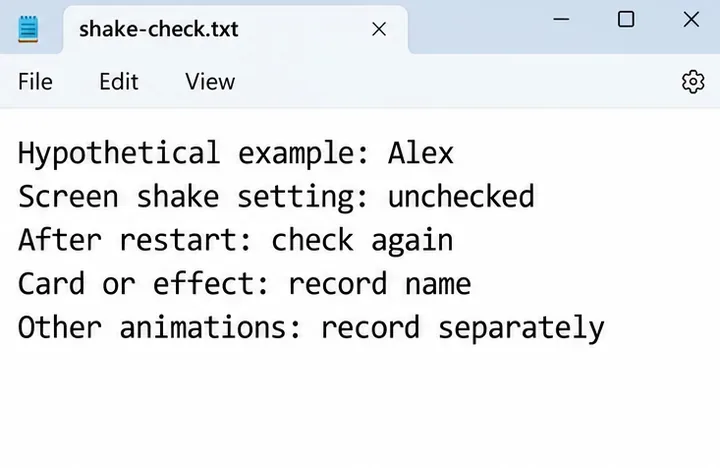
Turn off Hearthstone screen shake through Options, verify the setting after restart, and learn why unverified config edits cannot promise animation removal.