How to Turn Off Auto Buy and Auto Level in SMITE
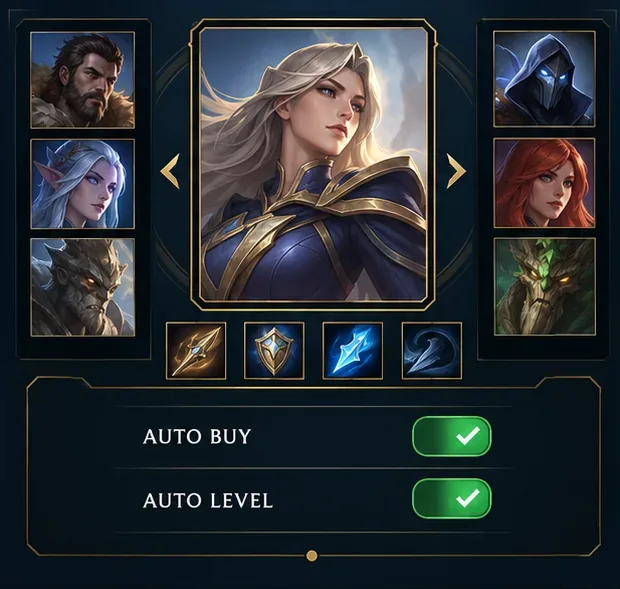
Disable SMITE auto-buy and auto-level before a match, confirm both controls are off, and learn how to manage item purchases and ability points manually.
To disable weapon motion blur and world motion blur in Warzone, open the game's Settings, go to Graphics, and set both World Motion Blur and Weapon Motion Blur to Off. In older interfaces, the equivalent value may read Disabled. Check both controls: changing one does not complete the two-setting adjustment.
The practical goal is to remove these optional blur effects while leaving the rest of your graphics setup intact. You do not need to copy a full competitive graphics preset or edit a configuration file just to make this change.
| Setting | What it concerns | Value for this guide | What to check afterward |
|---|---|---|---|
| World Motion Blur | Motion blur applied to the game-world view | Off, or Disabled in an older interface | Compare scenery while turning the camera. |
| Weapon Motion Blur | Motion blur associated with your first-person weapon | Off, or Disabled in an older interface | Compare the weapon while moving or reloading. |
| Other graphics controls | Separate aspects of image quality or motion | Keep your existing values initially | Investigate separately only if a problem remains. |
Call of Duty's December 2023 accessibility overview explicitly identifies world and weapon motion blur as graphical adjustments. These are separate from camera movement and other visual settings.
Version note: this guide was researched on October 8, 2026. The official material reviewed confirms the effects, but does not provide a complete, current Warzone menu walkthrough for every platform. Menu placement and presentation can change between integrations and updates. Use the two option names as your reference rather than relying on an old screenshot's exact row position.
The illustrations below isolate the relevant controls. The enabled values in the first image are an example starting state, not a statement about Warzone's defaults. Surrounding menus, colors, and controller prompts may differ in your installed version.
Open the in-game Settings menu and select Graphics. If Graphics is divided into tabs, inspect Quality and View for the motion blur entries. Older PC layouts group them under Post Processing Effects. If your settings menu offers search, search for motion blur instead of scrolling through every category.
Read the full labels before making a change. A setting about camera movement, weapon field of view, or depth of field is a different control. The target is specifically World Motion Blur and Weapon Motion Blur.
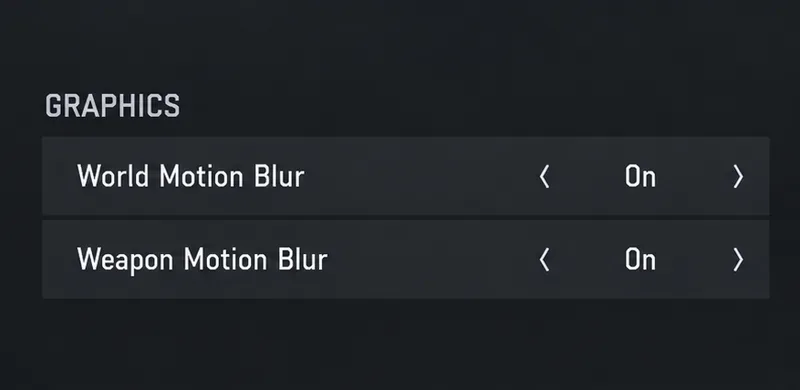
Select World Motion Blur and change its value to Off. On a mouse-driven interface, use the selector shown beside the row. On a controller, highlight the row and use the adjustment prompt displayed by the game. Follow your client's prompts rather than assuming a particular button binding.
Check that the displayed value actually reads Off before moving on. Simply highlighting a setting does not mean its value has changed. If you arrived here because the landscape looks smeared during camera turns, this is the first of the two controls to verify.
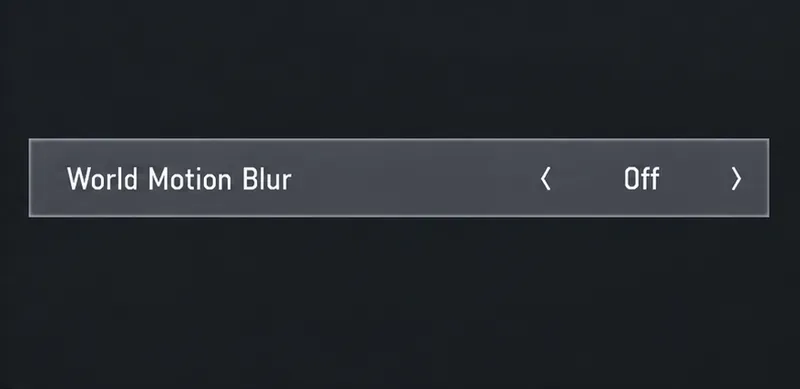
Find Weapon Motion Blur and set it to Off as well. Check the value directly even if you have already disabled world blur. This completes the requested adjustment for the first-person weapon effect.
Do not interpret this as a switch for recoil, weapon sway, or reload animations. The weapon can still move when you walk, aim, or fire. Removing a blur effect and removing movement are different goals.
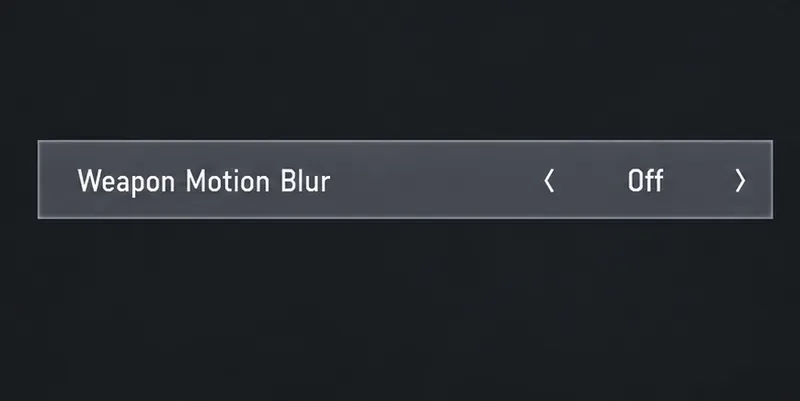
If your interface displays an Apply or Save prompt, use it. Otherwise, leave the settings menu normally, then reopen Graphics and confirm both values remain Off. This avoids assuming every version uses the same saving behavior.
In a suitable practice area or a quiet moment in gameplay, look at a recognizable edge such as a doorway while turning, then observe your weapon while moving and reloading. Compare the same actions under similar conditions. A comparison with different lighting, scenery, or movement speed is less useful.
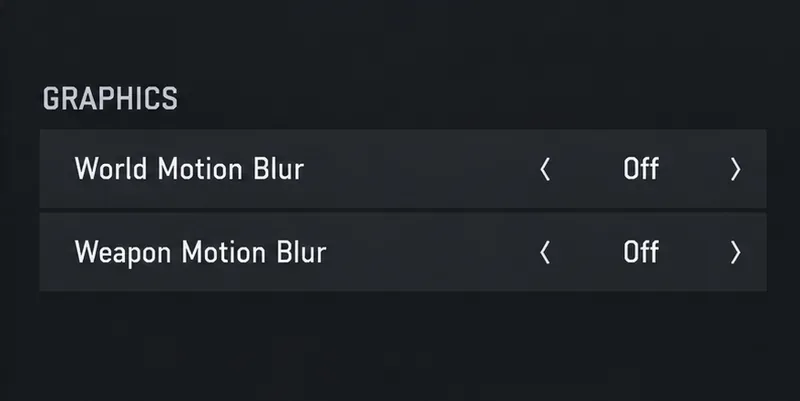
For a more deliberate check, temporarily restore one effect at a time, repeat the same movement, and then return it to Off. This separates the world effect from the weapon effect. It is an optional comparison method, not a claim that this article tested a particular build or measured an improvement.
The useful reference is the pair of Off values, not a universal sequence of key presses. A controller and a mouse can expose the same setting through different selection controls. Also, a PC graphics menu may contain many options that are absent from a console interface; you only need to locate the two relevant entries.
NVIDIA's April 2020 Warzone performance guide includes a historical post-processing menu showing these effects disabled. That is useful evidence of the option names and older terminology. Its complete preset is not a current Warzone configuration to copy unchanged.
If you cannot find one of the controls, first check the other Graphics tabs and remove any settings filters you enabled. Then consult the help text in your installed game. Avoid concluding that the feature was removed merely because a current menu does not match an older guide.
First reopen the menu and distinguish two situations: the values reverted, or the values stayed Off but the image still looks soft. Those observations call for different next steps.
| Observation | Useful next action |
|---|---|
| One or both values are back on | Set them off again, follow any save prompt, and check whether applying a preset changes them. |
| Both are off, but the view is soft even when stationary | Review resolution and image-scaling settings separately. Do not treat every soft image as motion blur. |
| The weapon still bobs or kicks while firing | Separate weapon movement from blur before changing other controls. |
| A graphical problem appeared after an update | Check Activision's known-issues page for a matching description and affected platform. |
For PC graphics problems that extend beyond these two settings, use Activision's Warzone PC troubleshooting guidance. It covers supported drivers and recommends allowing shader preloading to finish before playing. Consult the current page rather than installing a driver version copied from an old settings article.
Check the official Warzone known-issues list if your symptoms persist. A remaining visual artifact alone does not establish that these switches are broken, and this guide does not attribute it to a particular rendering bug without evidence.
Use both effects off when you prefer a view without their added motion smearing. This is a visual preference and troubleshooting starting point, not a guarantee of higher FPS, better aim, or the removal of every source of blur. Once the two values are confirmed, investigate any remaining issue on its own merits.
Disable SMITE auto-buy and auto-level before a match, confirm both controls are off, and learn how to manage item purchases and ability points manually.
Turn off weapon and world motion blur in Warzone, confirm both settings stay disabled, and troubleshoot blur that remains with this practical guide.
Turn on Apex Legends’ Performance Display to see FPS, ping, and packet loss in the upper-right corner. Follow the steps and learn what each number means.
Check what Mobile Legends lets you hide about your rank badge and Star Protection, how to distinguish profile cosmetics from Ranked indicators, and what to do if no visibility toggle appears.
Hide CS2 telemetry stats through Game settings. Turn off FPS, ping, network warnings, and graphs, and identify a separate Steam performance overlay.
Find a comfortable Dead by Daylight skill check bind for keyboard or controller, with platform-specific guidance and a simple way to test changes.
Fix TEKKEN 8 UE-Polaris crashes with a measured PC checklist: update the game, verify Steam files, isolate overlays, check drivers, and know when to escalate.
Find the best PUBG color filter for spotting enemies in grass. Compare color-blind presets in the same scene, check reticle contrast, and avoid misleading display tweaks.
Track the biggest esports matches from Oct. 12–18, 2026, including Worlds Play-Ins, VALORANT Champions, Thunderpick CS2 and confirmed LoL fixtures.
Turn off Hearthstone screen shake through Options, verify the setting after restart, and learn why unverified config edits cannot promise animation removal.