Home
» 🎮 Esports
»
Best HUD Opacity Settings for Objective Readability in Overwatch 2
Best HUD Opacity Settings for Objective Readability in Overwatch 2
Start with Waypoint Opacity at 50% if you want a balance between visible objective markers and a less obstructed view in Overwatch 2. Raise it toward 75–100% if you struggle to locate the active objective. Try 25–50% if you already navigate comfortably and the marker regularly overlaps the action you need to see. For objective readability, making the marker nearly invisible is usually the wrong starting point.
These are practical starting recommendations, not Blizzard-endorsed presets or results from a controlled performance test. The best value is the one that lets you find the objective quickly while still seeing movement behind its marker on your own display.
Which opacity setting matters for the objective?
Focus on the setting labeled Waypoint Opacity. Do not assume that every control containing the word “opacity” changes the objective marker, or that there is one master slider for the entire HUD.
Think of three separate visual tasks: finding the objective in the world, reading match information, and seeing your aiming reticle. A change that helps one task can leave the others untouched. Before adjusting a slider, identify the element causing trouble: a floating marker, a point boundary, text at the top of the screen, or something near your crosshair.
There is historical firsthand evidence for the waypoint control in an August 2023 report on Blizzard’s official support forums. The discussion connects difficulty seeing a Flashpoint objective with Waypoint Opacity under Gameplay > HUD. This is a player report, not a current Blizzard settings manual or proof of a universal recommended value.
Research for this article was completed on October 8, 2026. A current official reference confirming the exact waypoint menu location and every affected visual element was not available in the sources reviewed. Use the option’s actual label in your installed client, and treat the older Gameplay > HUD path as a place to check rather than a guaranteed current route.
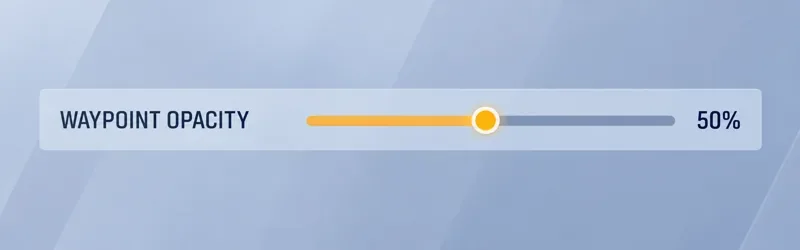
The Waypoint Opacity slider is shown at 50%, the suggested starting value for balancing marker visibility and scene clarity.
The image illustrates the setting and suggested value; it is not a screenshot from a tested account or a representation of the full current options menu.
Recommended waypoint opacity by situation
Your main difficulty
Suggested starting value
What to check
You want a balanced first adjustment
50%
Can you locate the objective with a quick glance?
You are learning maps or losing track of the active point
75%
Does the marker remain easy to identify during movement?
You have persistent trouble seeing the marker
100%
Does maximum opacity resolve the problem, or is something else wrong?
You know the route but the marker overlaps enemies
25–50%
Can you see the action without losing objective orientation?
These numbers organize your comparison; they do not rank player skill. A higher value can be the better choice for an experienced player on a distant television, while a lower one can work on a clear desktop display. Your seating distance, vision, background contrast, and familiarity with the map all affect the tradeoff.
Why 50% is a useful starting point
A halfway value gives you room to compare in either direction. It avoids starting with an almost invisible marker and lets you decide whether your bigger problem is finding the objective or seeing through the marker.
Opacity is not a promise of contrast. A partially transparent symbol blends with the scene behind it, so a value that looks comfortable against a dark wall may be harder to recognize against a bright or visually busy background. Evaluate it in motion, not only on the options screen.
For example, imagine a player who tracks enemies comfortably on a familiar route but hesitates after the objective changes. This is an illustrative scenario, not a recorded test. That player should try a higher waypoint value before pursuing a cleaner-looking HUD. The useful result is recognizing the destination promptly, not achieving the least visible interface.
When should you use 75–100%?
Favor higher opacity when you need stronger navigation cues. This includes learning a map, returning after a long break, or playing from far enough away that a faint marker becomes hard to distinguish. Start at 75%; if locating the objective still takes effort, compare 100%.
Watch what happens when attention moves away from aiming and back to navigation. If you repeatedly search for the objective, follow someone else because you cannot identify it, or mistake a background shape for the marker, the lower value is not serving you.
At maximum opacity, a missing or unreadable element deserves a separate diagnosis. Check that you adjusted the correct setting and that you are looking at the intended objective display. Increasing a waypoint slider cannot be assumed to fix text size, an outline, a different HUD component, or a display problem.
When is 25–50% worth trying?
Lower opacity is worth comparing when a clearly visible marker sits directly over an important sightline. If you already know the destination, reducing the marker’s visual weight may make movement behind it easier to follow.
Begin at 50% and compare 25% only if obstruction remains a concrete problem. Keep the lower setting when the scene becomes easier to read and you still identify the objective promptly. Return to the higher setting if the marker starts disappearing into the background or you lose orientation after a transition.
Avoid using 0% as a general recommendation for objective readability. Hiding a cue can make a screenshot look cleaner while removing information you need under pressure. Knowing where an objective usually is does not mean every destination change will be obvious during a fight.
Keep other transparency controls separate
Reticle opacity belongs to aiming visibility. A faint crosshair and a faint objective marker are not the same problem, and solving one by changing the other can leave both difficult to read.
Blizzard’s August 2017 patch notes specifically describe reticle Outline Opacity as controlling the dark outline around the reticle. That historical description helps distinguish reticle appearance from an objective-marker adjustment; it is not documentation for changing point boundaries.
Similarly, do not assume Waypoint Opacity changes the objective’s physical outline, payload outline, or every element of the match-status display. If one of those is distracting, compare it before and after the adjustment. If it stays unchanged, investigate that element separately instead of making the waypoint harder to see.
Stadium also has a different source of visual clutter. Blizzard’s October 2025 patch notes document configurable size, transparency, and displayed data for Stadium combat text, including the ability to disable it. If floating damage or healing numbers are the problem there, use the relevant combat-text controls rather than expecting waypoint opacity to change them.
Judge the setting by information you can read
Record your previous waypoint value before making a change. Compare the suggested value in a low-pressure session on the same display, at your usual seating distance. Keep brightness, resolution, and other interface adjustments unchanged during that comparison so you know what caused the difference.
Look at the objective against both bright and dark scenery, then check it while moving. Also consider the moments when a marker crosses a character or another useful visual cue. You are evaluating two requirements together: the objective stays findable, and the marker does not unnecessarily dominate the scene.
You can identify the destination without repeatedly searching the screen.
The marker remains distinguishable during movement and changing backgrounds.
You can follow relevant action when it passes behind the marker.
You can still read the match information you need for objective decisions.
If the first two requirements fail, increase opacity. If the third fails while navigation remains easy, compare a lower value. If match text is unreadable but waypoint visibility is fine, stop changing the waypoint and investigate the text or display issue separately.
Keep 50% when it satisfies both navigation and scene clarity. Use 75–100% when visibility is the priority, and 25–50% when you can reduce obstruction without losing the objective. Revisit the choice when your display, seating distance, or map familiarity changes. There is no need to chase a single percentage beyond what your own readability checks support.