Fixing VALORANT Crashes on PC
To fix VALORANT crashes on PC, start with a restart and current Windows and graphics updates, then test the game with lighter graphics settings. If it still closes, isolate background software, reinstall Riot Vanguard only when the symptoms point to Vanguard, and use Riot Client’s repair tool before a clean reinstall. The right fix depends on whether VALORANT crashes at launch, freezes during a match, or shows a specific VAN error.
This guide follows Riot’s current VALORANT crash troubleshooting guidance. Treat each change as a test: launch the game after a step and stop once the crash is gone.
The interface images in this guide are illustrations; exact menus and prompts can differ by Windows, driver, or Riot Client version.
First, identify what is failing
A crash to desktop, a frozen screen, a black launch screen, and a disconnect are different problems. Write down any code shown in the message before closing it. If the code begins with VAN, use its exact error page; Vanguard codes do not all have the same fix. A game that stays open but loses connection needs network troubleshooting instead.
Riot’s current VALORANT PC requirements list 64-bit Windows 10 (Build 19041 or later) or Windows 11, 4 GB of RAM, and at least 1 GB of VRAM for a dedicated graphics card. Riot also requires TPM 2.0 and UEFI Secure Boot on Windows 11. Check these requirements before changing drivers or firmware settings.
How to fix VALORANT crashes on PC
Step 1: Restart Windows and note the crash pattern
Close VALORANT and the Riot Client, restart the PC, then open the client and launch the game again. Restarting clears a stuck game or Vanguard process and ensures that a pending update has finished. If the crash began immediately after a game patch or driver change, note that timing; it helps distinguish a software conflict from a hardware or heat issue.
Pay attention to when the crash happens. A failure before the menu points toward startup, Windows, or Vanguard. A crash during a match may relate to graphics load, heat, or a background app. A repeatable VAN code calls for that code’s specific instructions.
Step 2: Update Windows and the graphics driver
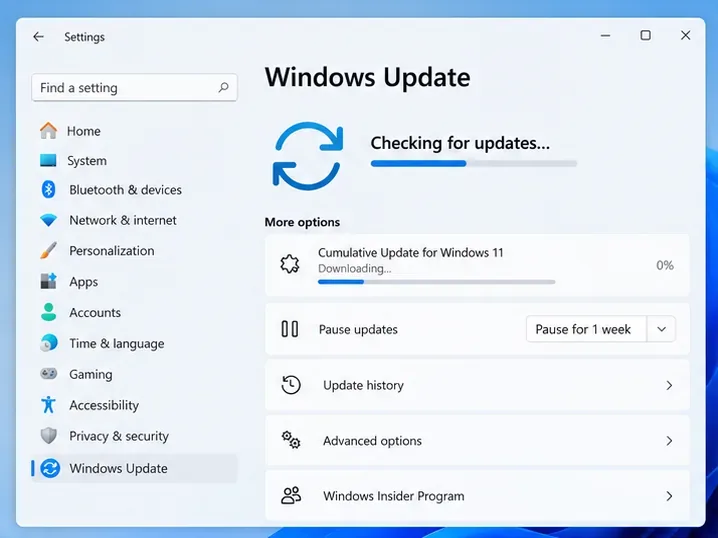
Open Settings → Windows Update, select Check for updates, install available updates, and restart. Microsoft’s Windows Update FAQ shows the current route for Windows 10 and Windows 11.
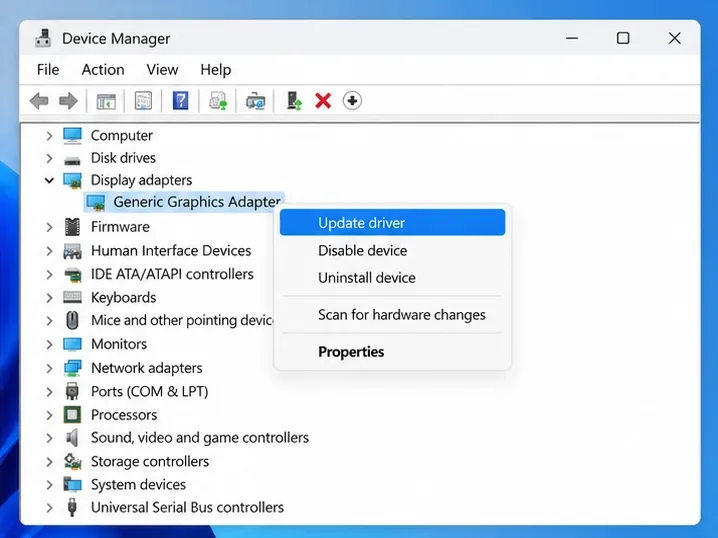
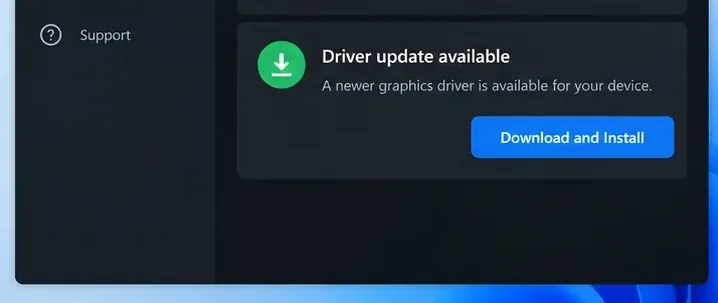
Next, identify the graphics card. Press Windows key + R, enter dxdiag, and check the Display tab, or expand Display adapters in Device Manager. Download the matching driver from the GPU maker or the computer maker’s support page, especially for a laptop with customized graphics drivers. Avoid third-party driver-download sites.
Riot links to official driver support for AMD, NVIDIA, and Intel. Restart after installing the driver, then test VALORANT before making another change.
Step 3: Lower graphics load and check for overheating
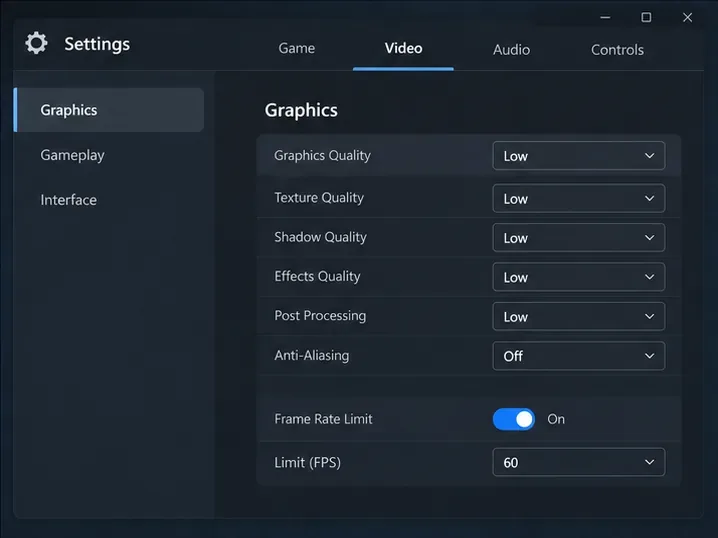
Try this step if the game starts but crashes during a match, if the PC becomes unusually hot, or if performance drops before the crash. In VALORANT, open Settings → Video → Graphics Quality and temporarily set Material, Texture, Detail, and UI Quality to Low. Riot’s crash guide also recommends testing with Vignette and VSync off and Anti-Aliasing off. These are diagnostic settings, not a guarantee that graphics quality caused the crash.
If the crash happens after long play sessions, check that the PC’s vents are clear and fans can move air. Riot also recommends setting a frame-rate cap when heat is an issue: open Settings → Video, enable Limit FPS Always, and choose a cap below the frame rate you normally see. Return individual settings to normal later to find which change mattered.
Step 4: Test overlays and background apps
Close screen recorders, performance monitors, and in-game overlays temporarily, then launch VALORANT. If the game becomes stable, reopen those apps one at a time to find the conflict. This test is more useful than closing unrelated apps at random because it shows whether a specific background program changes the result.
If the crash remains, a Windows clean boot can help isolate a service or startup app. Press Windows key + R, type msconfig, and open System Configuration. On the Services tab, select Hide all Microsoft services before choosing Disable all. On the Startup tab, open Task Manager and disable startup apps for the test. Restart and launch the game.
After testing, return to System Configuration, select Normal startup, and re-enable the startup items you disabled. A clean boot can temporarily affect other apps. On a work-managed PC, follow your IT team’s guidance; Microsoft notes that organizational policies can restrict these settings. See Microsoft’s clean boot instructions for the complete procedure.
Step 5: Reinstall Vanguard when a VAN error points to it
Use this when VALORANT reports a Vanguard error, Vanguard fails to start, or the game exits during launch with a VAN code. Riot’s current uninstall guide lets you remove Vanguard from its system-tray icon: right-click the Vanguard icon, choose Advanced → Uninstall Vanguard. You can also find Riot Vanguard under Windows Settings → Apps → Installed apps and uninstall it there.
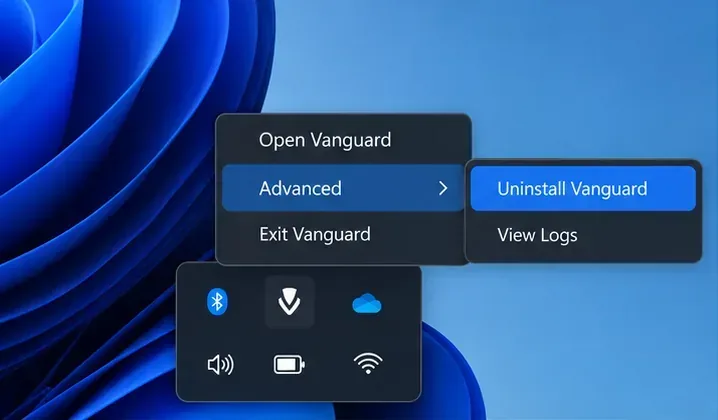
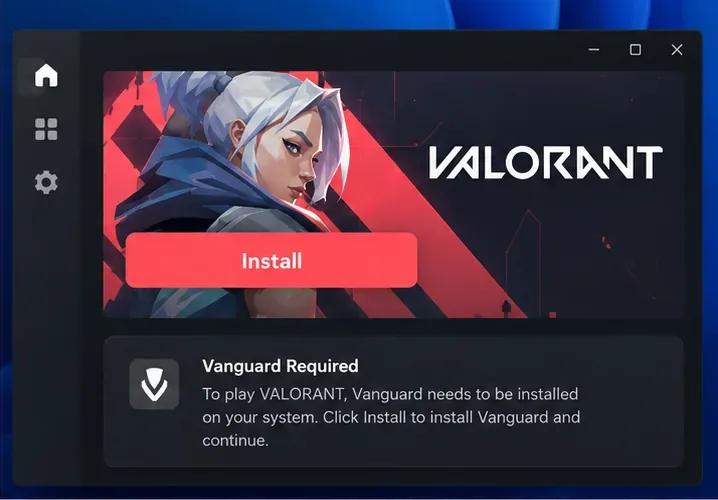
Restart Windows after uninstalling. Then open the Riot Client or VALORANT to reinstall Vanguard, and restart again if the client asks you to. Riot’s Vanguard uninstall and reinstall instructions cover the supported routes.
Do not change BIOS or UEFI settings just because the game crashed. If the code is VAN 9001, Riot says TPM 2.0 is not detected; if it is VAN 9003, Secure Boot is not enabled. Follow the page for the exact code: VAN 9001 or VAN 9003. Firmware menus differ by PC, so use Riot’s Secure Boot guide before changing a setting.
Step 6: Repair VALORANT, then reinstall if needed
Before removing the game, try Riot Client’s full repair. Sign in to the Riot Client, select your profile icon in the upper-right corner, open Settings, choose VALORANT, and select Repair. Riot says this tool can replace missing or corrupted game files.
If repair fails, close the Riot Client and uninstall VALORANT from Windows Settings → Apps → Installed apps. Restart, then reinstall from Riot’s official VALORANT PC download page. For a clean uninstall, follow Riot’s current uninstall and reinstall guide, which lists the VALORANT and Riot Client folders and the related Local AppData folders to remove. Check that the paths match your installation and preserve any local files you want to keep before deleting folders.
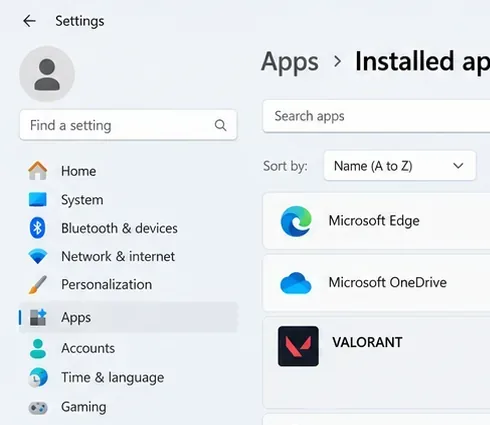
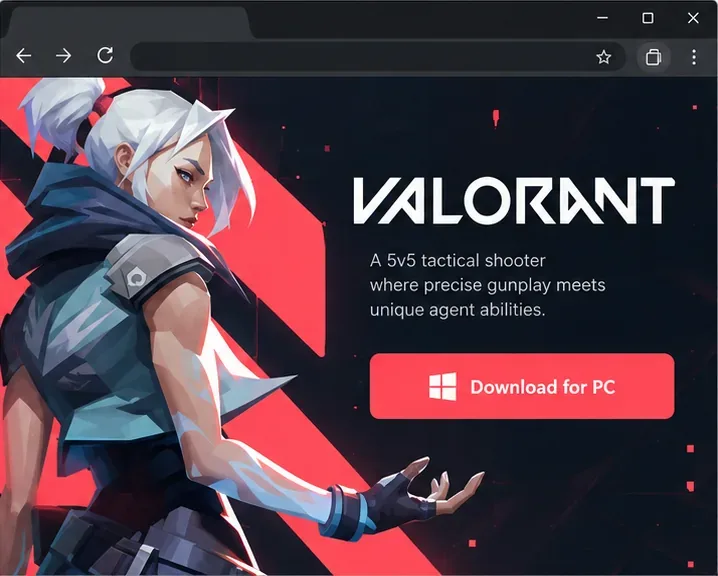
Riot Client’s full repair instructions show the current menu path. Repair first when the client opens; reserve the clean reinstall for crashes that persist.
Which fix should you try for each symptom?
| Symptom | Start with |
|---|---|
| Crash to desktop or black screen at launch | Steps 1, 2, and 4; use Step 5 if a VAN code appears. |
| Crash during a match or after the PC heats up | Steps 2 and 3, then test background apps with Step 4. |
| Freeze on a loading screen or after a patch | Steps 1, 2, and 6 to check or repair local game files. |
| VAN 9001, VAN 9003, or another VAN code | Step 5 and the official page for that exact error. |
When to contact Riot Support
If VALORANT still crashes after the steps that match your symptoms, stop changing unrelated Windows or BIOS settings. Record the exact error, when it occurs, your GPU model, and what you have already tested. Riot’s VALORANT log guide explains how to collect files if Player Support requests them. Submit those details with a support ticket so Riot can investigate the specific crash.









