Fixing League of Legends With the Hextech Repair Tool (2026): What to Use Now
If you are looking for the Hextech Repair Tool to fix League of Legends files, use the repair option built into Riot Client instead. Riot now calls the former Hextech utility the Riot Repair Tool (RRT) and documents it as a way to collect logs for Support. For missing or corrupted game files, Riot’s current instructions are: sign in to Riot Client, open your profile menu, choose Settings, select League of Legends, then select Repair.
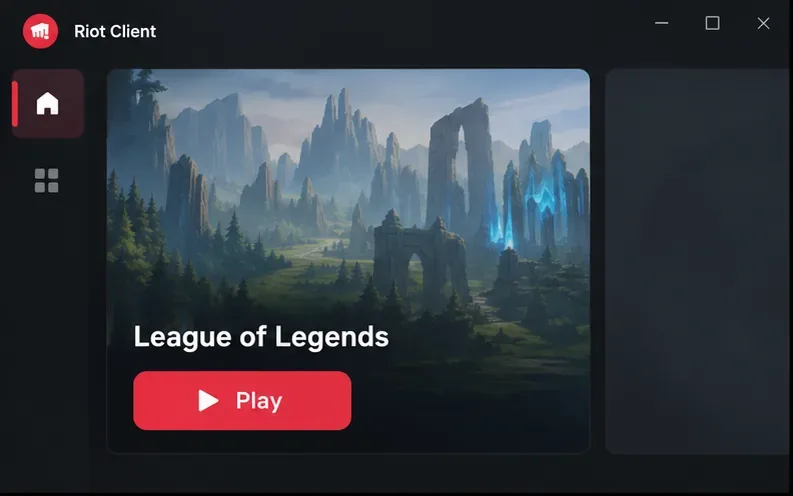
This distinction matters because older guides describe separate cache, network-diagnostic, or repair buttons in Hextech Repair Tool. Riot’s current 2026 support pages describe two separate jobs: Riot Client repairs game files, while RRT creates a log archive that can help Support investigate a problem. The interface pictures in this guide are simplified visual references; menus may look different by client version or region.
Which Riot tool should you use?
| Problem | Use this |
|---|---|
| League is missing files, corrupted, or will not patch or launch | Riot Client’s built-in Repair option |
| You need to send diagnostic information to Riot Support | Riot Repair Tool (RRT), formerly Hextech Repair Tool |
| High ping or repeated disconnections | Riot’s connection troubleshooting guide; RRT can provide logs for a Support ticket |
Riot says its Riot Client Full Repair Tool instructions may resolve launch problems by repairing missing or corrupted files. Its Riot Repair Tool page identifies RRT as the successor name for Hextech Repair Tool and explains its log-gathering purpose.
How to repair League of Legends in Riot Client
1. Open Riot Client and sign in
Start Riot Client and sign in to the account that has League of Legends installed. If the client itself will not open, skip to the troubleshooting section below; the in-client repair controls are only available after you can reach the client settings.
2. Open the profile menu and choose Settings
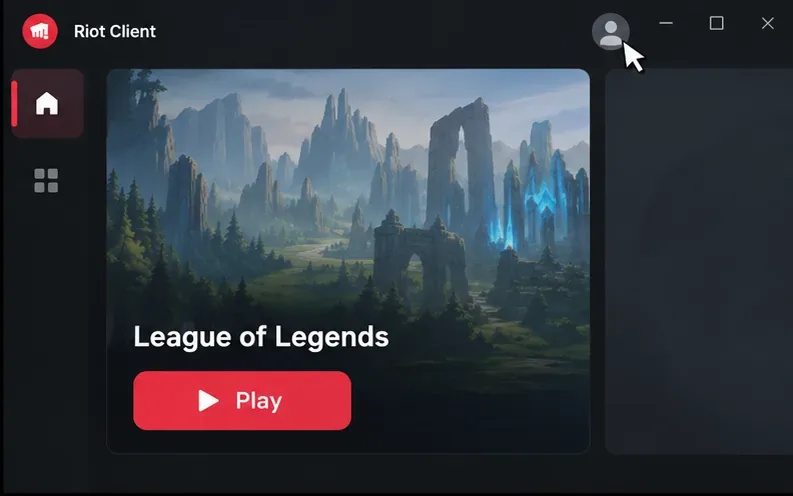
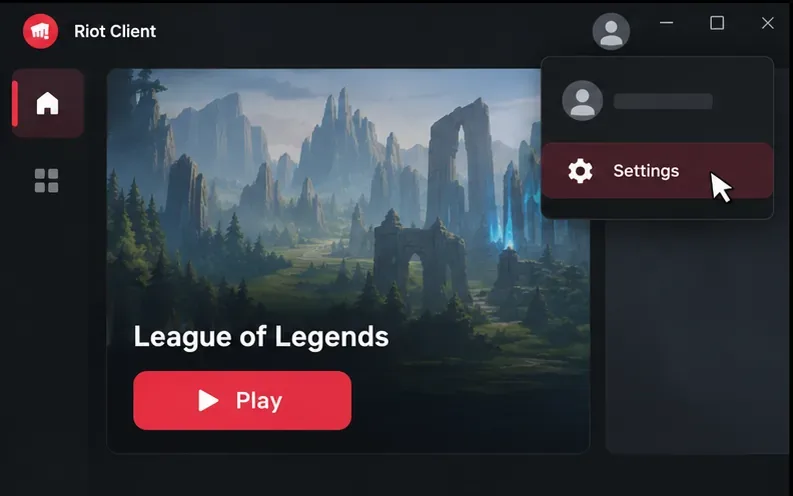
Click the profile icon in the upper-right corner, then choose Settings. Riot’s current repair instructions use this path, rather than a separate Hextech Repair Tool window.
3. Select League of Legends
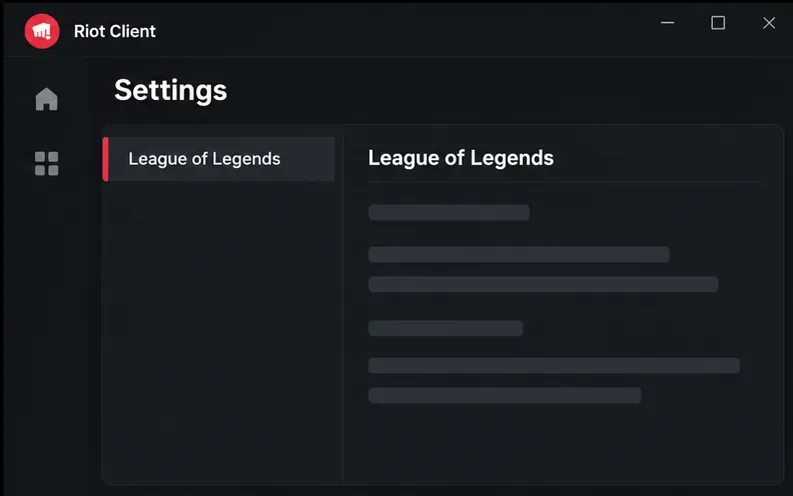
In Settings, choose League of Legends from the list of games. Check that you selected the correct title before continuing, especially if you have several Riot games installed.
4. Select Repair and follow the prompts
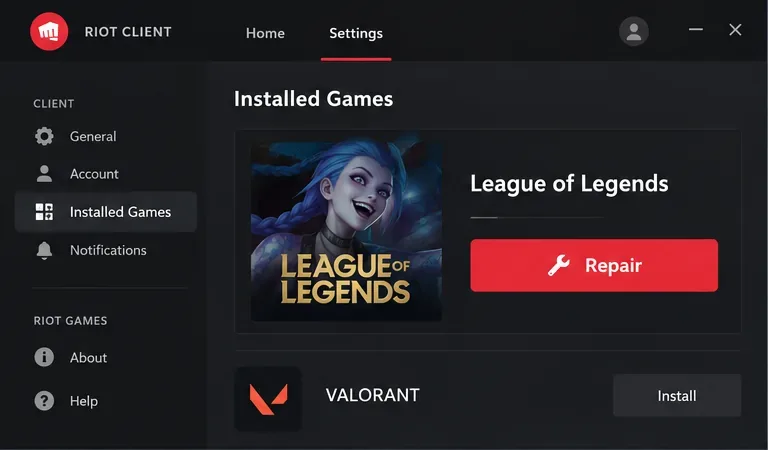
Click Repair and accept the prompts shown by Riot Client. The repair can replace files that are missing or fail validation. Keep the client open and maintain a stable internet connection while it runs; files may need to be downloaded again.
5. Let the repair finish, then test the game
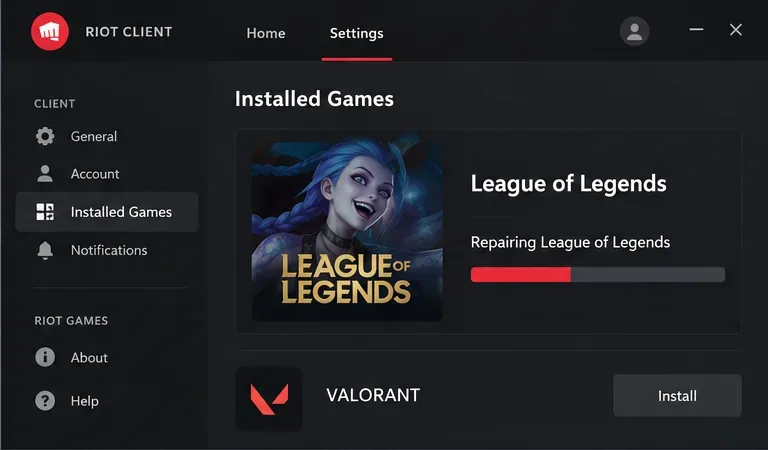
Wait until Riot Client indicates that the repair has finished. Riot does not publish a standard completion time, so avoid assuming that a quiet progress bar is frozen after only a few minutes. When the client is ready, launch League of Legends and check whether the original problem is gone. If the same error remains, note its exact wording or code before trying another fix.
If Riot Client repair fails
Start with the low-risk checks from Riot’s Full Client Repair Failed guide:
- Restart the computer and run the repair again.
- Use a wired internet connection if one is available.
- Check that the drive has at least 8 GB of free space for League to repair and patch properly.
- Close League of Legends processes that may still be running in the background. On Windows, check Task Manager; on Mac, check Activity Monitor.
If the repair still fails, Riot’s guide also recommends checking drive health and submitting a Support ticket with logs. Avoid deleting folders or changing firewall and antivirus settings at random; first look up any exact error code in Riot Support, since a specific error can require a different fix.
Use the Riot Repair Tool to collect logs for Support
RRT is useful when the client repair does not solve the issue or Riot Support asks for diagnostic files. Download it only from Riot’s official Riot Repair Tool (RRT) page, which offers Windows and Mac downloads. On Windows, Riot says to run the installed tool as an administrator.
6. Download RRT and choose League of Legends
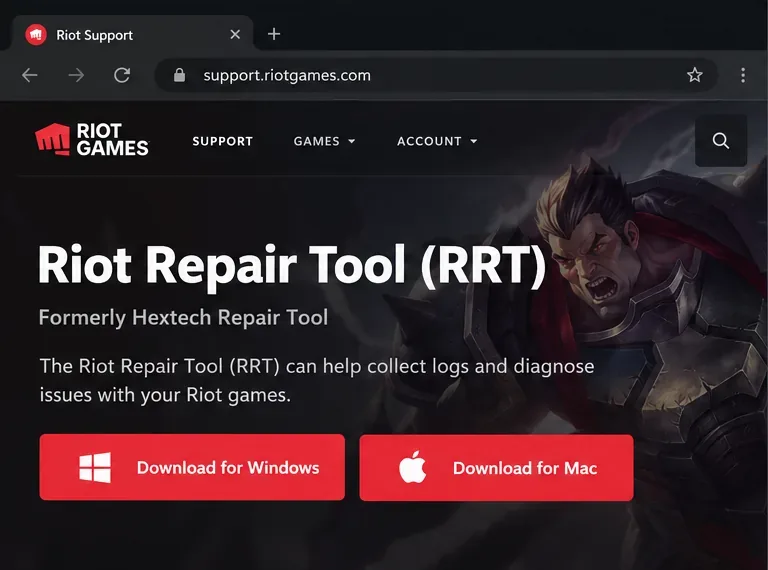
Open the official page, choose the download for your operating system, and launch RRT. Select League of Legends from the game list. The current Riot instructions say to let the tool gather the requested logs; they do not describe RRT as the way to repair game files.
7. Attach the ZIP archive to a Riot Support ticket
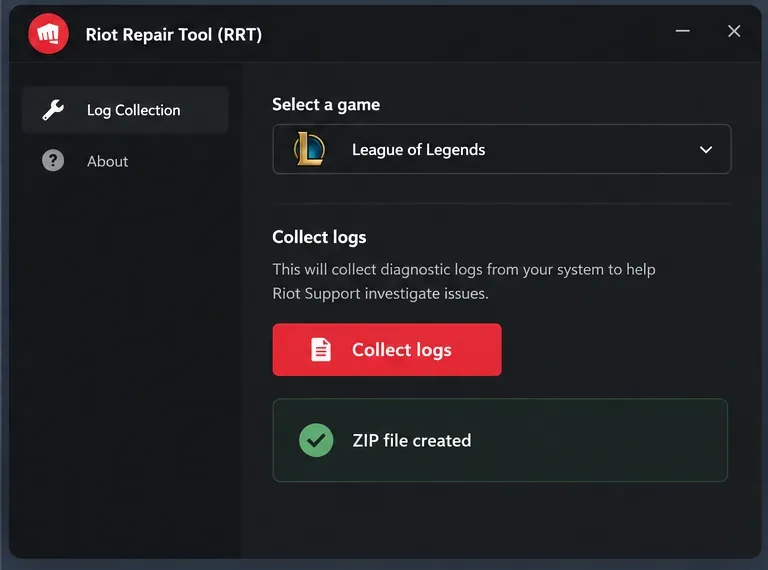
When log collection finishes, attach the ZIP folder RRT creates to a new or existing Support request. Include the exact error message, what you were doing when it appeared, your operating system, and which repair steps you already tried. That gives Support context alongside the logs and helps avoid repeating basic checks.
For connection problems, use the connection guide
If League launches but you see high ping, rubber-banding, or repeated disconnects, a file repair may not address the cause. Follow Riot’s current PC connection troubleshooting guide for steps such as testing a wired connection, restarting the modem and router, reducing other network use, and checking VPN or proxy settings. RRT can package logs for Support, but it is not a live network-quality test.
Frequently asked questions
Does the Hextech Repair Tool still repair League in 2026?
Riot’s current support page calls the former Hextech utility Riot Repair Tool and describes it as a log collector. For repairing missing or corrupted League files, Riot directs players to the Repair option in Riot Client Settings.
Is the Riot Repair Tool the same as a full game repair?
No. The names are related because RRT was formerly called Hextech Repair Tool, but Riot’s current documentation assigns different tasks: Riot Client’s Repair option repairs game files, and RRT gathers logs to share with Support.
How long should a League repair take?
Riot does not list a fixed duration in its repair instructions. The time can depend on the files that need attention and your connection. Check that the process is still active and that your device has enough free space before canceling it.









