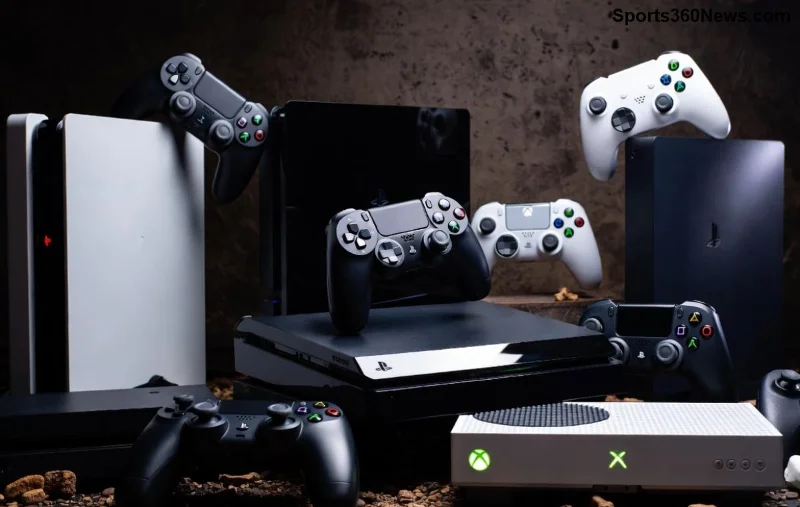
Nothing kills the vibe mid-boss fight like a sudden black screen from HDCP issues. As a gamer, you've invested in that premium 4K TV, PS5, Xbox Series X, or high-end PC setup—only for HDCP (High-bandwidth Digital Content Protection) handshake failures to ruin the fun. Don't worry, fellow gamer! This guide delivers targeted troubleshooting steps to crush those HDCP errors and get you back to epic sessions. We'll keep it laser-focused, step-by-step, with pro tips tailored for gamers. Ready to reclaim your screen? Let's dive in! 👇
What is HDCP and Why Does It Cause Black Screen in Gaming?
HDCP is a digital copy protection standard embedded in HDMI and DisplayPort connections. It ensures protected content (like 4K Blu-rays, streaming services, or console games with HDR) isn't illegally copied by verifying device compatibility during the "handshake" process.
When the handshake fails, your display goes black screen—no signal, just frustration. Common in gaming because modern consoles and PCs push HDCP 2.2 or HDCP 2.3 for HDR/Dolby Vision. Think Netflix on PS5 or Forza Horizon in 4K: one mismatch, and boom—blackout.
Quick facts for gamers:
- HDCP 1.4: Basic, struggles with 4K60.
- HDCP 2.2/2.3: Mandatory for modern 4K HDR gaming.
- Affects: Consoles (PS5, Xbox), GPUs (NVIDIA RTX 40-series, AMD RX 7000), AVRs, soundbars.
Pro tip: If you're on a budget rig, upgrading to HDCP-compliant HDMI 2.1 cables prevents 80% of issues upfront. ⭐
Top Causes of HDCP Issues Causing Black Screen in Your Setup
Pinpointing the culprit speeds up fixes. Here's a gamer-focused breakdown:
| Cause |
Why It Hits Gamers |
Quick Check |
| Bad HDMI Cable |
Cheap cables lack full HDCP 2.3 support; degrade over time. |
Bend/test cable—signal drops? |
| Port/Connection Dirt |
Dust from intense sessions blocks handshake. |
Inspect ports visually. |
| Firmware/Driver Mismatch |
Outdated GPU drivers or console firmware reject handshakes. |
Check for updates in settings. |
| Device Incompatibility |
Older TVs/AVRs max at HDCP 1.4; can't handle PS5's 2.3. |
Verify specs on manufacturer site. |
| Power Cycle Glitch |
Devices forget handshake state after sleep/resume. |
Full unplug for 2 mins. |
Spot your issue? Jump to fixes below. These cover 95% of HDCP black screen reports from gaming forums. 😎
Step-by-Step Troubleshooting HDCP Issues: Get Your Screen Back NOW! 🎮
Follow these in order—most gamers fix it by step 3. Power off everything first for a clean slate.
- 1️⃣ Swap Your HDMI Cable
Premium certified HDMI 2.1 cables (48Gbps, like Belkin or Monoprice) are gold. Ditch those $5 no-names. Test with a known-good cable from another device. Success rate: 50%+
- 2️⃣ Clean and Reseat Connections
Unplug, blow out ports with compressed air (no vacuums!), wipe gold contacts with microfiber + isopropyl alcohol. Reconnect firmly. Pro gamer hack: Label cables to avoid mix-ups in multi-monitor setups.
- 3️⃣ Power Cycle Everything
Unplug console/PC, TV/AVR/soundbar for 2-5 minutes. This resets the HDCP handshake. Plug back in source-first (console → AVR → TV). Magic for sleep/resume glitches!
![Step-by-step HDCP troubleshooting with HDMI cable swap on gaming console]()
- 4️⃣ Try Different Ports
HDMI ports aren't equal—some support higher HDCP versions. On TVs, use HDMI 2.0b+ labeled ports (eARC/ALLM). Switch GPU outputs if PC gaming (DisplayPort to HDMI adapter as backup).
- 5️⃣ Update Firmware and Drivers
- Consoles: Settings → System → Updates.
- PC: NVIDIA GeForce Experience or AMD Software—grab latest for RTX/ RX cards.
- TV/AVR: Check manufacturer app/site (e.g., Sony or LG).
Newest drivers fix handshake bugs in recent titles like Cyberpunk 2077 RT.
- 6️⃣ Disable HDCP (Temporary Fix)
NVIDIA Control Panel → Video → Adjust → Disable HDCP. AMD similar in Radeon Settings. Warning: Limits protected content; re-enable after. Not for streaming.
Still black? Next-level fixes await...
Advanced Fixes for Stubborn HDCP Errors in Gaming Rigs
For pros chasing 4K 120Hz VRR:
- HDMI Splitter/Stripper: Devices like HDMI HDCP 2.3 strippers fool handshakes (e.g., from Amazon basics). Great for AVR chains.
- EDID Emulator: Forces compatible profiles. Search "HDCP emulator gaming" for PC setups.
- DisplayPort Bypass: Connect PC GPU directly via DP to TV (if supported), then HDMI audio extractors.
- Factory Reset Chain: Reset console → AVR → TV in that order. Last resort.
![Advanced HDCP fix with HDMI splitter in high-end gaming setup]()
Bonus for PC gamers: Use CRU (Custom Resolution Utility) to tweak EDID data—forum.monitortests.com has guides. Safe and effective!
Prevention Tips: Never See HDCP Black Screen Again 🛡️
Lock in wins long-term:
- Invest in HDMI 2.1 Premium Certified cables.
- Enable auto-updates on all devices.
- Use direct console-to-TV for testing (bypass AVR).
- For multi-device: HDMI switch with HDCP 2.3 repeater.
- Monitor temps—overheating corrupts handshakes.
Table of recommended gear:
| Gear |
Why It Works |
Price Range |
| Belkin HDMI 2.1 Cable |
Full HDCP 2.3, 8K ready |
$20-40 |
| Orei HDCP Stripper |
Strips errors in chains |
$30-50 |
| Club3D CAC-1085 DP-HDMI |
Bypass adapter |
$25 |
Wrap-Up: Game On Without HDCP Nightmares! 🎉
You've got the arsenal to smash HDCP issues causing black screen. Start with basics—cable swap and power cycle fix most. For deep dives, advanced tools await. Share your win in comments: What fixed your setup? Drop a 👍 if this saved your session!
Back to grinding? Your high-score awaits. Stay frosty, gamers! 🚀