Downloading Warzone free on PC takes just a few minutes and never costs a penny. Call of Duty: Warzone is a free-to-play battle royale, so you only need a free account, a launcher, and enough storage space. This guide walks you through the whole process on Windows — from checking your PC to pressing Play.
You can download Warzone on PC through two official launchers: the Battle.net desktop app or Steam. Both deliver the same free game, so pick whichever you already have installed. Either way, the install file is large, so a fast internet connection and an SSD with plenty of free space will make life easier.
What you need before you start
- A Windows 10 or 11 (64-bit) gaming PC.
- A large amount of free storage — the install is multiple tens of gigabytes, so an SSD is ideal.
- A stable internet connection for the download and updates.
- A free Call of Duty (Activision) account, which you can create in a couple of minutes.
- The Battle.net app or Steam client installed.
How to download Warzone free on PC
-
Step 1: Check your PC and free up storage space
Before downloading, make sure your PC runs a 64-bit version of Windows 10 or 11 and has plenty of free disk space. Warzone is a very large install, so clear out room on a fast SSD if you can — it loads the game far quicker than a traditional hard drive. A steady internet connection will also help the multi-gigabyte download finish without interruptions.
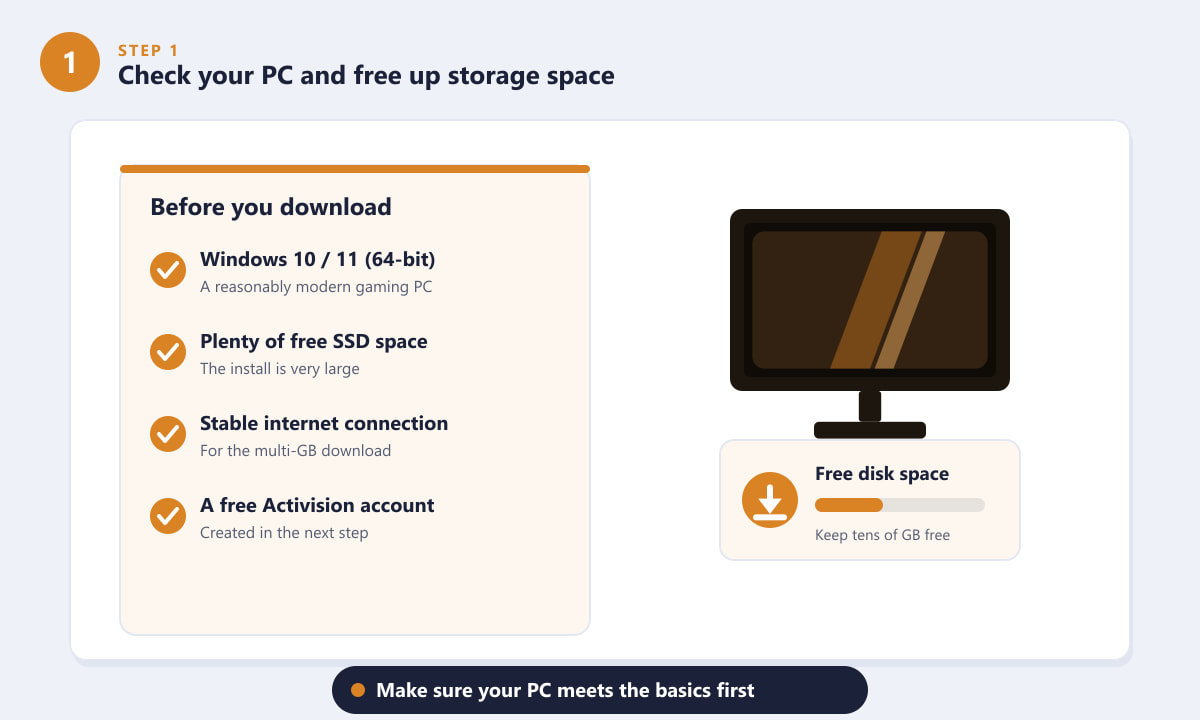
Confirm your PC meets the basics and has enough free space first. -
Step 2: Create a free Call of Duty (Activision) account
Warzone requires a free Call of Duty (Activision) account to play online. If you do not already have one, head to the official Call of Duty website and sign up with an email, username, and password. A single account works across both Battle.net and Steam and keeps your progress and unlocks tied to you through cross-progression.
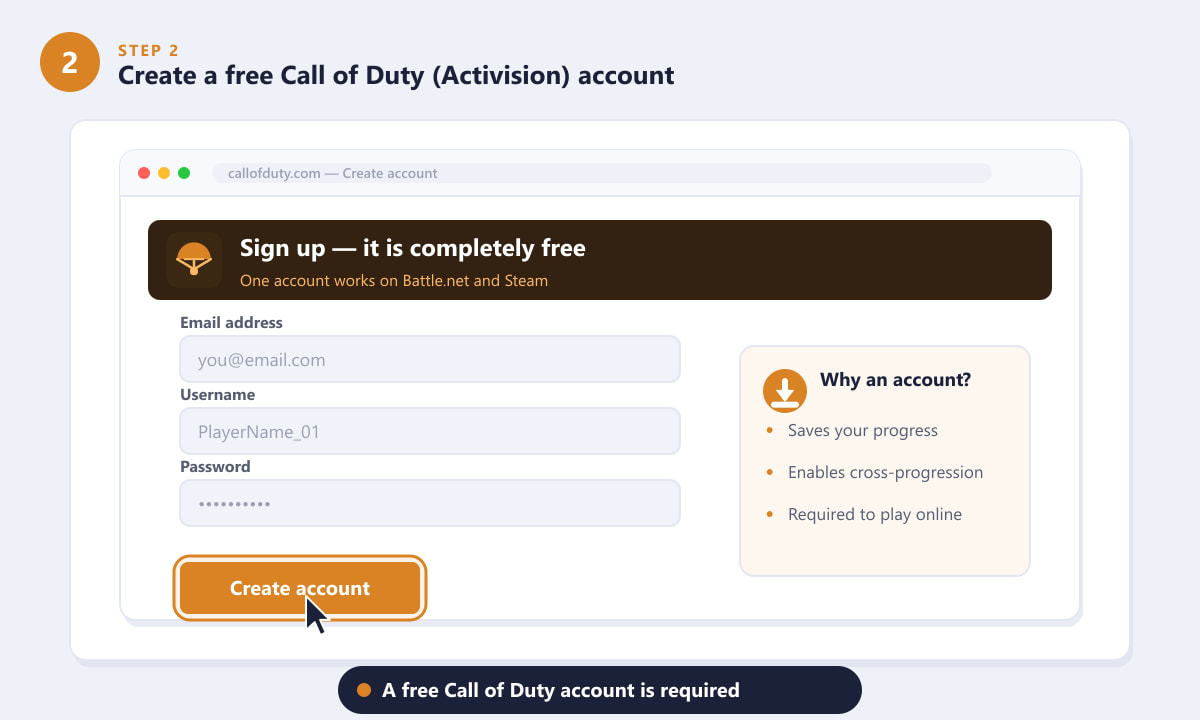
Sign up for a free Call of Duty account before installing the game. -
Step 3: Choose your launcher — Battle.net or Steam
Decide where you want to install Warzone. The Battle.net app is the official Blizzard/Activision launcher, while Steam is a popular alternative many PC players already use. Both download the exact same free game, so the choice comes down to which app you prefer. Install and open your chosen launcher, then sign in.
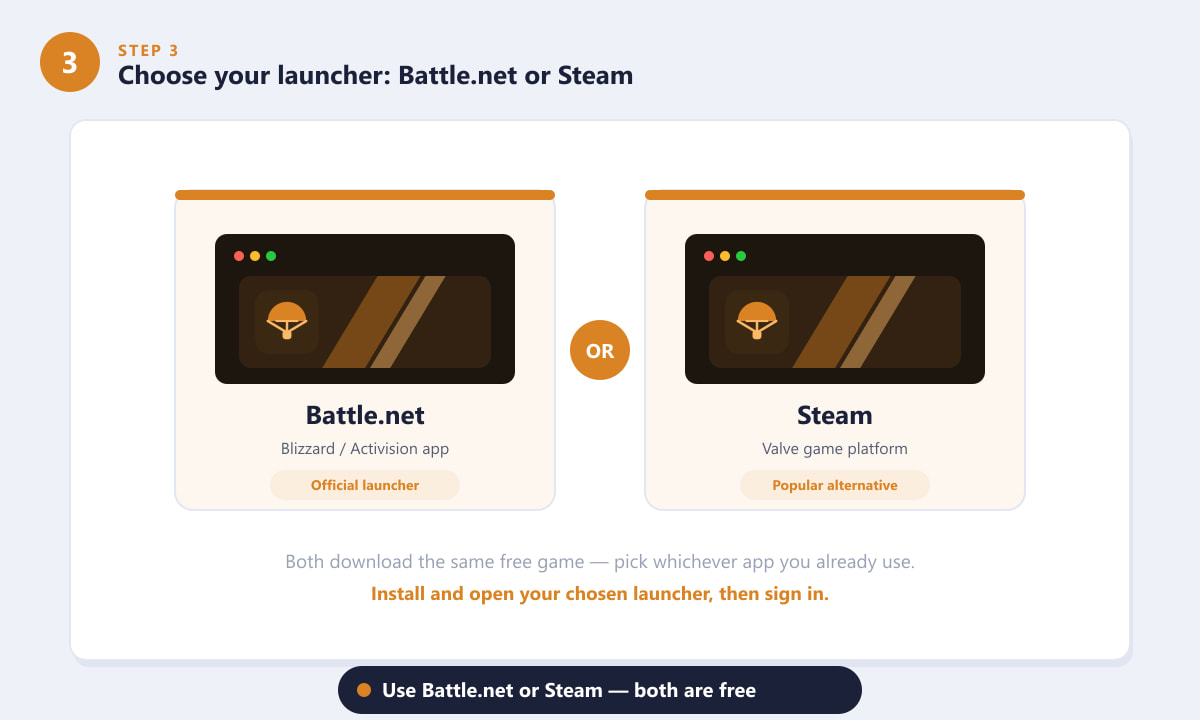
Pick Battle.net or Steam — both install Warzone for free. -
Step 4: Find Warzone in the store and click Install
In your launcher, search for Warzone and open the Call of Duty: Warzone game page. Because it is free to play, you will not be asked to pay anything — the price simply shows as Free. Click the Install (or Get) button to begin. On Steam the button reads Play Game or Install, and on Battle.net it reads Install.
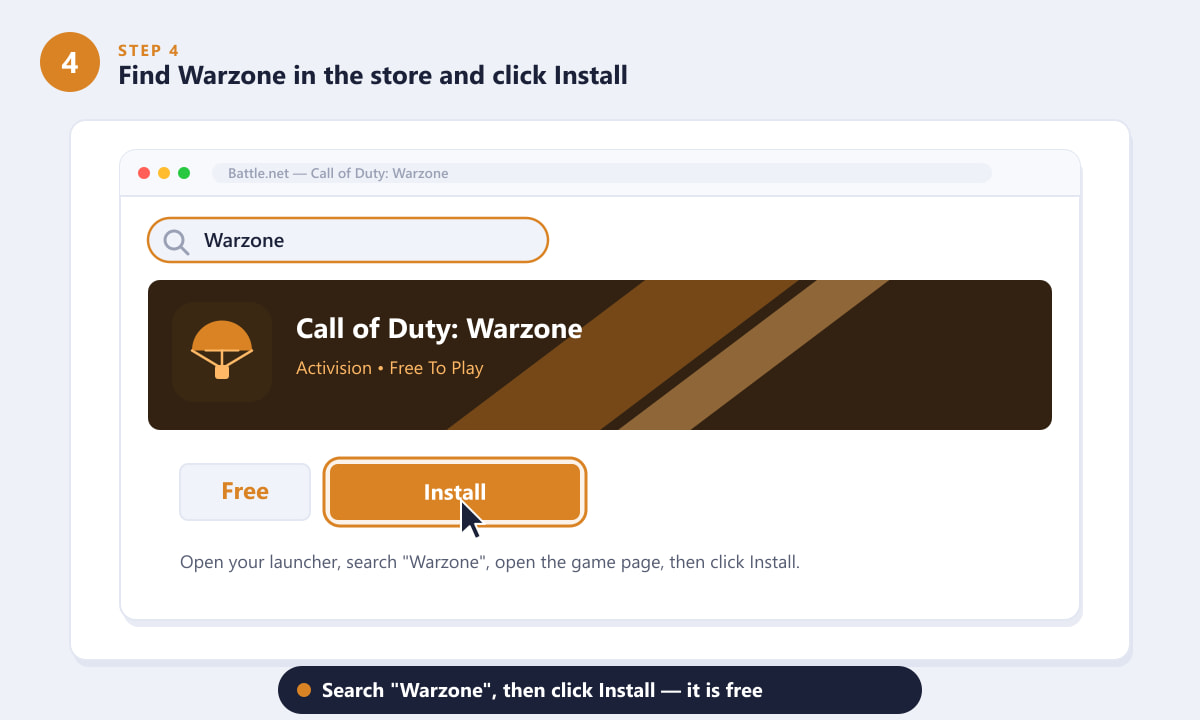
Search "Warzone", then click Install — the game is free. -
Step 5: Pick an install location and let it download
You will usually be asked where to install the game. Choose a drive with plenty of free space — an SSD is strongly recommended for faster loading. Confirm the location and let the download run. The install is large, so leave the launcher open and give it time to finish, especially on slower connections.
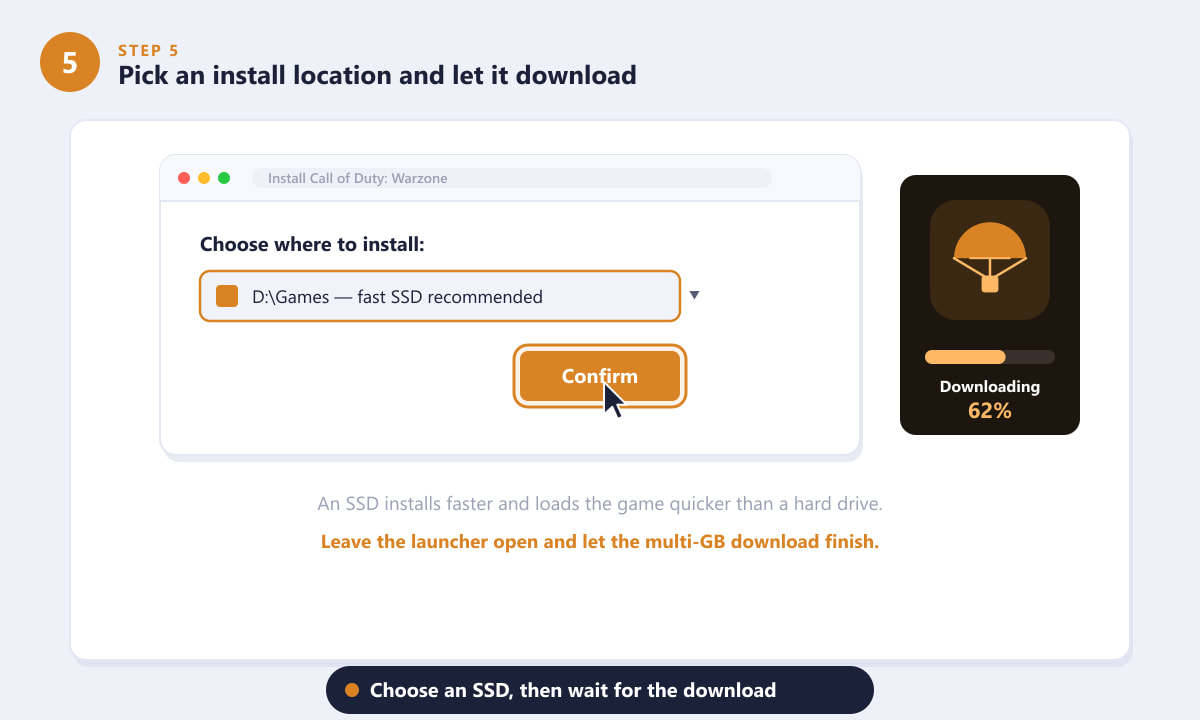
Select an SSD, confirm the location, and wait for the download. -
Step 6: Launch, sign in, finish the update, and play
Once the download completes, launch Warzone from the launcher. Sign in to your Call of Duty (Activision) account if prompted. On the first run, the game often downloads the latest update and any required data packs, so let that finish too. When everything is ready, press Play and drop into the action.
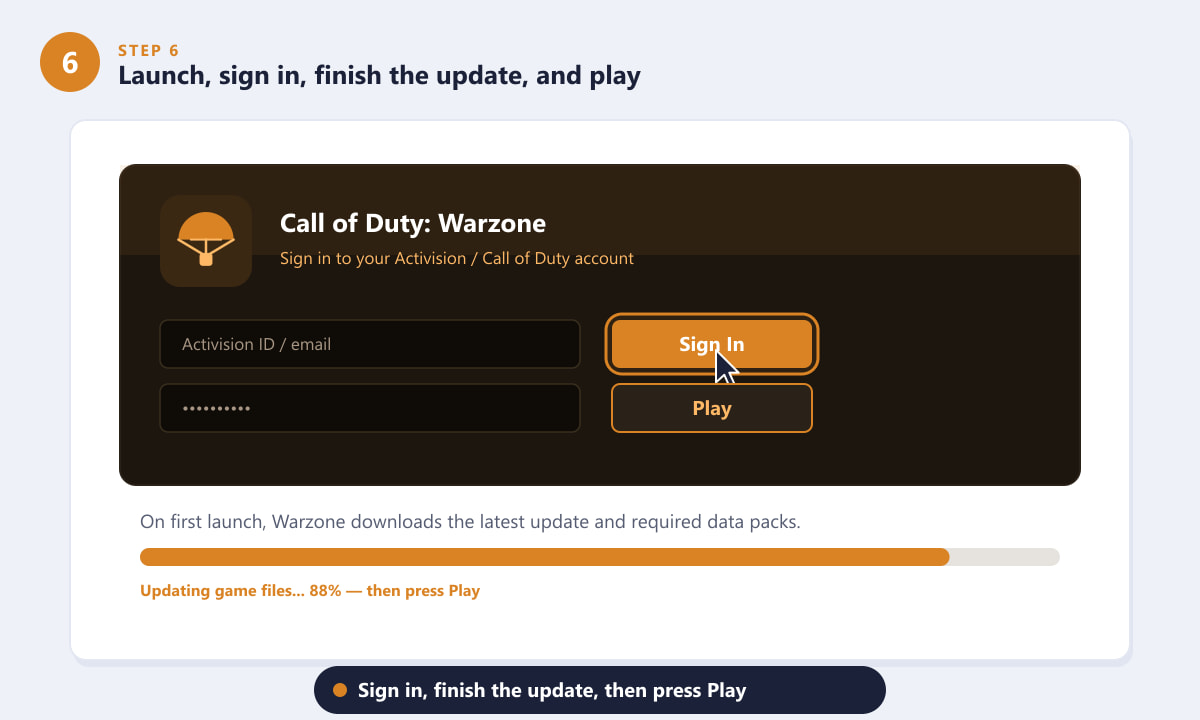
Sign in, finish the first-launch update, then press Play.
Tips for a smooth install
- Install on an SSD. Warzone loads and streams textures much faster from a solid-state drive than from a mechanical hard disk.
- Use a wired connection if you can. Ethernet keeps the large download stable and avoids dropouts that can corrupt files.
- Leave room to spare. Updates add to the install size over time, so keep extra free space available on the drive.
- Keep one account. Sign in with the same Call of Duty account everywhere to carry your progress across PC, console, and mobile.
Troubleshooting
The download is stuck or very slow
Pause and resume the download in the launcher, restart the app, and check that no other device is hogging your bandwidth. A wired connection and closing background apps often help.
The launcher says there is not enough space
Free up storage or pick a different drive with more room. Warzone needs a large, continuous block of space, so empty your recycle bin and remove unused games if needed.
The install finished but the game won't start
Run the launcher's "Scan and Repair" (Battle.net) or "Verify integrity of game files" (Steam) option, then make sure your graphics drivers are up to date and restart your PC.
Frequently asked questions
Is Warzone really free to download on PC?
Yes. Call of Duty: Warzone is a free-to-play game, so downloading and installing it on PC through Battle.net or Steam costs nothing. You only need a free Call of Duty account.
Should I download Warzone on Battle.net or Steam?
Both are official and install the same free game. Choose Battle.net if you want the Activision launcher, or Steam if you already use it for your other games.
How big is the Warzone PC download?
The install is very large, typically tens of gigabytes, and it grows with updates. Make sure you have plenty of free SSD space and a reliable connection before you start.
Do I need anything else to play after installing?
Just sign in to your free Call of Duty (Activision) account and let the first-launch update finish. After that, you can press Play and jump into a match.
Final thoughts
Downloading Warzone free on PC is straightforward: check your storage, create a free Call of Duty account, pick Battle.net or Steam, install the game, and finish the first update. Because it is free-to-play, the only real cost is the download time and the disk space it needs. For the latest details and official downloads, visit the official Call of Duty: Warzone website.