How to Enable Quick Cast on Press in Heroes of the Storm

Set Heroes of the Storm abilities to Quick Cast On, learn the difference between On and On Release, and test the setup before using it in a combo.
Imagine dropping into Erangel, scanning the horizon, and spotting that sneaky camper from 200 meters away. No more frustrating deaths from hidden enemies blending into the chaos. That's the power of perfectly optimized PUBG Mobile graphics for better enemy visibility. Whether you're on a budget phone or flagship device, these tweaks will sharpen your vision, reduce distractions, and skyrocket your K/D ratio. Ready to see enemies before they see you? Let's dive in! 🚀
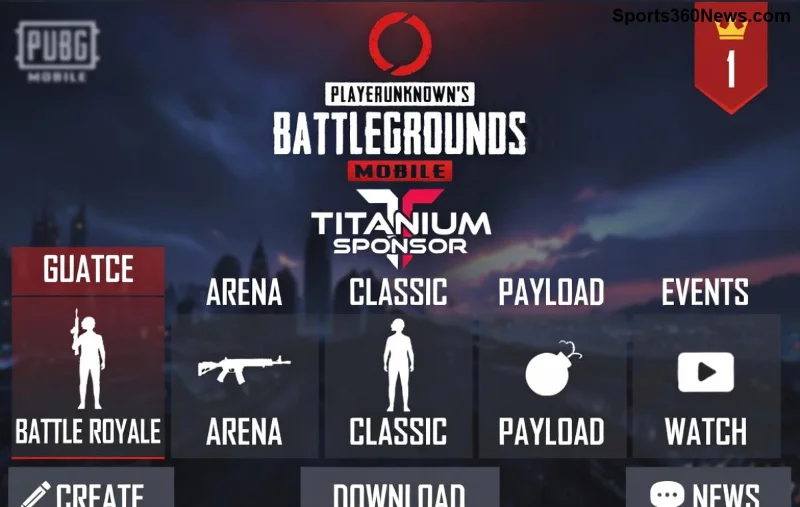
High graphics look stunning but clutter your screen with shadows, foliage, and effects that hide foes. Low settings strip away distractions, making players pop against backgrounds. Pro tip: Prioritize FPS over visuals—smooth 60+ FPS lets you react instantly. Studies from gaming communities show players with tuned settings win 20-30% more engagements. Time to transform your game! ⭐
Head to Settings > Graphics in PUBG Mobile. Here's the golden configuration for better enemy visibility. Test in training mode first!
| Setting | Recommended | Why It Boosts Visibility |
|---|---|---|
| Graphics Quality | Smooth | Reduces texture clutter; enemies stand out sharply. |
| Frame Rate | Extreme (60 FPS) | Ultra-smooth tracking for spotting movement. |
| Style | Classic | Neutral colors enhance contrast without weird tints. |
| Anti-Aliasing | Disabled | Sharpens edges; no blurry outlines hiding players. |
| Shadows | Disabled | Eliminates dark spots where enemies lurk. |
| Auto-Adjust Graphics | Disabled | Keeps settings locked for consistency. |
| Visual Effects | Disabled | Cuts particle distractions like smoke and explosions. |
| Brightness | 90-100% | Lights up dark areas without washing out colors. |
1️⃣ Apply these, restart the game, and queue a classic match. You'll notice enemies glowing against grass and buildings instantly!
Not all phones are equal. Here's how to fine-tune for yours:
Pro gamers swear by these—your device will handle it like a champ. 👍
Beyond basics, these hacks seal the deal:
Bonus: Practice in TDM—train your eyes to spot pixel-perfect hides. Your squad will call you "Eagle Eye"! 🦅
Don't sabotage yourself:
Fix these, and watch your survival rate soar.
Mastering PUBG Mobile graphics optimization isn't just tweaks—it's your edge in the battle royale. Implement these settings, practice daily, and climb those ranks. Share your before/after K/D in comments below—what's your go-to map for testing visibility? Drop a like if this guide helped, and gear up for chicken dinners! 🎉
Stay sharp, chicken dinner awaits!
Set Heroes of the Storm abilities to Quick Cast On, learn the difference between On and On Release, and test the setup before using it in a combo.
Find practical PC keybinds for hip-fire leaning in Rainbow Six Siege, compare Q/E and mouse-button layouts, and learn how to test conflicts before a match.
Change Hearthstone’s language on PC through Battle.net Game Settings. Learn when language files download, how this differs from app language and region, and what to try if the update stalls.
Start with 50% waypoint opacity in Overwatch 2, then adjust for objective visibility, map familiarity, and marker clutter without losing essential cues.
Compare VALORANT’s yellow, purple, and red enemy outlines. Learn which color to test first, where to change it, and how to check visibility across maps and effects.
Find a practical PUBG PC keybind setup for quick over-the-shoulder aim, clean ADS transitions, and shoulder-side swaps without conflicting with lean controls.
Set the right stick to Tilt Attack in Smash Ultimate, then tune stick jump and sensitivity around your play style. Follow a quick training-mode check to confirm your inputs.
Fix Free Fire high ping on mobile data with practical connection checks, LTE vs. 5G tests, background download fixes, and tips for reporting persistent lag.
Brawl Stars opens to a black screen on your iPad? Try these safe checks for the app, connection, iPadOS, and updates before reinstalling or contacting Supercell.
Learn how to clear Free Fire’s cache on Android, what iPhone users can do, and how to avoid deleting game data while troubleshooting lag.

