The latest Overwatch 2 hotfix notes are the quickest way to see exactly what Blizzard just changed in the game. Hotfixes are small, fast updates that tweak hero balance, squash bugs, or temporarily disable a broken hero between bigger patches. This guide shows you where the official notes live, what they typically change, how to make sure a hotfix has actually applied to your game, and how to read every buff and nerf at a glance.
Because hotfix contents change constantly, this article focuses on the evergreen part: how the system works and how to always reach the current, accurate notes yourself rather than relying on second-hand numbers that may already be out of date.
What you need to know first
- Hotfix vs. patch: a hotfix is smaller and faster than a full patch, and some apply server-side with no download.
- Official source: always read the notes on Blizzard's own channels so the numbers are accurate.
- Apply the update: on PC you may need to relaunch the Battle.net launcher; consoles usually update automatically.
- Read the changes: notes use an "old value → new value" format with clear buffs and nerfs.
What a hotfix actually is
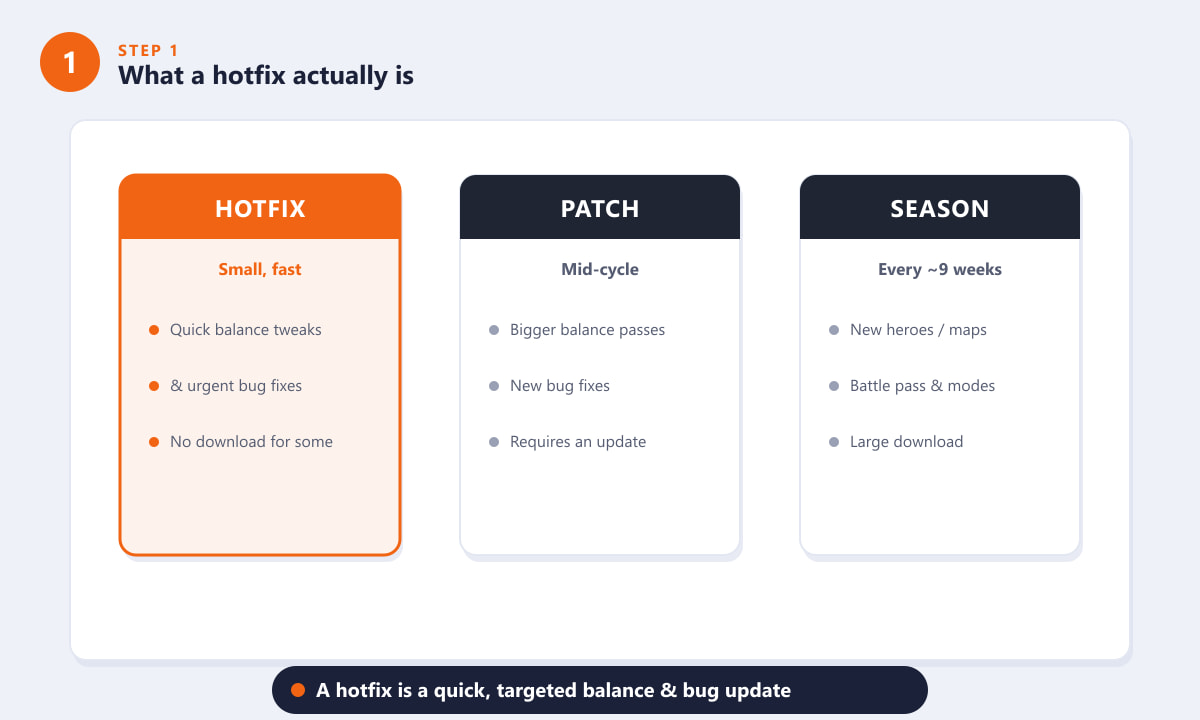
Overwatch 2 updates come in different sizes. A hotfix is the smallest and fastest: it usually carries a handful of quick balance adjustments or urgent bug fixes, and it can sometimes go live without a large download. A mid-cycle patch bundles bigger balance passes and a wider set of bug fixes. A new season, which arrives roughly every nine weeks, is the largest update of all, adding heroes, maps, modes, and a fresh battle pass. Knowing where a change sits in this hierarchy tells you how significant it is likely to be.
Where to find the official hotfix notes
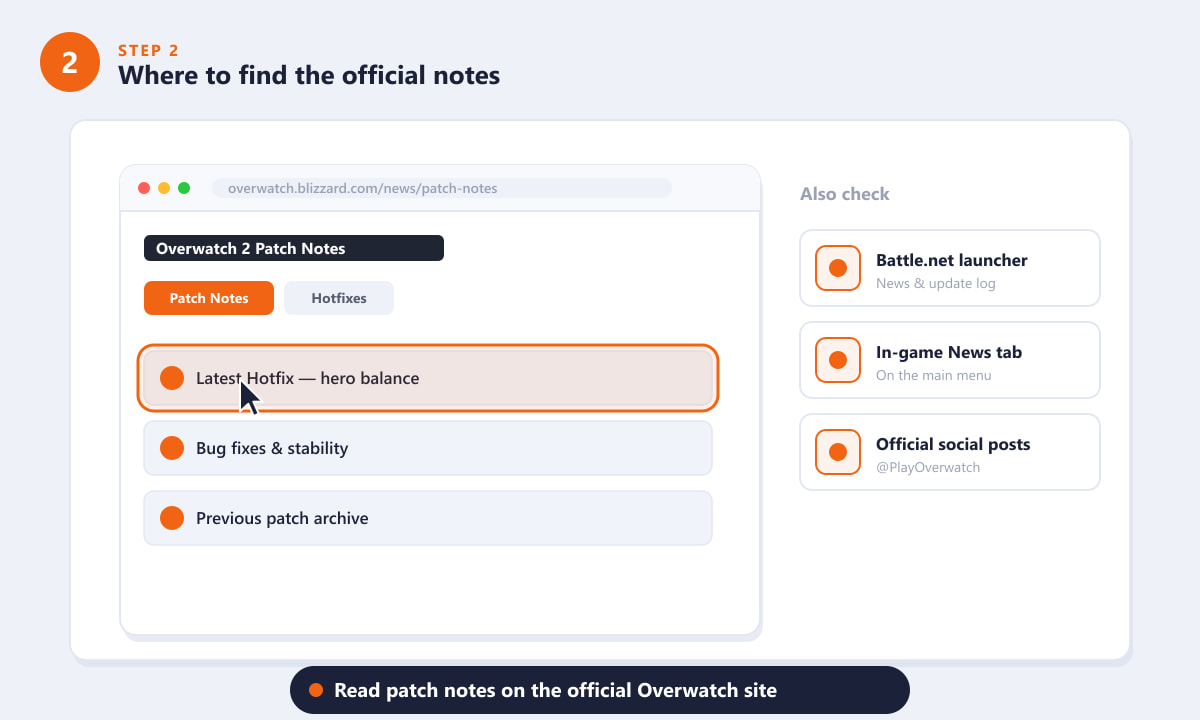
The single most reliable place to read the latest Overwatch 2 hotfix notes is the official Overwatch patch notes page, where Blizzard publishes every balance update and bug fix with the exact numbers. Look for the most recent entry, which is usually labelled as a hotfix or a dated update. Beyond the website, you can also check the Battle.net launcher news feed, the in-game News tab on the main menu, and the official Overwatch social accounts, which often summarise a hotfix the moment it ships.
What hotfixes usually change
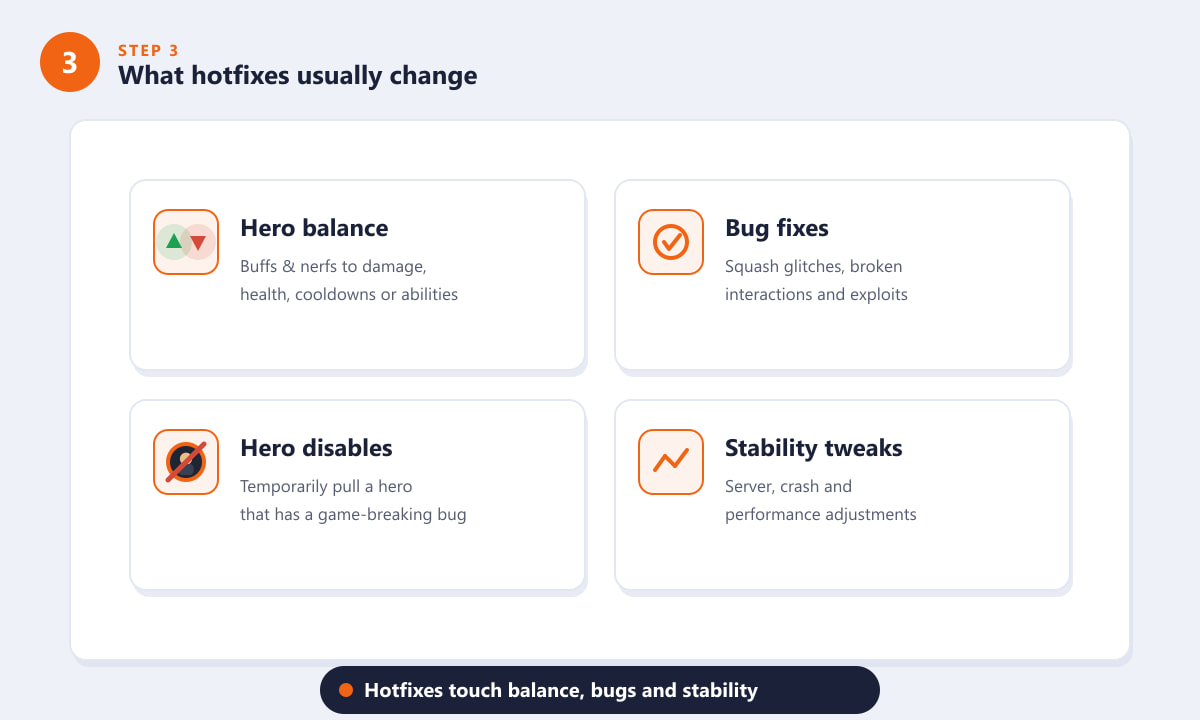
Most hotfix notes fall into a few predictable categories. The biggest is hero balance: buffs and nerfs to damage, health, healing, cooldowns, or ability behaviour to nudge an over- or under-performing hero. Next come bug fixes that correct glitches, broken interactions, and exploits. Occasionally a hotfix will temporarily disable a hero that has a game-breaking bug until a proper fix is ready. Finally, some hotfixes are pure stability tweaks aimed at servers, crashes, or performance.
How to make sure the hotfix has applied
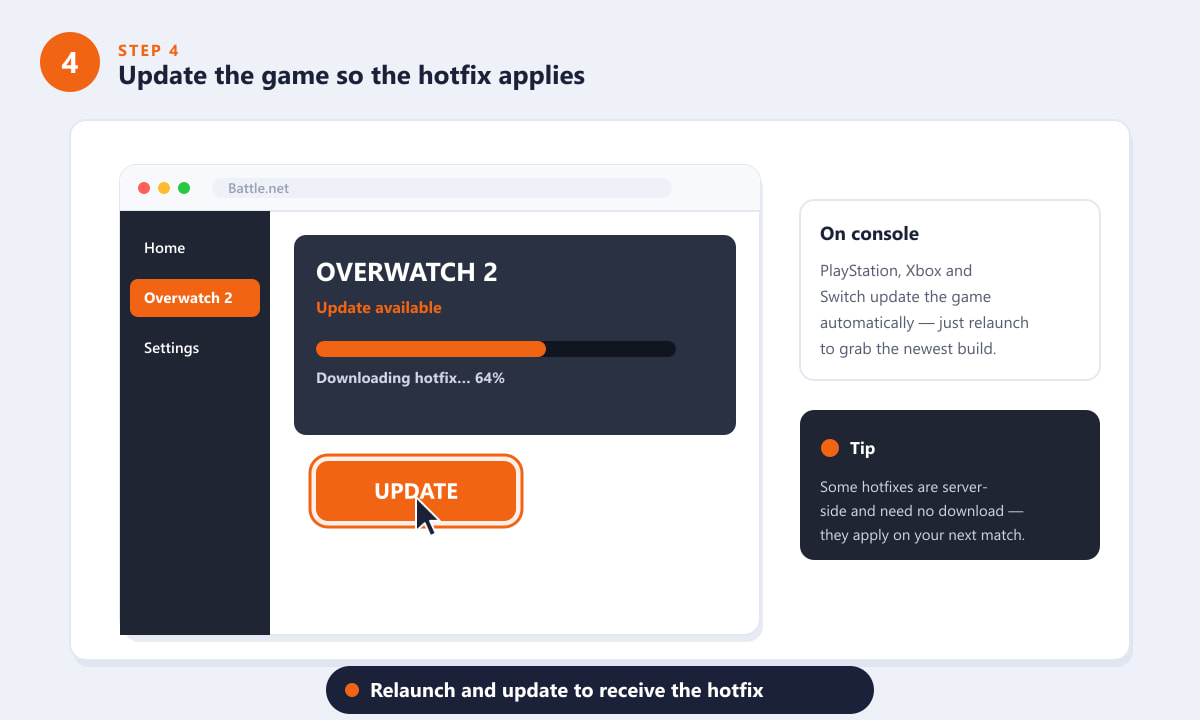
Reading the notes is only half the job; you also need the update running in your game. On PC, open the Battle.net launcher, select Overwatch 2, and let it download any pending update before you press Play. If the game is already open, close it and relaunch so the launcher can patch it. On PlayStation, Xbox, and Nintendo Switch, the game usually updates automatically in the background, so simply relaunching is enough to grab the newest build. Keep in mind that some hotfixes are applied server-side, meaning there is nothing to download and the change takes effect on your next match.
How to read a balance change
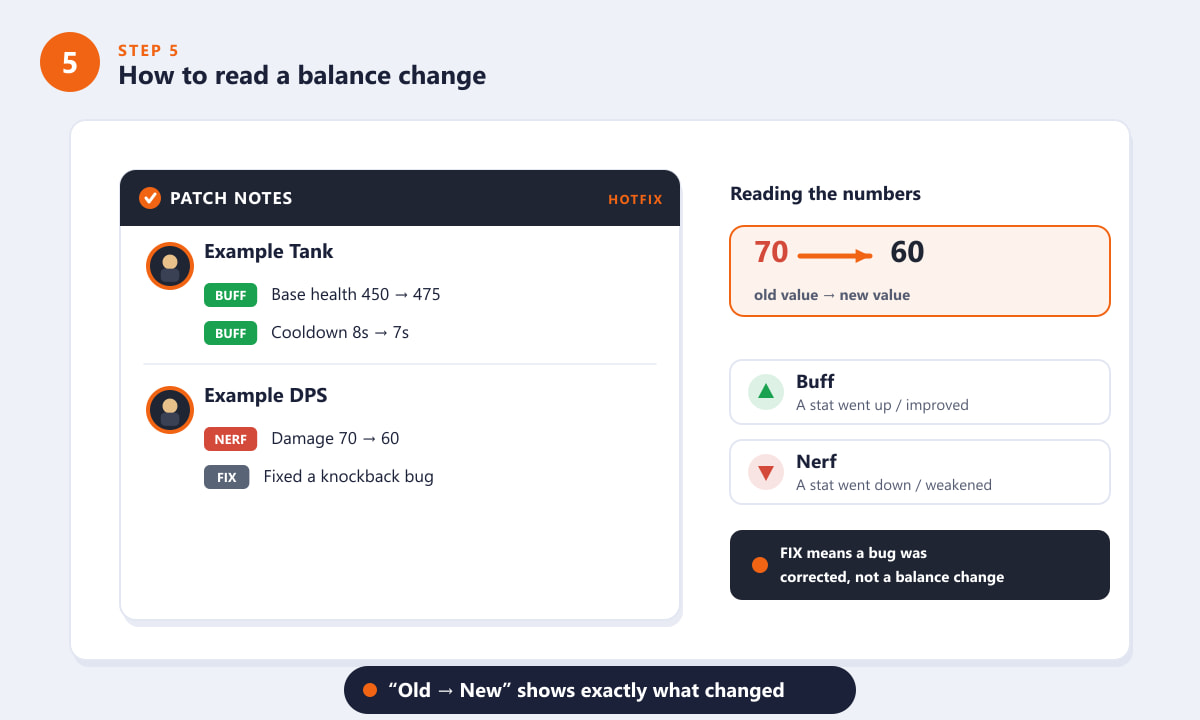
Once you are on the right page, the notes themselves are easy to decode. Each entry is grouped under a hero, with the changed stats listed beneath. Balance values almost always use an "old value → new value" format, so Damage 70 → 60 means the damage dropped from 70 to 60. A number that goes up is a buff (the hero got stronger); a number that goes down is a nerf (the hero got weaker). Anything labelled as a bug fix is a correction rather than an intentional balance change, so don't read it as a power adjustment.
Tips for staying current
- Bookmark the official page. Going straight to Blizzard's patch notes avoids out-of-date numbers from third-party sites.
- Check the date. Hotfixes ship frequently, so confirm you're reading the newest entry, not last week's.
- Watch the experimental and developer notes. Blizzard often explains the reasoning behind a change, which helps you adapt your play.
- Restart after big news. If you hear a hotfix dropped mid-session, relaunch so you're not playing on the old build.
Troubleshooting
I don't see the hotfix changes in my game
Make sure your client is fully updated. On PC, relaunch the Battle.net launcher and let Overwatch 2 finish patching; on console, close and reopen the game. If the note was a server-side change, it will simply take effect in your next match with no visible download.
The patch notes page hasn't updated yet
Notes sometimes appear shortly after a hotfix goes live rather than at the exact same moment. Refresh the page, check the official social posts, and look at the in-game News tab, which can surface the summary first.
A hero seems to be missing from the roster
If a hero is unavailable, it may have been temporarily disabled by a hotfix because of a serious bug. This is normal and short-lived; the hero returns once a fix is deployed.
Frequently asked questions
How often does Overwatch 2 get hotfixes?
There's no fixed schedule. Blizzard ships hotfixes whenever a balance issue or bug needs a fast response, so they can arrive within a season or even days apart when something needs urgent attention.
What's the difference between a hotfix and a patch?
A hotfix is smaller and quicker, often just a few balance tweaks or bug fixes, and some apply server-side. A patch is a larger, scheduled update that bundles bigger balance changes and a wider set of fixes.
Do I have to download the hotfix?
Sometimes. Client-side hotfixes require a small update through Battle.net or your console, while server-side hotfixes apply automatically with nothing to download.
Where are the official Overwatch 2 hotfix notes posted?
On the official Overwatch patch notes page, with the Battle.net launcher, in-game News tab, and official social accounts as additional sources.
What does "70 → 60" mean in the notes?
It shows the old value followed by the new value. In that example a stat dropped from 70 to 60, which is a nerf.
Final thoughts
Keeping up with the latest Overwatch 2 hotfix notes is simple once you know the routine: read the official notes, confirm your game is updated, and interpret each change using the "old → new" format to spot buffs and nerfs at a glance. Because the actual contents shift so often, your best move is to go straight to the source every time. For the current, definitive list, head to the official Overwatch 2 patch notes page.









