How to Fix VALORANT Network Problems: Lag, Packet Loss & High Ping (2026)
If VALORANT network problems are making players rubber-band, delaying your shots, or disconnecting you, first find out whether the issue is latency, packet loss, your home connection, or low frame rate. Check Riot’s service status and the game’s network indicators, then test with Ethernet and work through the Windows, DNS, and firewall checks below. Riot’s connection guide recommends those checks in roughly that order; none can fix a temporary server incident or a bad route outside your home.
One useful distinction: high ping means data is taking longer to travel to and from the match server, while packet loss means some data is not arriving reliably. If the picture stutters but Network RTT and packet-loss readings stay steady, investigate frame-rate or PC performance rather than changing your network settings.
Identify the problem before changing settings
| What you notice | What it can point to | First check |
|---|---|---|
| High, steady Network RTT | Server distance or a slow route between your ISP and Riot | Compare the available server pings in the game and check other network destinations |
| Packet-loss spikes or a Network Problem indicator | Unstable Wi-Fi, router trouble, congestion, or a problem farther along the ISP route | Test with Ethernet and pause heavy network use |
| Choppy motion with stable network readings | Low or inconsistent client FPS | Check VALORANT’s performance stats and close resource-heavy apps |
| The same issue across multiple devices or games | Your router, modem, or ISP connection | Restart network equipment and contact your ISP if a wired test still fails |
There is no universal ping number that guarantees a good match: distance, routing, and the server you join matter. A browser speed test can show whether your internet connection is broadly working, but its latency is measured to a different test server and does not predict your VALORANT ping by itself.
Step 1: Check Riot’s status and VALORANT network stats
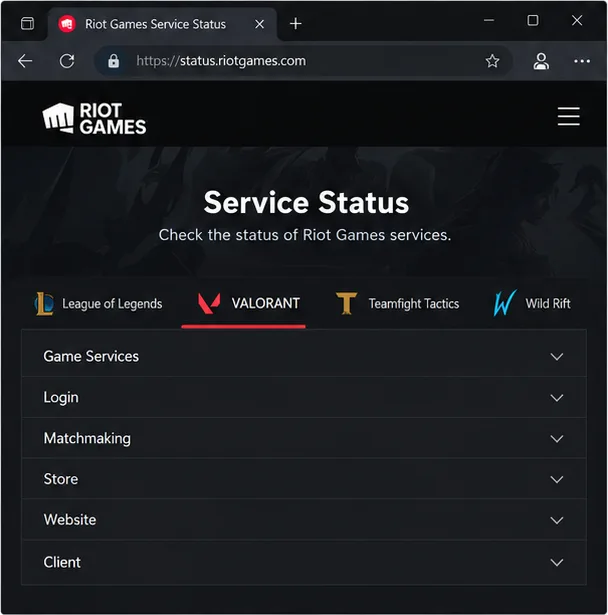
Open the Riot Games Service Status page and select VALORANT. If Riot reports an incident affecting game services, login, or matchmaking, wait for the service to recover before trying deeper PC changes.
In VALORANT, go to Settings > General > Other and turn on the instability indicators. Riot says persistent network warnings can indicate packet loss or brief disconnects; short-lived indicators can clear on their own. For more detail, open Settings > Video > Stats and show Network RTT and Packet Loss as graphs or text. Check these during a match rather than relying on the old Shift + F1 shortcut, which is not the documented path for these stats.
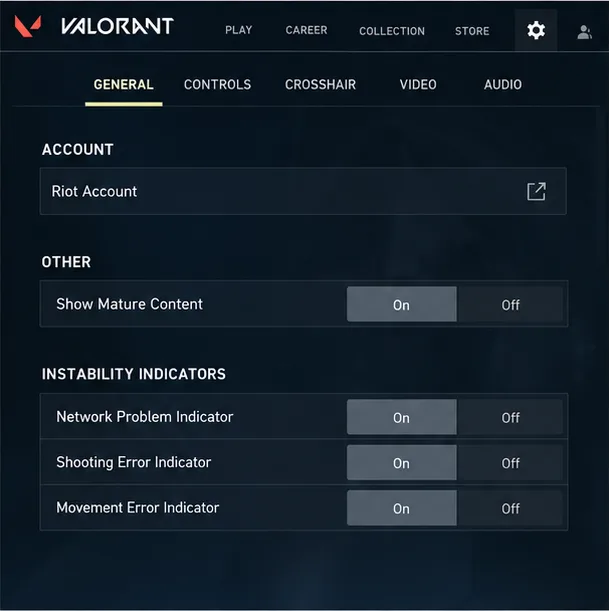
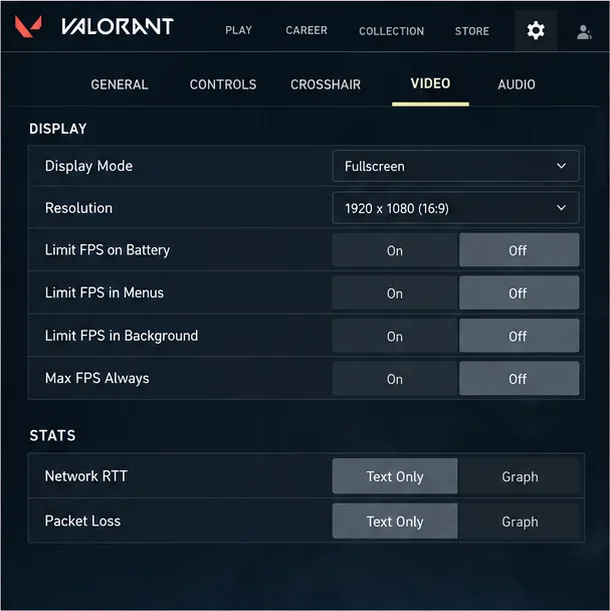
Watch whether the RTT is consistently high or jumps, and whether loss appears at the same time. Compare more than one match and note the server, approximate time, and whether other apps or games are affected. These observations help you separate a Riot-side incident from a local Wi-Fi or ISP problem.
Step 2: Test the connection you control
Pause downloads, video streams, cloud backups, and other bandwidth-heavy tasks. If practical, ask other devices on the same network to stop large transfers while you test. Then connect the PC directly to your router or modem with an Ethernet cable and replay on the same available game server. Riot recommends this test because wireless connections can be affected by distance, interference, and other devices sharing the network.
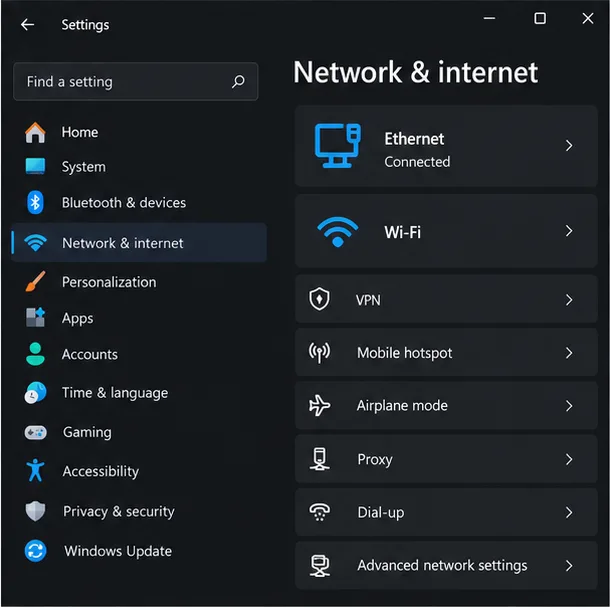
If Ethernet stabilizes the game, the Wi-Fi link or its local conditions are likely involved. If you cannot run a cable, test near the router and try the 5 GHz band if your router and PC support it. Then power-cycle the modem and router: turn them off, wait at least 30 seconds, turn them back on, and let the connection return before launching the game. Change one thing at a time so you can tell which test made a difference.
Step 3: Refresh the Windows network stack
If the problem continues across games or apps, refresh Windows’ network configuration. Save your work first: releasing and renewing the IP address briefly interrupts the connection. Open Windows Terminal (Admin) or Command Prompt (Admin), run each command below, and press Enter after each one. Restart the PC when the commands finish.
netsh winsock resetnetsh int ip resetipconfig /releaseipconfig /renewipconfig /flushdns
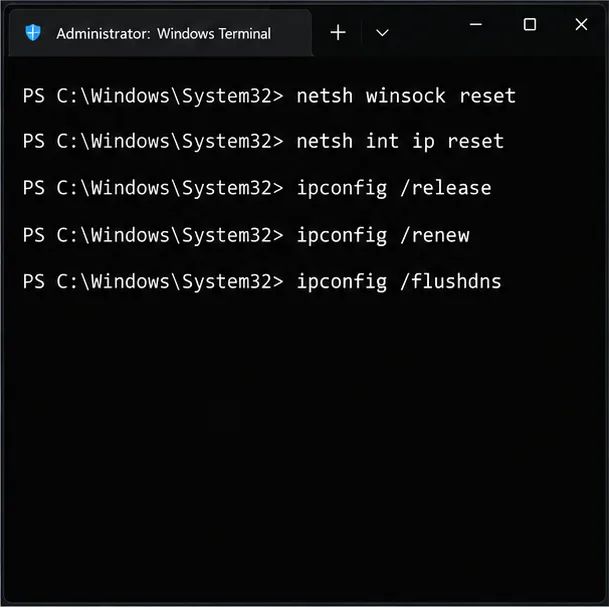
Microsoft documents this sequence for resetting TCP/IP, renewing the address, and clearing the DNS resolver cache. If you use a manually configured IP address or manage a work or school PC, check with the network administrator before resetting its settings.
Step 4: Try a public DNS resolver only as a diagnostic
DNS helps your PC look up server names. Switching DNS can help rule out a problem with your current resolver, but it does not shorten the physical route to a match server, remove packet loss on a Wi-Fi link, or guarantee lower in-game RTT. Treat it as a connection troubleshooting test, not a “faster ping” switch.
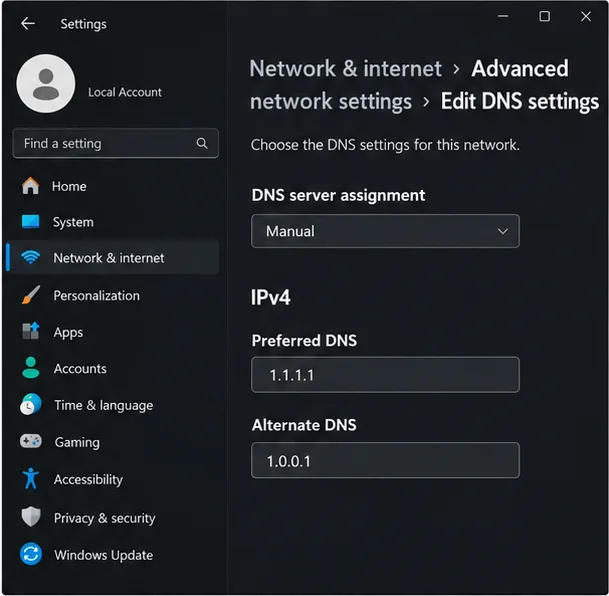
On Windows 11, open Settings > Network & internet, select the active Ethernet or Wi-Fi adapter, and edit DNS server assignment. Choose Manual, enable IPv4, and enter Cloudflare’s standard resolver addresses: 1.1.1.1 as Preferred DNS and 1.0.0.1 as Alternate DNS. Save, reconnect, and test VALORANT. Record your existing settings first; if the connection gets worse or a public Wi-Fi sign-in page stops working, restore Automatic (DHCP). Windows 10 uses a different adapter-properties path, so follow Cloudflare’s current instructions for that version.
Step 5: Check firewall rules and VPN or proxy software
Temporarily disconnect a VPN or proxy while troubleshooting. Riot’s current PC connection guide says these services frequently cause connection problems, so test the game with them off before considering any routing workaround.
If the Riot Client or VALORANT is blocked, open Windows Security > Firewall & network protection > Allow an app through firewall. Riot’s firewall guide lists these default Windows paths for VALORANT:
C:\Riot Games\VALORANT\live\VALORANT.exeC:\Riot Games\VALORANT\live\ShooterGame\Binaries\Win64\VALORANT-Win64-Shipping.exeC:\Riot Games\Riot Client\RiotClientServices.exeC:\Program Files\Riot Vanguard\vgc.exeandC:\Program Files\Riot Vanguard\vgm.exe
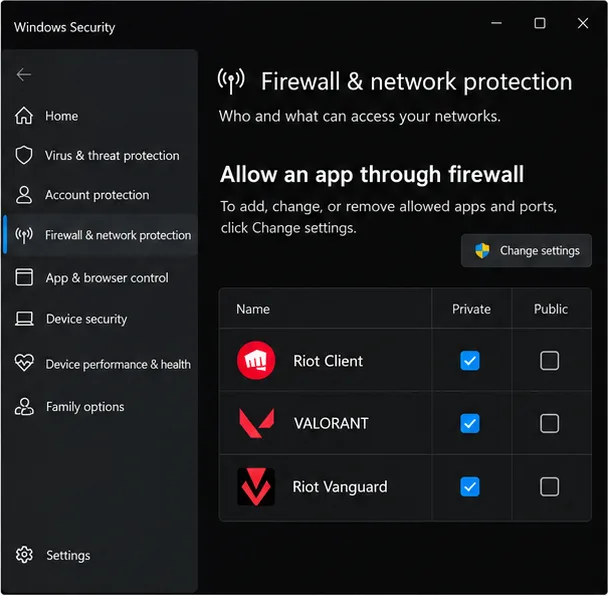
Use your actual installation folder if you installed Riot somewhere else. Allow the specific apps through the firewall and select the network profile that matches the connection Windows is using; do not enable every profile automatically. Avoid leaving the firewall turned off. If you use a third-party security product, follow its vendor’s instructions or Riot’s firewall guide rather than adding a broad exception for unrelated files.
Step 6: Adjust Network Buffering and send useful evidence
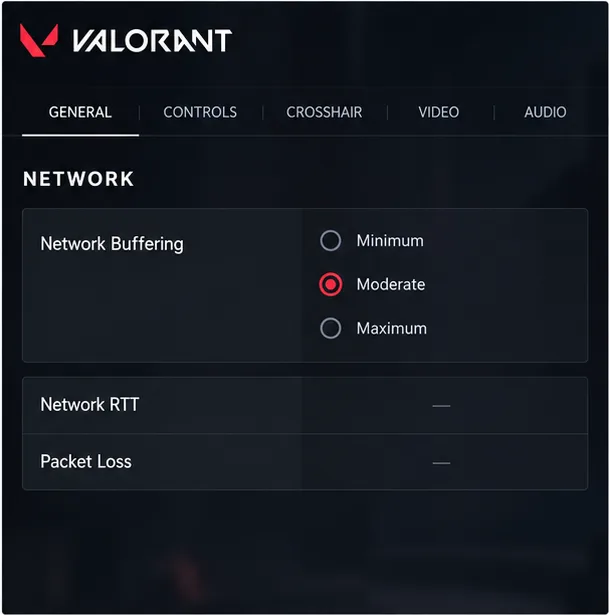
If your connection has uneven packet arrival, test VALORANT’s Network Buffering options under Settings > General. Riot recommends trying buffering when network instability persists; it can smooth an uneven stream, but extra buffering may make actions feel less immediate. Test one setting at a time in a match and compare. It cannot repair a damaged cable, persistent packet loss, or inefficient ISP routing.
If the indicators continue after a wired test and a router restart, collect evidence instead of repeatedly reinstalling the game. Use Riot’s VALORANT Tracert instructions to create a route log for the server region you use. Send the log, the affected server, approximate times, and your Ethernet test results to your ISP if the route appears unstable, or attach Riot logs when you submit a Riot Player Support ticket. A route log is evidence for support to interpret, not proof by itself that a particular hop is at fault.
Frequently asked questions
Does changing DNS lower VALORANT ping?
Not reliably. A public DNS resolver can help test whether name resolution is part of a connection problem, but once the game is connected, match latency mainly depends on the route and distance to the server. Revert to Automatic (DHCP) if the change does not help.
Can a VPN fix VALORANT packet loss?
Sometimes a different route may behave differently, but a VPN can also add latency or introduce another point of failure. Riot recommends disconnecting VPNs and proxies while diagnosing connection problems. Compare results with and without one before deciding whether it helps; there is no guaranteed VPN fix.
What if my ping is fine but the game still stutters?
Check Network RTT and Packet Loss alongside client FPS. If the network readings stay steady while FPS drops, focus on PC performance and background applications; changing DNS or firewall rules is unlikely to address a frame-rate problem.
Official references
- Riot Games: Troubleshoot PC Connection (May 2026)
- VALORANT: Game and Network Instability Basics
- Riot Games: Configure your Firewall (June 2026)
- Cloudflare: Set up 1.1.1.1 on Windows
- Microsoft Support: Fix Ethernet connection problems in Windows
- Riot Games Service Status
- Riot Games: How to Use Tracert to Obtain Network Logs
- Riot Games: Gathering Logs with Riot Repair Tool









