How to Repair League of Legends With the Riot Client Repair Tool
To repair League of Legends, sign in to the Riot Client, open your profile menu in the upper-right corner, choose Settings, select League of Legends, and click Repair (or Start Repair, depending on the client screen). Follow the prompts and let the client finish checking and restoring game files. Riot says this automatic repair can help when files are missing or corrupted; it is not a guaranteed fix for every crash or connection problem.
The repair control is built into the Riot Client, so you do not need to download a separate program to repair the installation. This distinction matters because the downloadable Riot Repair Tool (RRT) is currently used to collect logs for a support ticket. Older guides may show a Play-button dropdown or refer to the Hextech Repair Tool; use Riot’s current Profile > Settings path for a file repair.
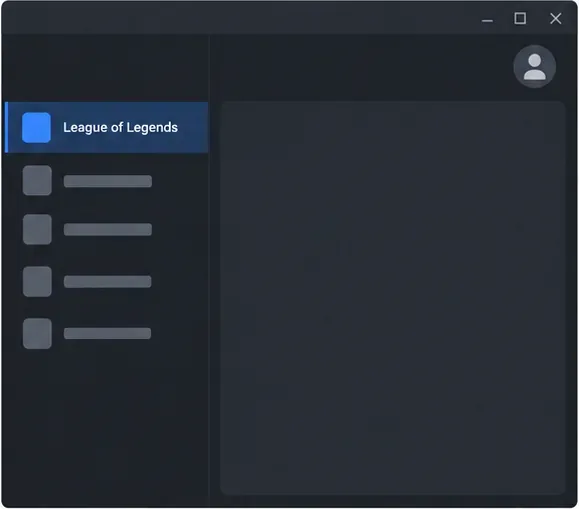
When to use the League of Legends repair tool
Run the Riot Client full repair when the launcher or game reports damaged, missing, or inconsistent files, or when a patch or launch problem appears to be tied to the local installation. Repair is a reasonable first step before reinstalling because it checks the existing game installation and restores files that need attention.
A file repair cannot fix every cause of a game problem. For example, it will not resolve a Riot service outage, an unstable home network, an outdated graphics driver, or a conflict caused by another program. If the issue is a login, ping, or performance problem, note the exact error and use the matching Riot troubleshooting guide as well.
Before you start
- Keep a reliable internet connection. Riot recommends a wired connection when possible when troubleshooting failed repairs. Avoid starting the process while your connection is dropping or switching networks.
- Free at least 8 GB of disk space. Riot’s repair-failure guidance gives 8 GB as the minimum free space needed for League of Legends to repair and patch properly.
- Close League of Legends first. Check that the game is not still running in the background. On Windows, use Task Manager; on macOS, use Activity Monitor. If the computer has multiple user accounts, make sure no other account is running League.
- Save open work before restarting your computer. A restart is one of Riot’s first suggested steps if the repair fails.
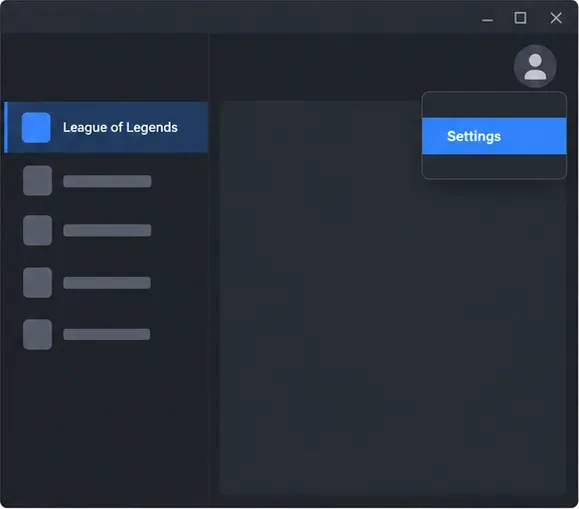
How to repair League of Legends in the Riot Client
Open and sign in to the Riot Client
Launch the Riot Client from your desktop, Start menu, Applications folder, or Dock, then sign in to your Riot account. Wait for any client update already in progress to finish before opening settings. You do not need to start a match or use the Play button to reach the repair option.
Open your profile menu and choose Settings
Click the profile icon at the upper-right of the Riot Client window. In the menu, select Settings. If you do not see the option, restart the Riot Client and check again; Riot recommends restarting the client as an early troubleshooting step for client issues.
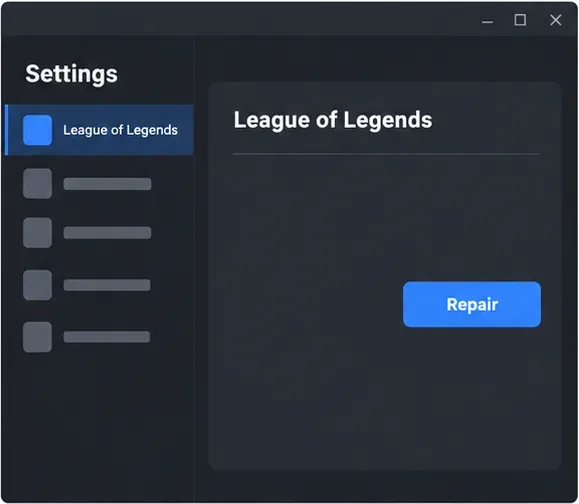
The profile icon is in the upper-right corner; choose Settings from its menu. This is a simplified UI illustration. Select League of Legends in Settings
In Settings, choose League of Legends from the list of Riot games. Make sure the League section is selected before starting repair, especially if you have more than one Riot game installed. Riot’s current instructions use a game selection inside Settings; the precise arrangement may differ slightly between client versions.
Start the repair
Click Repair or Start Repair and follow any confirmation prompts shown by your client. Keep the computer online and leave the Riot Client open while it works. The client checks the local installation and may need to restore files. Avoid repeatedly clicking the button or interrupting the process; if it stops with an error, use the troubleshooting steps below.
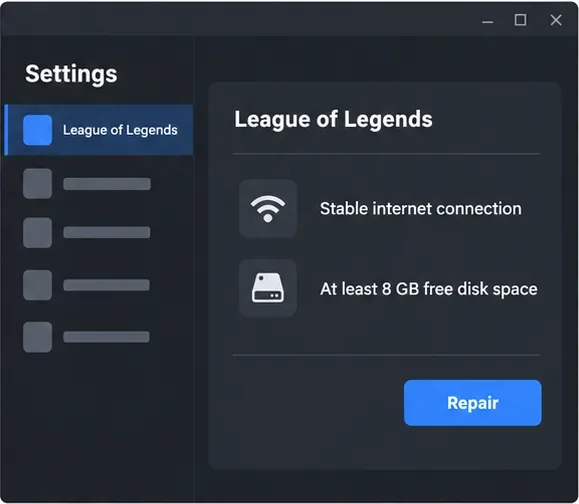
Select League of Legends in Settings, then use the Repair action. Button wording and placement may vary by version. Let it finish and test the original problem
Wait until the client returns to its normal state or reports that repair has finished. Riot does not give a fixed completion time in its current full-repair instructions, so duration can vary with the installation and connection. Open League again and retry the action that was failing, such as launching the game or entering a practice match. If the same error remains, the cause may be outside the game files.
If the League repair fails or gets stuck
Try the simplest checks first, in this order:
- Restart the computer, sign back in to the Riot Client, and start the repair again.
- Confirm that the internet connection is stable; switch to Ethernet if you can.
- Check that the drive with League of Legends has at least 8 GB free.
- Make sure League is not still running in Task Manager or Activity Monitor, including under another user account.
- If repair errors continue, check the drive for problems using the steps in Riot’s Full Client Repair Failed guide. It includes Windows and Mac-specific guidance for disk and memory checks.
If the repair completes but League still crashes, investigate other causes such as graphics drivers, operating-system updates, or software conflicts. Riot’s Fix My League troubleshooting guide covers those next steps. A reinstall may be appropriate if repair and basic troubleshooting do not help, but follow Riot’s instructions for your operating system and avoid deleting shared Riot folders if you have other Riot games installed.
When to use the Riot Repair Tool (RRT)
The name can be confusing: Riot’s current downloadable Riot Repair Tool (RRT) gathers diagnostic logs and packages them so you can attach them to a support request. It does not replace the in-client Repair button described above. If a repair fails repeatedly, run RRT only when you are ready to submit a ticket, then attach the ZIP file it creates. Riot’s RRT instructions explain how to collect logs on Windows or Mac.
Frequently asked questions
Do I need to download a League of Legends repair program?
No. Use the Repair action in Riot Client Settings to check and restore game files. Download the separate RRT only if you need to collect logs for Riot Support.
How long does League of Legends repair take?
There is no fixed time in Riot’s current full-repair instructions. It depends on what the client needs to check or restore and the speed and stability of your connection. Keep at least 8 GB free and allow the client to finish.
Does the repair tool work on Mac?
Riot’s repair-failure guidance includes Mac-specific checks as well as Windows checks. Open Riot Client Settings and select League of Legends; if you encounter an error, use the Mac section of Riot’s failure guide or contact support.
For the current click path and repair prompts, see Riot’s Riot Client Full Repair Tool instructions. If the repair still fails, submit a support ticket and include logs collected with RRT.









