Playing PUBG Online From Your Browser (2026 Guide)
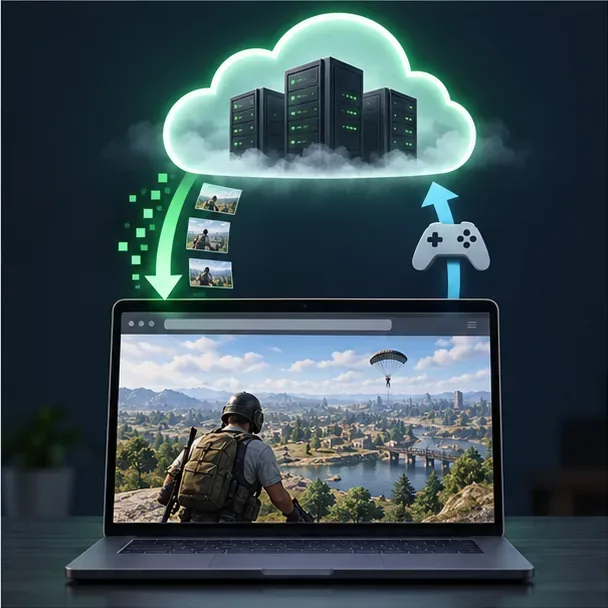
Yes, you can play PUBG: BATTLEGROUNDS in a browser through cloud gaming when the game is available in your region. As of October 16, 2026, Xbox’s official PUBG page lists Cloud Gaming and says to play with a controller. The browser displays a live stream from a remote Xbox system; your device does not install or run the full game locally. This is different from opening a native PUBG web game, and it launches the Xbox version rather than your Steam copy.
What “PUBG in a browser” means
The full PC and console game is not a browser-native title. For browser play, use PUBG cloud gaming: a supported service runs the game remotely and streams the picture and sound to a browser tab. Your local computer still needs to decode that stream and send control inputs, so a capable gaming PC is not required, but a stable connection and low delay matter.
The current Xbox listing is the verified browser route covered here. Its catalog, service region, account eligibility, and plan requirements can change. Check the live listing before subscribing or making plans around a session. PUBG itself is free-to-play, but cloud access is a separate service: Xbox says some free-to-play games can be streamed with a free Microsoft account, while many cloud games require an eligible Game Pass plan. The PUBG listing in your market is the place to confirm which applies.
What you need
- A supported device and browser. Xbox lists browsers such as Microsoft Edge, Google Chrome, and Safari for cloud play; supported combinations vary by device.
- A Microsoft account and access to Xbox Cloud Gaming in your country or region.
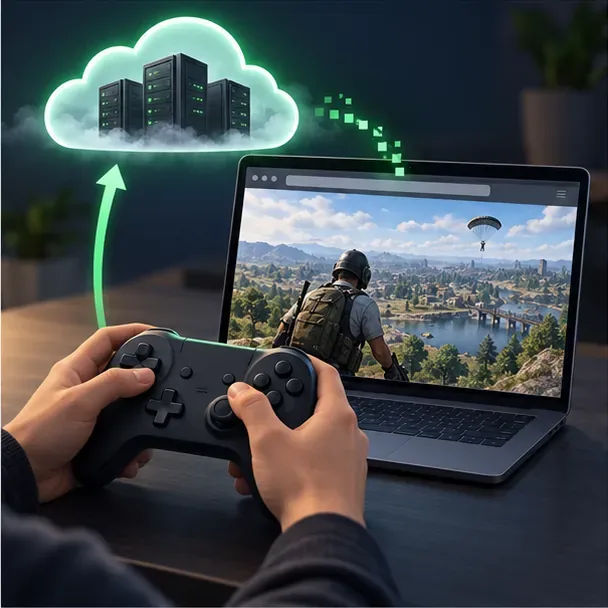
- A compatible game controller. Xbox’s PUBG page currently says “Play with controller.” Connect it by Bluetooth or USB before launching.
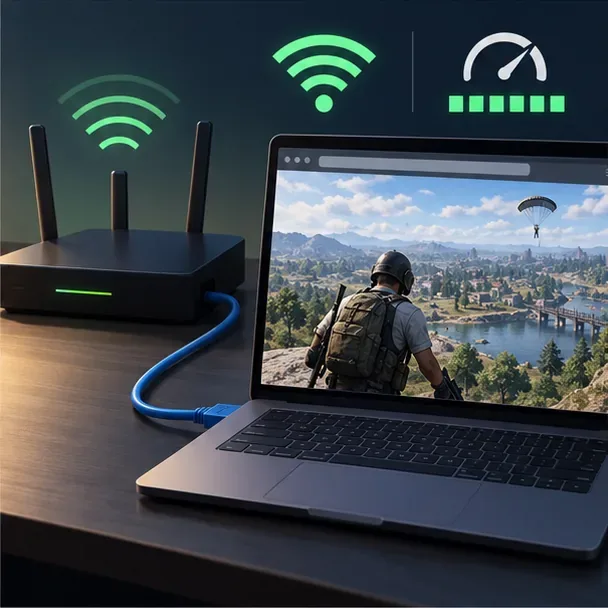
- A steady internet connection. Xbox lists 10 Mbps as a minimum for cloud gaming, says some devices may need 20 Mbps for best quality, and recommends 5 GHz Wi-Fi. Ethernet can also help reduce interference and dropouts.
- Whatever cloud access the PUBG listing requires in your market, which may include an eligible subscription.
How to play PUBG online from your browser
Step 1: Check the official PUBG cloud listing
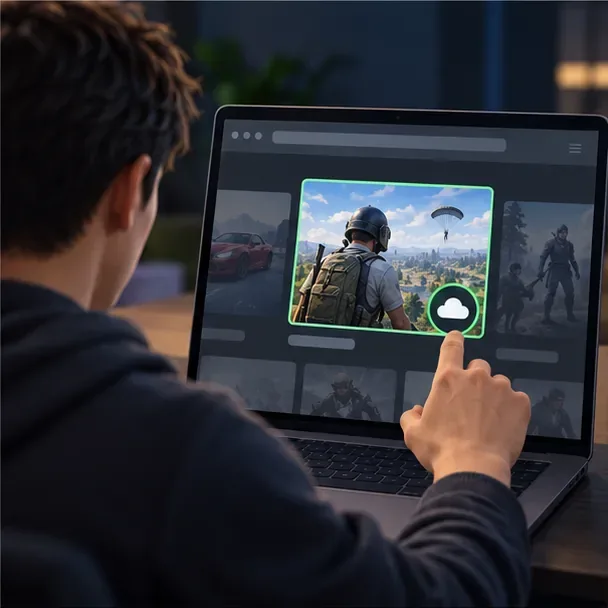
Open the PUBG: BATTLEGROUNDS page on Xbox Cloud Gaming. Sign in if prompted and confirm that the page offers cloud play in your region. If you do not see a playable cloud option, check Xbox’s supported regions and the current cloud catalog. The listing can vary by country, plan, device, and time, so an old tutorial or a listing from another country is not proof that the game is currently available to you.
Step 2: Prepare your browser, controller, and connection
Use a browser and device combination from Xbox’s supported browser list, then update the browser. For a shooter, connect a controller before opening the stream. Xbox supports keyboard and mouse for some cloud games, but PUBG’s listing identifies controller play, so do not assume mouse-and-keyboard controls will be available in this browser session.
If possible, use Ethernet or sit near a 5 GHz Wi-Fi router. Pause large downloads and other high-bandwidth streams. A speed test can tell you whether your connection meets the service’s baseline, but latency and packet loss also affect aim and movement; bandwidth alone does not guarantee a responsive match.
Step 3: Sign in and start the cloud session
Go to Xbox.com/play in the supported browser and sign in with the Microsoft account that has cloud access. Find PUBG: BATTLEGROUNDS, open its cloud listing, and choose the play option shown there. If Xbox displays a subscription or eligibility prompt, review the plan and regional terms before paying. The game’s free-to-play price does not automatically make every cloud session free.
Once the remote session loads, the browser is receiving a stream rather than downloading the full PC game. You can play on a lower-powered laptop or Chromebook if the device, browser, and connection are supported. Close the tab or end the session when you are finished.
Step 4: Play with a controller and tune the stream
Use the connected controller to navigate the lobby and play. If buttons do not respond, reconnect the controller before restarting the session, then check browser permissions and Xbox’s supported controller information. For smoother play, use full-screen mode, keep the device close to the router, and lower the stream quality if the service offers that setting and the picture keeps stuttering.
Browser cloud play vs. the Steam PC version
| Browser cloud session | Steam PC installation |
|---|---|
| Streams the Xbox version through Xbox Cloud Gaming. | Runs the PC version on your computer after installation through Steam. |
| Uses a Microsoft account and the Xbox cloud listing’s access rules. | Uses your Steam account and Steam library. |
| Does not require downloading the full PC game, but needs a compatible controller and reliable internet. | Requires local storage and hardware that meet the game’s PC requirements. |
Adding PUBG to Steam is not part of this browser method, and owning the Steam version does not by itself grant Xbox cloud access. The Xbox page describes cross-platform play as limited to featured platforms; it does not promise that Steam progress, inventory, or account data transfers to the Xbox version. If you need a particular account or progression, check PUBG’s current platform guidance before starting on a different version.
Fix common browser streaming problems
- The game does not appear or the Play button is missing: verify the Xbox region, account, plan, and the live PUBG listing. Refresh the catalog after confirming you are signed in to the intended account.
- The picture is blurry or stutters: pause downloads, switch to Ethernet or 5 GHz Wi-Fi, move closer to the router, and reduce stream quality if available. Check whether other devices are saturating the connection.
- Aim or movement feels delayed: choose the nearest available cloud region if the service provides that option, avoid congested public Wi-Fi, and test again with a wired controller and network connection. Cloud streaming adds network delay that a local install does not.
- The controller is not detected: pair it before launching, reconnect it by USB or Bluetooth, and reload the cloud session. Confirm that the browser and controller model are supported.
Frequently asked questions
Can I play PUBG in a browser without downloading it?
Yes, if Xbox Cloud Gaming lists PUBG for your region and account. The service streams the Xbox game to a supported browser, so you do not download the full PC installation.
Is playing PUBG online from a browser free?
PUBG: BATTLEGROUNDS is free-to-play, but cloud access may have separate eligibility or subscription requirements. Xbox allows some free-to-play games to stream without Game Pass; check PUBG’s current Xbox listing in your market to see whether it is included in that exception.
Can I use a Chromebook or tablet?
Potentially. The device, browser, controller support, and Xbox Cloud Gaming availability must all match. Check Xbox’s current supported-browser and device pages instead of assuming every tablet or Chromebook will work.
Is this PUBG MOBILE?
No. The Xbox cloud listing is for PUBG: BATTLEGROUNDS, the console version. It does not turn the PUBG MOBILE app into a browser game.









