Playing League of Legends on macOS (2026 Guide)
Yes, you can play League of Legends on macOS with Riot’s Mac installer. Before downloading, check your Mac against Riot’s latest requirements: an Apple M1 chip, macOS 12 or later, 8 GB of unified memory, Metal-capable graphics, and 40 GB of available storage. Then install the client from Riot, sign in, and use Practice Tool to learn the controls before joining a regular match.
Riot’s system requirements page was updated on September 22, 2026. Its Mac section lists Apple M1 for both minimum and recommended CPU, with Low and High graphics settings respectively. It also says Intel Mac users may continue playing, while support will focus primarily on Apple Silicon. The same page contains conflicting wording about native Intel support, so treat Riot’s listed requirements as the compatibility baseline and contact Riot Support if your Mac reports an architecture error.
League of Legends macOS requirements
| Requirement | Riot’s current Mac baseline |
|---|---|
| Chip | Apple M1 |
| macOS | macOS 12 (Monterey) or later |
| Graphics | Metal-capable GPU |
| Unified memory | 8 GB |
| Free storage | 40 GB |
| Graphics preset | Low minimum; High recommended |
These are Riot’s published requirements, not a promise of a particular frame rate. Riot warns that a Mac meeting only the minimum may still have performance problems. Leave additional room for macOS and game updates if you can.
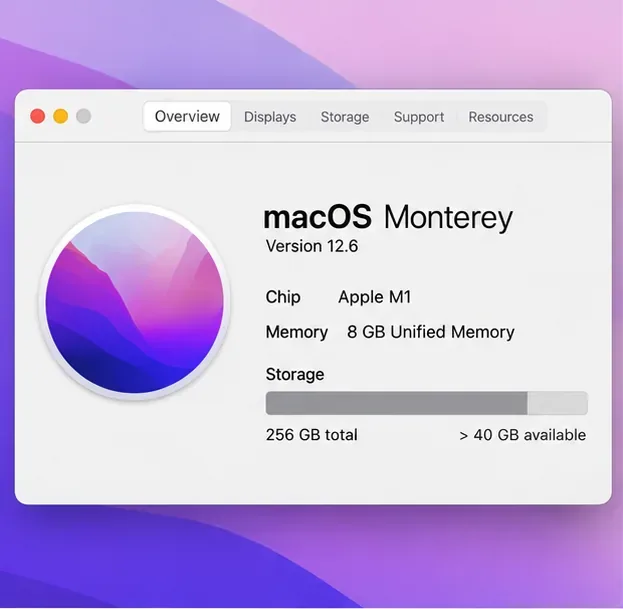
To check the chip and macOS version, open the Apple menu and choose About This Mac. Check available storage in the Storage view in About This Mac or in System Settings. Menu names vary slightly across macOS releases. Compare what you see with Riot’s current League of Legends system requirements before installing.
How to install and start League on a Mac
Step 1: Check your Mac before downloading
Confirm that your Mac has an M1 chip or newer, macOS 12 or newer, 8 GB of unified memory, Metal-capable graphics, and at least 40 GB free. If you use an Intel Mac, Riot says you may still be able to play, but its support focus is now primarily Apple Silicon. Because Riot’s public page uses mixed wording about native architecture support, do not assume that installing Rosetta or changing a security setting will solve an incompatibility.
Step 2: Get the official League of Legends Mac client
Open Riot’s League of Legends download page and choose the Mac installer. The download page can vary by region, so check that you are on an official leagueoflegends.com page. Avoid third-party installers and repackaged clients, which may be outdated or unsafe.
Use Riot’s official League of Legends download page to get the current Mac installer. Step 3: Install the app, then let it update
Open the downloaded file and follow the installer’s prompts. If it opens as a disk image, use the installation window’s instructions; some Mac installers ask you to copy the app into Applications. Launch League of Legends from Applications, allow Riot Client and the game to finish installing or patching, then sign in with a Riot account. If you do not have an account, create one through Riot’s official sign-up flow. The first patch can take time depending on your connection and current game update.
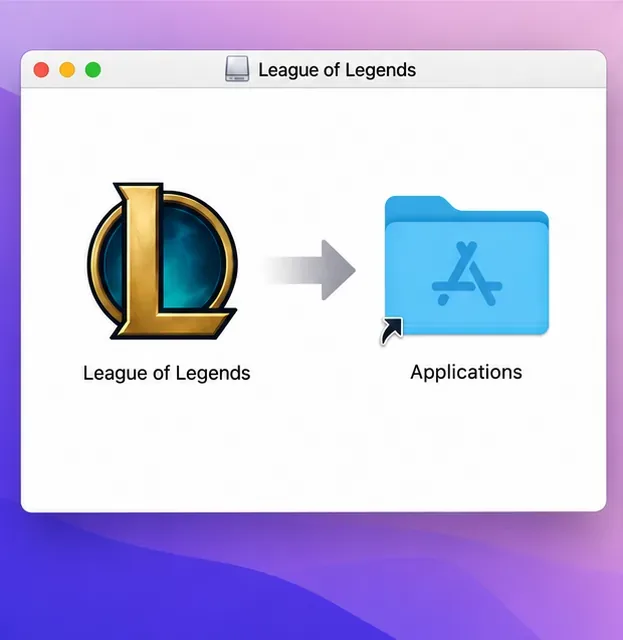
If the installer opens a disk image, follow its on-screen copy step into Applications. Step 4: Open Practice Tool before matchmaking
After the client is ready, choose Practice Tool for a low-pressure first session. It gives you a place to move your champion, try abilities, buy items, and get used to the camera and HUD before playing a standard match. League uses mouse-and-keyboard controls on Mac as it does on PC; check the Hotkeys settings if you want to review or change bindings.
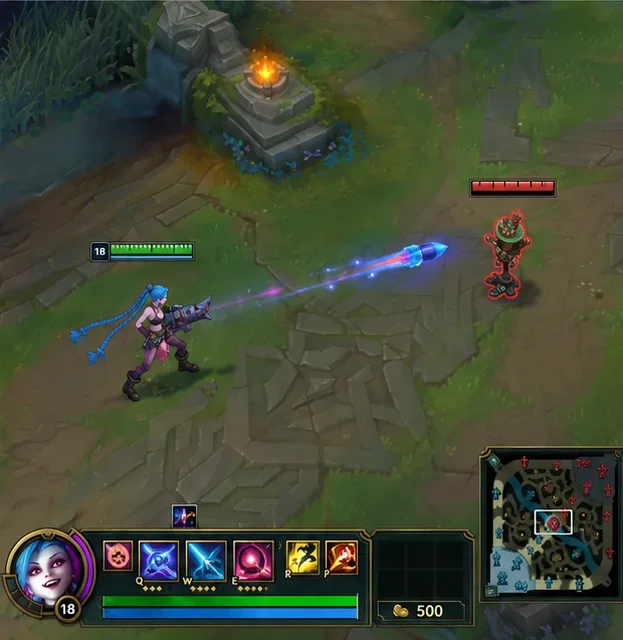
Practice Tool is a useful place to learn movement, abilities, and the minimap before joining a regular queue.
Mac settings that can prevent interruptions
Start with conservative in-game graphics settings if you see stuttering, then raise individual options gradually. Riot’s current Mac requirements list Low as the minimum graphics setting and High as recommended; they do not guarantee a specific FPS for every Mac. In the Riot Client, you can also enable Low Spec Mode from the settings gear under General while outside a match. Riot notes that this client option cannot be changed during a game.
Riot’s Mac guidance, published July 18, 2025, identifies Hot Corners and Shake mouse pointer to locate as macOS features that can interrupt League or temporarily affect performance. Disable Hot Corners while playing and turn off the pointer-shake feature under Accessibility display settings if it causes trouble. The exact Settings path can differ by macOS version; Riot’s Mac player settings guide includes its documented steps.
If the laptop feels slower on battery, connect power and compare before changing several graphics options at once. For connection problems, first distinguish network lag from low frame rate. Riot recommends trying Ethernet where possible and avoiding a VPN or proxy when connecting to a game server.
Troubleshoot common Mac problems
- The installer will not open or finish: confirm you downloaded it from Riot’s official page, check that at least 40 GB is free, and install available macOS updates. If the problem persists, use Riot’s troubleshooting resources instead of disabling macOS security protections globally.
- The client is stuck patching: quit and reopen Riot Client, check the Riot service status page, and retry after a service issue is resolved. Avoid deleting client files unless Riot Support’s instructions specifically call for it.
- Low frame rate or pauses: enable Low Spec Mode before the match, lower in-game graphics, and disable Hot Corners or pointer shaking. Change one setting at a time so you can tell what helped.
- Crashes or repeated reconnects: update macOS, restart the Mac, and follow Riot’s first troubleshooting steps. If you open a support ticket, Riot’s Mac logs guide explains which files to attach; you usually do not need to gather every log listed there.
Frequently asked questions
Does League of Legends work on an M1 or newer Mac?
Riot’s September 2026 requirements table lists Apple M1 as the minimum and recommended Mac CPU. It also lists macOS 12, 8 GB of unified memory, Metal-capable graphics, and 40 GB of storage. Riot’s wording about native architecture support is inconsistent on the same page, so check the current requirements and contact support if the client will not launch.
Can you still play League on an Intel Mac?
Riot says Intel Mac players may continue playing, but that support will primarily focus on Apple Silicon. That is not a guarantee that every Intel Mac or macOS version will work. Check the current requirements page and your Mac’s Metal support before reinstalling.
Where should I download the Mac version?
Use the official League of Legends download page and select its Mac installer. After installation, sign in through Riot Client and let it patch before opening Practice Tool.









