Home
» 🎮 Esports
»
How to Install the Riot Client on PC for League of Legends (2026)
How to Install the Riot Client on PC for League of Legends (2026)
To install the Riot Client on PC for League of Legends, download the official Windows installer, open it, sign in with a Riot account, and choose Install on the League of Legends game page. Riot Client is the PC launcher; League of Legends is a separate game download completed through that launcher. You do not need to download VALORANT or any other Riot game.
This guide covers a first-time Windows installation, what to check before downloading, the Vanguard restart requirement, and fixes for the most common launch problems. Riot changed how PC games open through Riot Client in 2026, so older guides that promise to bypass the launcher are no longer reliable.
Before you install Riot Client: Windows requirements
Check the requirements for League of Legends, not just the relatively small launcher. Riot's League of Legends system requirements, updated September 22, 2026, specify these Windows minimums:
Requirement
Minimum for League of Legends
Operating system
64-bit retail Windows 10, build 19041 or newer; or Windows 11
Free storage
16 GB on a hard drive (an SSD is recommended)
Memory
2 GB RAM minimum; 4 GB recommended
Graphics
DirectX 11 feature level 11_0-capable GPU
Processor
Supported x64 CPU with SSE 4.2
Windows 11 security
TPM 2.0 enabled; additional Vanguard checks may apply
Keep extra disk space available for patches and Windows updates. Have a working internet connection and permission to approve an installer prompt. Riot does not list Windows 7, Windows 8, 32-bit Windows, or Windows Enterprise/Server as supported configurations for League of Legends.
How to install the Riot Client on PC in five steps
Step 1: Download League of Legends from Riot Games
Open the official League of Legends download page and select Download for Windows or the corresponding Windows installer button. The installer obtained through the League site sets up Riot Client and starts the League of Legends installation path. If Riot shows a regional or language-specific page, use the official download option for your location. Avoid third-party download mirrors, unofficial launchers, and links that ask you to turn off Windows security before downloading.
The official download page offers a Windows installer. Choose that option rather than a third-party mirror.
Step 2: Open the installer in Windows
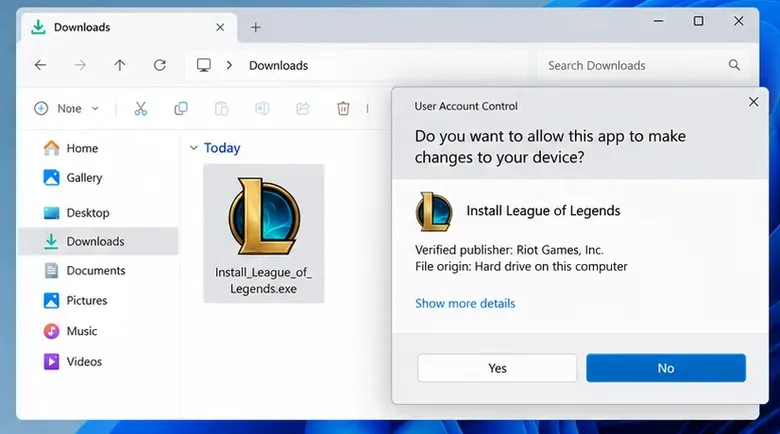
Find the downloaded .exe file in your browser's downloads list or in File Explorer under Downloads. Its exact filename and size can change with installer updates. Open it, review any Windows User Account Control prompt, and confirm that the file came from Riot's official website and identifies a legitimate Riot publisher before allowing changes. If the prompt or publisher information looks unexpected, cancel and download a fresh copy from Riot.
Locate the installer in Downloads and inspect the Windows permission prompt before approving it.
Step 3: Let Riot Client finish installing
Follow the installation prompts and allow the launcher to download the files it needs. If a location selector appears, choose a drive with enough space for the full game, not only the launcher. Leave the setup window running and keep the PC connected. The download size, displayed buttons, and elapsed time depend on the current release, disk, and internet connection; there is no reliable universal five- or ten-minute installation promise.
When Riot Client opens, let it finish any pending update. Installing the launcher alone does not mean the League of Legends game files have finished downloading.
Step 4: Sign in to your Riot account
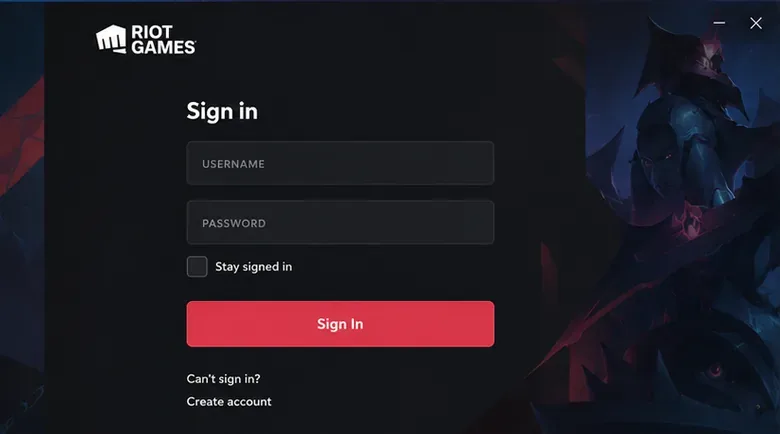
Use your existing Riot account credentials, or follow the registration link if you are new to Riot games. The Riot Client sign-in experience may also offer other supported methods, such as QR-code login, depending on the version shown. Make sure you are signing in through the official client. If you already play VALORANT on this PC, you may already have Riot Client installed and can skip straight to the League of Legends game page.
Use the Riot account sign-in screen; create an account only if you do not already have one.
Step 5: Install League of Legends, restart if prompted, and play
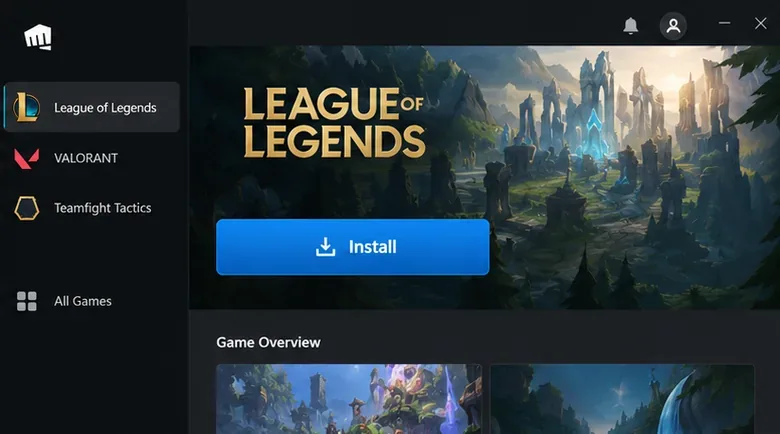
Find League of Legends in Riot Client's game list or All Games area, open its page, and choose Install. Confirm the install location if asked, then let the game download and apply updates. Riot Vanguard, the game's required anti-cheat software on Windows, may install during this process or when the game first launches.
If the client asks for a system restart before playing, restart Windows; do not repeatedly click Play while Vanguard is waiting for a reboot. After the installation and any required restart are complete, reopen Riot Client, select League of Legends, and click Play.
Open the League of Legends page inside Riot Client to install the game; the action becomes Play when the game is ready.
Why Riot Vanguard matters during setup
Riot Vanguard is not an optional launcher skin or an extra Riot game. It is Riot's game security system, and League of Legends requires it on Windows. Riot describes it as a client component plus a kernel-mode driver in its Riot Vanguard overview. On first installation, a restart may be necessary before the Play button becomes usable, as Riot explains in its restart-error guide.
Do not assume that Vanguard must always run at startup in every 2026 configuration: Riot also documents an optional Vanguard Pre-Check feature for supported systems that can activate Vanguard on demand. Security requirements such as TPM 2.0, Secure Boot, Memory Integrity, or IOMMU can depend on the PC and the exact error shown. Follow Riot's Vanguard security requirements rather than changing BIOS settings without a specific reason.
Riot Client won't install or League won't launch?
The installer will not open
First, confirm that you downloaded the Windows installer directly from Riot, that Windows meets the stated minimum build, and that your account can authorize installations. Check whether a Windows security message is blocking an unfamiliar file. If you still cannot launch the verified installer, restart Windows and retry the latest download rather than using an older installer from another website.
The game download pauses or hangs
Fully close and reopen Riot Client, then check that your internet connection works and the destination drive has available space. If practical, test on a wired network. VPNs, firewall rules, and security applications can sometimes interfere with downloads; review Riot's Riot’s loading-screen troubleshooting before changing settings. Avoid leaving antivirus protection disabled or granting sweeping exemptions to unknown executables.
Riot Client opens, but the game is stuck or missing files
Use the built-in repair workflow rather than searching for an outdated standalone utility: sign in, select your profile icon → Settings → League of Legends → Repair, and follow the on-screen directions. Riot documents these steps in its Riot Client Full Repair Tool. If repair fails, consider Riot's official uninstall-and-reinstall instructions after checking that you have backed up anything saved locally, such as replay files.
Vanguard reports a VAN code or asks for another restart
Write down the exact error code. For example, VAN 9001 points to TPM 2.0 not being enabled or detected; other VAN messages can indicate an outdated Windows build or a different security prerequisite. Use Riot's Vanguard error-code directory to identify the appropriate fix for your specific message. Start with a normal restart and Windows updates; do not blindly toggle Secure Boot, BIOS, or virtualization settings.
Questions players ask before installing
Is installing Riot Client on PC free?
Yes. Riot Client and the base League of Legends game are free to download and play. Optional in-game purchases are separate from installation.
Can I download just Riot Client without installing every Riot game?
Yes. The installer and game selection process lets you use the shared launcher for the PC games you choose. The client does not require you to install every title in its catalog. Also, League of Legends: Wild Rift is a separate mobile game, not the Windows edition of League of Legends.
Why does a League of Legends desktop shortcut open Riot Client first?
This is intentional. According to the Riot Client FAQ, Riot's 2026 rollout routes PC game launches through Riot Client even when the game is up to date. Existing shortcuts should still take you to the appropriate game page, where you choose Play; they do not change your Riot account progress or purchases.
Do I need to install Riot Client again if I already have VALORANT?
Usually not. Both use Riot's shared PC launcher. Open your installed Riot Client, look for League of Legends, and install only the game files you need. If Riot Client itself is broken, use repair or the official reinstallation guidance instead of installing duplicate copies.
Installation check: Your Windows version meets Riot's requirements, League of Legends appears in Riot Client, its download and updates are complete, and any Vanguard restart prompt is cleared. If all four conditions are met, open the League page and select Play.