Best Vertical Sensitivity Multiplier in PUBG: Start at 1.0
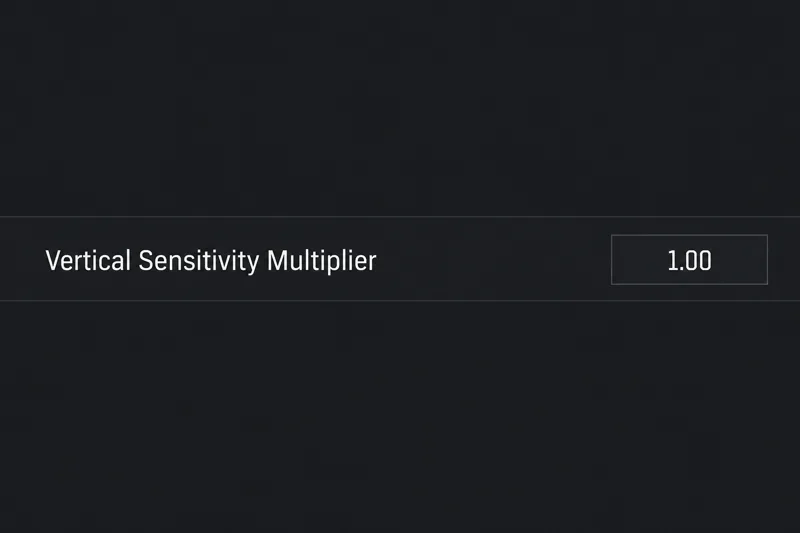
Start at 1.0 for PUBG PC vertical sensitivity, then learn when 1.1–1.2 can help recoil control and how to judge the tradeoff in aiming precision.
League of Legends does not have a documented setting that turns off only Blue Essence notifications. What you can do depends on what you mean by “notification”: a small new-content marker in the client, a mission or reward popup, or a Windows desktop banner. Check the League client’s notification settings for options such as collection or new-content pips, but be aware that those controls may hide other markers too. If a mission-completion window announces a Blue Essence reward, Riot’s public help pages do not document a separate switch for that reward screen.
Turning off an alert does not stop Blue Essence from being earned or remove it from your account. It only changes whether a particular message or marker appears. The steps below help you identify the alert first, then use the narrowest available setting.
League can show several different notices that players may associate with Blue Essence:
Riot’s Missions support article explains that missions may appear in a small popup and that completing a mission can trigger a client message confirming the reward. It does not list a Blue Essence-specific notification toggle. That distinction matters: turning off new-content markers may help with a badge, while a mission-completion message may not have an individual off switch.
If the alert is a dot or badge on a client tab, look for the client’s notification or collection-pip controls. The names can vary by client version, region, or rollout, so match the setting to the marker you want to hide instead of switching off every notification.
Riot’s public documentation confirms that the client has a Settings area, but it does not provide a current, region-by-region list of every notification toggle or confirm that a pip switch hides every Blue Essence-related notice. Treat the labels actually shown in your installed client as authoritative. If you do not see a matching option, do not change account files or install a third-party client modification; there is no verified Blue Essence-only setting to enter elsewhere.
There is no verified way to suppress only that Blue Essence reward popup. Riot describes mission notifications and reward confirmation in its support material, but does not document a control that disables just the completion screen while preserving other client notices. If you receive the reward screen after finishing a mission, dismiss it and check the client’s Notifications settings for any broader mission or popup category. If no relevant toggle appears, the client may not offer a supported way to turn that specific message off.
Do not confuse the message with the currency itself. If a mission lists Blue Essence as its reward, the notification is informational; changing an alert preference does not cancel the mission, change its reward, or prevent the Blue Essence from being credited. Check your balance or reward history in the client if you want to confirm the currency was added.
Use this route only if a notification appears outside the League client as a Windows banner. In Windows 11, open Start > Settings > System > Notifications, then find League of Legends or Riot Client under notifications from apps and other senders. Turn off notifications for that app or disable banners while keeping notifications in the notification center.
Microsoft documents per-app controls for notification banners, sound, and notification-center display in its Windows notifications guide. This affects Windows-level notifications only. It will not hide a mission popup, new-content pip, or reward confirmation rendered inside the League client. If League or Riot Client does not appear in the sender list, Windows may not be receiving those notices as system notifications.
No. A notification is a message about an event or reward; the setting controls what you see, not the currency transaction. Keep playing or completing missions normally, and check your balance in the client if you are unsure whether a reward was credited.
Not necessarily. Riot documents mission popups and completion messages, but its public article does not promise that every client takeover or reward screen is governed by one notification preference. Try the relevant client toggle if it exists, then test with the same kind of notice. If it still appears, the setting may control markers or a different category.
A badge may signal unread missions or new content and does not, by itself, confirm a currency reward. Open the associated tab to identify what is new, then check your balance or the mission reward details before drawing a conclusion.
| What appears | What to try | What the change affects |
|---|---|---|
| Dot or number on a client tab | Settings > Notifications; look for a new-content or collection-pip option | May hide multiple unread-content markers, not just Blue Essence notices |
| Mission completion or reward popup | Check for a mission or popup category; otherwise dismiss it | No Blue Essence-only suppression is documented by Riot |
| Windows banner outside the client | Windows Settings > System > Notifications > select the relevant app | Hides Windows banners, not League client messages |
Start by identifying whether you are seeing a client pip, a mission reward popup, or a Windows banner. Use League’s notification settings for a new-content or collection marker if your client provides that option, knowing it may hide other markers too. For a mission completion or reward takeover, Riot’s public documentation does not confirm a separate Blue Essence-only switch. Windows settings can hide desktop banners, but they cannot remove notices inside the game client. None of these alert changes should affect your Blue Essence balance or reward eligibility.
Sources: Riot Games Support: Introducing Missions; Microsoft Support: Notifications and Do Not Disturb in Windows.
Start at 1.0 for PUBG PC vertical sensitivity, then learn when 1.1–1.2 can help recoil control and how to judge the tradeoff in aiming precision.
Learn how to customize Dota 2 chat wheel phrases, choose primary or secondary wheels, check hotkeys, and avoid confusing quick chat with hero voice lines.
Separate PUBG jump and vault controls on PC to avoid accidental climbs. Find the key bindings, assign dedicated keys, clear conflicts, and test the result.
Compare default, minimal custom, and compact hotkey layouts for StarCraft: Remastered, with practical selection inputs and control-group recommendations.
Find the best Dota 2 headphone dynamic-range setup, learn when compression helps, and configure audio for clear cues without overly loud team fights.
Fix League of Legends critical errors on launch by checking overlays, repairing game files, updating drivers, and testing configuration and service conflicts.
Start with a practical mouse-speed baseline for StarCraft: Remastered, then tune sensitivity for accurate unit selection, minimap clicks, and scrolling.
Troubleshoot Dota 2 stuck on Connecting to the Game Coordinator. Check for a service issue, restart Steam, test your network, and verify game files.
Find the best phone screen scale for Clash Royale card placement. Learn why default display settings are usually safest and how to test Android or iPhone adjustments.
Set up a dedicated Drive Impact button on your SF6 arcade stick, check hand reach, fix missed inputs, and test your reactions with practical training drills.