Home
» 🎮 Esports
»
Best Arcade Stick Button Layout for Drive Impact Reactions in Street Fighter 6
Best Arcade Stick Button Layout for Drive Impact Reactions in Street Fighter 6
You recognize the Drive Impact flash, reach for the heavy buttons, and get a heavy punch instead of a counter. Or you find your dedicated button only after moving your whole hand away from your attacks. On an arcade stick, that is a useful distinction: the problem may be the route from recognizing the move to entering the command, rather than recognition alone.
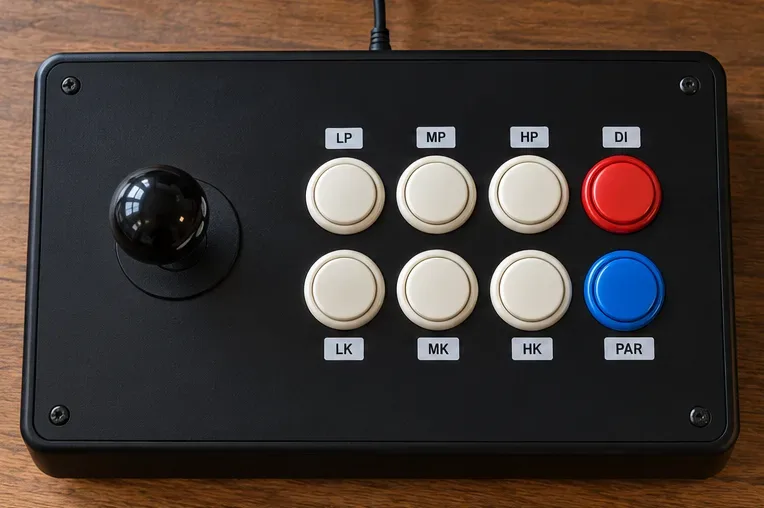
The best starting layout for an eight-button arcade stick is LP, MP, HP, Drive Impact across the top row, with LK, MK, HK, Drive Parry across the bottom. Put the dedicated Drive Impact input where your pinky can press it without a large hand shift. If the lower outside button is easier to reach, swap the two Drive shortcuts and test again.
This recommendation targets Classic controls. It is an ergonomic starting point, not a measured universal winner. Hand size, button spacing, your existing muscle memory, and the attacks your character uses all affect the result.
Why a visible Drive Impact still catches you
Three different problems can look like a slow reaction. You may recognize the cue late, enter the wrong buttons, or enter the right command while your character cannot act. A closer button addresses the second problem. It does not automatically solve the other two.
With Classic controls, Drive Impact uses Heavy Punch plus Heavy Kick, while Drive Parry uses Medium Punch plus Medium Kick. A built-in simultaneous-button assignment lets you enter the Drive Impact combination with one physical button. Capcom’s Characters & Battle System video explains these inputs and the single-button mapping option. Use the game’s binding rather than an external sequence or automated response.
Capcom describes Drive Impact as an armored strike in its Capcom’s Drive System overview on PlayStation Blog. That makes it especially important to recognize while you are attacking, rather than practicing only while standing still. Start by making the command reliable, then add decisions and character-specific situations.
1. Keep the attack grid and assign one dedicated Drive Impact button
The suggested Classic layout keeps the six attack buttons together and places Drive Impact on the upper outside button.
Physical position
Top row
Bottom row
First column, nearest the lever
Light Punch (LP)
Light Kick (LK)
Second column
Medium Punch (MP)
Medium Kick (MK)
Third column
Heavy Punch (HP)
Heavy Kick (HK)
Fourth column, outer edge
HP + HK / Drive Impact
MP + MK / Drive Parry
Open the game’s button configuration for the player and control type you use. Preserve all six individual attacks, then assign HP + HK to the upper outside button and MP + MK to the lower outside button. Read the action label rather than assuming your stick’s printed L1, L2, LB, or LT label identifies the desired command.
Capcom’s Capcom’s official Fighting Ground controls manual confirms that Classic is the six-button control type and that battle controls can be changed. Platform prompts and configuration screens can differ, so use the binding screen available in your installed version rather than following an unverified menu screenshot.
In Training, give yourself a usable Drive Gauge and press each button individually. Confirm that the six normals remain distinct and that the two shortcuts produce their intended actions. A shortcut that produces a normal or parry instead of Drive Impact needs a mapping correction before reaction practice.
This uses both spare buttons. If your character relies on a three-punch or three-kick assignment, consider keeping that assignment on the other spare button and performing parry with MP + MK manually. Prioritize the shortcut that actually removes your recurring input error.
2. Choose the outside button your hand can reach comfortably
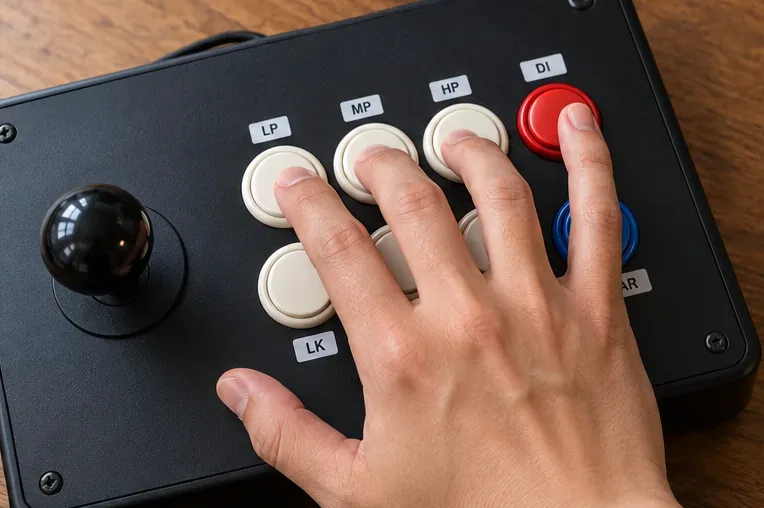
A light pinky contact on the upper outside button shows the reach to test; avoid pressing the attack buttons while checking your resting position.
Place the stick where you normally play and let your right hand settle naturally. Try a small pinky press on the upper outside button without lifting your palm or twisting your wrist. Then try the lower outside button. The better location is the one you can find consistently while returning to your normal attack position.
Hover lightly or rest without activating the switch. Holding the button down is not a readiness technique. Repeated accidental Drive Impacts indicate that your resting pressure or position needs adjustment.
If the upper position requires a stretch, swap Drive Impact and parry. Keep the attack grid unchanged during this comparison. Moving every attack at once makes it harder to identify which change helped.
There is no verified benchmark here establishing that an upper-right pinky press beats a lower-right press for every player. Treat the choice as a personal reach test. A useful result is fewer wrong inputs without new accidental presses, lost access to kicks, or uncomfortable hand movement.
3. Verify the command before testing your reactions
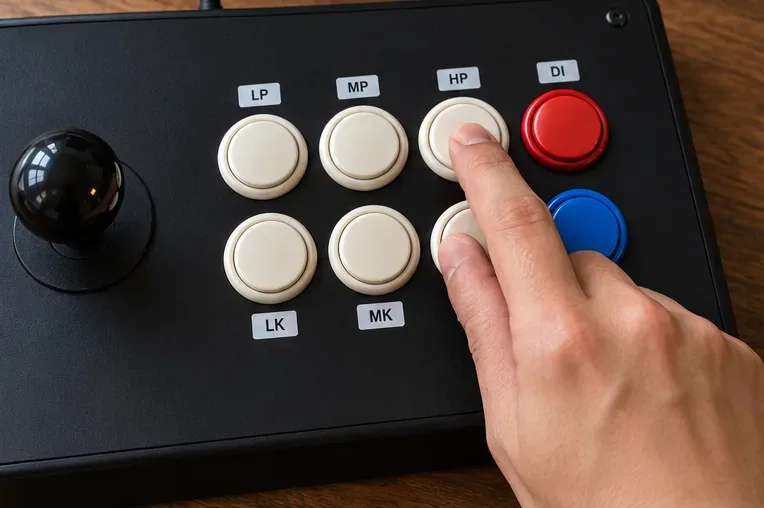
The third-column HP and HK buttons provide the manual Drive Impact input for comparison with the dedicated shortcut.
Turn on Training’s input-history display and start from neutral with Drive available. Make 20 separate Drive Impact attempts using your dedicated button. These are deliberate command checks, not reaction trials. Note any normal attacks or unintended inputs.
If you use a six-button stick, keep the standard attack arrangement and press the third-column HP and HK buttons together. The physical technique can use two fingertips or another comfortable simultaneous press. Avoid sweeping across several buttons. Check the input history to see whether both heavy inputs register together.
A dedicated shortcut removes the need to coordinate two physical switches. It does not change Drive Impact into a faster version of the move or prove that your reaction time improved. If the manual combination is already reliable, the shortcut’s value depends on whether it remains easier during active play.
When the right input still fails
Burnout: Drive techniques are unavailable during Burnout. Check the gauge before blaming the binding.
Recovery: pressing the command while committed to an attack does not guarantee that you can interrupt it.
Cancel timing: an eligible attack needs the appropriate contact and cancel opportunity. A shortcut does not make every normal cancelable.
Late input: if the correct command appears after the opponent has already connected, work on recognizing the cue and keeping your hand ready.
Use your character’s in-game tutorials, command information, and Training tools to reproduce the attack situation that failed. Test from neutral first, then from that specific normal. Avoid assuming that success with one move proves the same response works from every attack.
4. Add uncertainty, then check the layout in matches
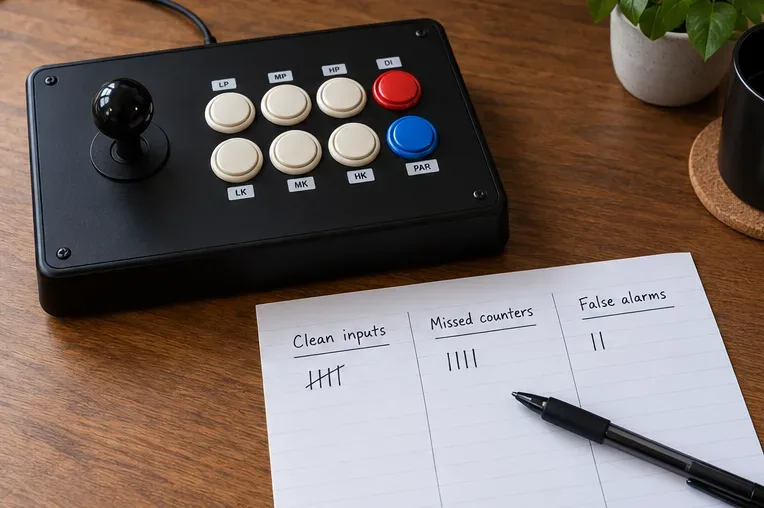
Keep separate counts for clean commands, missed counters, and false alarms when evaluating a button layout.
Capcom’s Capcom’s practice-mode documentation documents customizable Training and Simple Training Settings. Begin with the Drive Impact defense practice preset available in your version, or record the dummy performing Drive Impact with a pause beforehand. Watch the opponent’s animation and listen to its cue; avoid pressing according to a memorized playback rhythm.
Once the command is dependable, mix Drive Impact with actions that should receive a different response, such as a jump-in or a normal attack. Capcom’s Capcom’s recording-settings tips documents recording opponent actions and enabling playback slots. The linked page is in Japanese. Use the corresponding recording controls in your game to create the situations you want to practice.
Randomized playback, where available, or a practice partner choosing the actions is more informative than repeatedly watching one recording. Do not counter every movement with Drive Impact. Record false alarms as well as successful counters.
Repeat the drill while walking, crouch-blocking, and using a normal you have checked for the relevant cancel opportunity. Practice from both sides of the screen. This reveals whether reaching for the shortcut disrupts the lever hand or whether you lose access to it while pressing attacks.
A simple self-check that separates improvement from guessing
Compare your existing layout with the proposed layout under the same conditions. Keep the character, recordings, distance, and session length consistent, and give the new mapping time to become familiar. On another session, reverse which layout you test first to reduce the influence of warm-up and fatigue.
Command reliability: how many of 20 deliberate neutral attempts entered Drive Impact correctly?
Counter success: how many actual Drive Impact opportunities did you answer successfully?
False alarms: how often did you press Drive Impact against a different action?
Usability: did you miss attacks, shift your whole hand, or develop discomfort?
The counts are a suggested personal test, not published performance data or a mandatory passing score. Keep the layout that gives repeatable clean inputs and better selective responses without creating new problems.
Finally, play a short match set and review the Drive Impact exchanges. If you miss the button, revisit its position. If the correct input arrives too late, practice recognition under mixed threats. If it arrives while your character is committed or in Burnout, change the situation you create before the opponent uses Drive Impact. Your setup is working when you can find the command without looking down and use it at a valid opportunity.
Research checked October 8, 2026. This guide provides layout recommendations and practice methods, not hardware latency measurements. Official sources establish the control system and training tools; no live-client test or current patch-specific frame-data verification was performed. Confirm exact menu labels and character interactions in your installed version.