Best Vertical Sensitivity Multiplier in PUBG: Start at 1.0
Start at 1.0 for PUBG PC vertical sensitivity, then learn when 1.1–1.2 can help recoil control and how to judge the tradeoff in aiming precision.
For classic drag select in StarCraft: Remastered, the strongest starting point is the original mouse-selection behavior, familiar combat commands, and a consistent plan for number groups. Keep the defaults if they already feel automatic. If distant command keys interrupt your left hand, change only those commands first. A broader left-hand layout is an option for players willing to relearn production and abilities.
“Classic drag select” here means holding the left mouse button and dragging a selection box over units. It does not mean a separate verified hotkey preset or a keyboard command that draws the box for you. The useful setup decision is what happens around that mouse action: correcting the selection, issuing an order, and recalling the units later.
There is no verified universal layout that makes every player faster. A good setup reduces wrong selections and hesitant commands while leaving your mouse hand free to draw accurate boxes.
Blizzard’s Remastered hotkey feature preview documents command remapping, while explicitly excluding function keys and control groups. It also describes an option to disable the F1 Help menu. This is launch-era documentation, not evidence of a newly introduced preset in the current build.
Use the game’s Hotkeys interface for command changes and confirm the available actions in your installed version. Do not assume that customizing a production command also lets you relocate Ctrl + number, change selection modifiers, or turn F2 into a select-all-army key.
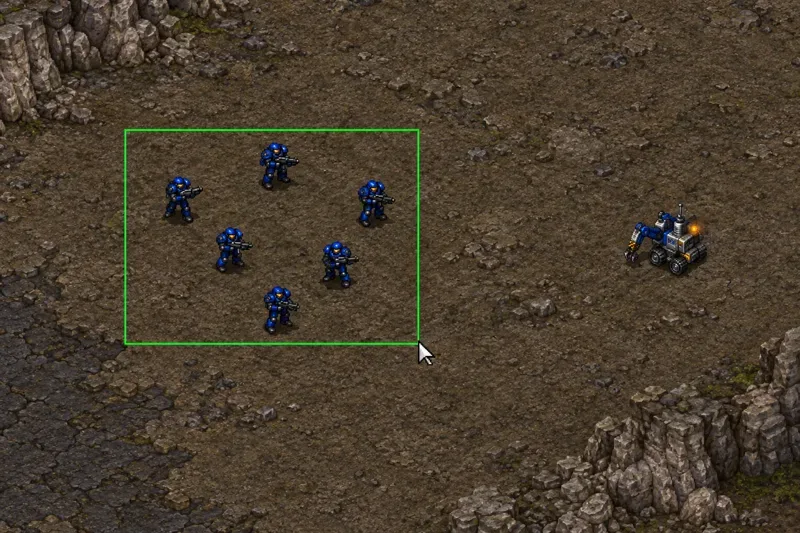
Blizzard’s original control reference documents these selection and recall inputs:
| Input | Purpose |
|---|---|
| Left-button drag | Select units within a box. |
| Ctrl + left-click, or double-click a unit | Select visible units of that type, up to 12. |
| Shift + click a selected unit | Remove an unwanted unit from the selection. |
| Ctrl + click a unit portrait in the status display | Keep that unit type from a mixed selection. |
| Ctrl + number, then number alone | Assign a control group, then recall it. |
| Double-tap a group number | Center the camera on that group. |
These operations solve different problems. A narrow box is useful for choosing a local squad. Type selection is useful when units overlap. A stored group is useful when you want to return to a squad without drawing the same box again.
The selection cap remains central to the choice: a larger rectangle is not a way to command an unlimited army. Separate squads deliberately rather than expecting a new command layout to remove the 12-unit limit.
| Choice | Best fit | Practical advantage | Main tradeoff |
|---|---|---|---|
| Original command keys | Returning Brood War players and players following default-key instruction | Preserves existing habits and familiar command letters | Some production or ability keys may require an uncomfortable reach |
| Minimal custom layout | Players with a few specific reach problems | Changes the troublesome commands while preserving most habits | Exceptions must be remembered |
| Compact, position-based command layout | New players willing to learn a new command system | Keeps many commands within a smaller keyboard area | Requires broader retraining and careful checks in each command context |
A compact layout means a custom design built around nearby keys. This article does not claim that Remastered provides a current built-in preset called “Classic Drag Select” or guarantees an identical grid layout to another RTS.
If you routinely select a worker beside your Marines, changing Attack to another letter will not fix the selection. Keep your command keys stable and work on where the rectangle begins and ends. Separating the squad spatially may be more useful than enlarging the box.
Defaults also make sense when you already execute commands without looking down. Relearning them has a real short-term cost: you can recognize the right order but press your old key under pressure. Change a working habit only to address a problem you can name.
For a conservative starting setup, retain A for Attack, S for Stop, and H for Hold Position. Blizzard’s unit-command reference documents the classic command keys and distinguishes Move from Attack-Move. Right-clicking empty terrain issues Move; it does not automatically become Attack-Move because combat units are selected.
Then consider moving a distant, frequently used production key. For example, Blizzard lists P as the original production key for a Protoss Probe. A proposed custom choice is Q for Probe production in the Nexus context, if the editor accepts it without a conflict there. This is an ergonomic suggestion, not a Blizzard-recommended binding.
The relevant question is whether you can produce a worker and return to army control without losing your keyboard position. Moving every production, construction, and spell key at once makes that question harder to answer.
A larger redesign can suit a new player who has little default-key muscle memory. One possible design uses Q, W, and E for frequently used production choices and nearby lower-row keys for abilities. The exact assignments need to be checked for the selected unit or building and its available commands.
The advantage is reduced reach. The cost is learning the context: a key may represent a production choice in one selection and an ability in another. Do not assume that a layout from StarCraft II transfers directly into Remastered. Evaluate the commands you actually use, including upgrades and advanced build menus, before committing.
Keep your number meanings stable even if your command letters change. The following is a suggested organizational plan, not a mandatory or professional-player template:
The low-number allocation favors players who micro frequently. A macro-focused player may prefer an important production building on a lower number. The useful criterion is how often you must reach the key during your usual play, rather than whether someone else uses that number.
For example, after selecting a clean Marine squad, storing it on 1 gives you a repeatable way to return to it after checking production. Keep a transport separate when accidental movement or unloading would disrupt the plan. Review group membership as units arrive or disappear; a remembered number is only useful if it still refers to what you intend.
In Blizzard’s classic controls, Shift + F2, F3, or F4 stores a camera location, and the corresponding function key returns there. These are location bookmarks, not an army selection. Suggested uses include your main base, an expansion, and a contested approach.
Camera bookmarks complement drag select because they return you to the area where you need to draw the next box. Stored unit groups serve a different purpose: returning to a particular selection. Choose between them according to whether you need a place or a squad.
Use the same race and a repeatable practice situation for each comparison. Include a nearby worker, overlapping combat units, a production task, and a return to the original squad. Give a new layout time to become familiar before drawing conclusions from its first session.
Record selection mistakes, wrong commands, unnecessary hand movement, and missed production actions. Keep pointer sensitivity and camera behavior unchanged while comparing command layouts. Otherwise, a better result may come from a different setting.
Do not judge the setup by actions per minute alone. Repeated corrective clicks can increase activity while leaving you less in control. Prefer the layout that lets you select the intended units, issue the intended order, and resume production consistently.
For most returning players, defaults or minimal customization are the sensible starting choices. For a new player prioritizing a smaller keyboard reach, a compact custom layout is worth testing. In either case, accurate mouse selection and predictable group roles remain the foundation.
Research checked October 8, 2026. Mechanics are grounded in Blizzard’s classic control documentation and Remastered feature documentation. The suggested layouts are recommendations, not measured performance results. No current-client test or recent patch-specific remapping change was verified.
Start at 1.0 for PUBG PC vertical sensitivity, then learn when 1.1–1.2 can help recoil control and how to judge the tradeoff in aiming precision.
Learn how to customize Dota 2 chat wheel phrases, choose primary or secondary wheels, check hotkeys, and avoid confusing quick chat with hero voice lines.
Separate PUBG jump and vault controls on PC to avoid accidental climbs. Find the key bindings, assign dedicated keys, clear conflicts, and test the result.
Compare default, minimal custom, and compact hotkey layouts for StarCraft: Remastered, with practical selection inputs and control-group recommendations.
Find the best Dota 2 headphone dynamic-range setup, learn when compression helps, and configure audio for clear cues without overly loud team fights.
Fix League of Legends critical errors on launch by checking overlays, repairing game files, updating drivers, and testing configuration and service conflicts.
Start with a practical mouse-speed baseline for StarCraft: Remastered, then tune sensitivity for accurate unit selection, minimap clicks, and scrolling.
Troubleshoot Dota 2 stuck on Connecting to the Game Coordinator. Check for a service issue, restart Steam, test your network, and verify game files.
Find the best phone screen scale for Clash Royale card placement. Learn why default display settings are usually safest and how to test Android or iPhone adjustments.
Set up a dedicated Drive Impact button on your SF6 arcade stick, check hand reach, fix missed inputs, and test your reactions with practical training drills.