Best Vertical Sensitivity Multiplier in PUBG: Start at 1.0
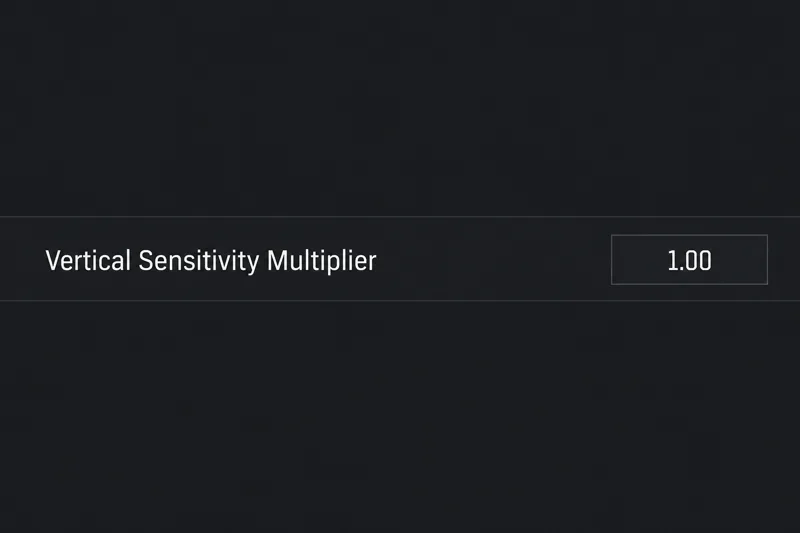
Start at 1.0 for PUBG PC vertical sensitivity, then learn when 1.1–1.2 can help recoil control and how to judge the tradeoff in aiming precision.
Start with a Vertical Sensitivity Multiplier of 1.0 in PUBG PC. If you repeatedly run out of comfortable downward mouse travel while controlling automatic fire, try 1.1 and then 1.2. Keep the lowest value that makes recoil correction manageable without causing you to pull below the target or overshoot small vertical adjustments.
Those numbers are practical starting recommendations, not an official PUBG preset or a proven universal optimum. A higher multiplier can make downward correction require less mouse movement, but it also makes upward and downward aiming more sensitive. The best setting is the one that improves your weakest movement without disrupting the shots you already hit.
This article covers mouse input in PUBG: BATTLEGROUNDS on PC. Its suggested values should not be transferred directly to PUBG Mobile touch or gyroscope controls, or to console controller settings.
A 1.0 multiplier provides a straightforward reference before you deliberately change vertical response. It lets you decide whether your problem is excessive mouse travel, shaky corrections, an unsuitable scope sensitivity, or simply an unfamiliar weapon. Starting there also makes comparisons easier: you can describe the difference between your baseline and a modest increase rather than changing several settings at once.
There is historical support for using 1.0 as a reference. PUBG's official PC 1.0 Update #12 announcement, revised May 3, 2018, described a setting configuration for a 1:1 vertical-to-horizontal sensitivity relationship. That announcement also recorded a 0.7 default at the time. It is historical documentation, not evidence of the factory default in your current installation.
Do not confuse the recommended 1.0 baseline with a guarantee that every scoped view, field of view, and aiming mode will feel identical. The discussion here concerns the vertical multiplier while you hold the rest of your setup steady.
The multiplier scales the vertical aiming response to mouse movement. Increasing it makes a given upward or downward mouse movement produce more vertical aim movement than it did at the lower value. Reducing it does the opposite. It is useful when your horizontal aiming already feels comfortable but the vertical component needs adjustment.
It does not make the weapon itself generate less recoil. You still need to compensate for recoil with your own input. It also does not solve horizontal recoil, automatically stabilize a spray, or guarantee a tighter bullet group. Better results depend on whether the changed response helps you apply the right correction.
For a simple mathematical comparison, increasing the multiplier from 1.0 to 1.2 represents 20% more vertical response, with other relevant settings unchanged. Under the same linear scaling assumption, a correction that previously required 6 centimeters of mouse travel would require about 5 centimeters. That is an illustrative calculation, not a measurement from a PUBG weapon test, and it does not mean recoil falls by 20%.
| Starting value to consider | When it makes sense | Main tradeoff |
|---|---|---|
| 1.0 | You want a baseline, play several weapon types, or already control sprays comfortably. | You may still need more downward mouse travel than you prefer. |
| 1.1–1.2 | Your horizontal sensitivity feels right, but sustained fire demands an uncomfortable downward pull. | Small vertical adjustments become more sensitive too. |
| Above 1.2 | A modest increase still leaves a clear travel limitation, and your precision remains stable. | The larger change can make overcorrection and relearning more noticeable. |
| Below 1.0, such as 0.9 | You repeatedly overshoot vertically and want to explore a calmer response. | Recoil correction requires more downward movement. |
These are decision aids rather than categories with guaranteed outcomes. There is no need to raise a setting that already works. A player with a large mouse pad and comfortable arm movement may prefer 1.0, while someone whose downward movement is constrained may benefit from a modest increase. Neither preference proves one player has better aim.
Consider 1.1 first if the sight climbs while you are already pulling down and approaching the edge of your usable mouse area. A small increase is easier to evaluate than a jump to a much higher value. If the sight then drops below your intended aiming point, the new response may exceed the correction you need, or your established pull needs time to adapt.
Stay near 1.0 if your priority is moving accurately between a torso and a head, adjusting to elevation changes, or reacquiring a target after a single shot. A higher multiplier affects these movements as well as spray correction. If shots repeatedly pass above or below the intended point, more sensitivity may worsen the problem.
A moderate increase can reduce the downward travel required for correction, but it cannot fix every space problem. If you also struggle to turn or follow a target horizontally, review your overall sensitivity and available desk space. The vertical multiplier addresses one axis; it cannot make an unsuitable overall setup comfortable.
Mouse DPI alone does not identify the best multiplier. Two players using 800 DPI can have different in-game sensitivities, scope settings, grip styles, and usable mouse-pad areas. The same multiplier can therefore produce a different practical experience for each player.
Keep your DPI and existing sensitivity values unchanged while comparing multipliers. Otherwise, a spray that feels easier could be the result of a higher overall sensitivity rather than the vertical adjustment. If only one scope feels uncomfortable, investigate that scope's sensitivity before changing a multiplier that also influences your other aiming situations.
PUBG's official mouse-sensitivity support article documents the in-game route through Esc, Settings, Control, and Mouse. That page was updated in March 2018, so use it as a navigation reference rather than a promise that the latest menu looks exactly the same. Find the setting by its label in your installed client.
Use a repeatable comparison in Training Mode instead of judging from one successful fight. PUBG's Update 16.2 documentation describes Training Mode shooting targets and the Aim/Sound Lab. A controlled practice environment lets you compare your input without the changing pressure of a live match.
Choose a weapon and sight you actually use, and keep the attachments, stance, target distance, and burst length consistent. Compare 1.0 with one candidate, such as 1.1. Look for a repeated tendency rather than one unusually clean spray. Alternating between the values helps distinguish a setting change from simply warming up.
For example, suppose 1.1 makes a familiar automatic spray easier, but 1.2 causes your single-shot corrections to overshoot. That is a reason to keep 1.1, even if 1.2 produces less physical travel. If both changes only add shakiness, return to 1.0 and investigate technique or scope sensitivity instead.
A weapon balance update can change how a familiar gun handles. PUBG's August 7, 2026 developer letter on Meta Rotation describes changes to LMG recoil patterns, including vertical and horizontal behavior. That is a concrete reason to avoid treating a difficulty with one recently changed weapon as proof that your entire sensitivity setup is wrong.
Research for this article was checked on October 8, 2026. The official pages cited here establish the setting's history, mouse-setting navigation, practice facilities, and recent weapon changes. They do not establish a current developer-approved optimum, and this article does not claim live-client performance testing.
Keep 1.0 if it supports both recoil correction and precise aiming. Try 1.1–1.2 when downward travel is the identifiable problem, and retain the increase only if repeated comparisons show an improvement across the movements you need. A comfortable, consistent setting is more useful than a high multiplier chosen solely to imitate someone else's spray.
Start at 1.0 for PUBG PC vertical sensitivity, then learn when 1.1–1.2 can help recoil control and how to judge the tradeoff in aiming precision.
Learn how to customize Dota 2 chat wheel phrases, choose primary or secondary wheels, check hotkeys, and avoid confusing quick chat with hero voice lines.
Separate PUBG jump and vault controls on PC to avoid accidental climbs. Find the key bindings, assign dedicated keys, clear conflicts, and test the result.
Compare default, minimal custom, and compact hotkey layouts for StarCraft: Remastered, with practical selection inputs and control-group recommendations.
Find the best Dota 2 headphone dynamic-range setup, learn when compression helps, and configure audio for clear cues without overly loud team fights.
Fix League of Legends critical errors on launch by checking overlays, repairing game files, updating drivers, and testing configuration and service conflicts.
Start with a practical mouse-speed baseline for StarCraft: Remastered, then tune sensitivity for accurate unit selection, minimap clicks, and scrolling.
Troubleshoot Dota 2 stuck on Connecting to the Game Coordinator. Check for a service issue, restart Steam, test your network, and verify game files.
Find the best phone screen scale for Clash Royale card placement. Learn why default display settings are usually safest and how to test Android or iPhone adjustments.
Set up a dedicated Drive Impact button on your SF6 arcade stick, check hand reach, fix missed inputs, and test your reactions with practical training drills.