Best Vertical Sensitivity Multiplier in PUBG: Start at 1.0
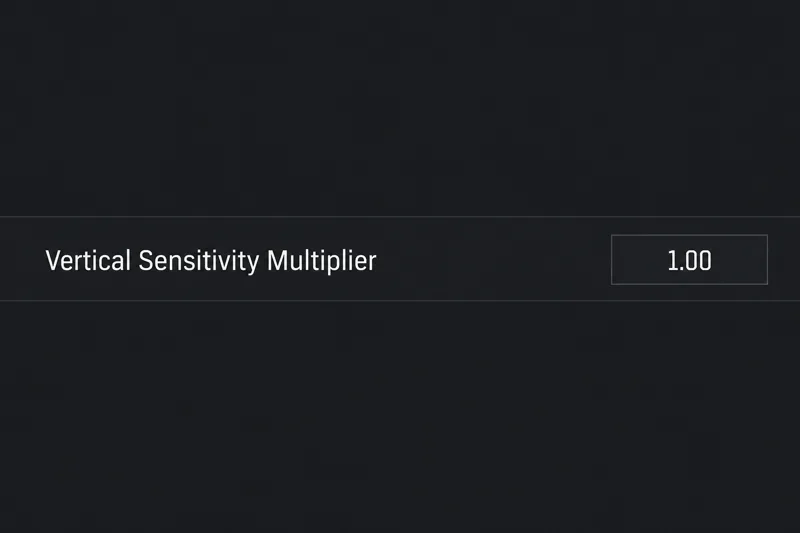
Start at 1.0 for PUBG PC vertical sensitivity, then learn when 1.1–1.2 can help recoil control and how to judge the tradeoff in aiming precision.
To change the regular Dota 2 chat wheel, open Settings, go to Hotkeys, and use the Chat Wheel customization control near the lower part of that page. Choose the primary or secondary wheel, then replace the phrases assigned to its slots. A chat wheel is the radial menu of preset messages that appears when you hold its hotkey; it lets you send a quick response without typing during a match.
Before changing anything, note which key opens each wheel and which phrases you use often. Dota 2 separates phrase selection from the hotkey that opens the wheel, and it also has hero voice lines that are different from ordinary text responses. Those distinctions make the setup easier to understand and help avoid changing a key when you meant to change a message.
The standard chat wheel contains preset communication phrases arranged around a circle. You can choose which available phrases appear in the regular wheel slots. Some clients provide both a primary and a secondary wheel, giving you another set of choices. The exact button labels or location can vary with localization and client updates, so look for the Chat Wheel controls within Hotkeys if the wording differs.
Hero Chat Wheel lines are a separate feature: these are spoken character phrases rather than the regular text-style chat messages. Valve describes Hero Chat Wheel phrases as unlocks tied to playing a hero and progressing that hero’s badge tier; availability depends on the hero and the phrases you have unlocked. Dota Plus can also provide additional chat wheel sound rewards. See Valve’s current Dota Plus feature overview for the distinction and unlock details. If your goal is to replace “Careful!” or another quick message, you want the regular Chat Wheel settings, not the hero voice-line controls.
A good first layout favors short calls that are easy to use under pressure. You might put a caution message on a direction that is comfortable to select quickly, a retreat call on another, and a request for help where you can remember it. If the wheel contains objective or lane messages that match your play, keep those nearby as well. The best arrangement is the one you can select consistently without looking away from the map for long.
For example, imagine you are learning to play support and often see an enemy leave the lane. A warning phrase and a retreat phrase may be more useful to you than a celebratory line. Put those calls in positions you can remember, then test them in a practice environment. Later, when your role or habits change, adjust the wheel again. There is no universally correct phrase order, and changing your layout does not make the message reach teammates more quickly than the game’s normal communication system allows.
If pressing a key opens the wrong wheel or nothing happens, check the binding. If the wheel opens but sends an unwanted message, edit the phrase assigned to that slot. These are two separate settings. Change only the one that matches the problem, then test again.
The chat wheel sends preset phrases; the ping wheel marks locations or gives map-related signals. They may appear near each other in the Settings interface, but editing one will not change the other. Open the wheel preview and check whether it shows phrases or map signals before editing.
Hero-specific spoken lines and sound effects can have separate unlock and selection rules. Valve says hero voice phrases are unlocked through hero progression, while Dota Plus also offers sound rewards. If the line you want is missing from the regular response selector, check the hero-specific wheel or your available rewards rather than repeatedly searching the standard list.
Chat message behavior can depend on the phrase and the game’s chat context. Review the phrase name and any audience indicator shown by your client. Use team-oriented messages for coordination and avoid relying on an all-chat message when you intend to communicate only with allies.
Editing hotkeys mid-game can interrupt play and make it difficult to tell which change caused the problem. Set up the wheel before queueing, test it in a practice environment, and keep the layout simple until the selections feel familiar.
These instructions describe the standard settings workflow and were checked against Valve’s published Dota 2 and Dota Plus information on October 8, 2026. Valve’s public pages explain hero voice-line unlocks but do not document every current Settings screen label, so the exact wording may differ in your client. Once you can open the right wheel and send the intended phrase in a practice setting, your chat wheel is ready for a match.
Start at 1.0 for PUBG PC vertical sensitivity, then learn when 1.1–1.2 can help recoil control and how to judge the tradeoff in aiming precision.
Learn how to customize Dota 2 chat wheel phrases, choose primary or secondary wheels, check hotkeys, and avoid confusing quick chat with hero voice lines.
Separate PUBG jump and vault controls on PC to avoid accidental climbs. Find the key bindings, assign dedicated keys, clear conflicts, and test the result.
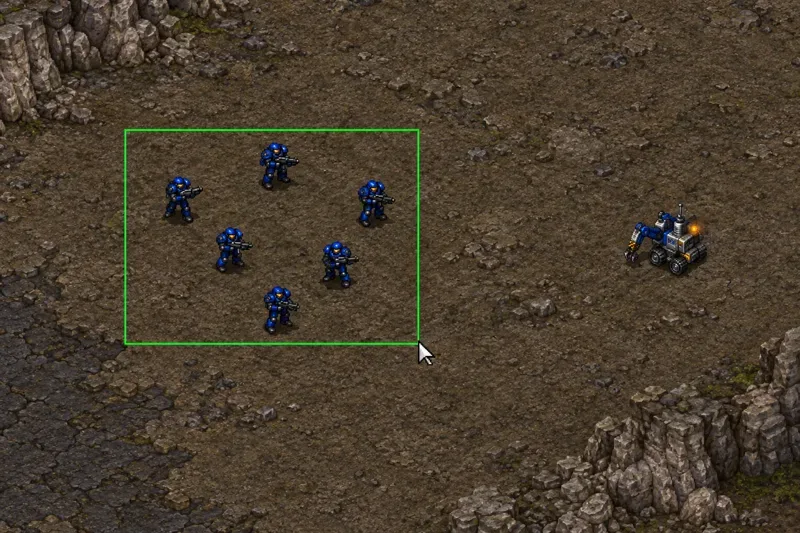
Compare default, minimal custom, and compact hotkey layouts for StarCraft: Remastered, with practical selection inputs and control-group recommendations.
Find the best Dota 2 headphone dynamic-range setup, learn when compression helps, and configure audio for clear cues without overly loud team fights.
Fix League of Legends critical errors on launch by checking overlays, repairing game files, updating drivers, and testing configuration and service conflicts.
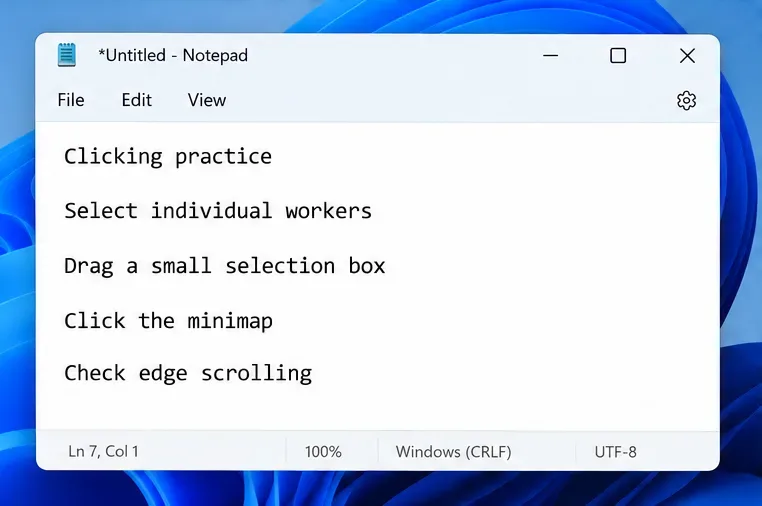
Start with a practical mouse-speed baseline for StarCraft: Remastered, then tune sensitivity for accurate unit selection, minimap clicks, and scrolling.
Troubleshoot Dota 2 stuck on Connecting to the Game Coordinator. Check for a service issue, restart Steam, test your network, and verify game files.
Find the best phone screen scale for Clash Royale card placement. Learn why default display settings are usually safest and how to test Android or iPhone adjustments.
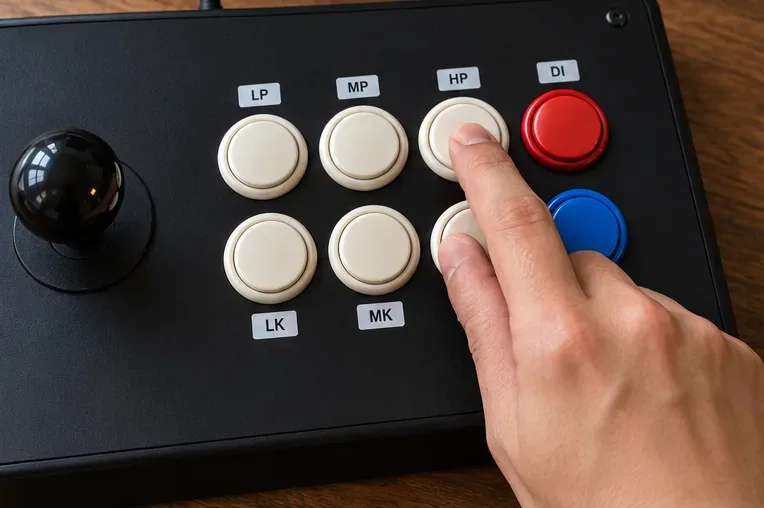
Set up a dedicated Drive Impact button on your SF6 arcade stick, check hand reach, fix missed inputs, and test your reactions with practical training drills.