How to Stop Apex Legends Lag & Improve Latency (2026)
To stop Apex Legends lag, first check whether the problem is your connection or your frame rate. Turn on the in-game Performance Display, then use the readings to choose the right fix: select a nearby data center for high ping, stabilize your home network for packet loss, or tune PC graphics when FPS drops. These steps also help on console, though the graphics and frame-rate controls below are PC-specific.
1. Check whether it is network lag or low FPS
In Apex Legends, open Settings > Gameplay and switch Performance Display on. In a live match, watch FPS, latency (ping), and packet loss together. Ping is the round-trip time for game data to reach a data center and return; packet loss means some of those packets do not complete the trip. FPS measures how smoothly your device is drawing the game. They can feel similar in a firefight, but the fixes are different.
Interpret the readings before changing settings
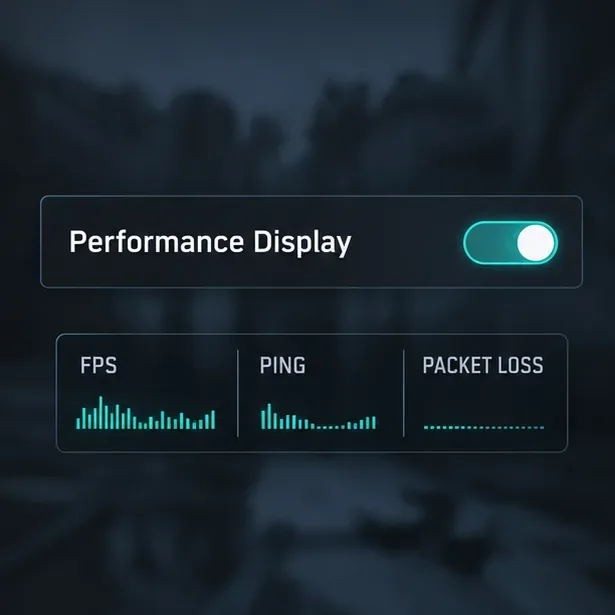
EA says ping below 50 ms is particularly good and below 100 ms should generally keep the game running well; above 100 ms can bring noticeable lag. Treat those as guideposts, not guarantees. A low ping with repeated packet loss can still cause rubber-banding, while a steady connection with falling FPS points toward device performance. EA’s Apex Legends ping and packet-loss guide explains these in-game readings.
| What you notice | Likely issue | Start here |
|---|---|---|
| High or spiking ping | Long route to the server or network congestion | Compare data centers; pause downloads |
| Packet loss or rubber-banding | Unstable Wi-Fi, router, ISP, or server path | Try Ethernet and check server status |
| FPS drops or visual stutter | Graphics, heat, drivers, or background load | Lower PC video settings and check temperatures |
2. Choose a nearby Apex Legends data center
Close the gap between your device and the game server before changing advanced network settings. At the Apex launch screen, do not select Continue; open Data Center in the bottom-left corner. Compare the listed ping and packet loss, then select a data center near your current location with a low ping and no persistent loss. The absolute lowest number is not useful if that location also shows packet loss or behaves inconsistently, so compare a couple of nearby options in a match.
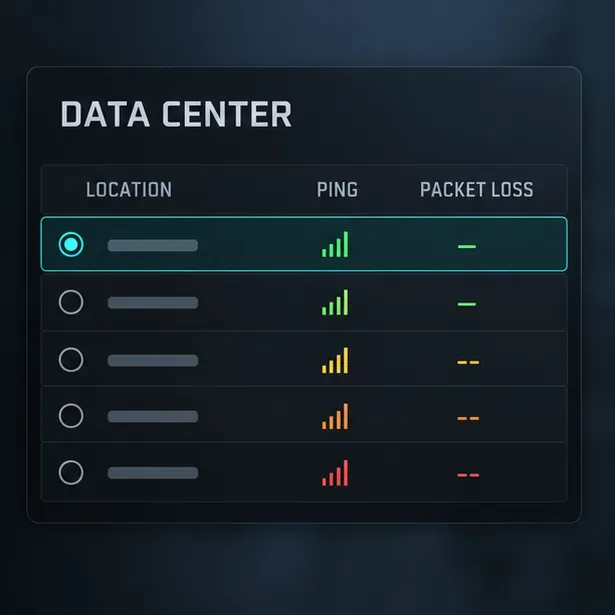
If every data center suddenly looks poor, check EA’s server-status page and your platform’s service status before troubleshooting your router. A busy or disrupted server can affect multiple locations at once; changing graphics settings will not fix that.
3. Reduce packet loss and home-network congestion
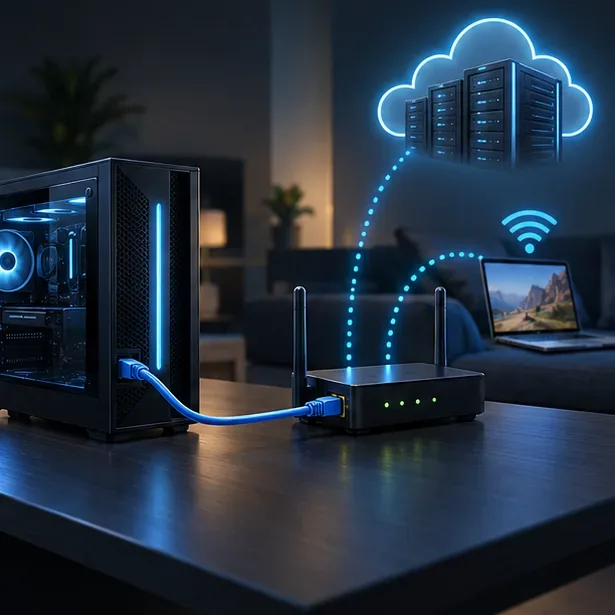
For the most reliable Apex Legends latency, connect a PC or console to the router with Ethernet. A wired link avoids much of the interference that can make Wi-Fi inconsistent. If a cable is impractical, move closer to the router and try its 5 GHz Wi-Fi band when the signal is strong; 5 GHz is generally faster but has shorter range than 2.4 GHz.
- Pause game downloads, cloud sync, operating-system updates, and high-resolution streaming while you play.
- Close background apps that are actively downloading or uploading; they can compete for bandwidth.
- If the issue started suddenly, restart the game, your PC or console, and the router, then check again.
- If loss continues across multiple nearby data centers, record when it happens and contact your ISP or EA support; the fault may be outside your home.
EA’s connection-quality troubleshooting guide recommends wired play for inconsistent connections, moving closer to the router when wired play is not possible, and closing downloads or streams.
4. Smooth FPS and frame pacing on PC
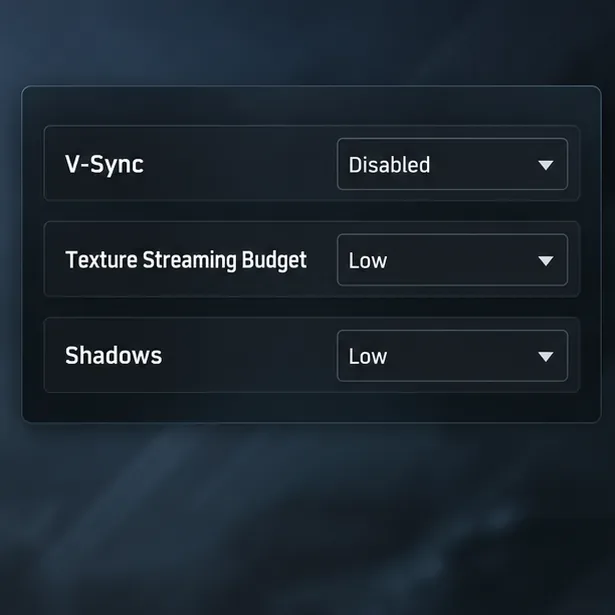
Use this section when the Performance Display shows FPS drops or stutter while ping and packet loss remain steady. Open Settings > Video and lower one or two demanding options at a time, then compare the same type of gameplay. EA’s current PC guidance lists these as useful starting points:
| Setting | Try | When to adjust |
|---|---|---|
| V-Sync | Disabled | Enable it only if screen tearing is a problem |
| Texture Streaming Budget | Low or medium | Lower it if FPS is unstable or video memory is limited |
| Shadows, Model Detail, Effects Detail | Low | Reduce these when fights cause frame drops |
| Anti-aliasing | None | Test whether the FPS gain is worth the softer edges |
Update your graphics driver from the official NVIDIA, AMD, or Intel support site, and make sure a gaming laptop is using its dedicated GPU. EA’s PC graphics troubleshooting guide covers driver and graphics troubleshooting steps. Capping FPS is optional: EA documents the +fps_max <value> launch option for Steam and the EA app, but warns that changing the cap can cause performance issues on some PCs. If you test a cap, compare before and after and remove it if frame pacing gets worse. See EA’s current Apex PC video-settings recommendations and FPS display and cap instructions for platform-specific details.
Quick troubleshooting checklist
- Check FPS, ping, and packet loss in a live match.
- Choose a nearby data center with low ping and no ongoing packet loss.
- Use Ethernet if possible, or improve Wi-Fi signal and pause bandwidth-heavy activity.
- Only if FPS is dropping, reduce PC graphics settings and test any FPS cap cautiously.
These checks separate Apex Legends high ping from FPS stutter so you can fix the cause instead of changing unrelated settings. If several servers are affected at once, check for an outage; if only your home connection shows loss, keep testing the local network and ISP path.









