Lag in Fortnite — whether it shows up as high ping, dropped frames, or frustrating stutters — can ruin a match the moment you need a smooth shot most. The good news is that most lag has a fixable cause, and you can eliminate most of it in under ten minutes by working through the five steps below. This guide covers PC settings as well as network tweaks that help on console too.
What causes lag in Fortnite?
Fortnite lag falls into two categories: FPS lag (frame-rate drops caused by your PC struggling to render the game) and network lag (high ping or packet loss caused by a slow or congested internet connection). The steps below tackle both. You'll need a few minutes and access to your Windows settings; no third-party software is required.
How to reduce lag in Fortnite — step by step
-
Step 1: Lower your in-game graphics settings
Open Fortnite and navigate to Settings > Video. The biggest performance gains come from reducing settings that push your GPU hardest. Set View Distance to Medium, turn Shadows to Off, and switch Anti-Aliasing to Off or Low. Also lower 3D Resolution from 100% to 75–85% — this single setting often delivers the biggest FPS boost because Fortnite renders a smaller image and scales it up. Keep Window Mode on Fullscreen and remove any unnecessary Frame Rate Limit so your hardware can run freely.
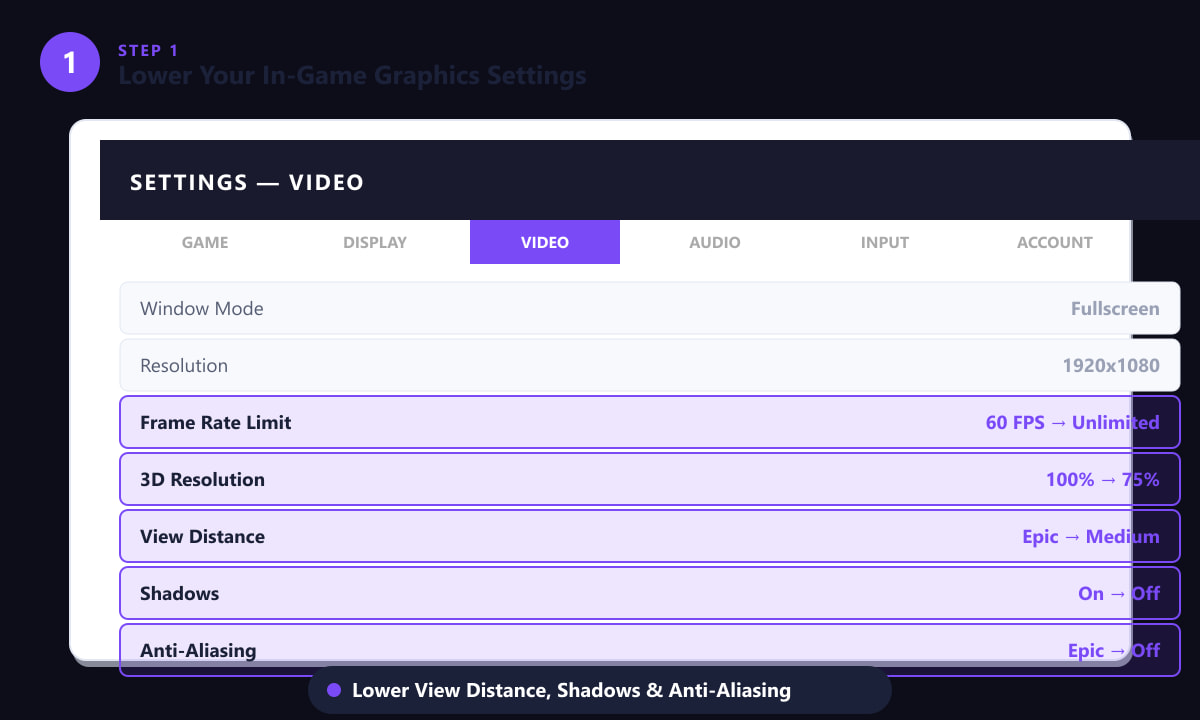
Turning off Shadows and Anti-Aliasing, and lowering 3D Resolution, gives the biggest FPS improvement. -
Step 2: Enable Performance Mode (DirectX 11)
Still in Settings > Video, find the Rendering Mode option and switch it from DirectX 12 (or DX11) to Performance. Performance Mode is a lower-overhead rendering pipeline that disables advanced visual effects in exchange for significantly higher and more stable frame rates, especially on mid-range and older hardware. After changing this setting, Fortnite will prompt you to apply and restart — do so. You should notice an immediate drop in stutters once the game relaunches in Performance Mode.
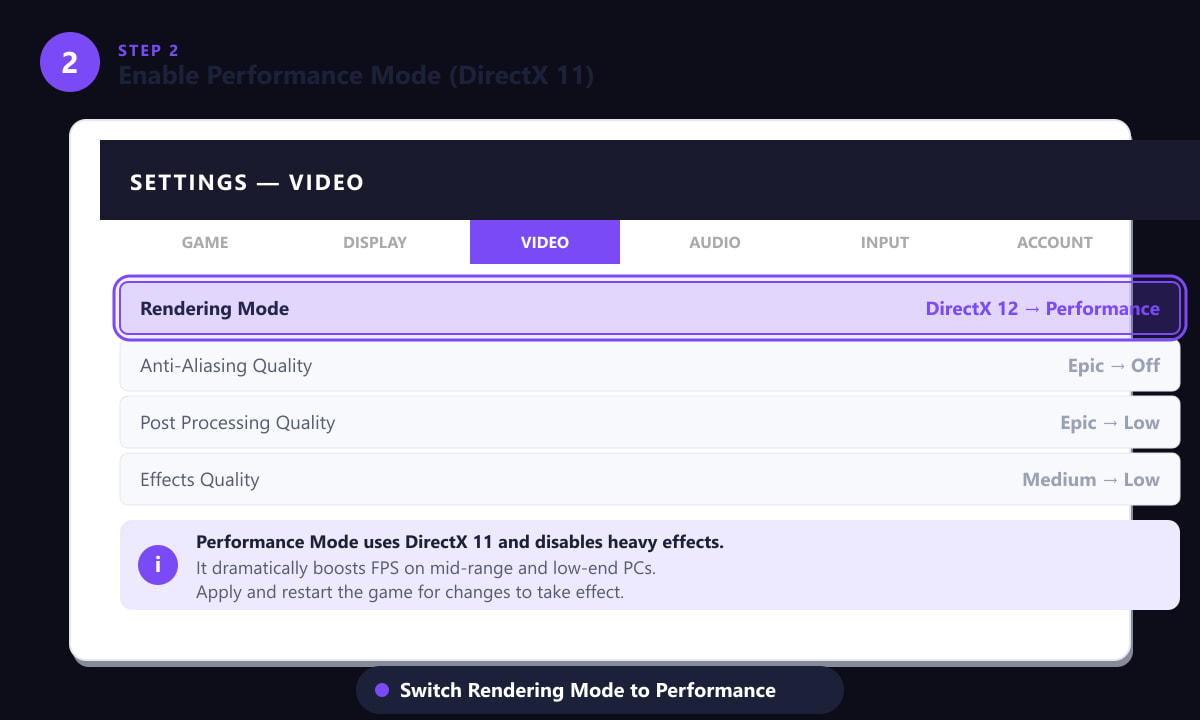
Switching Rendering Mode to Performance is one of the single most effective lag-reduction changes in Fortnite. -
Step 3: Close background apps and set Fortnite to High CPU priority
Press Ctrl + Shift + Esc to open Task Manager. On the Processes tab, end any applications you don't need while gaming — Chrome tabs, Spotify, Discord video, and cloud-sync services (OneDrive, Google Drive) are common culprits that eat CPU and RAM. Then switch to the Details tab, right-click FortniteClient-Win64-Shipping.exe, choose Set priority > High. This tells Windows to give Fortnite's process scheduling priority over background tasks, reducing frame-time spikes caused by other software interrupting the game loop.
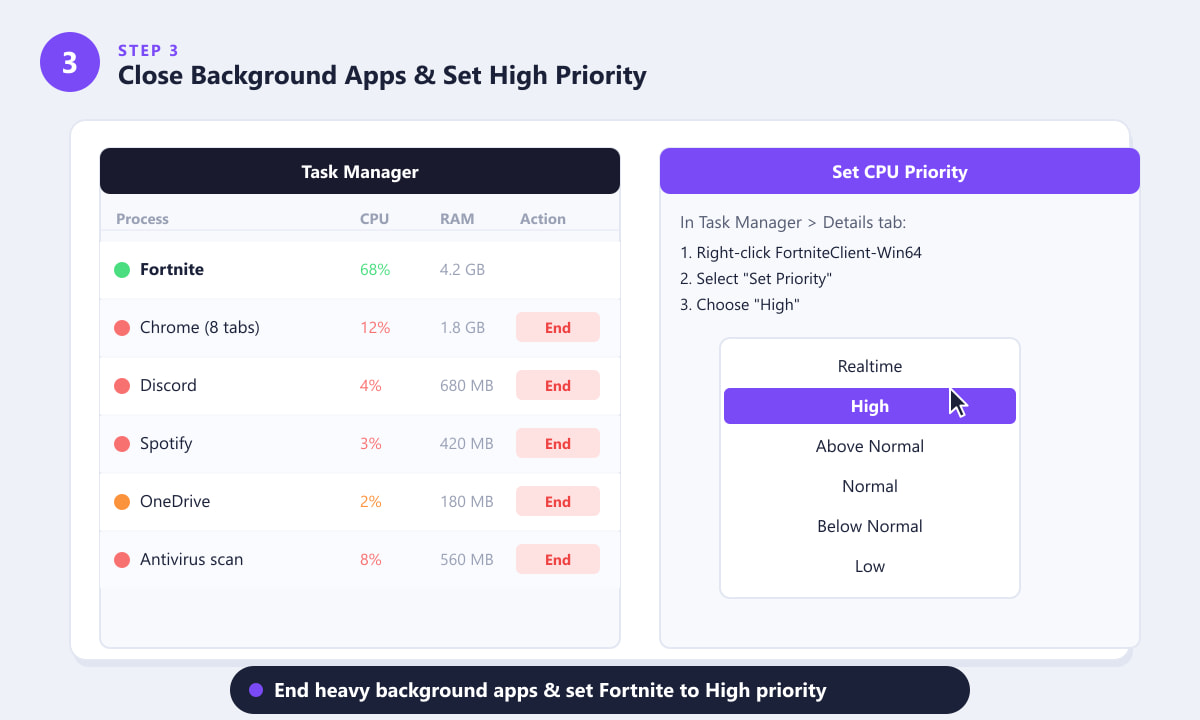
End Chrome, Spotify, and cloud-sync apps, then set Fortnite to High priority in Task Manager. -
Step 4: Optimize your network connection
For the lowest possible ping, use a wired Ethernet cable instead of Wi-Fi. Wi-Fi introduces variable latency that no software fix can fully eliminate. If you must use Wi-Fi, position yourself closer to the router and avoid the 2.4 GHz band in favour of 5 GHz. Additionally, switching to a faster DNS server can reduce the time it takes for your connection to resolve network addresses. Open Control Panel > Network Connections, right-click your adapter, choose Properties > Internet Protocol Version 4, and enter Cloudflare's DNS: Preferred 1.1.1.1, Alternate 1.0.0.1. Click OK, then restart your browser and game for the change to take effect.
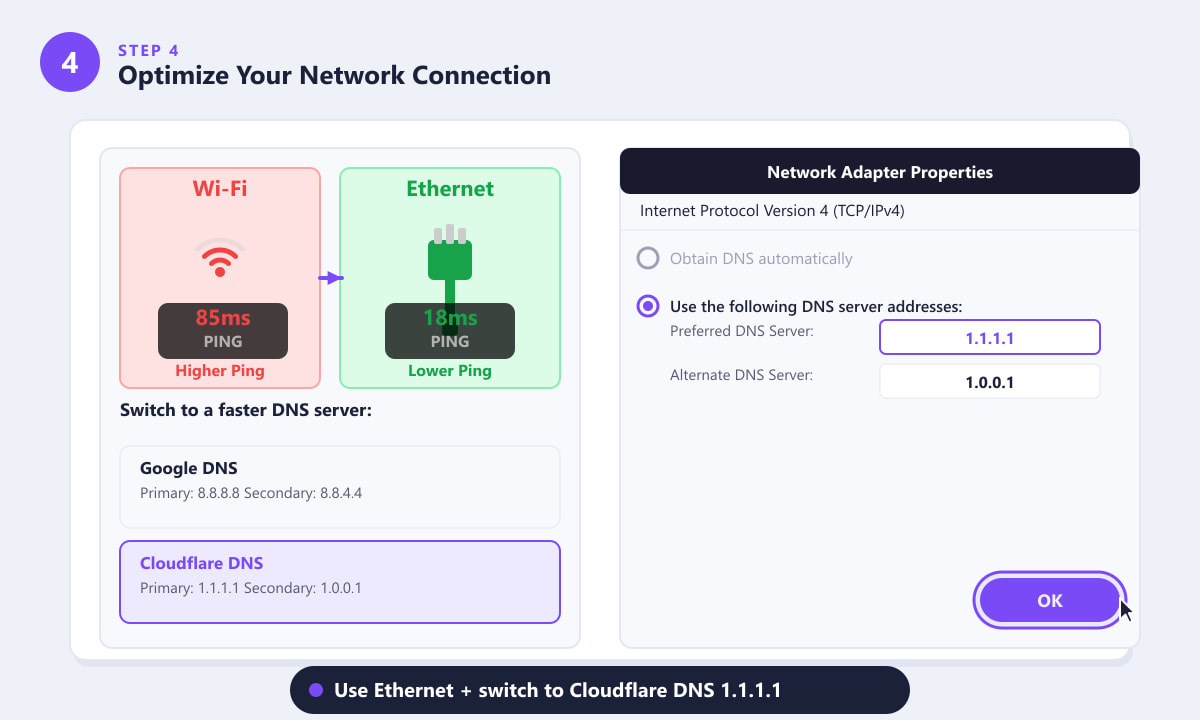
Ethernet and Cloudflare DNS together can cut your ping by 30–60ms compared to Wi-Fi with default ISP DNS. -
Step 5: Choose the server region closest to you
In Fortnite, go to Settings > Game > Matchmaking Region and change the region from Auto to the one geographically nearest to you. Auto can sometimes place you on a sub-optimal server, especially during peak hours. Selecting your closest region manually — for example NA-East if you're on the US East Coast, or EU-West if you're in Europe — ensures you're always matched on the lowest-latency server available. If you're uncertain which region is closest, try a couple of them in a bot match and compare the ping shown in the top-left HUD.
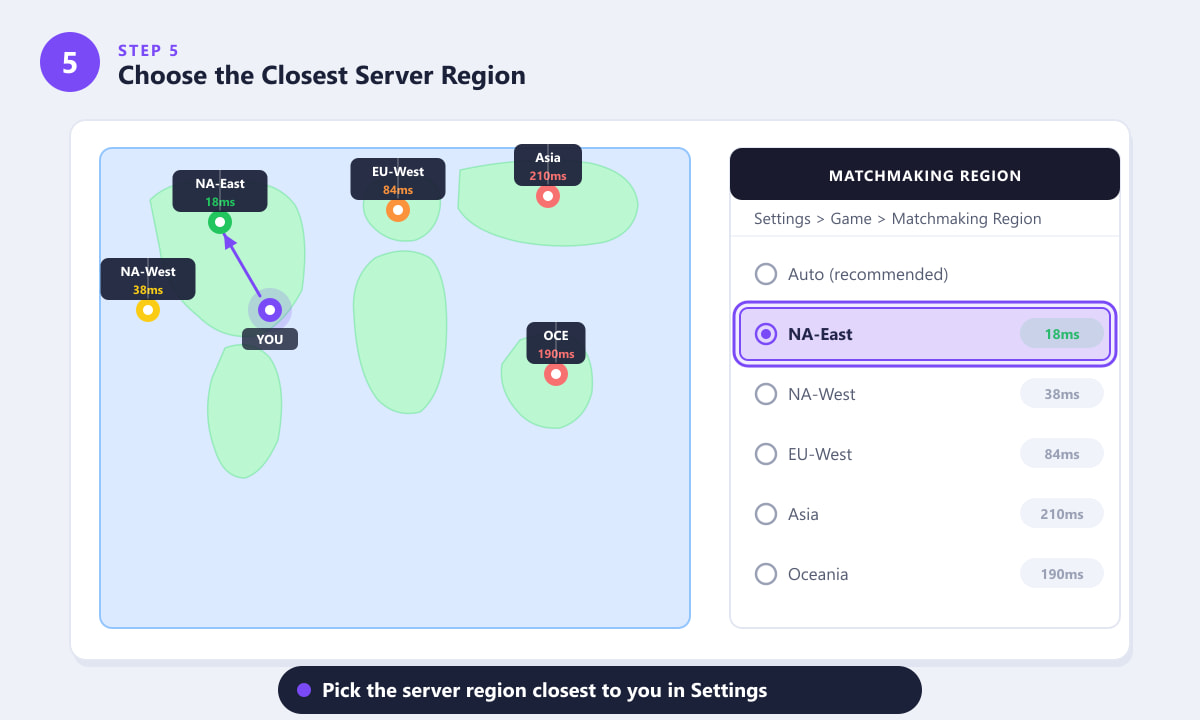
Manually selecting your nearest region prevents Fortnite from routing you to a farther, higher-ping server.
Extra tips
- Update your GPU drivers. Outdated drivers are a common source of stutters. Check NVIDIA GeForce Experience or AMD Adrenalin for the latest game-ready driver.
- Lower 3D Resolution further in late-game fights. With many players on screen, dropping to 67% gives a meaningful FPS boost where it matters most.
- Check for bandwidth hogs. Another device streaming 4K or running a large download will spike your ping. Use your router's QoS settings to prioritise gaming traffic.
- Use a wired connection on console too. PlayStation and Xbox both support Ethernet and show a clear improvement over Wi-Fi in competitive play.
Troubleshooting
My FPS is still low after lowering settings
Make sure Performance Mode is enabled (Step 2) and that your GPU drivers are up to date. If you're on a laptop, check that Windows Power Plan is set to High Performance, and that your laptop is plugged in — battery-saving mode throttles the CPU and GPU significantly.
My ping is fine but the game still feels laggy
This is usually a packet loss issue rather than raw ping. Run a quick test on a site like Fast.com while gaming. Intermittent Wi-Fi interference causes packets to be resent, which feels like lag even when average ping is acceptable. Switching to Ethernet usually resolves this immediately.
Fortnite crashes after enabling Performance Mode
Performance Mode downloads a lower-quality texture pack on first launch. If the game crashes during this, verify game files via the Epic Games Launcher: library > three-dot menu next to Fortnite > Manage > Verify.
Frequently asked questions
Why is my Fortnite so laggy all of a sudden?
A sudden increase in lag usually points to a network issue — try restarting your router, checking whether a system update is running in the background, or verifying that no other device is consuming bandwidth. If the issue is FPS-related, a recent Windows or driver update may have changed your settings.
Does Fortnite have a built-in FPS counter?
Yes. Go to Settings > Video and enable Show FPS at the bottom of the page. Fortnite will display your current frame rate in the top-left corner of the screen during gameplay.
What ping is considered good in Fortnite?
Anything below 60ms is generally comfortable for casual play. Competitive players typically aim for under 30ms. Above 100ms you'll notice clear input lag, especially during build battles where timing matters most.
Does Performance Mode reduce visual quality?
Yes, noticeably. Shadows, reflections, and some textures will look simpler. However, the smoother frame rate more than compensates for the visual trade-off in most competitive situations, and many pro players use it for exactly this reason.
Can I reduce lag on Fortnite mobile?
On mobile, go to Settings > Video and set Graphics Quality to Low or Medium. Close all other apps, connect to a 5 GHz Wi-Fi network, and make sure your device isn't in Low Power mode, which throttles performance.
Wrapping up
Reducing lag in Fortnite comes down to two things: giving your hardware room to breathe (lower graphics, Performance Mode, close background apps) and giving your connection the best possible path to the server (Ethernet, fast DNS, correct region). Work through the five steps above and you should see both your FPS and your ping improve noticeably. For the latest Fortnite patch notes and official performance updates, check the official Fortnite website.









