You can play Overwatch 2 on Nintendo Switch completely free, and getting started takes only a few minutes. Blizzard's hero shooter is available to download from the Nintendo eShop, supports full cross-play with PC, PlayStation, and Xbox, and even lets you carry your progress across platforms once you link a Battle.net account. This guide walks you through every step, from installing the game to fine-tuning your aim for the Switch's controls.
What you need before you start
Setting up Overwatch 2 on Switch is straightforward, but a couple of things make the experience much smoother. Here is the short checklist:
- A Nintendo Switch (original, OLED, or Lite) with several gigabytes of free storage.
- A free Nintendo Account signed in on the console (needed to use the eShop).
- A free Battle.net account from Blizzard, which you link in-game for cross-progression.
- A stable internet connection. Overwatch 2 is online-only, so a wired connection helps.
Because Overwatch 2 is a free-to-play title, you do not need a paid Nintendo Switch Online membership to play it online. Now let's get it installed.
How to play Overwatch 2 on Nintendo Switch
-
Step 1: Download Overwatch 2 free from the eShop
From the Switch home screen, open the Nintendo eShop and search for Overwatch 2. Select the game from the results, confirm the price reads Free, and choose Download. The game will install in the background, and you'll see it appear on your home menu when it's done.
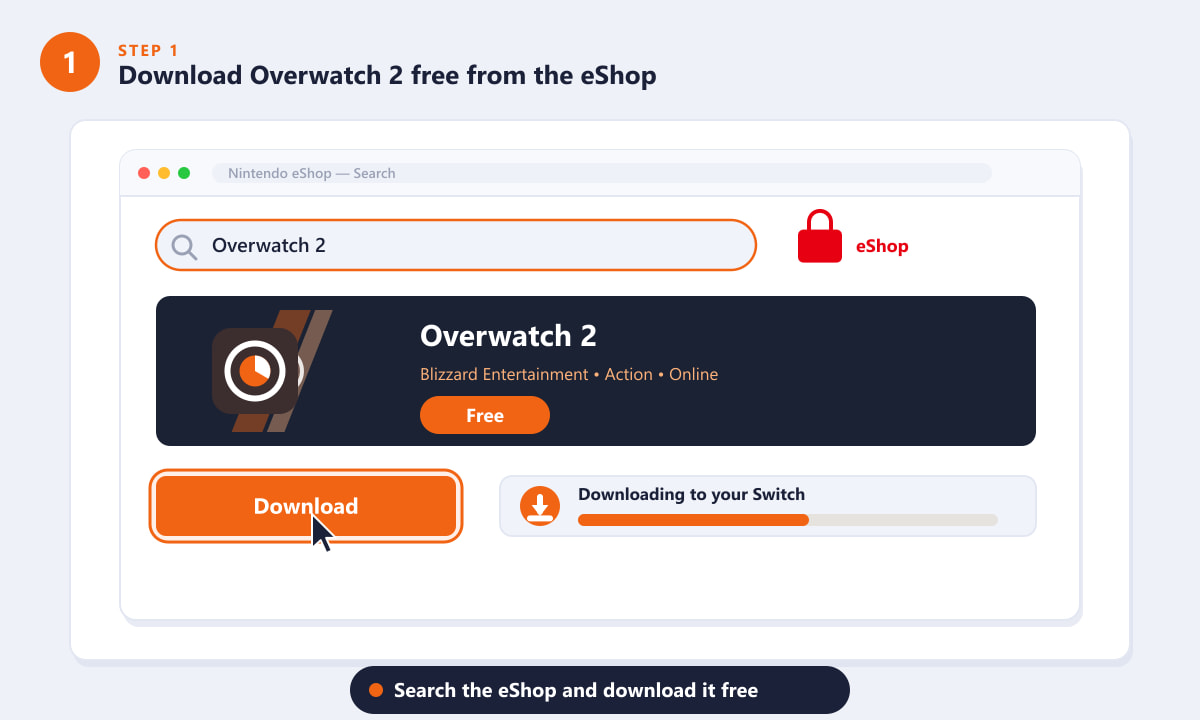
Search the eShop for Overwatch 2 and download it at no cost. -
Step 2: Launch the game and link your Battle.net account
When you start Overwatch 2 for the first time, it will prompt you to link a Battle.net account. On a phone or computer, open a browser, go to the Battle.net link page shown on screen, sign in (or create a free account), and enter the code displayed in the game. Linking enables cross-progression, so your heroes, cosmetics, and rank are shared across every platform you play on.
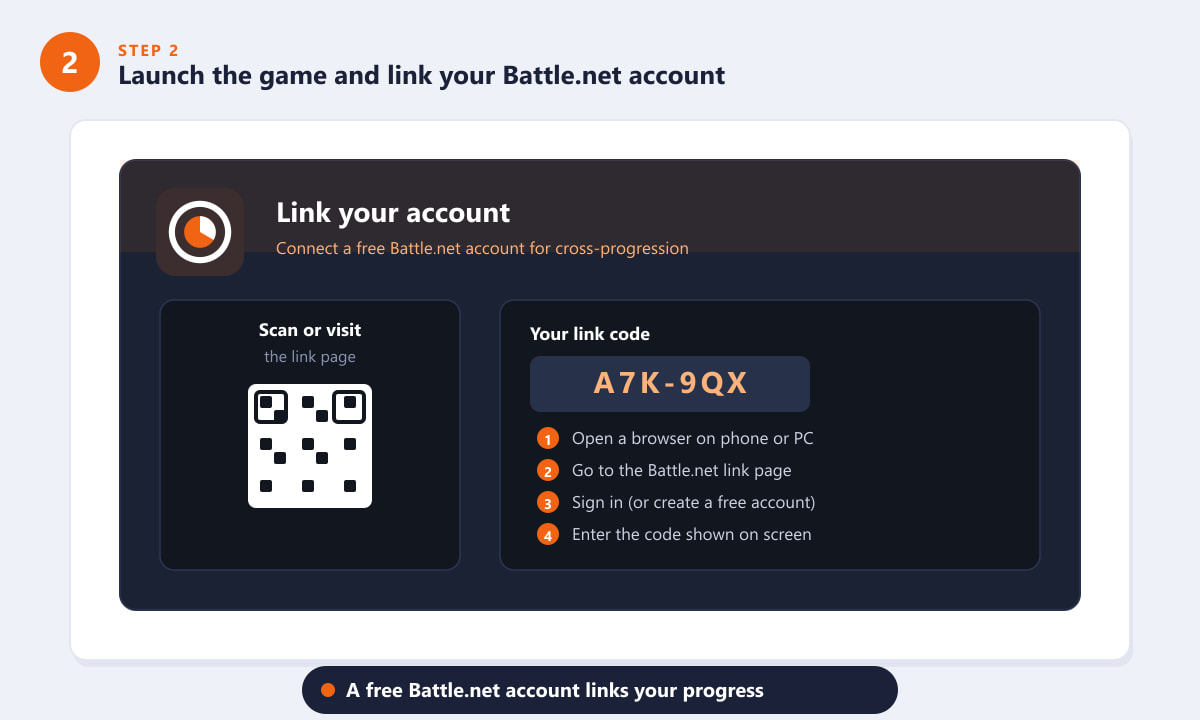
Link a free Battle.net account to unlock cross-progression and save your progress. -
Step 3: Tune your controller and aim settings
The Switch can be played with the Joy-Con or a Pro Controller. Because precise aiming is tougher with smaller sticks, head into the controls menu and turn on gyro aiming (motion controls) for far sharper accuracy, leave aim assist enabled, and adjust your sensitivity to taste. A few minutes here makes a big difference in how the game feels.
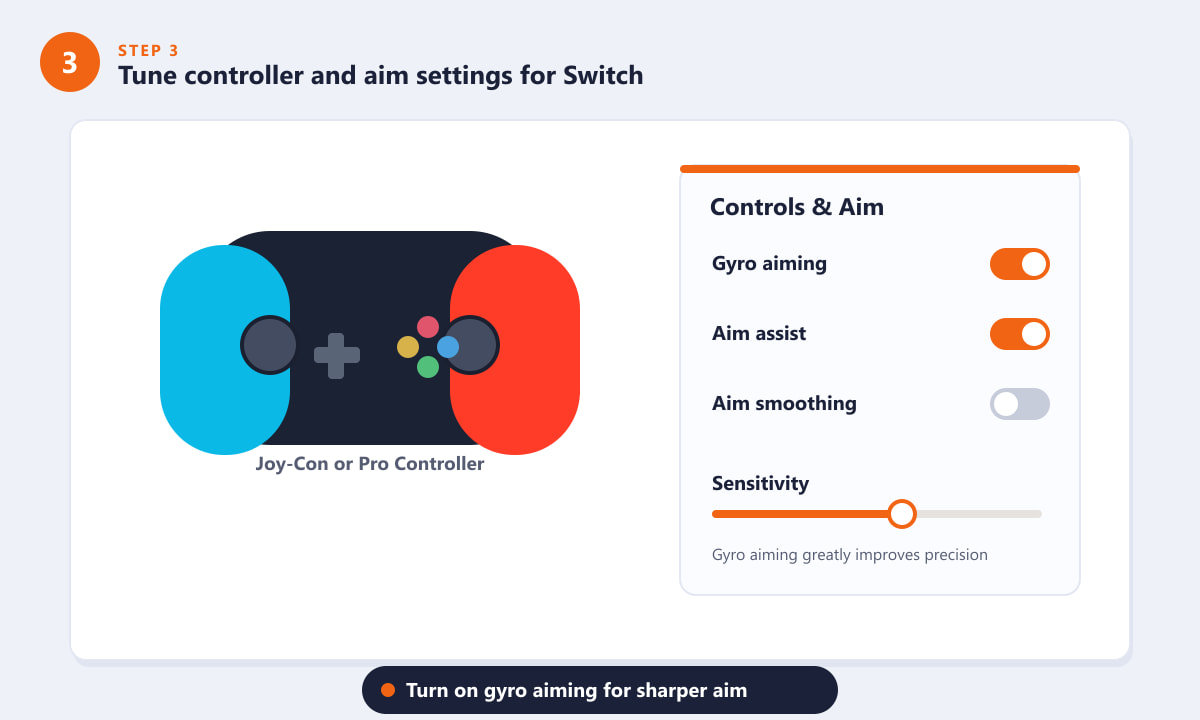
Enable gyro aiming and aim assist to get the most out of the Switch controls. -
Step 4: Enable cross-play and queue for a match
Overwatch 2 supports cross-play across Switch, PC, PlayStation, and Xbox, so you can party up with friends on any system. Make sure cross-play is enabled in the options, then choose a mode from the main menu, Quick Play is the friendliest place to start, and press Find Match to enter the queue.
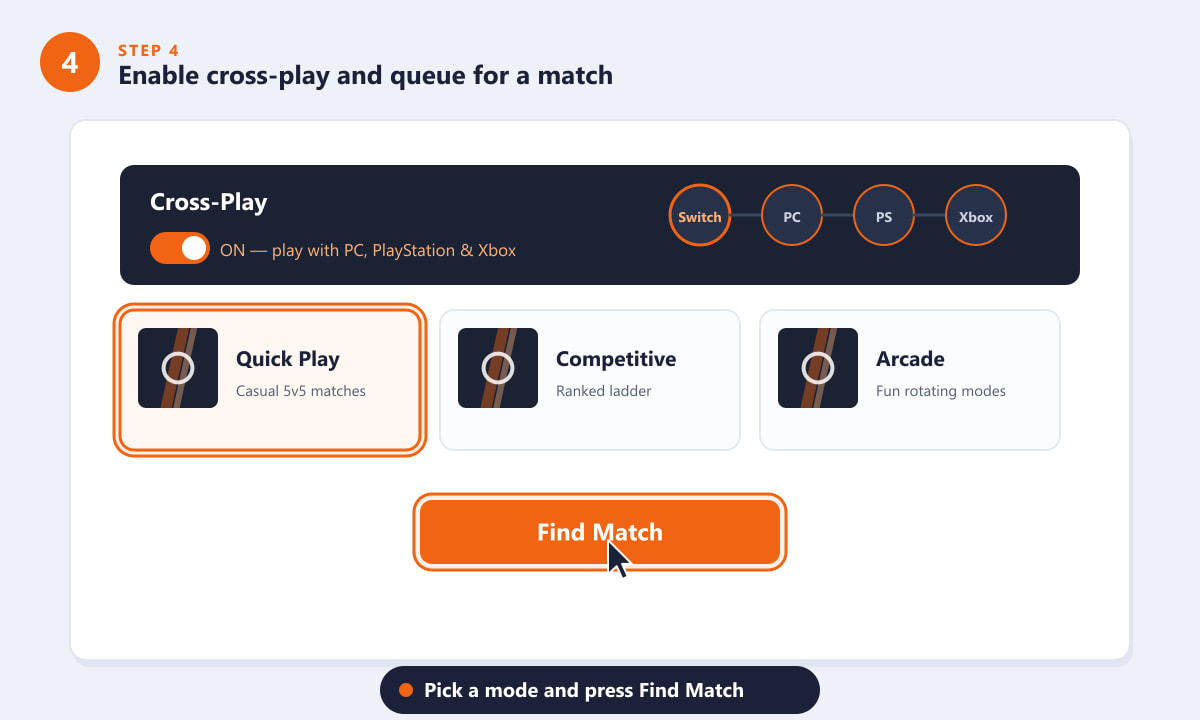
Turn on cross-play, pick a mode, and hit Find Match to start playing. -
Step 5: Get the best experience, docked or handheld
You can play Overwatch 2 anywhere in handheld mode, but for competitive matches the docked setup is ideal. Connect a wired LAN adapter for a steadier connection, keep the console plugged in since online play drains the battery, and remember that the Switch runs the game at a lower resolution to keep things smooth. With those tweaks, you're ready for serious play.
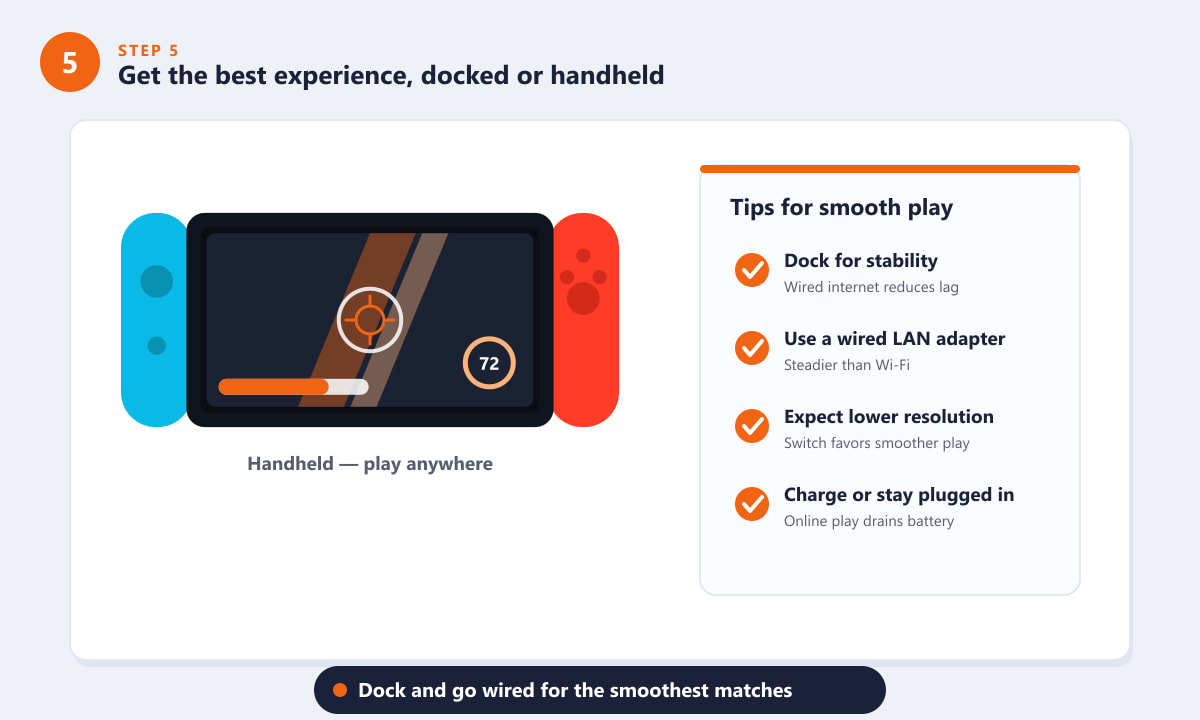
Dock the console and go wired for the smoothest, most reliable matches.
Tips for new Switch players
- Practice in the training range. Spend a few rounds learning each hero's abilities before jumping into live matches, the practice range is the perfect place to dial in your gyro sensitivity.
- Start with simpler heroes. Characters like Soldier: 76, Reinhardt, or Moira are forgiving while you get used to the controls.
- Lower your sensitivity at first. A slightly slower aim is easier to control on a smaller screen, and you can raise it as you improve.
- Use a headset. Hearing footsteps and ultimate callouts is a real advantage, especially in handheld mode.
Troubleshooting
The game won't let me play online
Confirm you're signed in to a Nintendo Account and connected to the internet. Overwatch 2 is online-only, so it can't be played offline. You do not need a paid Nintendo Switch Online subscription for this free-to-play game.
My Battle.net link code isn't working
Double-check the code on the game screen and make sure you're entering it on the official Battle.net link page in your browser. Codes can expire, so if it fails, request a fresh one from inside the game and try again.
Aiming feels difficult
Turn on gyro aiming and lower your stick sensitivity. Motion aiming lets you make fine adjustments with the controller itself, which most Switch players find far more accurate than sticks alone.
Frequently asked questions
Is Overwatch 2 free on Nintendo Switch?
Yes. Overwatch 2 is free to play on Switch. You can download it from the Nintendo eShop at no cost and start playing right away.
Do I need Nintendo Switch Online to play Overwatch 2?
No. As a free-to-play game, Overwatch 2 does not require a paid Nintendo Switch Online membership to play online, just an internet connection.
Does Overwatch 2 on Switch support cross-play?
Yes. Overwatch 2 features cross-play across Switch, PC, PlayStation, and Xbox, so you can team up with friends regardless of their platform.
Can I keep my progress if I also play on PC or console?
Yes. Linking a single Battle.net account enables cross-progression, so your heroes, cosmetics, and competitive rank carry over between every platform you play on.
How does Overwatch 2 perform on Switch?
The Switch version runs at a lower resolution and frame rate than other platforms to keep gameplay smooth. Playing docked with a wired connection gives you the most stable experience.
Final thoughts
Playing Overwatch 2 on Nintendo Switch is one of the easiest ways to jump into the hero shooter, especially since it's completely free. Download it from the eShop, link a Battle.net account to protect your progress, switch on gyro aiming, and enable cross-play to squad up with friends anywhere. For more details and the latest updates, check the official Overwatch website.