Playing League of Legends on Mac is fully supported and straightforward. Riot Games ships a native macOS client that runs on both Intel and Apple Silicon Macs, so you can go from zero to your first Summoner's Rift match in under an hour. This guide walks you through every step: downloading the installer, setting up your Riot account, tweaking graphics for smooth performance, and jumping into a game.
What you need before you start
- A Mac running macOS 10.13 (High Sierra) or later. Apple Silicon Macs (M1/M2/M3/M4) are fully supported via Rosetta 2 and native builds.
- At least 4 GB of RAM (8 GB recommended for comfortable play).
- Around 16 GB of free disk space for the game files.
- A stable internet connection for the download and while playing.
- A free Riot Games account — you can create one during setup.
How to play League of Legends on Mac
-
Step 1: Download the official Riot Games client
Open Safari or any browser and go to the official League of Legends website. Click the Download for macOS button to grab the installer. Always download from the official site to avoid third-party bundles. The file is a
.dmgdisk image of roughly 100 MB, and the full game downloads after installation.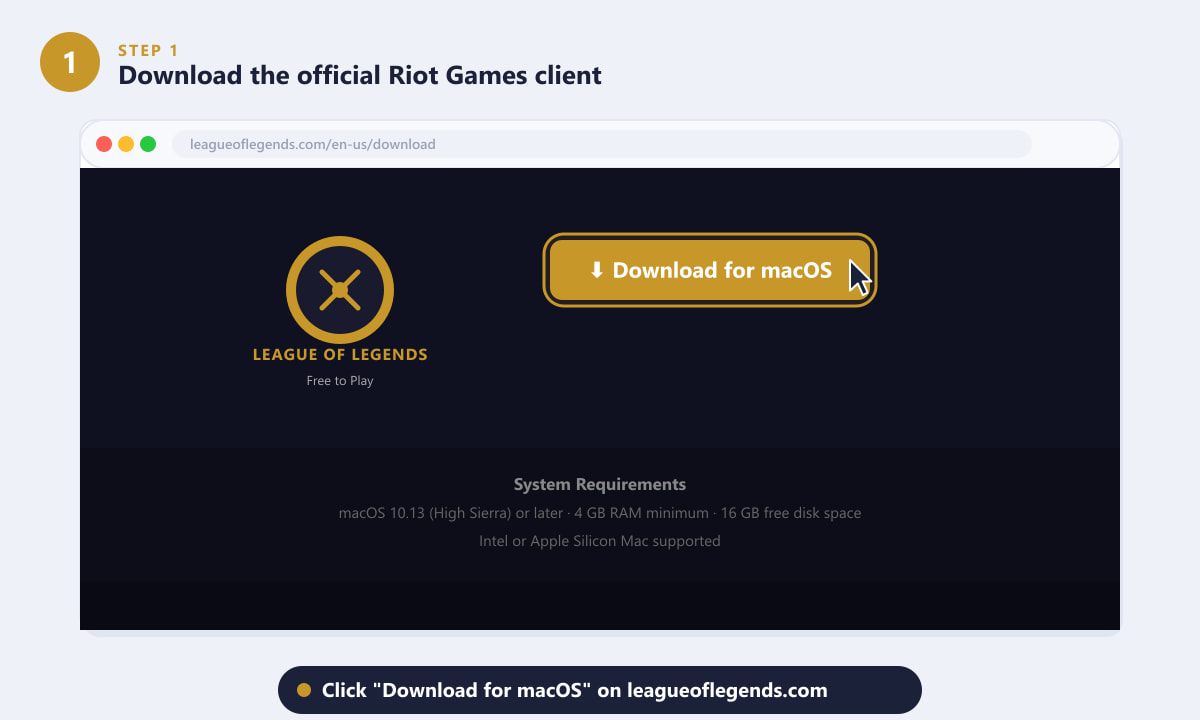
Visit leagueoflegends.com and click "Download for macOS" to get the installer. -
Step 2: Run the installer and allow macOS permissions
Once the
.dmgdownloads, double-click it in your Downloads folder or the toolbar. Drag the League of Legends app icon into your Applications folder when the window opens. Launch it from Applications — macOS may show a security prompt the first time. If it does, open System Settings → Privacy & Security and click Allow. The client then downloads the remaining game files automatically, which can take 15–30 minutes depending on your connection.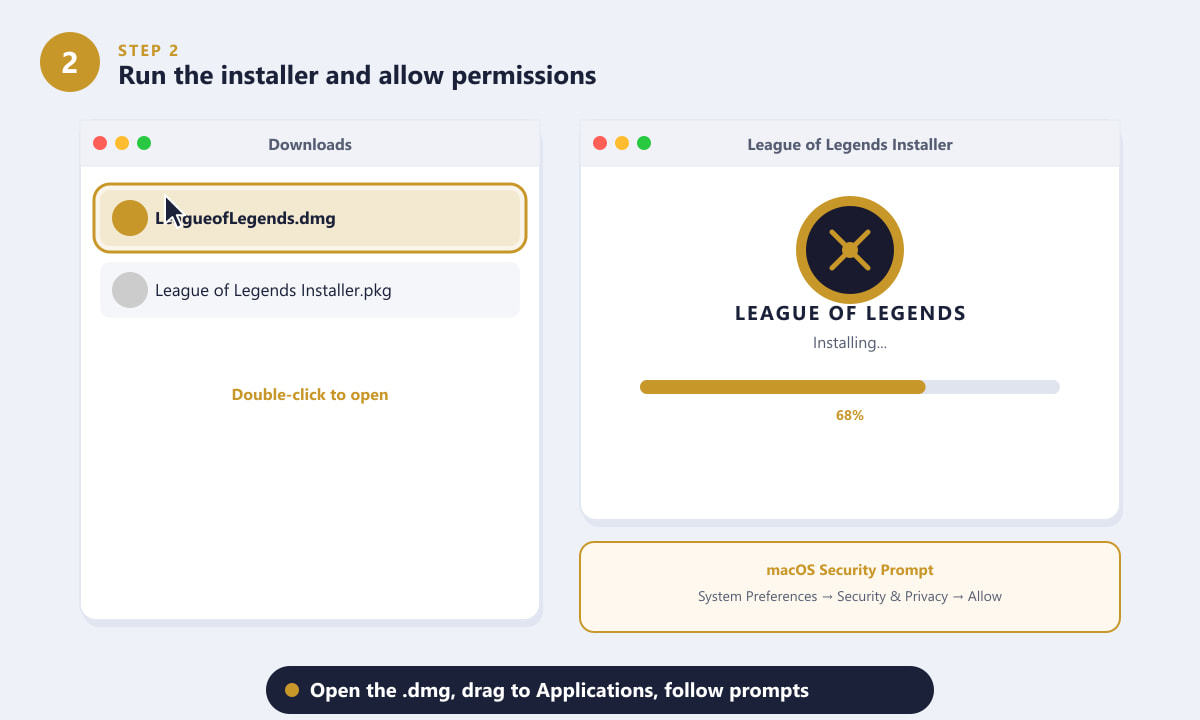
Open the .dmg, drag to Applications, then allow the app in macOS Security settings if prompted. -
Step 3: Sign in or create a Riot Games account
When the client finishes installing, it shows a login screen. If you already have a Riot account, enter your username and password and click Sign In. New to the game? Click the link below the sign-in button and you'll be taken to account.riotgames.com to register a free account — just an email address and a chosen summoner name. League of Legends is completely free to play; no payment is required to get started.
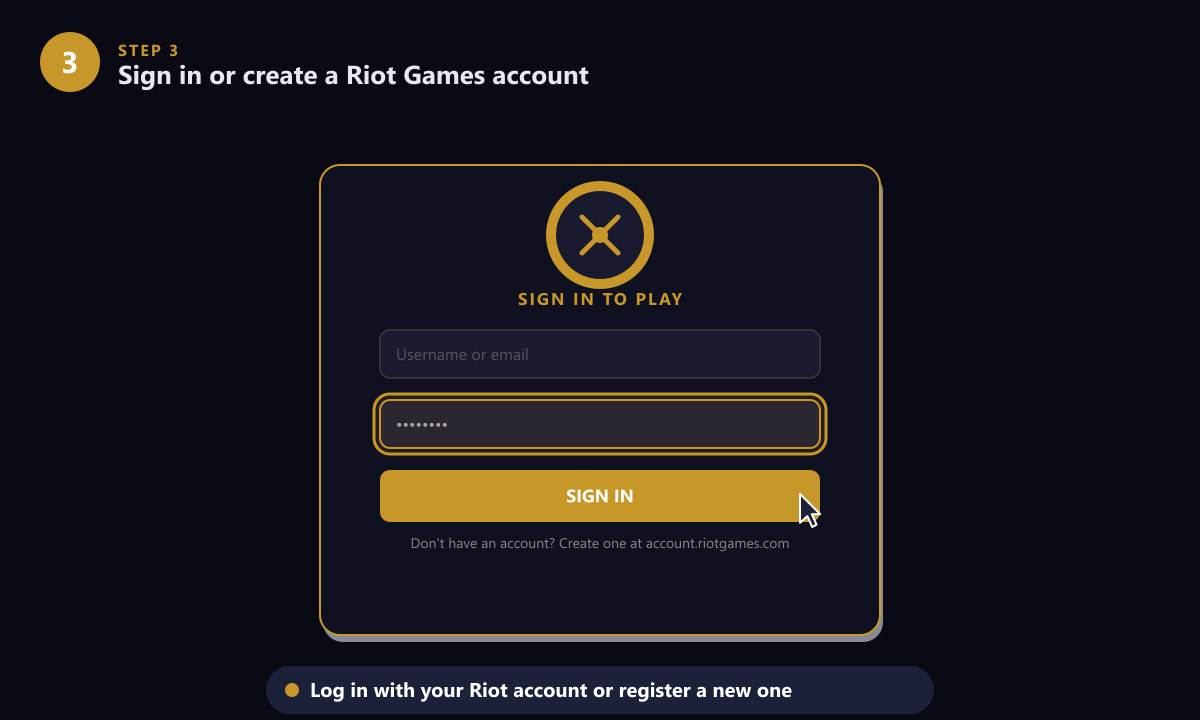
Sign in with your Riot account or create a free one at account.riotgames.com. -
Step 4: Adjust video and performance settings
Before queuing, click the Settings (gear) icon in the client, go to Video, and tune the options for your Mac's hardware. Set Graphics Quality to High on recent Macs, or drop it to Medium on older models. Turn V-Sync off to reduce input latency. If your Mac runs warm or the frame rate dips, enable Low Spec Mode — it cuts visual effects and can double your frames per second. Setting your resolution to your monitor's native resolution gives the sharpest image. Hit Apply when done.
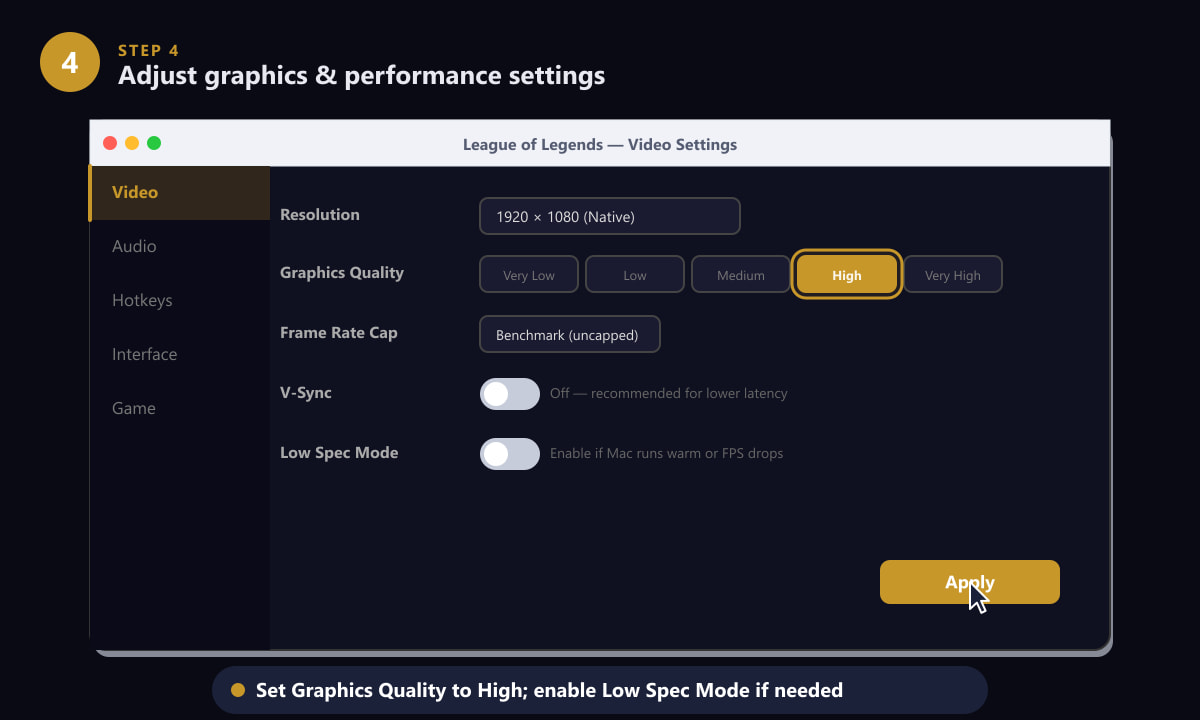
Set Graphics Quality to High and disable V-Sync; enable Low Spec Mode if your Mac runs warm. -
Step 5: Queue up and play your first match
Back on the home screen, click the large PLAY button. A mode selection panel appears. If this is your first time playing, choose Tutorial — it teaches movement, abilities, last-hitting, and the minimap in around 15 minutes. Once comfortable, queue for ARAM (a shorter, chaotic single-lane mode) or the classic Summoner's Rift 5v5 map. Select your preferred mode, confirm, and the client matches you with other players. A champion select phase follows, then the map loads and your match begins.
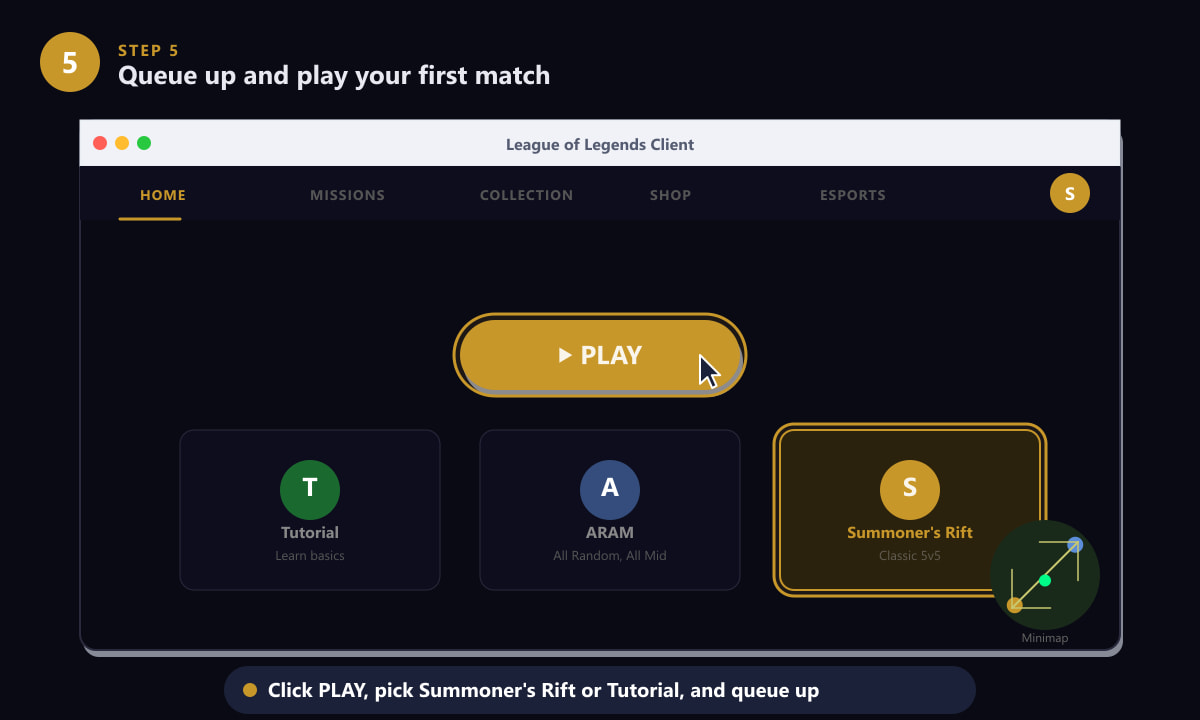
Click PLAY, pick a game mode (Tutorial is ideal for beginners), and queue for your first match.
Tips for a better experience on Mac
- Use a wired or strong Wi-Fi connection. League of Legends is sensitive to ping. A wired Ethernet adapter (via USB-C) can noticeably reduce your latency versus Wi-Fi.
- Close background apps before playing. Chrome tabs, video calls, and cloud sync apps all compete for RAM and CPU. Quitting them frees resources for smoother gameplay.
- Check for macOS updates. Riot regularly updates the client to support the latest macOS versions. Running the latest macOS generally improves compatibility and fixes Metal graphics issues.
- Plug in if you're on a laptop. Sustained gaming drains battery fast. Running on power keeps the CPU and GPU in their highest performance states and prevents thermal throttling.
- Enable High Frame Rate mode in Video Settings if your monitor supports more than 60 Hz — the cap defaults to 60 but the game can render at 144+ fps on capable hardware.
Troubleshooting common Mac issues
"League of Legends cannot be opened because it is from an unidentified developer"
Open System Settings → Privacy & Security, scroll down to the Security section, and click Allow Anyway next to the League of Legends entry. This is a standard macOS Gatekeeper check, not a sign the file is unsafe.
The game freezes or crashes at launch
Repair the client by opening the League of Legends app, clicking the settings cog in the top-right of the launcher, and choosing Initiate Full Repair. This re-checks and re-downloads any corrupt game files.
Very low frame rate even on a new Mac
Apple Silicon Macs run League through Rosetta 2, which is generally smooth, but check that your Mac is not in Low Power Mode (System Settings → Battery). Also lower your in-game resolution scale to 75% or enable Low Spec Mode in Video Settings.
High ping or disconnects
Move closer to your router or switch to a wired connection. You can also try switching your in-game server region in the Riot client settings to one geographically closer to you.
Frequently asked questions
Is League of Legends free on Mac?
Yes. League of Legends is completely free to download and play on Mac. The in-game store sells cosmetic items (skins, emotes, chromas), but all champions are earnable through regular play, and cosmetics never affect gameplay balance.
Does League of Legends work on Apple Silicon (M1/M2/M3/M4)?
Yes. Riot Games has supported Apple Silicon Macs for several years. The client runs via Rosetta 2 and performance is generally excellent, with many players reporting higher frame rates on M-series chips than on comparable Intel Macs.
What are the minimum Mac system requirements for League of Legends?
Riot's minimum specs are macOS 10.13 or later, a dual-core 2 GHz processor, 4 GB of RAM, and a GPU with at least 512 MB of VRAM. For a comfortable experience at medium settings, an 8 GB RAM Mac with a recent integrated or discrete GPU is a better baseline.
Can I use a controller to play League of Legends on Mac?
League of Legends is designed around mouse and keyboard. There is no official controller support, and the precision of click-to-move gameplay makes mouse input strongly preferable. Most players use a standard two-button mouse with scroll wheel.
How do I keep the game updated on Mac?
The League of Legends client patches itself automatically when you launch it. If a new patch is available, the launcher downloads and installs it before the Play button becomes available. No manual action is needed — just open the client before each play session.
Final thoughts
Getting League of Legends running on a Mac is a straightforward process: download the .dmg, install it, sign in, adjust a few settings for smooth performance, and you're ready to play. The game is free, well-supported on macOS, and the built-in Tutorial is genuinely good at teaching you the basics. For more details on the Mac client, visit the official League of Legends website.