How to Play Fortnite on Nintendo Switch
To play Fortnite on Nintendo Switch, download the free game from Nintendo eShop, connect an Epic Games account, and join a mode from the lobby. You need an internet connection and an Epic account, but Nintendo Switch Online is not required for Fortnite. The steps below cover the download, account linking, Joy-Con controls, optional gyro aiming, and your first Battle Royale match.
Fortnite and its menus change over time, so the eShop’s current storage requirement and the options shown in your lobby are the best guides for your console and region. This walkthrough focuses on Nintendo Switch, Switch Lite, and Switch OLED. The accompanying images show the hardware and actions; menu artwork is illustrative, so use the live labels on your console for exact selections.
What you need to play Fortnite on Switch
- A Nintendo Switch, Switch Lite, or Switch OLED with its system software updated.
- A Nintendo Account to open Nintendo eShop.
- A reliable internet connection. Fortnite requires an active connection to play.
- Enough free console or microSD card space for the current download and updates. The required size can change, so check the Fortnite listing in your eShop before starting.
- An Epic Games account. If you already play on another platform, use the Epic account that holds your progress and cosmetics.
You do not need a paid Nintendo Switch Online membership to play Fortnite online. Nintendo lists Fortnite among the games that work online without that subscription. The game is free to download; optional purchases such as V-Bucks and passes are not required to start playing.
How to play Fortnite on Nintendo Switch: 8 steps
-
1. Connect your Switch to Wi-Fi and check storage
From the HOME Menu, open System Settings and connect to a Wi-Fi network you can use for a large download. Check your available storage under Data Management. If space is tight, archive software you are not playing or use a compatible microSD card; you can redownload archived games later. Keep the console close to the router and connect it to power during the initial download and any updates.
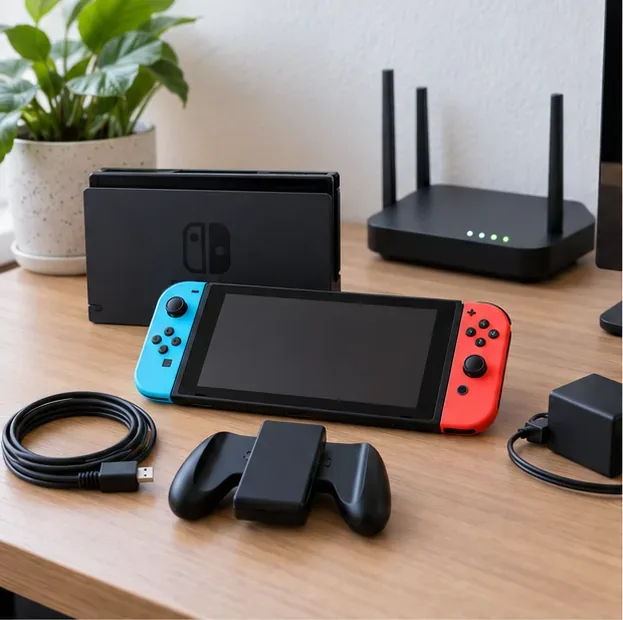
Check that the console is online and has room for the current Fortnite download. -
2. Open Nintendo eShop
Choose the Nintendo eShop icon from the HOME Menu and select the Nintendo Account profile you want to use. If you have not created or linked a Nintendo Account, follow Nintendo’s prompts first. The account used here should be the one you want associated with your Switch profile.
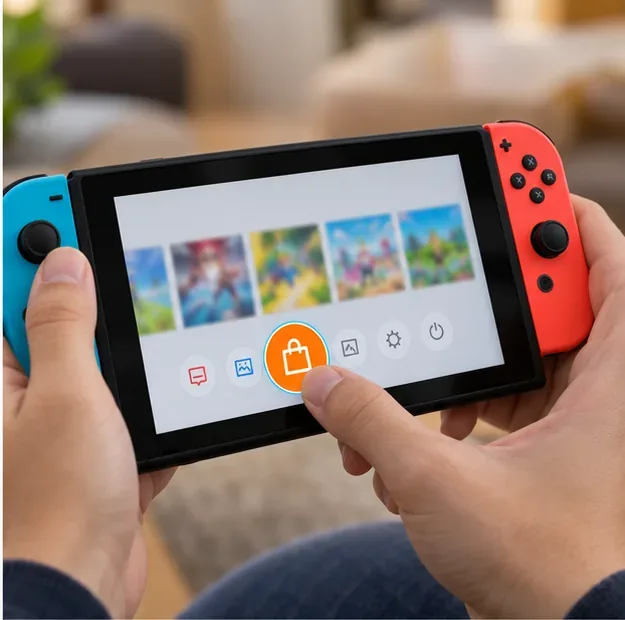
The Nintendo eShop icon opens the console’s digital storefront. -
3. Find Fortnite and download it for free
In eShop, open Search or Browse, search for Fortnite, and choose the listing published by Epic Games. Select Free Download, then confirm it on the next screen if prompted. The download begins on the console; let it finish and install any update before launching the game. Check the live eShop listing for the storage amount rather than relying on a fixed number from an older guide.
Epic’s current Fortnite download instructions for Nintendo Switch follow the same eShop search and free-download flow. If eShop reports insufficient space, use Nintendo’s storage troubleshooting steps.
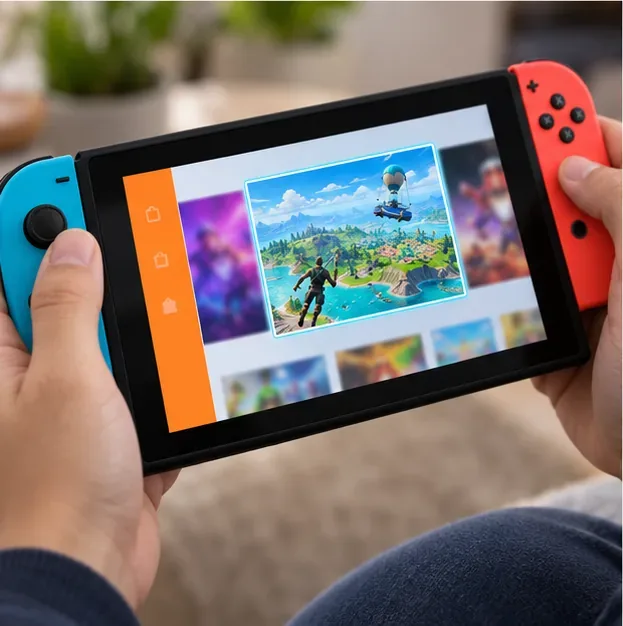
The pictured storefront tile is illustrative; confirm the Epic Games publisher on the live eShop listing before downloading. -
4. Sign in with the Epic account you want to keep
Launch Fortnite after installation and follow the account prompts. If you already have Fortnite progress on PC, PlayStation, Xbox, or another supported device, make sure your Nintendo Account is linked to that same Epic Games account. Epic recommends linking an existing account before launching Fortnite on Switch so you do not accidentally begin with a different account.
If this is your first time playing, complete the account setup shown in the game. If you are unsure which Epic account is connected, pause before creating another one and check Epic’s Nintendo account linking and progress-sync guide. Progress from separate Epic accounts cannot simply be merged, so choose carefully.
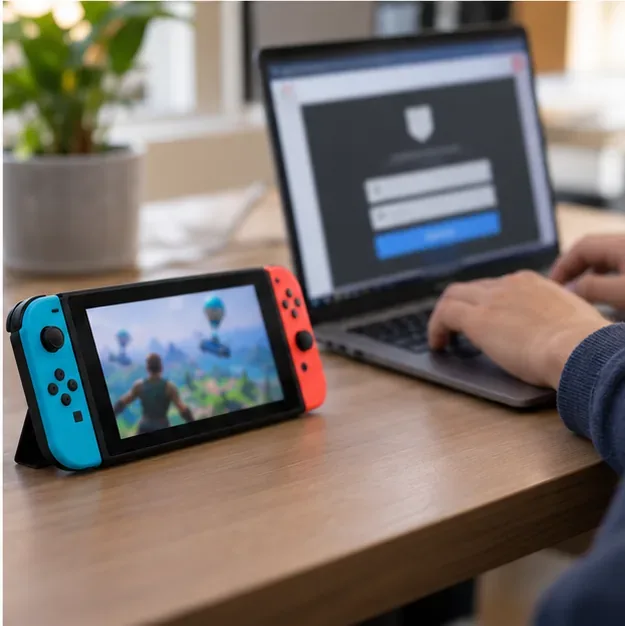
Link the Nintendo account to the Epic account that contains the progress you want to use. -
5. Set up the Joy-Con or controller mapping
From the Fortnite lobby, press the + button to open the game menu, choose Settings, and go to the Controller Mapping page. Epic lists presets such as Old School, Quick Builder, Combat Pro, Builder Pro, and Custom. Start with a preset, apply it, and use the on-screen control map to learn the current button assignments. The mapping can differ by preset and can change after updates, so avoid memorizing an old button chart.
Choose a layout that feels comfortable for moving, aiming, jumping, reloading, and building. If you use Custom, change a few controls at a time and test them in a low-pressure mode before relying on them in a match. Epic’s controller configuration guide shows where to find these settings.
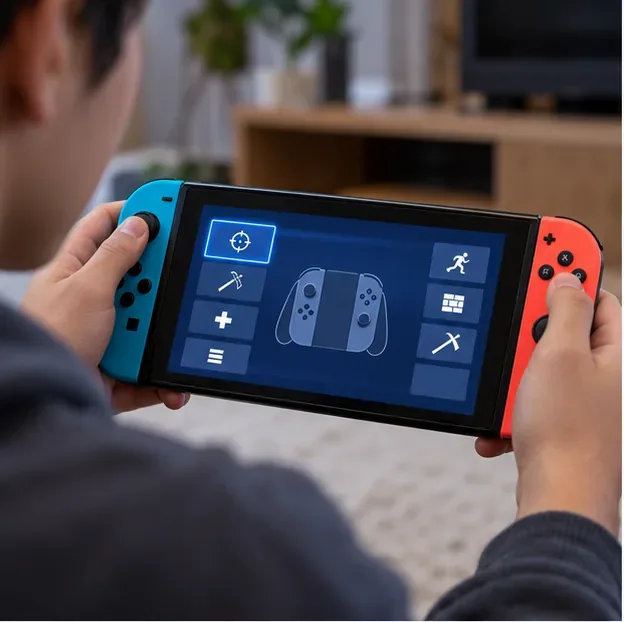
The pictured controller screen is illustrative; open the live Controller Mapping page for the current labels and assignments. -
6. Try gyro aiming if you want motion controls
Gyro aiming lets you make fine aim adjustments by moving the controller or handheld console. To try it, open Fortnite Settings and select Touch and Motion; under Gyro Options, turn Gyro Aiming on. Start with a low sensitivity and adjust gradually. If motion aiming feels distracting, turn it off and use the right stick alone.
Epic notes that Aim Assist is disabled while gyro is active, so test the tradeoff before settling on your preferred setup. See the official Fortnite gyro settings instructions for the current menu path.
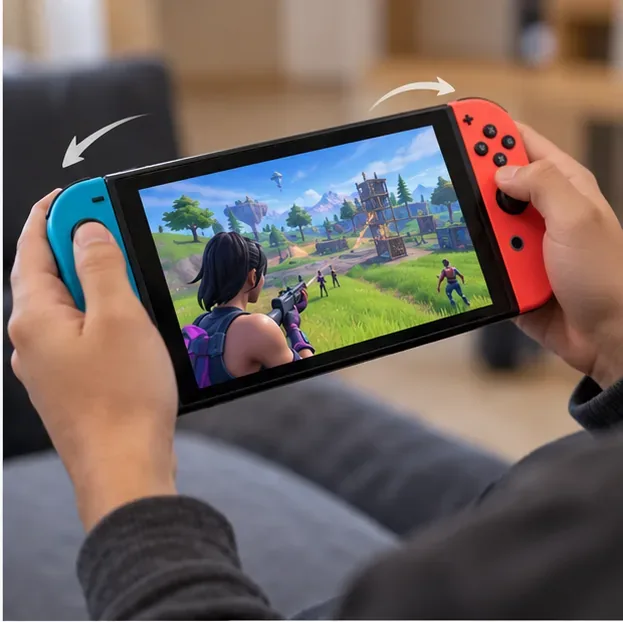
The arrows illustrate tilt direction; they are not part of Fortnite’s on-screen interface. -
7. Choose a mode and invite friends
From the lobby, select Battle Royale or another experience that is available in the current Discover menu. Choose a solo queue or a party size shown in the lobby, then ready up. To play with friends, add or invite them by their Epic display name and make sure everyone has finished updates and account setup.
Fortnite supports cross-platform parties, but Epic currently says cross-play cannot be disabled on Nintendo Switch. You can still play solo or choose who to invite; the console does not provide a Switch-only matchmaking toggle. The available playlists can rotate, so use the options displayed in your game rather than relying on a fixed list.
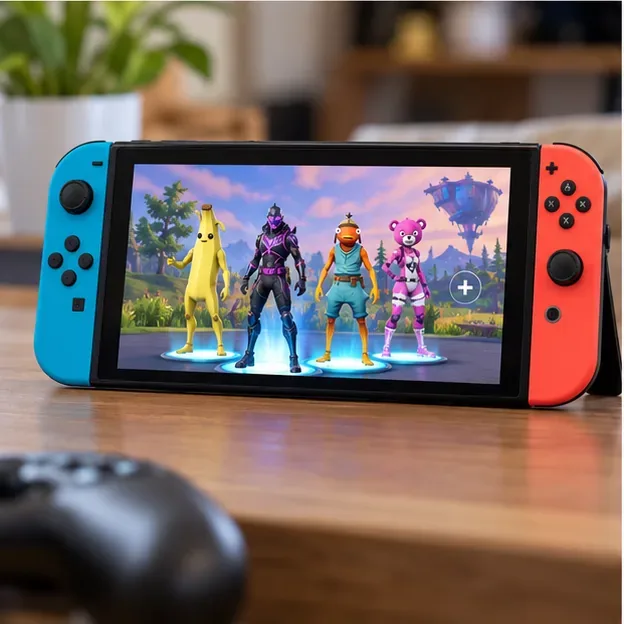
Party up from the lobby with friends on Switch or other supported platforms. -
8. Drop in, loot, and keep an eye on the storm
When the match begins, choose when to leave the Battle Bus and steer your glider toward a landing area. A quieter spot gives a new player more time to learn the map and collect gear. Search buildings and containers for weapons, healing items, and supplies, then watch the map for the storm’s safe zone and move before it closes in.
In modes with building enabled, gather materials and place simple cover when you need protection or time to heal. Other playlists may change or limit building, so follow the rules of the mode you selected. Fortnite is a last-player-or-team-standing game: stay alert, use cover, and keep moving with the safe zone.
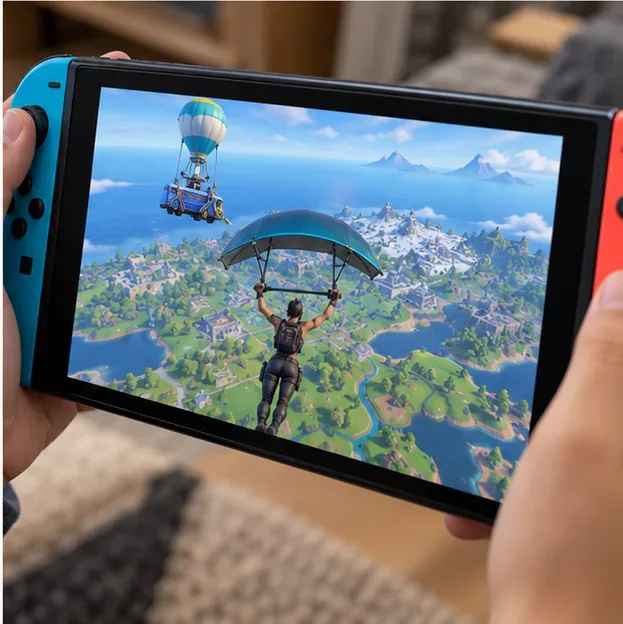
Glide toward your landing spot, then start looting while keeping the storm zone in view.
Useful Fortnite on Switch tips
- Use handheld, tabletop, or TV mode. Switch and Switch OLED support all three play styles; Switch Lite is designed for handheld play. The game experience is the same, though the screen size and controls feel different.
- Keep the Epic account consistent. Items and progress are shared across platforms linked to the same Epic account. However, V-Bucks bought on Nintendo Switch do not transfer to other platforms, and V-Bucks bought elsewhere do not appear on Switch.
- Expect cross-platform matchmaking. Switch players can join friends on other platforms, and cross-play cannot currently be switched off from Nintendo Switch.
- Use the current in-game map and settings. Fortnite menus, playlists, and control options can change with updates. The live lobby and settings pages are more reliable than a static control chart.
Troubleshooting Fortnite on Nintendo Switch
Fortnite will not download
Check the available storage shown in Data Management, confirm the console is online, and retry from the Fortnite eShop listing. If a download appears stuck, restart the console and check for a system update. For a specific eShop error, use Nintendo’s support instructions; for a Fortnite launch error, consult Epic’s console troubleshooting guide.
My skins or progress are missing
Check that the Nintendo Account is linked to the Epic Games account you used on your other platform. Sign out and verify the account before unlinking anything; changing linked accounts can make recovery harder. Remember that purchased V-Bucks are the main platform-specific exception. Epic explains which Fortnite items and balances are shared.
Frequently asked questions
Is Fortnite free on Nintendo Switch?
Yes. Fortnite is free to download and play. Optional purchases are available, but you do not need V-Bucks, a pass, or paid add-ons to install the game and join a free mode.
Do I need Nintendo Switch Online to play Fortnite?
No. A Nintendo Switch Online membership is not required for Fortnite online play. You still need an internet connection, a Nintendo Account for eShop, and an Epic Games account for Fortnite.
Can I play Fortnite on Switch Lite?
Yes. Fortnite can be played in handheld mode on Switch Lite, as well as handheld, tabletop, and TV modes on compatible Switch models.
Do Fortnite cosmetics and V-Bucks carry over to other platforms?
Cosmetics and game progress generally follow the Epic Games account linked to each platform. Purchased V-Bucks are an exception for Nintendo Switch: they remain tied to the Nintendo platform and are not shared with other platforms.









