How to Play Clash of Clans on PC (2026 Guide)
You can play Clash of Clans on PC through Google Play Games for Windows, the official PC route supported by Supercell. Install Google's PC app, find Clash of Clans in its game catalog, and sign in to your existing Supercell ID to load your village. The game is free to download, with optional in-game purchases. You do not need a separate Android emulator for the official setup.
This guide follows Google's current setup requirements and Supercell's latest account-menu layout. The interface images below are illustrative; button placement and wording may change as the apps update.
What you need to play Clash of Clans on PC
Google Play Games on PC runs on Windows. Google currently lists these minimum requirements; passing them does not guarantee that every game will run well on every PC.
| Requirement | Google's listed minimum |
|---|---|
| Operating system | Windows 10, version 2004 |
| Storage | SSD with at least 10 GB available |
| Memory | 8 GB RAM |
| Processor | Four physical CPU cores |
| Graphics | Intel UHD Graphics 630 or comparable |
| Other | Windows administrator account and hardware virtualization enabled |
You also need a personal Google Account and a Play country set to a supported region. Google may ask you to enable Windows Hypervisor Platform during setup or CPU virtualization in BIOS/UEFI. Check Google's current PC requirements and region list before installing.
How to play Clash of Clans on PC: step-by-step
-
Step 1: Check your PC and Google Play region
Compare your computer with the requirements above, confirm that you have administrator access, and make sure your Google Play country is supported. If you are unsure whether virtualization is enabled, start the installer and follow Google's prompt instead of guessing which BIOS key your computer uses.
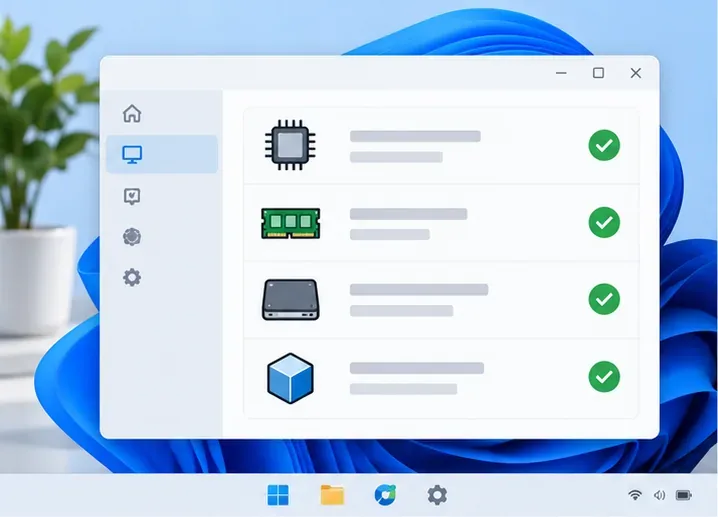
Check processor, memory, storage, and virtualization before installing the PC app. -
Step 2: Download Google Play Games for Windows
On your Windows PC, open Google's official Google Play Games page and select Download. Open the downloaded installer and follow its prompts. Installation can take a few minutes. If Windows asks to enable Windows Hypervisor Platform, allow the change and restart when prompted. Google notes that other emulators might not work while this Windows feature is enabled.
Download the PC app from Google's official page, then run its Windows installer. -
Step 3: Sign in to your Google Account
Open Google Play Games and sign in with a personal Google Account. If you want to use Google Play Games across devices, Google recommends signing in with the same account on your PC and mobile device. This Google sign-in sets up the PC game service; it may not be the same sign-in that protects your Clash of Clans village. For a reliable village restore, use the Supercell ID already connected to that village in the game.
-
Step 4: Find and install Clash of Clans
Use the catalog search box to look for Clash of Clans. Choose the result published by Supercell, check that you have the right game, and click Install. The official Google Play listing identifies Clash of Clans as playable on a Windows PC through Google Play Games. The download is free; optional purchases remain available in the game.
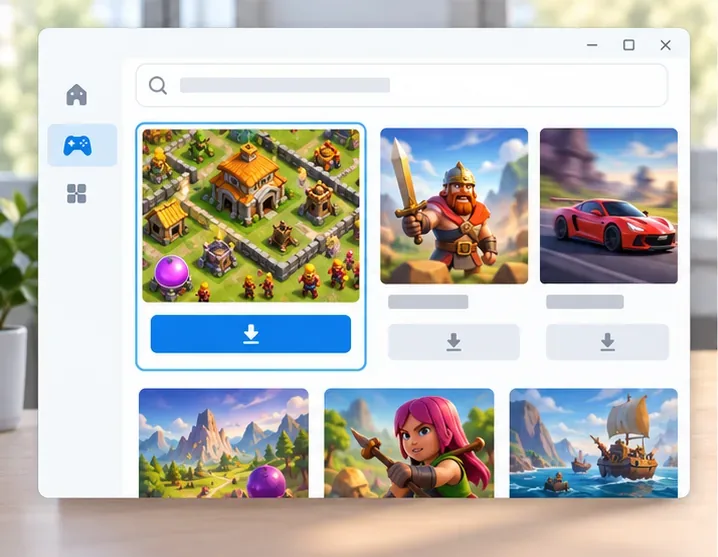
Choose the Clash of Clans listing from Supercell in the PC game catalog. -
Step 5: Load your village and start playing
Launch the game after installation. If you already have a village, sign in with the Supercell ID linked to it and enter the email verification code that Supercell sends you. In the current Clash of Clans interface, open the Profile button at the top left, then Settings, to reach Supercell ID and account switching. Supercell's recent interface update moved Settings into Profile, so older instructions that say to open Settings directly may no longer match your screen.
If the game opens to a fresh village, pause and confirm that you used the correct Supercell ID before continuing. Supercell ID is designed to protect progress and let you return to your game on another device. Never share its verification code. On PC, use your mouse for the game's point-and-click controls; rely on keyboard actions only when Google Play Games displays a supported control for the game.
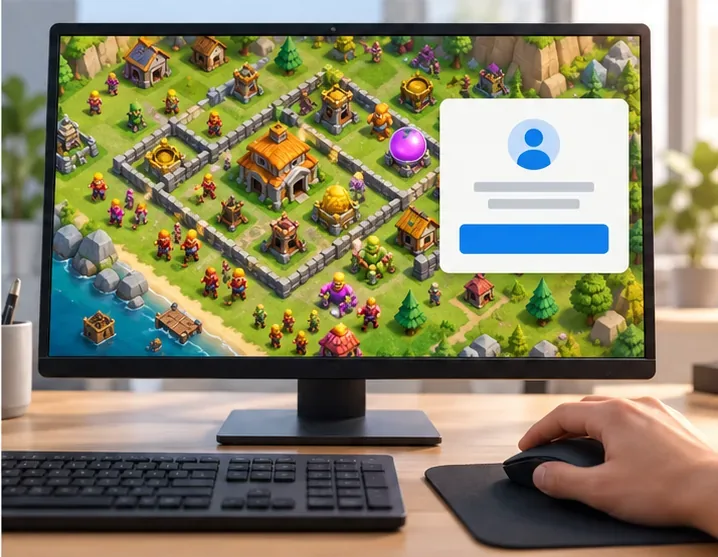
Sign in to the Supercell ID that owns your village, then use the mouse to navigate the PC version. For details about the current menu, see Supercell's Clash of Clans interface update. Learn how Supercell ID protects game progress on the official Supercell ID page.
Fix common Clash of Clans PC setup problems
Google Play Games says the PC is incompatible
Check the operating system, SSD space, RAM, CPU, administrator access, and hardware virtualization against Google's requirements. Availability also depends on your Play country and account type. If setup requests Windows Hypervisor Platform, turn it on and restart; consult your PC manufacturer's instructions for BIOS/UEFI virtualization settings.
The Clash of Clans listing or Install button is missing
Check that Google Play Games is available in your region and that the Google Account's Play country is set to a supported region. Open the official Clash of Clans PC listing to confirm PC availability, then try searching again in the Windows app.
Your village does not appear
A new base usually means the game is not connected to the account that owns your saved village. Open Profile, then Settings, and check the Supercell ID. Sign in with the email connected to your original village. If you used Google Play Games on Android, also confirm that the PC app is using the matching Google Account. Do not share verification codes with anyone.
The game will not install or runs poorly
Restart the PC, install available Windows and graphics updates, close resource-heavy programs, and check that the PC still meets Google's requirements. For error-specific steps, use Google's Google Play Games troubleshooting guide.
Clash of Clans on PC: quick answers
Is Clash of Clans free on PC?
Yes. Clash of Clans is free to download and play through Google Play Games, with optional in-game purchases.
Do I need BlueStacks or another emulator?
No. Google Play Games for Windows is the official PC route for Clash of Clans. A third-party emulator is not required to install or play the supported PC version.
Can I play the same village on PC and mobile?
Yes. Sign in to the Supercell ID connected to your village on both devices. Google Play Games also recommends using the same Google Account across PC and mobile, but use the correct in-game account to restore your Clash progress.
Can I use this method on a Mac?
No. Google Play Games on PC is a Windows app, so these steps are for Windows computers.









