How to Play Brawl Stars on a Chromebook (2026)
Yes, you can play Brawl Stars on a Chromebook when your model supports Android apps and Google Play marks the game as compatible. Install the official Android app from the Google Play Store; you do not need an emulator on a supported Chromebook. Availability is not universal: Google says Play Store support exists on only some Chromebook models, and a school or work administrator can block Android apps.
The safest way to check is to look for the Play Store option in ChromeOS Settings and then search for the game in the store. If either the Play Store setting or the game’s Install button is missing, your device or account may not be eligible. This guide shows the official setup, how to recover your game progress, and what to expect from touch and keyboard controls.
Before you install Brawl Stars on a Chromebook
- A Chromebook model that supports Android apps and has Google Play enabled.
- A Google account signed in to ChromeOS, plus an internet connection.
- Enough free storage for the current game download and its updates. Check the live listing because app sizes can change.
- Optional: the Supercell ID already linked to your Brawl Stars account if you want to continue existing progress.
Update ChromeOS before troubleshooting app availability. Google's Chromebook Android app guide explains eligibility and the current setup path.
How to play Brawl Stars on a Chromebook
-
Step 1: Check Chromebook support and update ChromeOS
Select the time in the lower-right corner, open Settings, then choose Apps and Manage Google Play preferences. If you see the option, open it and follow the setup prompts. If it is missing, Google says the Chromebook does not support Android apps; on a managed school or work device, an administrator may also restrict Play Store access. Install any available ChromeOS updates, then check again.
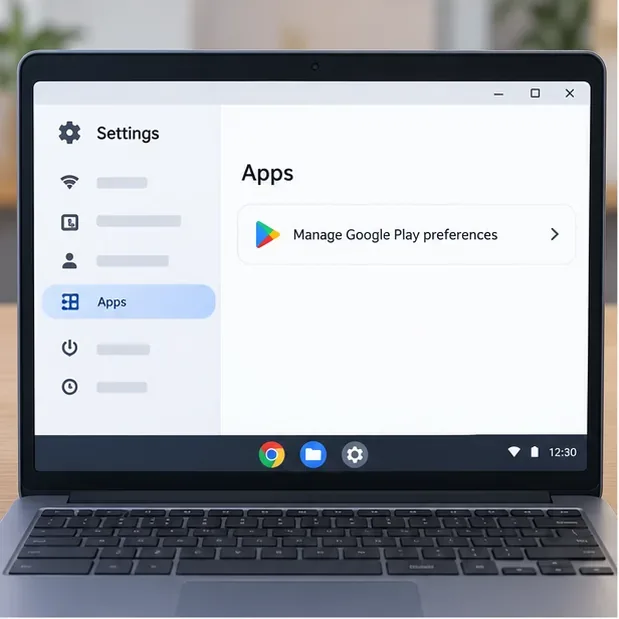
The settings path shown is the current Google help path; Play Store availability still depends on the Chromebook and its administrator. -
Step 2: Open Google Play and find the official game
Open the Launcher, start the Google Play Store, and search for Brawl Stars. Choose the listing published by Supercell. Use the official Google Play listing if you want to compare the developer name. Do not install a similarly named app or an APK from a download site.
If the game does not appear or Play Store says it is unavailable, the listing may not support that Chromebook configuration. Google notes that some Android apps cannot be downloaded to some Chromebooks, even when the Play Store itself is available.
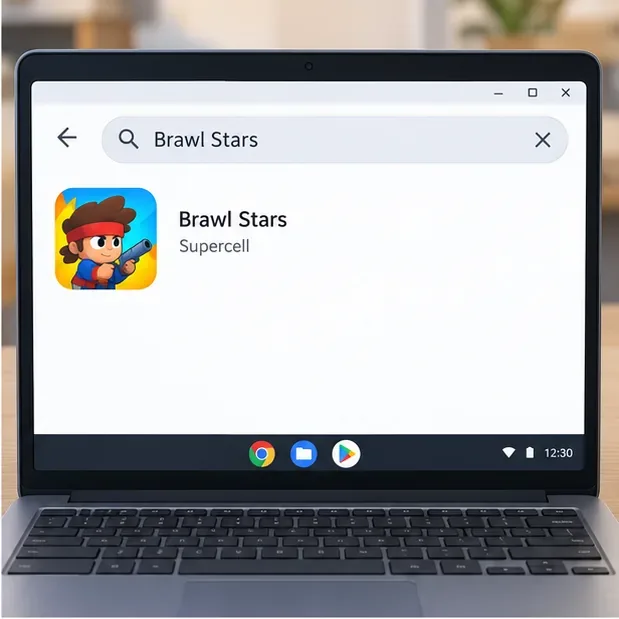
This is an instructional illustration, not a live store capture. On your device, verify that the real listing names Supercell as publisher. -
Step 3: Install the game and launch it from the Launcher
Select Install on the official listing and wait for the download to finish. The time and storage required depend on your connection and the current app version. Once installed, open the Launcher and select Brawl Stars. You can right-click the app icon to pin it to the shelf for quicker access.
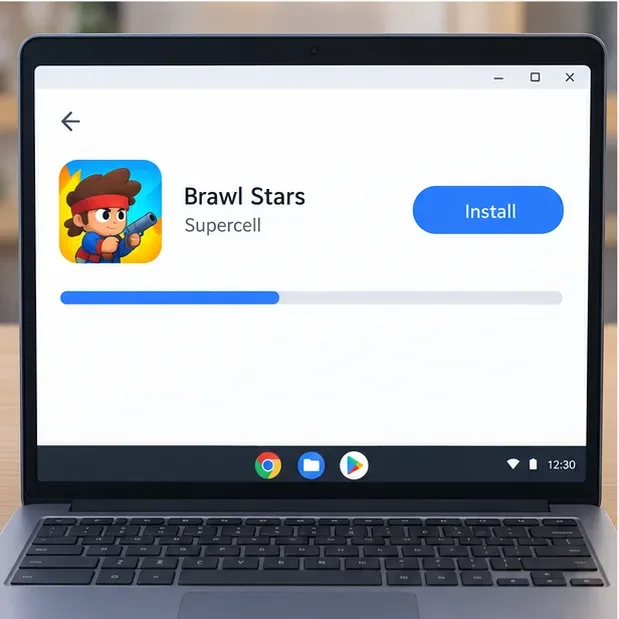
The install button and progress bar are illustrative; the live listing and download progress can look different. -
Step 4: Sign in to the right Brawl Stars account
On first launch, follow the in-game prompts. To continue an existing account, sign in with the same Supercell ID connected to that account. Supercell says Supercell ID can restore game progress on a new device. If your old device is still available and the account is not linked, connect it there before switching devices. Avoid starting a separate account if your goal is to recover an existing one. For login problems, use Brawl Stars’ in-game Help and Support.
Supercell explains account recovery and device access on its Supercell ID page.
-
Step 5: Choose touch or supported Chromebook keyboard controls
A touchscreen Chromebook gives you the most phone-like way to use Brawl Stars’ on-screen controls. On a non-touch model, a trackpad or mouse may interact with some app elements, but that does not guarantee desktop-style movement and aiming. Do not assume WASD and mouse controls work automatically.
ChromeOS has a keyboard-mapping feature for compatible Android games. If a Game Dashboard appears while Brawl Stars is open, open its Controls section and check whether you can set up mappings for the on-screen joystick or buttons. Google documents this feature in its Chromebook gameplay controls guide. The available controls depend on the game and device; if no mapping option appears, use touch controls on a supported touchscreen or play on a supported phone or tablet.
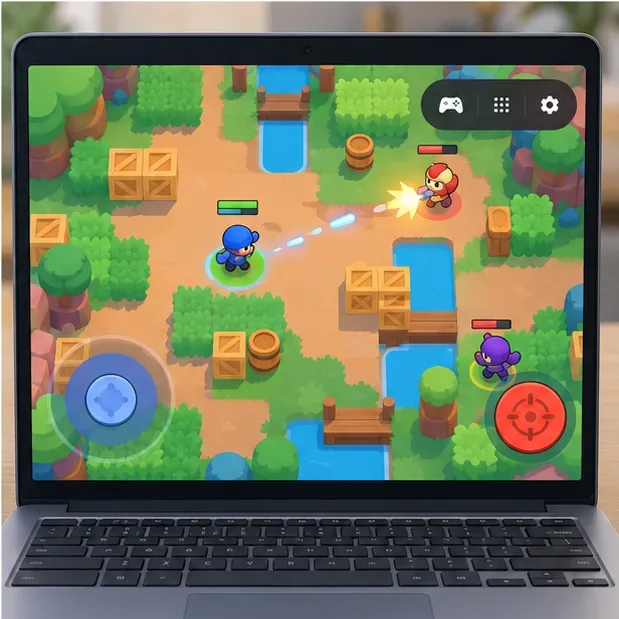
The arena and controls are a generic illustration. Brawl Stars’ actual screen and Chromebook input options can differ.
Tips for smoother matches
- Use a reliable Wi-Fi connection; Brawl Stars matches are online, so network interruptions can feel like game lag.
- Close unused tabs and apps if the Chromebook is low on memory, then restart it if performance remains choppy.
- Keep ChromeOS and Brawl Stars updated, and check the game’s current Play Store listing for storage needs.
- Try the app’s available window sizes or fullscreen mode to find a comfortable view. Controls and window behavior can vary by Chromebook.
- Keep the Chromebook plugged in during longer sessions if battery life is a concern.
Fix common Brawl Stars Chromebook problems
The Google Play Store option is missing
Install the latest ChromeOS update, then check Settings > Apps again. If the option remains unavailable, your model may not support Android apps. If the Chromebook belongs to a school or employer, ask the administrator whether Play Store access is restricted. There is no supported setting that can make an incompatible model eligible.
Brawl Stars does not appear or cannot be installed
Confirm you are viewing the official Supercell listing and check whether Google Play marks it as compatible with your device. Some apps are unavailable on certain Chromebook models. Avoid sideloading APKs or third-party emulators as a workaround; they are not the official ChromeOS install route.
The game stutters or disconnects
First separate network trouble from device performance: reconnect to a stable Wi-Fi network, close unused apps, update the game and ChromeOS, and restart the Chromebook. If the Play Store itself is failing, Google recommends checking the connection, updating ChromeOS, and restarting the device in its Play Store troubleshooting guide.
Your trophies or Brawlers are missing
Open the in-game account settings and confirm you signed in with the same Supercell ID used on your previous device. If you still cannot restore the account, contact Supercell through in-game Help and Support rather than creating another account and assuming progress will merge.
Frequently asked questions
Is Brawl Stars free to play on a Chromebook?
The Google Play listing describes Brawl Stars as free to download and play, with optional in-app purchases. The same purchase terms apply on a Chromebook using the Android app.
Do I need an emulator to play Brawl Stars on a Chromebook?
No, if the Chromebook supports Google Play and the game is compatible with it. Install the official Android app. If the Play Store or game is unavailable for your device, use a supported device instead of relying on unofficial APKs or emulators.
Can I play Brawl Stars with a Chromebook keyboard?
Possibly. ChromeOS offers keyboard mapping for compatible Android games, but a Brawl Stars mapping is not guaranteed on every Chromebook. Check the Game Dashboard controls while the game is open; use touch controls if mapping is unavailable.









